The reuse library is enhanced starting with Enterprise Release 4.7, making it a handy mini-knowledge warehouse that can complement other knowledge management tools.
Key Concept
The reuse library (transaction SE83) has gone through various makeovers in standard SAP R/3. In Release 4.5B it served as central storage for the then new ABAP List Viewer (ALV). Given that ALV is a technical tool, the reuse library was designed primarily for developers and still has a pronounced technical bent. In Release 4.6C it was unveiled as a one-stop shop that facilitated learning (via documentation, examples, and samples) and access (e.g., via links to programs and function modules) to SAP technologies such as InfoSets, ALE/Docs, and ALV. Starting with R/3 Enterprise Release 4.7, the reuse library was significantly enhanced, making it versatile with respect to creating and maintaining your own reuse products and libraries. It still retains some of its technical bias but a non-technical person can leverage it as effortlessly as a technical one.
All SAP users should now have access to it without developer rights, unless the enterprise’s security needs have dictated that the Basis or security administrator create a security role or profile around it that might prevent or restrict access.
Organizing and maintaining the components of a product or application is an important activity in the lifecycle of any SAP implementation from inception to the post-production phase. Numerous tools and technologies, including third-party solutions, aid this activity.
In some of the latest SAP releases, including R/3 Enterprise 4.7 and mySAP ERP 2004 and 2005, project stores such as Solution Manager and applications such as Document Management System (DMS), Knowledge Warehouse (KW), and Records Management — all neatly packaged as “Knowledge Management” and possibly delivered via the SAP NetWeaver Portal — can satisfy most of your needs when maintaining project deliverables. Other available repositories include the ASAP stores and IMG. One other tool — the tool into which I’ll dive more deeply — has been available for several years and is often overlooked by project, implementation, and maintenance teams. It is the reuse library.
When Should You Use the Reuse Library?
The reuse library is not a substitute for KW, Solution Manager, the IMG, or any third-party solution. I recommend using it for the following purposes:
- Create your own library of documents that are available on the Internet. By organizing these documents in a hierarchy and making them available in one place, you and others can conveniently reuse them.
- Augment SAP-provided libraries with additional documents that are relevant to this library using transaction SLIBN. (You don’t modify the standard SAP library, but make a copy and save it with a different name.)
- Create and change reuse products (using transaction SLIBP). This enables you to organize the components of an application. This is useful if you build your own application and want to provide users with single- point access to every aspect of this application. You can provide links to the related documents, examples of the technical components, and the actual program objects.
I’ll focus on two transactions: SE83 (reuse library) and SLIBN (maintain reuse library).
Reuse Library Interface
When you run transaction SE83, you see a screen similar to the one in Figure 1. The screen splits into two vertical sections. The Libraries button allows you to display and select available libraries. The libraries frame is on the left side. Since you subscribe to the SAP Technology library by default, that’s the one that you see the first time. When you expand each of the nodes within the hierarchy of this library, you find several sub- areas/topics within a particular node or chapter. For instance, within the Application Tools node, you find InfoSet Query/SAP Query, Extended Table Maintenance, ALE/IDOC, Change Documents, and Units of Measurement. When you double-click on an area, the frame on the right half of the screen displays information relevant to this area organized in a tabbed manner. One or more of the following five tabs opens up: Overview, Documentation, Examples, Program Objects, and Development Support.
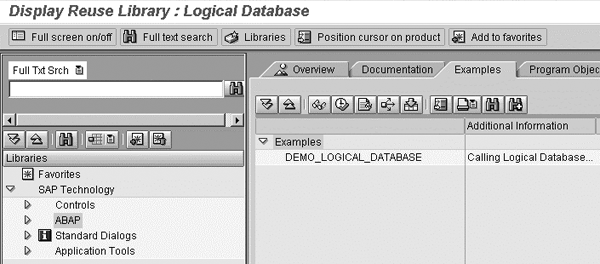
Figure 1
Reuse library reached via transaction SE83
Let’s say you are interested in checking out information about InfoSet Query/SAP Query. You expand the Application Tools node and double-click on this topic. A tabbed view of the information displays on the right frame of the screen, as shown in Figure 2.
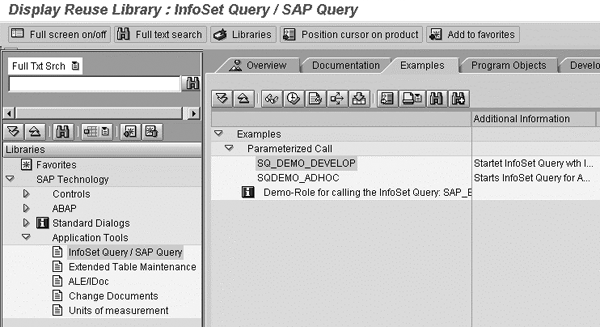
Figure 2
Tabbed view of information on InfoSet/SAP Query
You should not expect to find information on each of these tabbed screens. The documentation tabs for some of these areas are empty. If you are looking for standard library documentation, you should go to the SAP Help Portal (at https://help.sap.com). The value of this tool is in the additional tutorials/examples, list of the SAP repository objects, and development support that it uniquely provides.
One feature I have found helpful is the link to sample programs or function modules that illustrate the chosen topic. Here’s an example: Display, Enter and Check Data is the name of one area within the Standard Dialogs node (Figure 3). It contains information about the standard SAP support provided in the area of dialog programming when you want the option of being prompted (via a pop-up) in the course of entering data. It provides example programs that illustrate each of these function modules and the actual function modules in the Program Objects tab. You can launch these example programs and the actual function modules by double-clicking on each.

Figure 3
All SAP objects in the area of displaying, entering, and checking data
When you click on the Environment option in the main menu, you see the menu items in Figure 4. This takes you to a different screen for each of the options that you select. Let’s look at each of these in detail:
- Workbench: This menu item logically groups all the related objects for each application area, significantly reducing the time and effort you might otherwise spend trying to find them all.
- Ergonomics examples: This menu item takes you to several examples of how objects in lists and screens should be placed in order to conform to ergonomic sensibilities. The purpose of the object and the dos, don’ts, and tips are provided on a separate frame. Let’s say you want to learn more about the ergonomic aspects of table control. You select the Screens option from the Ergonomics examples menu item. On the displayed screen, click on the Table Control link and you see the screen in Figure 5.
- Performance examples: This area is useful for technical resources looking for performance measures of various ABAP language constructs. It takes pairs of similar constructs and gives you their comparative runtimes on the same screen. This serves as a hands-on tutorial for both new and experienced technical ABAP resources seeking to optimize performance in their code.
- SAP graphics examples: This is a list of demo reports in the area of graphical content and outputs. You can execute them directly by double-clicking and you can use them by making custom copies.
- ABAP documentation: This area contains sample code that illustrates every conceivable area in ABAP. It is a good reference for relatively inexperienced technical resources. More experienced technical resources are likely to find examples of some complex constructs.
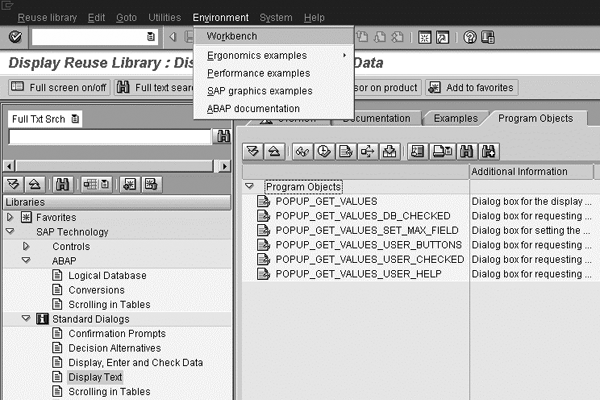
Figure 4
Other areas for information in the reuse library

Figure 5
Ergonomic examples of screen objects
Maintaining Reuse Libraries
SAP has provided a separate transaction code (SLIBN) and interface for creating your own documentation libraries. Let’s look at the steps to take to create your own documentation libraries.
Step 1. In transaction SLIBN, create a new reuse library and provide it with a technical name. You are presented with a pop-up where you enter a meaningful description of this transaction, as shown in Figure 6. You also have the option of choosing the visibility of your library. Choosing Private makes it visible only to your user and Public makes it available for everyone to access.
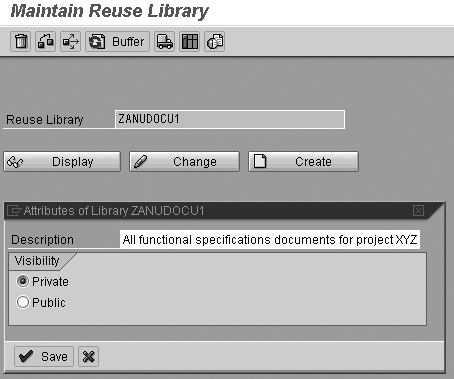
Figure 6
Create your own documentation library
Step 2. If you are prompted for a transport, save it as a local object, since this is just a test. Note that libraries and other reuse products are fully integrated into the transport framework. You can transport them from your source to the target system. The prerequisite is that you save your library or reuse product in a package/development class.
Step 3. Next you see a screen similar to the one shown in Figure 7. If you are on the first tab (Structure nodes) you can create your own hierarchy of documentation/reuse products. You can choose one of the four different document types available for creation here: no documentation (if you do not need a link to any document but intend to create top-level nodes); KW, where you can insert the key or link to the document object; SAPscript, where you can insert the link to the SAPscript document; and HTML, where you can insert any URL as a link, thereby resulting in the document being displayed as an HTML document.
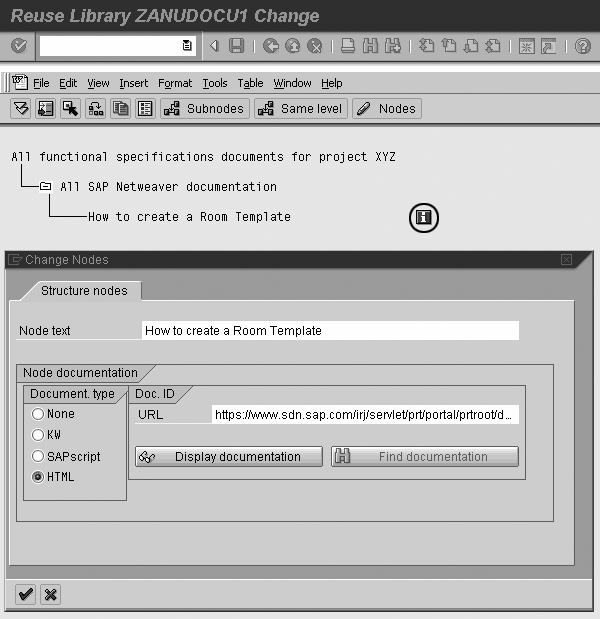
Figure 7
Build a document hierarchy and library
I created a root node (document type None) and named it All SAP Netweaver documentation because I’d like to save all SAP NetWeaver documents in one location. Then I created a sub-node, How to create a Room Template, with a link to a document on SAP Service Marketplace (Figure 7). For this, I chose document type HTML and pasted the URL of this document in the URL input box. Click on the save icon and you are all set. You have just created your first document library for public use. To view the document, click on the information icon, circled in Figure 7, and the document opens up.
Step 4. Now that you have created your documentation library, go back to transaction SE83. Since reuse libraries adhere to the publish- and-subscribe model, you or any user who wants to access this newly created documentation library must subscribe to it. This is very simple: Click on the Libraries button (Figure 8) and the Subscribe to library pop-up appears. In the Select libraries pane on the right, click on the library to which you would like to subscribe, and click on the left arrow to add it to your Subscribed libraries. Note that all libraries that are available for subscription but have not been subscribed to are available on the right panel of the pop-up window under Select libraries in Figure 8.
Note
I have a valid SAP Service Marketplace user ID and the single sign-on feature turned on, which is why the link in my example is seamless. If you want to try the same example, you need a login to the SAP Service Marketplace (https://service.sap.com).
Note
When you create root nodes, in addition to structure nodes, you can select from two other options, Reuse product and Reuse library. They provide you access to SAP products and libraries. You can use them in your own libraries and augment them by inserting additional documentation. You are not able to create sub-nodes when you use one of these SAP libraries but you are able to create nodes on the same level.
Anurag Barua
Anurag Barua is an independent SAP advisor. He has 23 years of experience in conceiving, designing, managing, and implementing complex software solutions, including more than 17 years of experience with SAP applications. He has been associated with several SAP implementations in various capacities. His core SAP competencies include FI and Controlling FI/CO, logistics, SAP BW, SAP BusinessObjects, Enterprise Performance Management, SAP Solution Manager, Governance, Risk, and Compliance (GRC), and project management. He is a frequent speaker at SAPinsider conferences and contributes to several publications. He holds a BS in computer science and an MBA in finance. He is a PMI-certified PMP, a Certified Scrum Master (CSM), and is ITIL V3F certified.
You may contact the author at Anurag.barua@gmail.com.
If you have comments about this article or publication, or would like to submit an article idea, please contact the editor.