While creating a request for quotation (RFQ) using transaction ME41, you have to enter the collective number manually in the Coll. No. field of the Header Data screen. There is no standard way to generate this number automatically for this field, or to assign a purchase requisition (PR) number to this field if you are creating an RFQ with reference to a PR. Discover a technique you can use to fill this field with an automatically generated number or PR number.
Key Concept
An implicit enhancement allows you to add custom code to SAP’s standard code without doing any modification. In many business requirements, you can avoid modification by using this enhancement technique. The implicit enhancement is the method I will use to insert my custom code inside standard SAP code to fill the collective number field with an automatically generated number or purchase request number.
A collective number is required in transaction ME41 for almost every business. While creating a request for quotation (RFQ), you have to add the collective number manually. You can get multiple quotations against one purchase request (PR) from different vendors. You can use this collective number to collect all quotations against one PR or against one material.
For one example, say a company wants to purchase a laptop. First, it creates a PR for this laptop using transaction ME51N. Then it creates an RFQ for vendors with reference to the created PR using transaction ME41. If the company sends the RFQ to 10 vendors, then it has to create 10 RFQ documents. When it gets a quotation from all vendors, it needs a common ID for the quotations so it can compare them and determine the lowest price. In this case, it can use the collective number (stored in the Coll. No. field) to retrieve and then compare these prices. By default, the user has to enter this collective number manually, which is time consuming and allows for error if the user enters a number incorrectly. As a second example, imagine the company wants to send an RFQ without creating a PR. In this case, it needs to put an automatically generated number into the Coll. No. field.
You can solve either of these example scenarios by filling the Coll. No. field with an automatically generated number or a PR number using a technique called implicit enhancement. I explained how to use an implicit enhancement in my SAPexperts article “Avoid Modifications by Using Implicit Enhancements in Standard SAP Code.” You can add your custom code in SAP’s standard code using this technique without doing any modification. Modification is not recommended in any case because it can create many issues during a system upgrade.
By default, the collective number field is obligatory. The reason you need to make it optional is that when submitting an RFQ, the system takes you to the screen where you have to enter this value before the point where you can add the implicit enhancement. As a result of that, before you can do anything else that I show you in this article, you need to configure the system so that the field is optional. That way, the system lets you move forward with the RFQ and you can put in the enhancement. Then with the field being optional, the system doesn’t override the enhancement. I’ll start by showing you how to set this up in the system, and then take you through the process of using the implicit enhancement.
Make the Collective Number Field Optional
As discussed, you need to make the collective number field optional. Use transaction ME41 and fill in the selections shown in Figure 1. In the RFQ Type field, AN represents a request for quotation. (There are other options, but they do not apply to this example.) After you have filled in the details, press Enter.

Figure 1
Initial screen for creating RFQ transaction code ME41
The system leads you to the screen of the collective number (the Coll. No. field) and gives you a message to fill it (Figure 2). However, since you’re going to fill this field automatically, you need to make it optional so that the system doesn’t require you to fill it manually. Now let’s go through the process to do that step by step.

Figure 2
The system demands you fill the Coll. No. field
Step 1. Use transaction SPRO and follow IMG menu path Materials Management > Purchasing > RFQ/Quotation > Define Screen Layout at Document Level to produce the screen in Figure 3. Double-click Request for quotation.
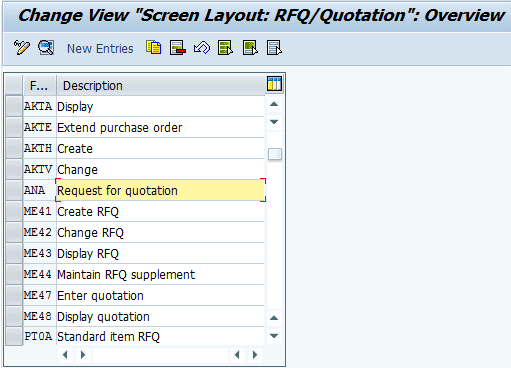
Figure 3
Double-click Request for quotation
Step 2. In the resulting screen, double-click Reference data, header (Figure 4).

Figure 4
Double-click Reference data, header
Step 3. You can see the Reqd.entry check box checked for Collective RFQ (Figure 5). Uncheck the Reqd.entry check box and select the Opt. entry box instead (Figure 6).

Figure 5
By default, Collective RFQ is checked as Reqd.entry

Figure 6
Uncheck Reqd.entry and check Opt. entry
Step 4. Press F3 to go back to the screen in Figure 3 and click the save icon (or press Ctrl+S). A screen appears in which you have to create a new customizing request using the new icon shown in Figure 7. In the resulting screen (Figure 8), enter a Request name and a Short description. Then click the save icon.

Figure 7
Click the create icon to create a new request

Figure 8
Enter a Short description and click the save icon
Click the green check mark icon to save the object in this newly created request (Figure 9).

Figure 9
Click the green check mark icon
Then use transaction ME41 and create an RFQ to see if it worked. You do not get any message for giving a collective number and the Item Overview window appears as shown in Figure 10.

Figure 10
Item Overview screen
Implement an Implicit Enhancement
Now let’s go through the steps to implement an implicit enhancement. For more information on this process, see my other article, which I linked to at the beginning of this article.
Step 1. Use transaction SE38 and enter the Program name MM06EFTE_KOPFTEXT_UEBERNAHME (Figure 11). Then click the Display button.
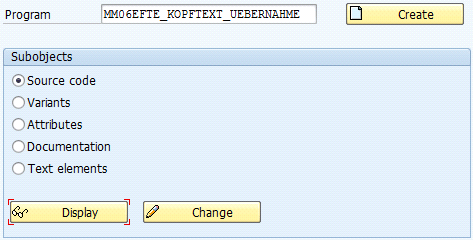
Figure 11
Give the Program name and click the Display button
Step 2. Click the enhance icon in the resulting screen (Figure 12). Follow menu path Edit > Enhancement Operations > Show Implicit Enhancement Options (Figure 13).

Figure 12
Click the enhance icon from the toolbar
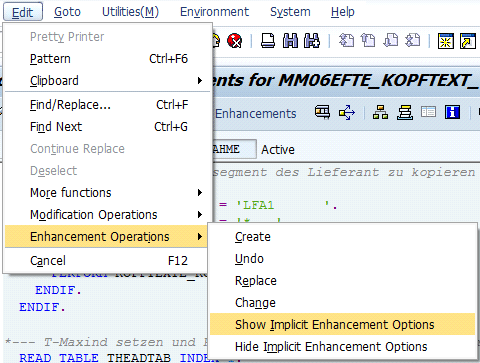
Figure 13
Select Show Implicit Enhancement Options
Step 3. Double-click SAPMM06E or select it and click the Choose button (Figure 14).

Figure 14
Double-click SAPMM06E
Step 4. At the end of the program, just before the ENDFORM, you can see that the implicit enhancement option is available (Figure 15).
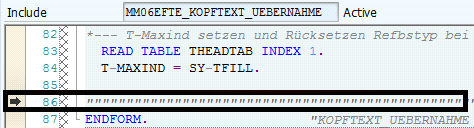
Figure 15
Implicit enhancement position
Step 5. Right-click and follow menu path Enhancement Implementation > Create (Figure 16).
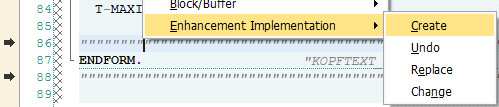
Figure 16
Select Create
Step 6. Because it is a form, you have the option of either type of enhancement. Since you’re adding code in this example, click the Code button (Figure 17).
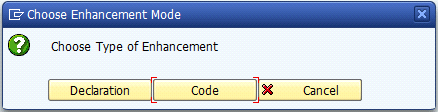
Figure 17
Click the Code button
Step 7. In the list, you can see the standard implemented enhancement, but you must not select a standard enhancement implementation and add your code in it because it can be replaced by SAP code in the case of a system upgrade. To create a new enhancement implementation, click the new icon shown in Figure 18.

Figure 18
Click the new icon
Step 8. Give the Enhancement Implementation name and Short Text. Then click the green check mark icon (Figure 19).
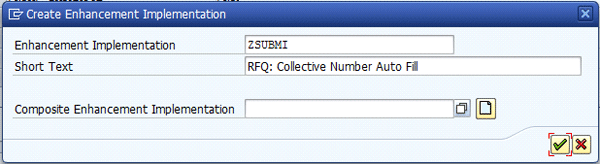
Figure 19
Enter the Enhancement Implementation name and Short Text
Step 9. Give a Package name (e.g., ZFSL) where you want to save this enhancement and click the save icon (Figure 20).
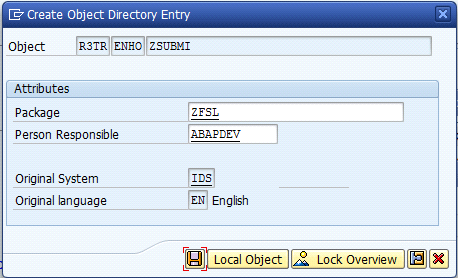
Figure 20
Enter the Package name and click the save icon
Step 10. Create a new workbench transport request by clicking the new icon shown in Figure 21.

Figure 21
Click the new icon
Step 11. Give the transport request a Short description and click the save icon (Figure 22). This brings up the screen in Figure 23. Click the green check mark icon to save the object in the request. Then in the screen in Figure 24, click the save icon again.

Figure 22
Enter the Short description and click the save icon
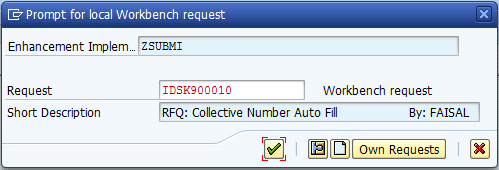
Figure 23
Click the green check mark icon

Figure 24
Click the save icon
Step 12. After you save in Figure 24 the screen in Figure 25 appears. Here you need to add this object in the same request. You do this because then you can transport it all to the quality assurance or production system in a single request. Click the green check mark icon.
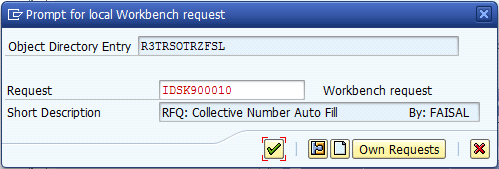
Figure 25
Click the green check mark icon
Step 13. Now you can see the newly created enhancement implementation ZSUBMI (Figure 26; you may need to scroll down to find it). Select it and click the green check mark icon.

Figure 26
Select ZSUBMI and click the green check mark icon
Step 14. Now you can see the white line inside ENHANCEMENT 1 ZSUBMI … ENDENHANCEMENT (Figure 27). Here you can add your code.

Figure 27
Here you can add code
Step 15. Add the code: ekko-submi = ‘TEST’. and click the Enhancements button (Figure 28). Click the green check mark icon to activate (Figure 29). This produces a message in the taskbar that states “No syntax errors found.”
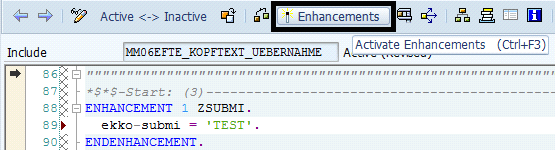
Figure 28
Sample code added
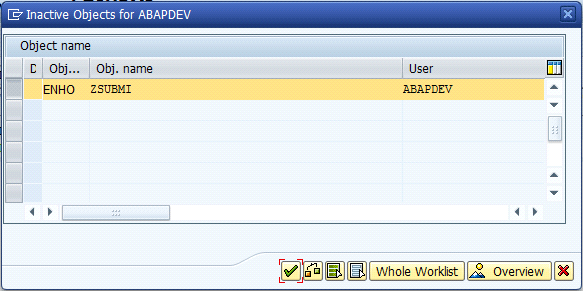
Figure 29
Click the green check mark icon
Step 16. Use transaction ME41 and click the header details icon shown in Figure 30. You can see the Coll. No. value shows TEST, meaning the code in this example worked (Figure 31).

Figure 30
Click the header details icon or press F6
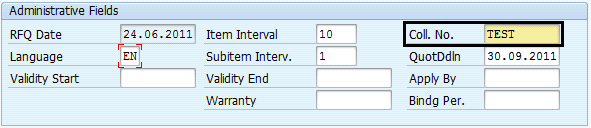
Figure 31
Coll. No. field automatically filled with TEST
Before you can get an automatically generated number, you first have to create a domain. Then, using this domain, you can create a number range object and replace old testing code with new code. I’ll show you how to do this next.
Create a Domain
Step 1. Use transaction SE11 and enter the Domain name ZSUBMI (Figure 32). Click the Create button.
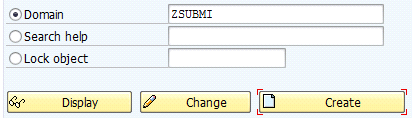
Figure 32
Enter the Domain name and click the Create button
Step 2. Because the collective number field is of a 10-character length, you have to create the domain with the Data Type as CHAR and the No. Characters as 10 (Figure 33). You should also enter a Short Description. Click the save icon.

Figure 33
Enter the Short Description, Data Type, and No. Characters and click the save icon
Step 3. Enter the name of the Package (e.g., ZFSL) and click the save icon (Figure 34).

Figure 34
Give the Package name and click the save icon
Step 4. Add the Domain in the same request and click the green check mark icon (Figure 35).
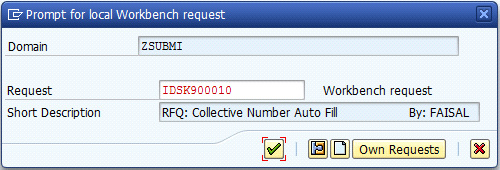
Figure 35
Save it in the same request
Now you need to create a number range object using this domain.
Create a Number Range Object
Step 1. Use transaction SNRO, give the Object name, and click the create icon (Figure 36).

Figure 36
Enter the Object name and click the create icon
Step 2. In the resulting screen, fill in all fields as in Figure 37 and click the save icon. This brings up the screen in Figure 38. Click the Yes button.
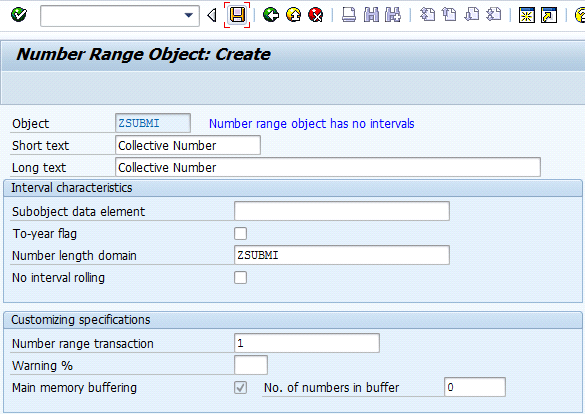
Figure 37
Enter parameters
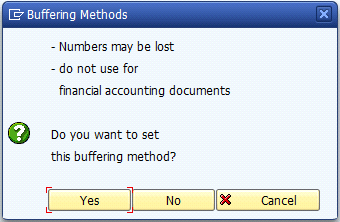
Figure 38
Click the Yes button
Step 3. Enter the name of the Package (e.g., ZFSL) and click the save icon (Figure 39).

Figure 39
Enter the Package name and click the save icon
Step 4. Add the Number Range Object in the same request and click the green check mark icon (Figure 40).

Figure 40
Click the green check mark icon
Step 5. Go back to the initial screen (Figure 36) and click the Number ranges button (Figure 41). In the resulting screen, click the Intervals button (with the pencil icon) (Figure 42). Then click the Interval button in the toolbar (Figure 43).

Figure 41
Click the Number ranges button

Figure 42
Click the Intervals button with the pencil icon
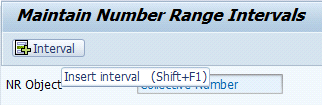
Figure 43
Click the Interval button
Step 6. Enter the intervals appropriate for your situation (Figure 44). In my example, I used 2500000001 and 2599999999, but you can use whatever you need. Click the add icon in the bottom-right corner. Now you can see the interval added (Figure 45).

Figure 44
Click the add icon
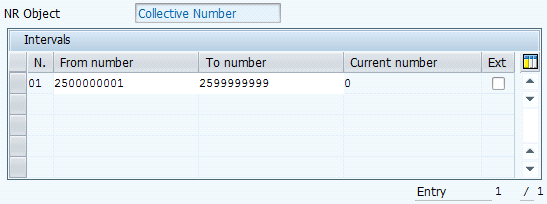
Figure 45
Range added
Step 7. Click the save icon and you get the message shown in Figure 46. Click the green check mark icon.
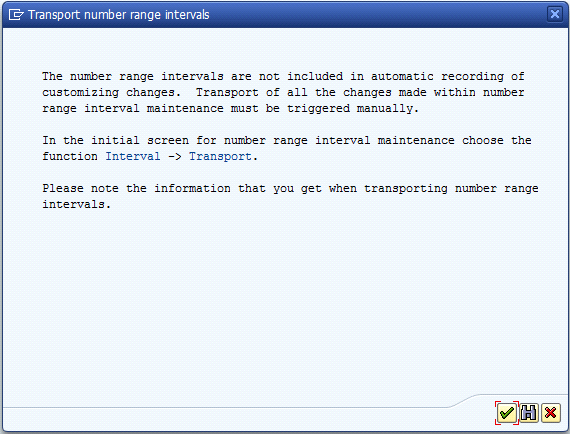
Figure 46
Click the green check mark icon
Now it is time to replace the old code (in Figure 28) with the new code.
Change Enhancement and Add Actual Code
Step 1. Open the same include, MM06EFTE_KOPFTEXT_UEBERNAHME, in display mode and show the implicit enhancement options as displayed in Figures 11, 12, 13, and 14).
Step 2. Right-click the implemented enhancement and follow menu path Enhancement Implementation > Change (Figure 47). This brings up the screen in Figure 48.

Figure 47
Select Change
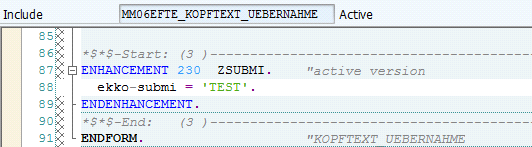
Figure 48
After selecting Change
Copy and paste the code shown in Figure 49 in place of the code in Figure 48 and active enhancement as you did in Figures 28 and 29.

Figure 49
Code for assigning PR or automatically generated number to collective number field
Testing Both Scenarios
Now you are ready to test the scenarios for both the automatically generated number and the PR number.
Test Automatically Generated Number
Try to create an RFQ using transaction ME41 and go to the header as previously mentioned. Now you can see the Coll. No. field filled with the automatically generated number of the assigned number range (Figure 50).
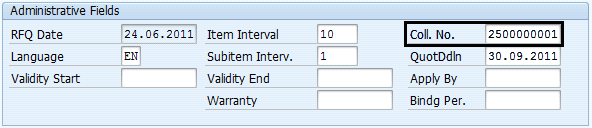
Figure 50
Coll. No. field with an automatically generated number
Test the PR Number
Use transaction ME41 and from the toolbar select the Reference to PReq button (Figure 51). Enter the Purchase Req. number and click the green check mark icon (Figure 52).
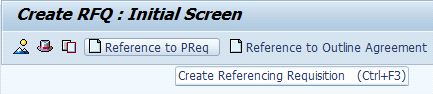
Figure 51
Click the Reference to PReq button

Figure 52
Select Purchase Req. and click the green check mark icon
Select the line and click the Adopt + Details button (Figure 53). Then click the header details icon (Figure 54).
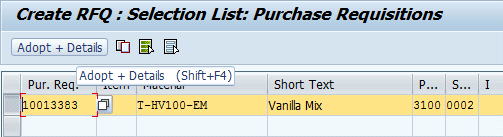
Figure 53
Select the line and click the Adopt + Details button
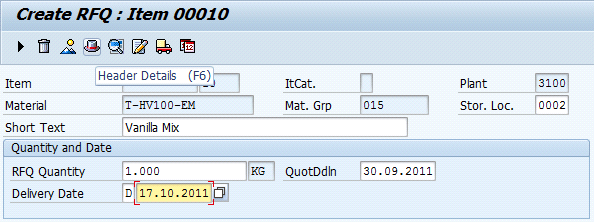
Figure 54
Click the header details icon
Now you can see the Coll. No. field automatically filled with the PR number (Figure 55).
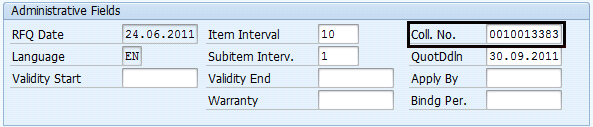
Figure 55
Coll. No. field with the PR number
Faisal Altaf
Faisal Altaf is a certified development consultant. He has more than seven years of experience and currently is working with Al Yamamah Steel Industries Co., Saudi Arabia, as the SAP technical division head. He completed his MS in software engineering and intends to complete his Ph.D. in the field of SAP.
You may contact the author at faisalatsap@gmail.com.
If you have comments about this article or publication, or would like to submit an article idea, please contact the editor.