Succession planning allows companies to build plans for developing and retaining talent. The SAP R/3 Human Resources module offers standard functionality for succession planning, career planning, and employee development. The author focuses on how to build and use the career object in R/3 as part of your overall succession plan.
Human capital is an important and sometimes neglected organizational asset in today’s competitive business world. The effective management and development of human capital is frequently a leading factor that separates the top companies from those that are less successful. Too often, companies focus on hiring and compensation but then overlook succession planning. Succession planning, in its many forms, allows companies to build plans for developing and retaining talent and for responding quickly and efficiently to changing climates by being in a position to meet and exceed strategic goals.
Many companies turn to their human resources management system’s databases when designing their succession plans. The SAP R/3 HR module offers standard functionality for succession planning, career planning, and employee development. I’m going to focus on how to build and use the career object in R/3 as part of your overall succession plan.
Careers in R/3
In R/3 Release 4.0 and higher, careers are hierarchical groupings of jobs or positions that you create to track a specific succession or development path for an employee. Careers can depict horizontal or vertical job progressions and can also be created across organizational boundaries within your company. Each career object created in R/3 is assigned a name that is used to describe the career path being tracked. For example, if an employee must follow the “HR executive” career path to become the vice president of HR, you can build a career in R/3 that shows the job progression required. In the example shown in Figure 1, an employee must first hold the HR manager job followed by the HR director job to successfully attain the level of vice president, HR.
| Highest level > |
Vice President, Human Resources |
| |
&# 160; |
|
| Next step > |
Human Resources Director |
| |
&# 160; |
|
| Entry job > |
Human Resources Manager |
|
| Figure 1 |
Hypothetical HR executive career path of jobs |
Tip!
Before you begin to create careers in R/3, you first must implement your organizational structure. With the structure in place, you should then determine whether you are going to base your careers on jobs or positions. Positions, as a rule, tend to be more specific and change more often in R/3. Jobs, on the other hand, are usually created as broader classifications and are not always affected as directly by organizational restructuring. The importance of this decision varies based on how you have chosen to build and use jobs and positions in your own system and how often you change those objects. As with most Personnel Development (PD) design issues, you should always consider the maintenance burden when using a new functionality.
Note
SAP Network Graphics must be installed as an option with the SAPGUI on your local PC before you can use the careers functionality.
To create a career in R/3, execute transaction code OOQ4 or access the IMG menu path Personnel Management > Personnel Development > Master Data > Edit Careers. When creating or editing careers, you are required to enter a plan version and a key date, which is used as a validity date for displaying careers and their related jobs or positions. Once you have entered those values, press the F8 key or click on the execute icon to proceed.
The Career Maintenance screen appears next and displays the names of any existing careers valid for the key date and plan version you specified on the previous screen. If a career structure exists, you see a small icon next to the name of the career (Figure 2). If you click on this icon, you enter the Display Career Items screen. If you wish to create a new career that is not on this list, press the F5 key or click on the create icon. You are asked to enter a name for the career. When naming the career, be sure to be descriptive enough to distinguish this career from others in your succession plan.

Figure 2
Career Maintenance screen via transaction OOQ4
When you have named the new career, it appears on the Career Maintenance screen. Your next step in creating a new career is to edit the career to enter the appropriate jobs or positions that define the required path.
Note
The careers functionality uses SAP Network Graphics profile CAREERMOD001. Standard R/3 graphic profiles are adequate for most users of succession planning, so there is no need to edit or create them unless you determine that the delivered profiles are not sufficient for your needs. Should you decide to edit or display SAP Network Graphics, you may access the profiles via transaction code OCNG (or IMG menu path Basis Components>Frontend Services>Network/ Hierarchy>Define Graphic Profiles). If you have trouble performing tasks with SAP Network Graphics, you should check with your system administrators to verify it was loaded as part of your GUI installation.
Place the cursor on the career name you have just created and press F7 (or click on the change icon) to open the career for editing.
When the Edit Career Items screen appears, you see the Network Graphics screen layout for careers. The screen is partitioned to include a display area containing a legend, a navigation area showing a high-level overview of your career, and a node area containing boxes labeled Job and Position.
SAP Network Graphics allows you to alter the view of the screen as you work. For example, you can hide the legend or alter the view of the screen to change or hide partitions using standard functionality. To see the different options available to you, explore the View and Settings menu options on the Edit Career Items screen.
Entering a career object on the Edit Career Items screen requires two mouse clicks. To enter a job into your career path, use your mouse to click once on the job box in the node area of the screen. Then, move your mouse to the appropriate spot in the display area (main section) of the screen and click once more at the spot where you would like to place the job. You are presented with a selection box from which you may choose a job to insert into your path. Once you have selected the appropriate job, a box appears containing the object ID and long description.
Note
In the R/3 PD module, careers are denoted by object type LB. Jobs are typically related to the career object via the A 044 (consists of) /B 044 (is part of) relationship combination.
You can repeat these steps to add as many jobs and levels of jobs as you require in your career path. To edit your career after you have built it, simply open the career and select Edit>Redraw from the menu bar at the top of the Edit Career Items screen. You can then delete objects from your career or move existing objects within the hierarchy. Figure 3 contains a completed career for a Human Resources Executive career path, created using a progression of jobs required to attain the level of Vice President, Human Resources.

Figure 3
A completed career path displayed with SAP Network Graphics
Using Careers in Career and Succession Planning
After designing and building your careers, you can use them with standard career and succession planning in R/3. Succession planning is a tool used to identify incumbents, designees, and potential successors for jobs or positions, whereas career planning can show employees how their skills and abilities enable them to continue career growth. Career planning could also identify training that may help employees in their career development and future job decisions.
Succession Planning Report
Once you have created careers, you can use the succession planning report to show which careers contain a given job or position, along with any current holders of those objects. You also can find and develop potential successors for jobs and positions.
Execute succession planning reporting to include careers via R/3 transaction PPSP. Select the object type (in this case, job or position) and enter the object ID of the job or position you want to evaluate. Enter the proper key date, ensuring it is within the valid range for the career you built, and select the checkbox next to Include Career. Click on the Perform Planning icon, (or press the F8 key) to run the report. The outcome from this report shows any careers that contain the job or position you entered in your selection criteria and that are effective on the key date specified. See Figure 4 for a sample output from the Succession Planning report for Job 51023134, the HR director identified in the career I created earlier.

Figure 4
Succession planning report using transaction PPSP
Career Planning Reports
Career planning in R/3 is quite similar in look and feel to succession planning, except that it is normally executed for a person rather than a job or position object. To execute career planning reports to include career paths, perform R/3 transaction PPCP. Select the object type (in this case, person) to be evaluated and enter the personnel number in the object ID field. Enter the proper key date, ensuring it is within the valid range for the career you built, and select the checkbox next to Include Career. Click on the execute icon (or press the F8 key) to run the report. The outcome from this report shows any careers that contain a job or position held by the person you entered in your selection criteria and effective on the key date specified. See Figure 5 for a sample output from the Career Planning report for person 00127976.
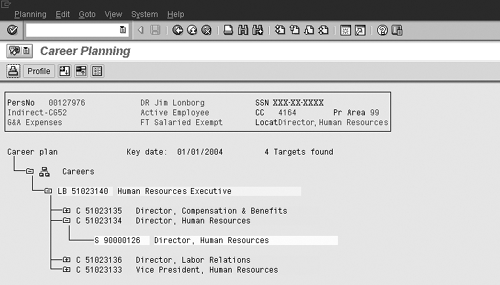
Figure 5
Career planning report using transaction PPCP
Both the succession and career planning reports enable you to link directly to qualification and requirement profiles for jobs, positions, and people. This allows you to more effectively use reports to assess proper fit and potential.
The topic of careers is just a very small piece of the overall succession and career planning functionality available to you. Understanding how R/3’s succession planning capabilities can help your company could be the first step toward improving the effectiveness of your human capital management.
A.J. Whalen
A.J. Whalen has successfully combined more than two decades of global business expertise with in-depth experience in the strategic development, management, and delivery of large-scale projects and education for SAP ERP HCM. Prior to his current role as SAP Marketing Director at Velocity Technology Solutions, he served as lead consultant for several global SAP implementations and engagements as well as an SAP Conference Producer for Wellesley Information Services. A.J. has been invited to speak at nine annual SAP educational events and holds an MBA degree from the Stern School of Business at New York University.
You may contact the author at whalen.aj@gmail.com.
If you have comments about this article or publication, or would like to submit an article idea, please contact the editor.