Learn how the the Payment Method Supplements option can help make your check print runs more efficient by grouping different types of payments.
This month’s question deals with the interaction between the two places in Accounts Payable that you can use to impact which checks in a Payment Run come off the printer first, which come off second, and so forth. Guest consultant Kim Ciesla, a senior financial consultant in SAP America’s Chicago office, provides the answer.
Dear FI/CO Expert,
In an attempt to control the sequence in which my once-a-week payment runs print checks, I have recently tried to implement Payment Method Supplement codes, and am having trouble getting the desired results. To be honest, I’m not even certain what to ask you for help with other than ... well ... a list of "how to implement" steps. With that, I could compare what I have set up so far to that list. That would help a lot!
-Gloria Buganski
Hi Gloria,
If you implement the payment program, questions about Payment Method Supplements invariably come up. Of course, as with many functionalities in R/3, the Payment Method Supplement option can work or not work based on something specific going on at your particular site. So, I cannot guarantee that the following step-by-step guide will exorcise whatever is haunting your current attempt to get the functionality working. Just the same, here is a list I put together from a recent project. The version of R/3 that I base these on is 4.6C.
To get everyone up to speed on the use of Payment Method Supplements, I’ll begin with a quick rundown of why controlling the sequence of checks can come in handy and essentials about the process. Then, I’ll detail the step-by-step instructions.
Sequencing Can Offer Convenience
If your Accounts Payable Payment runs typically include the printing of 50 or more checks, you may find it useful to give instructions to R/3 on the sequence in which those checks should come off the printer. There are many reasons why you might want to do this, but most are usually related to a desire to speed up follow-on work such as:
- Vendor A’s and vendor B’s payments are international, so they need extra postage to be put on the envelope. This work is faster when all the checks needing international postage are grouped together.
- All checks over $10,000 need additional authorization before being mailed. This work is faster when all the checks over that amount are grouped together.
- Some vendors want all or part of a form they mailed to you to be sent back with the payment, and other vendors just want the check. It’s hard to remember which are which. This work is faster when all the checks that need a form to be enclosed in the envelope are grouped together.
Sequencing Essentials
To decide which checks to print first, which to print second, which to print third, and so forth, the Payment Program refers to two areas in R/3 for rules:1
- The default rule is hard-coded into the Payment Run transaction. This default is the vendor number. Thus, the check(s) that will be the payment(s) for vendor #12345 will be printed before the check(s) that will be the payment(s) for vendor #34521.
- A user-defined rule can be created. This will be based on a designated field setting, discussed in steps 3 and 4, shown later in this article. This rule will point to one or more data fields in each Accounts Payable vendor invoice document and the values in those fields then become the basis for sequencing. One of the more popular data fields to use is called the "Payment Method Supplement" field. Merely pointing R/3 to this field does not, by itself, accomplish anything. You need to do one of the two tasks listed below to populate the field; otherwise the field will remain blank after you enter your vendor invoices and leave you back where you started:
1. You can type a Payment Method Supplement code into a vendor’s Vendor Master if you want that code defaulted into 100 percent of the vendor’s invoices automatically (instructions on how to do this are included later in this article).
2. Or, during data entry of a vendor invoice, you or your end users can manually type in any of your Payment Method Supplement codes (an example of this manual entry approach is shown in Figure 1).

Figure 1
Vendor Invoice: Manual Data Entry Approach
As shown in Figures 1 and 2, the Payment Method Supplement codes can become part of everyday Accounts Payable transactions such as Vendor Invoice Data Entry or Vendor Line Item Display in addition to their use during check printing. Since your primary question is on the latter, my "how to implement" steps in the next section focus on that.2
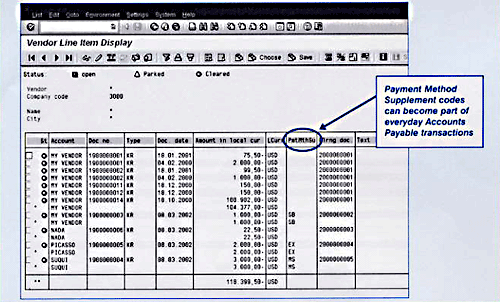
Figure 2
Vendor Line Item Display
How-to Steps
Here are the configuration steps that you will typically need to follow when setting up the Payment Method Supplement functionality:
1. Activate Payment Method Supplements in the payment program configuration.
2. Create individual Payment Method Supplement codes.
3. Create a sort variant that specifically instructs R/3 to sort the checks by the Payment Method Supplement codes it finds in the documents waiting to be paid (i.e., saved vendor invoices).
4. Assign the sort variant to the payment program.
5. Assign a Payment Method Supplement code to a vendor master (only if you want the same code populated as a default automatically into all invoices for that vendor. Otherwise, skip this step).
The details for each step are presented next.
Step 1. Activate Payment Method Supplements Functionality in the Payment Program Configuration
From the Payment Program menu, follow the menu path Environment>Maintain Configuration (or from any main window in R/3, just use transaction code FBZP). Select the All Company Codes button, and then drill down on your company code. Put a checkmark in the Payment Method Supplement checkbox in the Control Data section to activate the functionality and then Save your work. An example is shown in Figure 3.
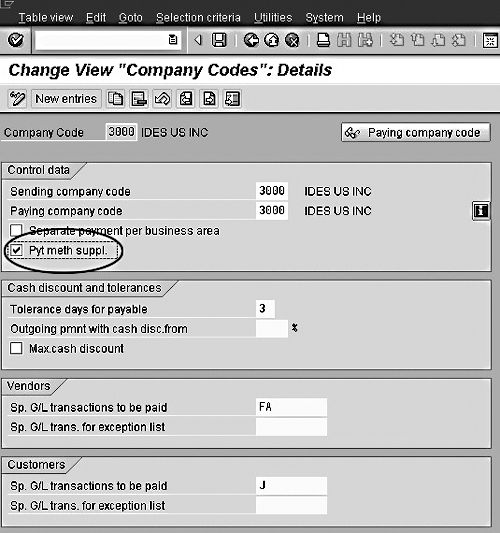
Figure 3
Activate the Payment Method Supplement Functionality
Step 2. Create Payment Method Supplement Codes
Return to the main Payment Program Configuration screen and follow the menu path Edit>Payment Methods>Payment Method Supplements (or from any main screen in R/3, just use transaction code OBVU). Select the New Entries button, enter a two-digit code and description for each category that you want to create, and then save your work. An example is shown in Figure 4.

Figure 4
Create Individual Payment Method Supplement Codes
Step 3. Create a Sort Variant to Sort the Checks by the Payment Method Supplements
Create a new session and go to the Implementation Guide (IMG), transaction code SPRO. Follow the IMG menu path: Financial Accounting>Accounts Receivable and Accounts Payable>Business Transactions Outgoing Payment>Automatic Outgoing Payment>Payment Media>Sort Variants>Payment Media: define sort variants (or use transaction code O7S1). Select the Create icon, then enter a two-digit identifier for your sort variant, and give it a description. Select enter, or the green checkmark, to proceed to the next screen.
On this next screen (Figure 5), you will enter the fields whose values you want the Payment Media (i.e., payment by checks) to be sorted by. Enter the field name UZAWE (payment method supplement). Save your work.

Figure 5
Create a Sort Variant that Uses Supplement Codes
Step 4. Assign the Sort Variant to the Payment Program
Toggle back to your other session of the main Payment Program Configuration Menu (transaction code FBZP). Drill down on the Pmnt Methods in Company Code button. Drill down on your company code and payment method, "C" for "check." In the Form Data section, in the box labeled Sorting of the..., enter your sort variant in the data entry field next to Correspondence. Save your work. An example is shown in Figure 6.
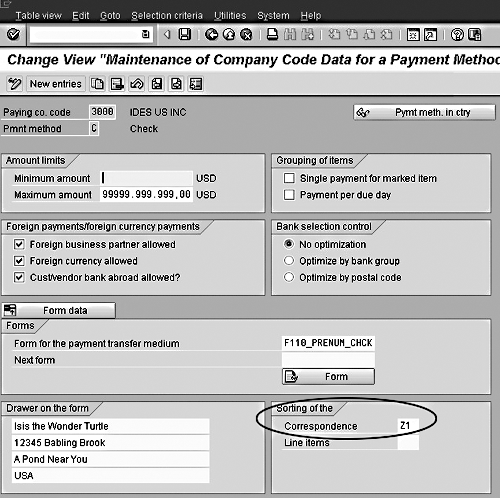
Figure 6
Assign Your Sort Variant to Your Payment Method "C"
That is all of the configuration that you have to do to make the sorting work. You activated the functionality in the payment program configuration, defined the supplements that you wanted to use, and created a sort variant and assigned it to the payment program for your company code and payment method.
The last step is optional.3 It assigns your supplements to your vendor master records. Each vendor in your Company Code can optionally get one Payment Method Supplement code. This ensures that all new invoices created for that vendor will have that particular code as a default.
Step 5. Assign a Payment Method Supplement Code to a Vendor Master
From the R/3 Easy Access menu, follow the menu path to change your vendor master: Accounting> Financial Accounting>Accounts Payable>Master Records>Change (or use transaction code FK02). Enter your vendor number and company code on that first screen and navigate to the Payment Transactions view of the Master.
In the screen for that view, look in the Automatic Payment Transaction section for the field labeled Payment Method Supplement and type in the supplement code you want to use for this vendor. An example is shown in Figure 7.

Figure 7
How to Assign a Code to a Vendor Master
Note
If the Payment Method Supplement field does not appear on the screen, then before you go looking at the field status of the account group as the potential cause of the mystery, go back to the payment program configuration screen as outlined in step 1 to make sure that you activated the functionality correctly.
Example Results
Figure 8 shows an example of the check sequencing that would occur for five checks printed via the Automatic Payment Program if the customization steps outlined earlier were in place. First, any vendor invoices that had blank values in their Payment Method Supplement fields would get their payments moved to the front of the sequence — in the example, check #22673 and check #22674. Second, all remaining vendor invoices would have their payments follow, grouped in alphabetical order of their Payment Method Supplement two-digit codes. Notice in the report how a single vendor (Isis the Wonder Turtle) can have payments on invoices that have blank Payment Method Supplement fields, and also payments on invoices that do not. This is something that R/3 allows if it is something that is useful to your "check print" post-processing work.
| IDES US INC |
New York
|
| Company code 3000 |
Bank: 3000 Citibank, New York
|
| Bank keys: 134329042 |
Account No. 300030050020
|
| Ch # |
Pmt Date |
Curr. |
Amount Paid |
Vendor/Recipient |
Supplement code |
| 22673 |
08.03.2002 |
USD |
104,377.00 |
Isis the Wonder Turtle |
|
| 22674 |
08.03.2002 |
USD |
22.50 |
Beagle Bailey |
|
| 22675 |
08.03.2002 |
USD |
2,000.00 |
Picasso, Psycho Kitty |
EX: Express Mail |
| 22676 |
08.03.2002 |
USD |
3,000.00 |
Suqui Crazy Chihuahua |
MS: Messenger |
| 22677 |
08.03.2002 |
USD |
1,000.00 |
Isis the Wonder Turtle |
SB: Slow Boat to China |
| 22678 |
|
|
|
voided by CIESLA - Form closing |
|
| Total of all entries |
USD |
110,399.50 |
|
|
|
| Figure 8 |
An Example Result from a Payment Run Where Payment Method Supplements Are Used |
The default way that R/3’s Automatic Payment Program will send checks to the printer is based on the vendor number linked to each check. At your option, you can configure this sequencing to be based on the values in document fields other than the Vendor Number field. One popular and flexible choice to use is the field called "Payment Method Supplement."
It is your choice how many Payment Method Supplement codes to create, what to name each of those, and which vendor invoices to have a Payment Method Supplement code in. The field can be populated manually during the entry of each new vendor invoice. Or, if you would like a particular value to default into the field during data entry, you can link each vendor in your Company Code to one specific Payment Method Supplement.
When the Payment Method Supplement field is used as the basis for check print sequencing, all checks that are linked to invoices that have blank values in their Payment Method Supplement fields are printed first. Following those, the sequence is in alphabetical order, by Supplement code.
I hope this brief guide helps you to solve your design mystery. Thanks for your question! If you have related questions about the Payment Method Supplement functionality, you can contact me at Kim.Ciesla@sap.com
1
Kim Ciesla
Kim Ciesla is a senior financial consultant and instructor with SAP America, supporting and implementing SAP R/3 Financials. Kim has worked at SAP America for 19 years and has developed expertise in the areas of Collections and Dispute Management, lockbox, Accounts Receivable, Accounts Payable, and General Ledger, with an extensive background in cross-application functionality. In her free time, she is a world traveler, visiting 41 countries to date.
You may contact the author at kim.ciesla@sap.com.
If you have comments about this article or publication, or would like to submit an article idea, please contact the editor.