Examine how order-related inter-company billing differs from other types of billing. Understand the special steps required to configure and process order-related inter-company billing in SAP ERP.
Key Concept
Most billing in SAP is delivery related, but you need to use order- related billing for some business processes, such as services. Also, you use inter-company billing, for example, in a triangular trade scenario, in which different legal entities within an organization are responsible for selling and delivering products. Combining these two types of billing results in order-related inter-company billing.
Users commonly use transactions VF01, VF04, or batch program SDBILLDL for order-related customer billing, delivery-related customer billing, and delivery-related inter-company billing. (For more information about the difference between order-related billing and delivery-related billing, refer to the sidebar “Order-Related vs. Delivery-Related Billing.”) However, you cannot use either of these transactions or the batch program to process order-related inter-company billing. Instead, you must use a unique workaround. The alternative method is based on output type RDIV and requires either transaction VF31, batch program SD70AV3A, or batch program RSNAST00, which you typically use to produce printed invoice outputs, not billing documents.
I’ll highlight how to prepare your system to ensure that order-related inter-company billing works properly. Then I’ll describe the necessary steps to configure it and explain how to print and process order- related inter-company billing. Finally, I’ll leave you with some tips and tricks I’ve discovered through my experience implementing it.
Preparing for Order-Related Inter-Company Billing
For order-related inter-company billing, SAP developed a special process involving output determination, in which the external customer billing document triggers the order-related inter-company billing as if it were a printed invoice. SAP Note 63459 outlines the main order-related inter-company billing aspects. Figure 1 shows the order-related inter-company billing document workflow. The order-related inter-company billing is a child of the customer billing.
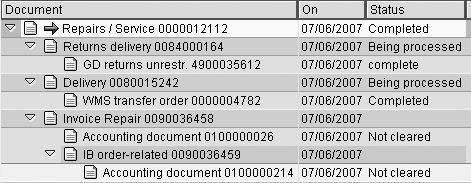
Figure 1
Document flow with inter-company order-related billing
Before you start the configuration in the next section, refer to the sidebar “Critical Updates to SAP Note 63459” for a list of key missing details to ease the configuration and support of order-related inter- company billing functionality in your SAP environment. Regardless of your SAP release (R/3 4.6 or SAP ERP 6.0), you should review the entire configuration and thoroughly test the process because it is easy to miss steps.
Also, make sure you use standard report RVIVAUFT in the configuration to create the order-related inter-company billing documents when you process output type RDIV. SAP has replaced the SAPscript driver program with an order-related inter-company billing creation program.
Consider that you might need to change the standard code in report RVIVAUFT. Billing types IVA and IGA are hard coded in the program, so if you use your own billing types (e.g., ZIVA and ZIGA), then you must modify the report or create a custom copy. Figure 2 shows the code changes you must use if you have custom billing types.
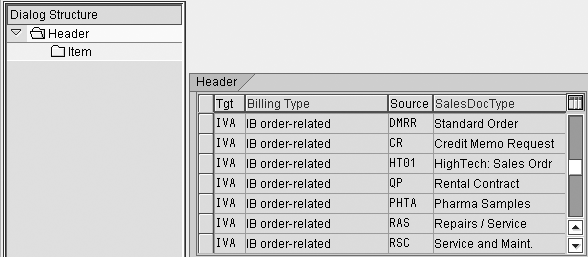
Figure 2
Report RVIVAUFT code changes support custom billing types
Configuration Steps
Step 1. Define billing types IVA and IGA. You can use standard creation billing types IVA and IGA, but your system might not have IVA or IGA defined. Go to transaction VOFA to create IVA and IGA as a copy of billing types IV and IG. If you make any configuration changes to the standard settings (e.g., a document pricing procedure, output determination procedure, or text determination procedure), I advise copying IVA to ZIVA and IGA to ZIGA via transaction code VOFA.
The matching cancellation billing types are IVS and IGS, which are also used for delivery-related inter-company billing. If you use ZIVA and ZIGA, I suggest copying IVS and IGS to ZIVS and ZIGS, so that you can make the matching configuration changes for the cancellation billing types to mirror the ZIVA and ZIGA billing types.
Step 2. Configure billing copy control for billing types IVA and IGA. For Sales and Distribution (SD) invoicing, you must configure the relationship between the reference documents (e.g., orders or deliveries) and the billing document. Billing copy control manages the flow of data from one SD document to another. In my example, the flow of data is from the sales order to the billing document.
Run transaction VTFA to configure copy control for billing types IVA and IGA (Figure 3). The screenprint shows IVA, but the process for IGA is similar. In this screen, ensure that all sales order to billing document combinations exist, especially for custom sales order types and item categories.
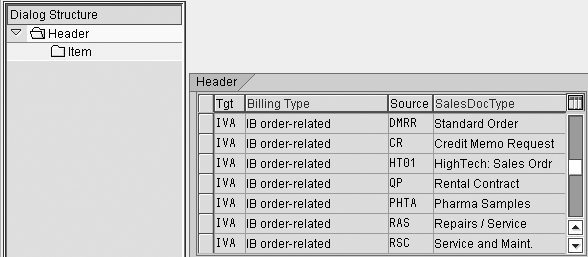
Figure 3
Overview of the header-level copy control configuration via transaction VTFA
Double-click on the Header folder on the left side of Figure 3 to view the copy control configuration details (Figure 4). Be sure to leave the header-level Copying requirements field blank. Order-related inter-company billing is based on successful customer billing, so do not need to re-check the requirements.
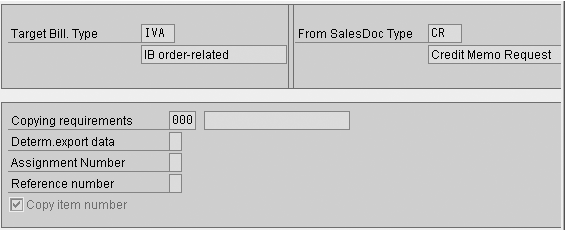
Figure 4
Header-level copy control configuration
Return to the overview screen for transaction VTFA in Figure 3 and then double-click on the Item folder to view the item-level data (Figure 5). Here you configure item-level copying requirements. In the Copying requirements field, enter 036, which represents the routine written specifically for order-related inter-company billing.
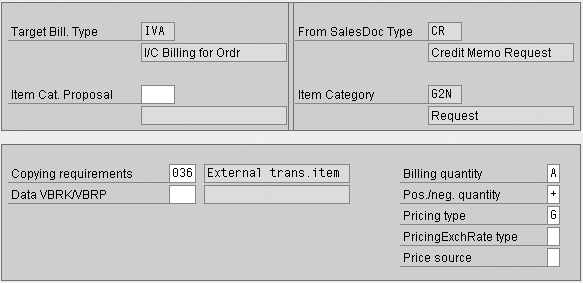
Figure 5
Item-level copy control configuration
Step 3. Determine the Output Type settings. Run transaction V/40 to determine the output type settings. In the output details screen that appears, enter standard output type RDIV and Order-rel.ICB (order-relevant inter-company billing) as shown in Figure 6. Under the General data tab, select Access to conditions and CannotBeChanged to allow SAP ERP to use access sequences and prevent the manual entry of RDIV into customer billing documents. Leave the Multiple Issuing option blank to ensure that order-related inter-company billing is posted only once.

Figure 6
Output type RDIV’s general configuration
Next, click on the Processing routines folder in the Dialog Structure in Figure 6. In the screen that appears, enter program RVIVAUFT for the Medium (transmission medium) 8 Special function so that SAP ERP calls the processing program (Figure 7). Refer to SAP Note 728993 (Output type RDIV is missing in the standard system) for more details.
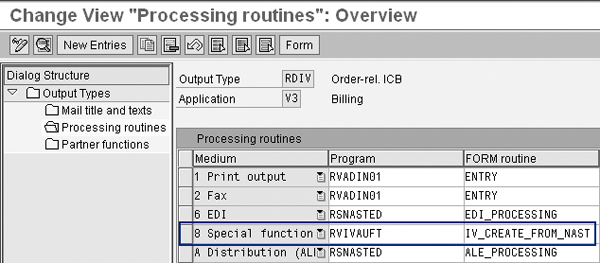
Figure 7
Assign the program RVIVAUFT to the Medium 8 Special function
Then click on Partner functions in the Dialog Structure. In the screen that appears, set the partner function (Funct) to PY and the Name to Payer for the transmission medium 8 Special function, as shown in Figure 8. This configuration process determines which partner number the system assigns to the output type RDIV in the customer invoice.
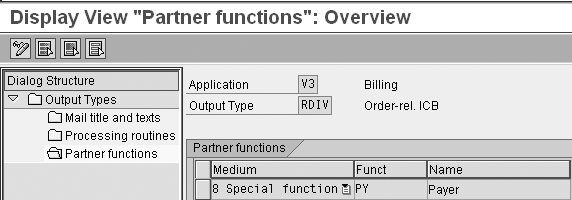
Figure 8
Assign the output type to a partner function
Step 4. Configure the output determination procedure. This procedure is the SAP configuration that selects the output type for an individual billing document. In my example, I want the system to populate all customer order-related billing documents that have inter-company billing with output type RDIV.
Run transaction V/42 to review the standard output determination procedure V10000. You should see Step 40, CTtp (condition type) RDIV, Requiremnt (requirement routine) 18, Co (condition counter) 0, and Description Order-rel.ICB defaulted. If the default configuration does not contain a requirement routine or if you see routine 990, manually change this to 18 (order-related inter-company billing). This requirement checks that order-related inter-company billing is required before assigning output type RDIV to a specific customer billing document.
Step 5. Code the billing user exit USEREXIT_KOMKBV3_FILL. To indicate that inter-company billing is required, you must populate the field KOMKBV3-CROSS_COM. When SAP ERP processes inter-company billing, it checks these parameters to ensure that only customer order-related invoices with inter-company billing have output type RDIV populated.
The code for the user exit is show in Figure 9. In a nutshell, the logic compares the sales organization company code to the plant company code. This comparison determines if inter-company billing is required and if it is order-related billing. You might need the help of your technical team for this step. Add the downloaded code in USEREXIT_KOMKBV3_FILL, which populates a cross-company identifier in field KOMKBV3-CROSS_COM. Go to transaction SE38 and insert the code in include RVCOMFZZ.
*---------------------------------------------------------------------*
* FORM USEREXIT_KOMKBV3_FILL *
*---------------------------------------------------------------------*
* This userexit can be used to move additional fields into the *
* communication table which is used for application V3 *
*---------------------------------------------------------------------*
FORM USEREXIT_KOMKBV3_FILL.
*$*$-Start: (3 )---------------------------------------------------$*$*
ENHANCEMENT 22 ZAVG_RVIVAUFT_001. "active version
DATA: L_BUKRS TYPE T001K-BUKRS.
* SAP Note 63459 - Order related intercompany billing
LOOP AT COM_VBRP_TAB WHERE VBELN = COM_VBRK-VBELN.
* Get the compnany code associated with the plant.
SELECT SINGLE BUKRS INTO L_BUKRS
FROM T001K WHERE BWKEY = COM_VBRP_TAB-WERKS.
CHECK SY-SUBRC EQ 0.
* Check whether it is order related intercompany
IF COM_VBRK-BUKRS <> L_BUKRS and
COM_VBRP_TAB-VGTYP NA 'JT'.
COM_KBV3-CROSS_COMP = 'X'.
EXIT.
ENDIF.
ENDLOOP.
ENDENHANCEMENT.
*$*$-End: (3 )---------------------------------------------------$*$*
* COM_KBV3-ZZFIELD1 = COM_VBRK-field.
* COM_KBV3-ZZFIELD2 = COM_VBUK-field.
ENDFORM.
Figure 9
Code for billing user exit USEREXIT_KOMKBV3_FILL
Step 6. Create the output condition records. After you complete the output determination configuration in the IMG via transaction V/42, you still need to perform another crucial step. You must populate the output condition records for output type RDIV, which SAP considers as master data. RDIV uses the condition tables that are assigned in the access sequence via transaction VV31 to determine which billing documents to populate with the output type RDIV.
The default condition table configures the condition type by customer billing type. You do not need to have sophisticated output condition table logic to identify order-related inter-company billing transactions because the code you added to USEREXIT_KOMKBV3_FILL is sufficient. Also, you don’t need to differentiate between order-related inter-company billing and order-related inter-company credit memos because the code in the standard report RVIVAUFT performs this task for you.
Go to transaction VV31 to define output type RDIV’s condition records. Create records only for transmission medium (field M...) 8, which calls the program RVIVAUFT (Figure 10). Set Dat... (dispatch date/time) to 3 (send with application own transaction) to allow for the batch creation of the order-related inter-company billing using VF31 or SD70AV3A.
.

Figure 10
RDIV output condition records
Printing Order-Related Inter-Company Billing
You must configure output type RD00 for billing type IVA and IGA if you need to print paper copies of the documents. Although this scenario is not common for every company, you might consider creating archive-only copies of the inter-company billing documents in case of a Value- Added Tax (VAT) audit. Run transaction VV31. Create output determination records for output type RD00 to populate the IVA and IGA billing types by entering 1 in the M… (output medium) field (Figure 11). This step generates paper or archived copies of the inter-company invoices.
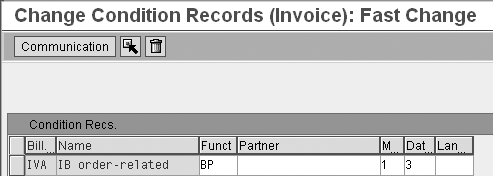
Figure 11
The condition record for output type RD00 required to archive order-related inter-company billing
Processing Order-Related Inter-Company Billing
To process order-related inter-company billing, you must check the output processing, batch jobs, and output log.
Output processing: The configuration results in the system populating output type RDIV in the external customer billing document. Display the billing document via transaction VF03. From the overview screen, follow Goto>Header>Output (Figure 12). Initially, output type RDIV has the ready-to-process status (indicated by a yellow circle). When successful processing is completed, the green square appears in the Sta... (status) field.
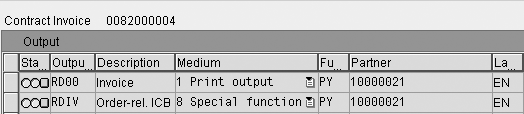
Figure 12
External customer billing header output contains output type RDIV
Batch jobs: If output determination is set up with dispatch date/time 3 (send with application own transaction [step 6]), then set up a daily batch job using VF31 to create the order-related inter-company billing.
Output log: To ensure that you create a billing output log, always run RVIVAUFT in background mode. In most cases, you set up a batch job using SD70AV3A or RSNAST00, which calls RVIVAUFT to create a billing log. View the billing log by using transaction V.21.
If you do run RVIVAUFT in the foreground using transaction SE38 (e.g., you cancel order-related inter-company billing and need to reprocess it), SAP ERP does not record a log with the new document number or a log of any error messages. Instead, you need to look at the SD document flow for the external customer billing to find the new order-related inter-company billing number (see Figure 1). Refer to SAP Note 207570 (RVIVAUFT does not generate a processing log) for more details.
Tips and Tricks
I’ve explained all the configuration steps and batch jobs required to produce order-related inter- company billing. Based on my experience with order-related inter-company billing, here are some tips and tricks that can assist you during testing and set-up tasks.
Output condition not selected: From the VF01 billing overview screen, follow Goto>Header>Output. In the subsequent screen, follow Goto>Determin.analysis to display the analysis screen (Figure 13). Look at the details in the Description field to see why the condition was not selected for the specific billing document.

Figure 13
Output determination analysis screen shows why an RDIV condition type was not selected
Run program RVIVAUFT manually: You can process output type RDIV only once because you don’t use the Multiple Issuing option in Figure 6. If you cancel an order- related inter-company billing document using VF11 and need to reprocess it, you must run RVIVAUFT manually. Enter the external customer billing number in the reports selection screen Billing document field. I recommend training your billing group on this exception process.
Billing due list: Typically, the billing due list table (VKDFS) can identify documents that are waiting to be billed. This does not apply for order-related inter-company billing, however, which explains why you cannot use transactions VF01 and VF04 to generate order- related inter-company billing. If you need to develop a custom report (e.g., a shipped but not billed report), which must identify unprocessed order-related inter-company billing, use table NAST for output type RDIV instead of VKDFS.
Posting inter-company accounts payable: The order-related inter-company billing document creates an FI posting, which then generates the inter-company accounts receivable posting. To complete the inter-company accounting process, there must be a matching inter-company accounts payable posting in the receiving company codes books. Often you can achieve this by using output type RD04, which triggers an IDoc to perform the invoice receipt for the receiving company code. You should configure the RD04 output type for the order-related inter-company billing document. Review SAP Note 31126 (Intercomp. billing-posting to vendor account [EDI]) for more details.
Critical Updates to SAP Note 63459
SAP Note 63459, which identifies most of the configuration you need to perform, is fairly outdated. I’ll point out some of the areas that require revisions. The following changes mentioned in the note are no longer required:
- Custom billing copying requirement 613: This is not required anymore. Use standard billing copying requirement routines 036 and Item order-rel. ICB.
- Define new billing types IVA and IGA: IVA is available as a standard billing type, but you might need to create billing type IGA
- Enhance communication structure KOMKBV3 (in include KOMKBZ5) with fields CROSS_COMP and BUKRS: These fields are available in KOMKBV3 as standard.
- Assign Output to the Partner Functions and Define The Print Parameters mention output medium 1 (print output): This configuration is not required; only output medium 8 Special function is mandatory.
- Output Determination Procedure values: Procedure V10000, item 150, condition type ZZIV, and requirement 990 are no longer required because the standard requirement type 18 is available. You can use the condition type RDIV instead.
I highlighted the main criteria not found in SAP Note 63459. However, you’ll notice that several recommendations I mention throughout the article are also not included in this SAP Note.
Order-Related vs. Delivery-Related Billing
Delivery-related billing is the most common type of billing in SAP ERP, in which a sales order is followed by a delivery and then a billing. SAP provides an alternate billing method, which is order-related billing. Order-related billing typically makes the most sense for situations that have no delivery (e.g., the sale of a service) or scenarios that bill from the sales order (e.g., a repair process).
Figure A compares delivery-related and order-related billing.
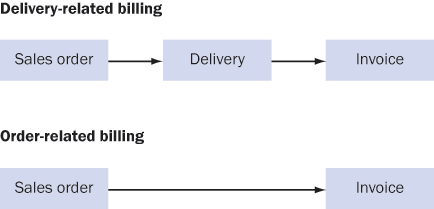
Figure A
Delivery-related billing versus order-related billing
The following business processes, which usually do not have deliveries, use order-related billing. If the business process also includes an inter-company service provider, then order-related inter-company billing is required:
- Contract billing
- Service-order billing
- Repair-order billing
- Credit memos
- Debit memos
In the case of a repair order, however, there is a delivery but SAP ERP originates the billing from the sales order instead of the delivery order.
Keep in mind that service-order billing, which is often referred to as resource-related billing, is a variation of order-related billing. The configuration discussed here for order-related inter-company billing also applies for resource-related inter-company billing.
The controlling factor between delivery-related and order-related billing is the item category billing relevance. Item category billing relevance determines whether or not a sales order item is delivery relevant or order relevant for billing. You can access this information via transactions OVBK, OVBR, or VOV7 (Figure B).

Figure B
Determine billing relevance

Rohana Gunawardena
Rohana Gunawardena heads the SAP practice division at Exium Inc. Exium is a leading business and technology consulting firm that enables companies to achieve their strategic business goals. Exium specializes in delivering superior IT solutions using ERP systems, with a special focus on SAP products. Rohana has been working with SAP since 1992. During his career he has assisted multiple clients on detailed system correction projects, such as correcting inventory balances, controlling area reorganizations, retrospectively activating group currency, and optimizing inter-company accounting transactions. He has spoken at many SAP conferences and has published more than 20 articles in Financials Expert, SCM Expert, and SAPtips on various aspects of SAP. His presentations have focused on Financials module selection, the order-to-cash process, global rollouts, business segment reporting, cross-module integration, and the financial impact of SCM transactions. Rohana is widely acknowledged as a leading SAP expert. Rohana is a Fellow of the Institute of Chartered Accountants in England & Wales. Previously Rohana has worked with the consulting practices of Accenture, Deloitte, and PwC.
Rohana will be presenting at the upcoming SAPinsider Financials 2018 conference October 16-18 in Prague. For information on the event, click
here.
You may contact the author at Rohana@Exium.com .
If you have comments about this article or publication, or would like to submit an article idea, please contact the editor.