R/3's mixed product costing system offers five options for creating cost estimates with multiple procurement sources. The author demonstrates how to use the functionality, which was not available in a standard R/3 system prior to Release 4.5A.
Have you ever run across this problem in product costing? You are trying to calculate a planned cost for a material that can be procured from multiple sources. For example, you typically use a material that is produced locally on one of your production lines, but at other times you need to purchase the same material from an outside vendor. Naturally, the price of the in-house production differs from the vendor’s price. The problem is how to set up your product cost-estimating system to reflect a costing ratio containing both procurement options.
In another example, you purchase a component part from several different vendors, all with different pricing schedules. Again, how can the R/3 product costing system account for different material pricing schedules from different sources of supply?
The answer is quite simple: R/3’s mixed-product-costing system offers five options for creating cost estimates with multiple procurement sources. I’ll demonstrate how to use the functionality, which was not available in a standard R/3 system prior to Release 4.5A. Refer to Figure 1, which is a screen shot of transaction code CK91N. The drop-down window displays the following procurement options for materials:
- Purchase Order. Adjusts the material estimate when component materials are purchased from different vendors.
- Procurement (change involving stocks). Accounts for different lot-size production runs of the same material on the same production version.
- Production. This selection is more complex. It allows for different production versions — the option described in this article — but it can also account for different bills of material (BOMs) and routings for the same material.
- Subcontracting. Accounts for the use of different subcontractors and different BOMs and lot sizing.
- Stock transfer. Sets up the procurement option of the plant-to-plant transfer of materials.
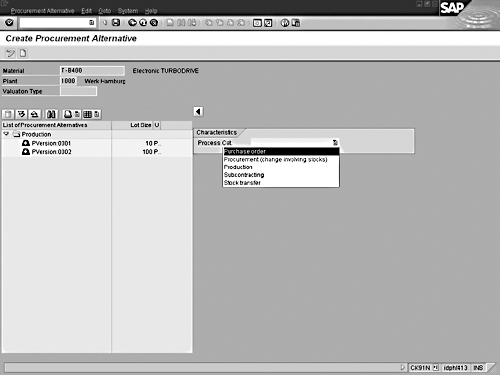
Figure 1
Create Procurement Alternative screen
By way of example, I will use the Production option, which is the simplest to demonstrate, to estimate costs for an electronic turbo drive manufactured on two production lines with different lot sizes.
The configuration necessary to provide the multi-procurement option in the product costing system is only a three-step process.
1. Configure two tables within the IMG.
a. Configure a special quantity structure for the mixed-costing option.
b. Link the new quantity structure to the product-costing system.
2. Move to the application side and set up the required master data.
a. Define the different procurement alternatives.
b. Set the mixing ratios between the different procurement alternatives.
3. Run a new cost estimate and review the results.
Step 1. Configure Two Tables in the IMG
Move to the IMG and locate the mixed-costing option menu selection (Controlling>Product Cost Controlling>Selected Functions in Material Costing>Mixed Costing).
You must complete two steps here. First, design a new quantity structure to allow for the mixed-costing option. Select the Define Quantity Structure option. You then see a screen similar to Figure 2. In this example, a quantity structure MIX has already been configured. However, if you need to set up a new one, just click on the New Entries button and a blank screen will appear.
Under the first column, QtStT, enter the text format identity of your quantity structure. Next, under the Time Depend... column, enter the parameter that controls the time dependency for the quantity structure. You can set the quantity structure on a fiscal year, period, or no time-dependency in this table. (This time-dependency selection table appears in Figure 2 to the right of the main table.)
Enter a check mark in the Perc. valid column if you wish the system to ensure a 100 percent total in the procurement options when you set the various mixing ratios in a later step. In the Name column, enter a longer, more descriptive name for your new quantity structure, and then save your work.
For the second step, link the new quantity structure to the product-costing system. Select the next IMG menu option, Define Costing versions (transaction code OKYD). Figure 3 displays the next configuration screen. If you are starting from scratch, click on the New Entries button to get a blank screen.
The settings on this screen allow the linking of the mixed procurement quantity structure to the product cost-estimating version number, costing type, the valuation variant (all part of the CO-PC costing variant), and even a specific costing variant if required. Review the first line in the table shown in Figure 3 for the details.

Figure 2
IMG view: Define quantity structure types
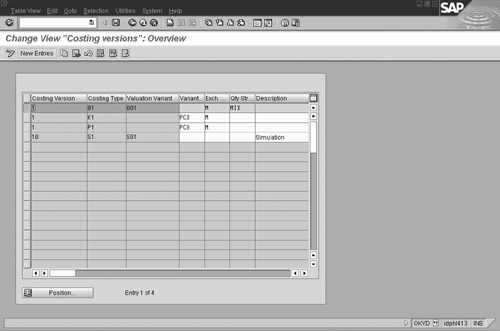
Figure 3
Linking new quantity structure to CO-PC costing variant
Step Two: Set Up the Master Data
Now move back to the application side to build the master data elements and set up the mixing ratios required for mixed costing. Use the following menu path for a reference: Controlling> Product Cost Controlling>Product Cost Planning>Material Costing> Master Data for Mixed Cost Estimate.
Again, you have two steps to complete here. First, select the menu option Edit Procurement Alternatives (transaction code CK91N). Figure 4 displays the initial mixed-costing entry screen with the Plant (1000) and Material (T-B400) identifications already entered. To enter the procurement alternatives for T-B400, an electronic turbo drive, click on the Create icon. Now you can access the pull-down option menu, as shown in Figure 1, and select an appropriate material procurement option.
In this example, the product T-B400 can be manufactured on two separate production lines, version 1 or version 2. The major difference between the two production lines is the planned lot size for each production run of T-B400. Figure 5 highlights the results after you enter production version 1 with a Cstg Lot Size of 10 and click the Confirm button. Note that the procurement alternative for Prod. Version 0001 now appears on the work list side of the screen.
Enter the procurement option for production version 2. Click on the Create icon and enter the data for production version 2. Change the Cstg Lot Size to 100 and click on Confirm. Figure 6 shows the second production version as a procurement option. If no other procurement options are required, save your settings.
For the second step, set the mixing ratios for each of the procurement alternatives. Select the menu option Mixing Ratio (transaction code CK94). Enter the Material (T-B400) and Plant (1000). Note that an important entry requirement located on this screen is the quantity structure MIX in the QtyStruct. Type entry block. This is the same quantity structure that you configured in the IMG during step one. This is the setting that provides the link to the CO-PC system via the costing variant and its components. The link is required to create the final mixed cost estimate. Figure 7 highlights these entries.
Once you’ve entered the data, click on Enter. The Change Mixing Ratios screen will appear. Enter the mixing ratios in the boxes, as shown in Figure 8. Here, I’m assuming that when a production run is scheduled for product T-B400, it will run on Pversion: 0001 10 percent of the time and Pversion: 0002 90 percent of the time. Remember, the configuration of the MIX quantity structure called for a percentage validation of 100 percent. As a result, the system will ensure the total of the percentages entered will be 100 percent. Everything looks good at this point, so you can save the settings.

Figure 4
Initial Procurement Alternatives screen
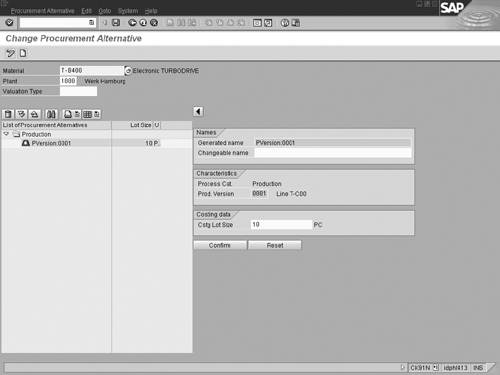
Figure 5
First Procurement Alternative entry
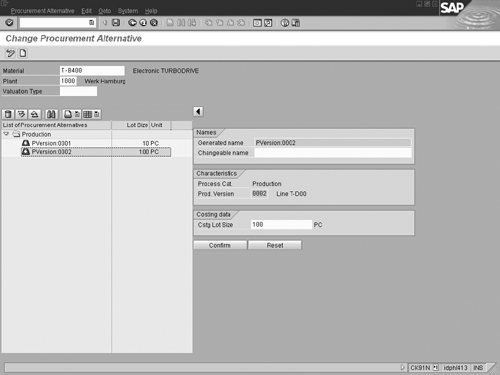
Figure 6
Second Procurement Alternative entry
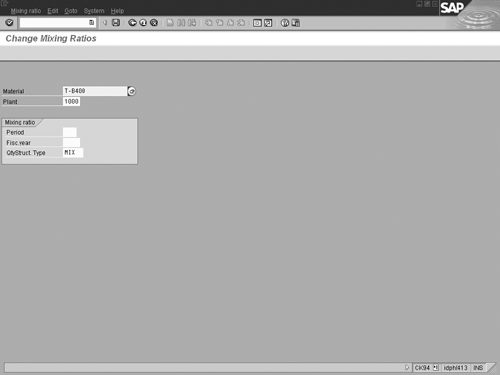
Figure 7
Mixing ratio and quantity structure entry
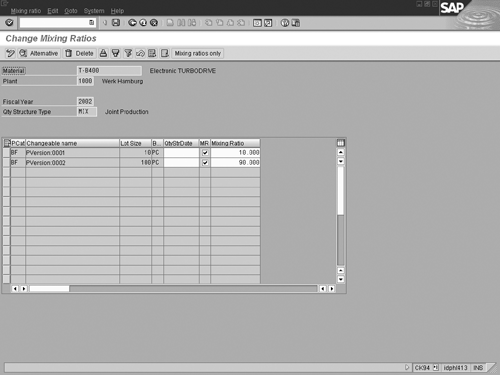
Figure 8
Mixing ratio between different production versions
Step Three: Run the Cost Estimate
Test the results by running a new cost estimate for the product. Move to product cost estimating on the Cost Estimate with Quantity Structure screen (transaction code CK11N). Run a standard cost estimate for the product T-B400. Make sure that you use a costing variant and a costing version that tie back to the settings selected in the QtyStructure MIX that you configured earlier. In this case, the costing variant used in the estimate, PPC1, is configured to include costing type 01 and the valuation variant 001, and the estimate will be version 1. Check Figure 3 as a review of the setting in MIX to better understand the linkage between MIX and the component parts of the costing variant PPC1. You might wish to check the configuration of the costing variant you are using. Transaction code OKKN will take you to the costing variant configuration tables in the IMG. Here, you can review the various components of PPC1 and verify that the costing type is set to 01 and the valuation variant is 001.
The costing result is shown in Figure 9. Note that the production lot size for T-B400 is 100 units. The costing system assumes that the costs will flow 10 percent from production version 1 and 90 percent from production version 2. The resulting cost estimate is a blended view that accounts for the two production locations.
As you can see from this example, the mixed-costing option offers a simple solution to the problem of how to estimate the costs of materials that come from different sources of supply.
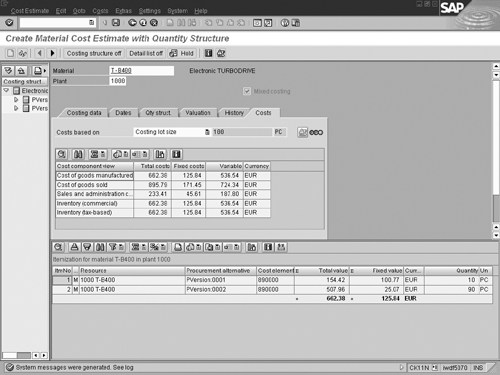
Figure 9
Mixed-cost estimate final results
Gary Fullmer
Gary Fullmer is currently associated with MI6 Solutions as a solution architect. Prior to MI6 Gary recently worked for SAP Labs for 13+ years. While at SAP Labs, he spent his first four years as a CO instructor developing and delivering all CO courses offered in the SAP course catalog. For the next six years, he assumed the role of a FI/CO solution manager, where he focused on interfacing with customers for CO, SEM, and FI solutions. During the remainder of his time with SAP, he worked on SAP General Ledger migration techniques, the SAP IFRS adoption model, and SAP’s enhanced financial closing, and continues to consult on these topics. His educational background includes an MBA from Rensselaer Polytechnic Institute, an MS from Utah State University, and a BS from Utah State University.
You may contact the author at gary.fullmer@MI6solutions.com.
If you have comments about this article or publication, or would like to submit an article idea, please contact the editor.