Learn how to apply the ABAP programming language to your Legacy System Migration Workbench (LSMW) objects to meet your business requirements. See how to navigate through the LSMW transaction to find the areas where you can write your own ABAP code by reviewing detailed examples.
Key Concept
SAP’s Legacy System Migration Workbench (LSMW) allows users to migrate data from legacy systems to their SAP environment. It allows you to load data en masse from a formatted text file. Although one of the benefits of using LSMW is the ability for users to develop data transfer scripts without the need for writing ABAP code, you can actually use ABAP code to enhance the functionality of an LSMW.
There are many ways to use ABAP to enhance the functionality of Legacy System Migration Workbench (LSMW) objects. Every LSMW request presents different opportunities for writing value-added code. Here are a few examples:
- Performing data checks prior to conversion to ensure that erroneous data is not loaded into the SAP system
- Preventing data from loading into the wrong environment (for example, loading data meant for your QA environment into your productive system)
- Manipulating data if a certain condition is met
Note
The examples and content in this article assume that the reader has a basic understanding of the LSMW transaction and the ABAP programming language. They were created using LSMW Version 4.0.0. You can check the LSMW version in your system by following menu path Extras > Display LSMW Version. For a more detailed overview of the LSMW transaction, refer to the article “
Best Practices to Increase the Effectiveness of Your LSMW Objects,” written by Manuel Gallardo.
Areas in Which You Can Write ABAP Code
You can insert ABAP code in two areas in the LSMW transaction. The first area is the administration screen for user-defined routines. ABAP code that is written here is done so in the form of a subroutine, and can be reused by all LSMW objects within the project in which the user-defined routine was created. This is ideal for creating code that has the potential for being used by other objects within a project.
The second area in which you can insert ABAP code is in the maintain field mapping and conversion rules step of the LSMW. When ABAP code is inserted there, it applies only to objects in which it was inserted and cannot be reused by other objects. An example of this would be writing code that performs a specific data check applicable only to the infotype for which the object was created.
Create a User-Defined Routine
To begin writing code in the Administration screen for user-defined routines, use transaction LSMW and follow menu path Goto > Administration (Figure 1). You see a list of all LSMW projects that currently exist in your landscape. In this first example, I create a user-defined routine that performs a check to ensure that data is being loaded into the intended system. The use of this logic assumes that the system ID is present in each record of the data load file.
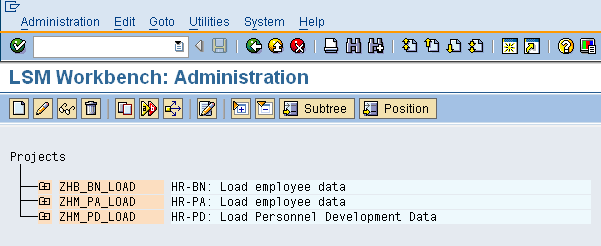
Figure 1
LSMW Administration screen
Next, click to the left of the project name to expand the project; then place your cursor on the User-Defined Routines text and click the create icon (circled in Figure 2).
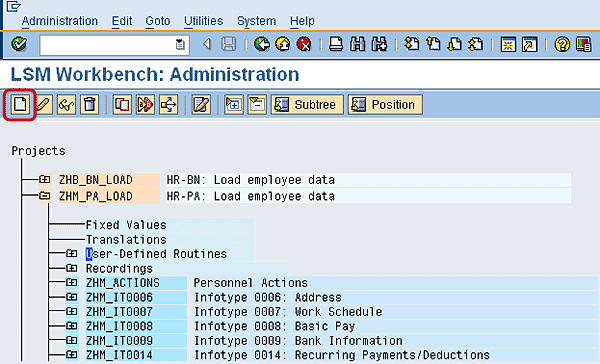
Figure 2
Locate the User-Defined Routines node
As shown in Figure 3, you are prompted to specify a name and description for your user-defined routine. Enter the user-defined routine name in the first Name field. Then enter the description in the second Name field. When you are done entering this information, click the check icon.
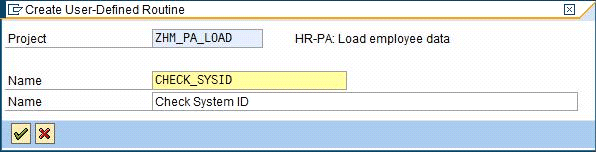
Figure 3
Create User-Defined Routine screen
Once you enter the name of the user-defined routine, you are prompted to enter the Number of Entry Parameters and the Number of Output Parameters (Figure 4). For example, if you are passing two values to the routine for processing and having it return one value, you enter 2 (entry parameter) and 1 (output parameter). In this example, use three entry parameters: the system ID specified in the file, the system ID of the logon system, and the employee personnel number. Do not use output parameters. When you are done specifying the routine parameters, click the check icon.
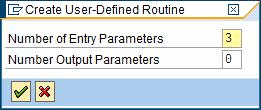
Figure 4
Specify entry and output parameters
The shell of the user-defined routine is created and is now ready for ABAP code. To begin inserting your code, highlight the user-defined routine by placing the cursor on the routine name (e.g., CHECK_SYSID) and click the change (pencil) icon (Figure 5).
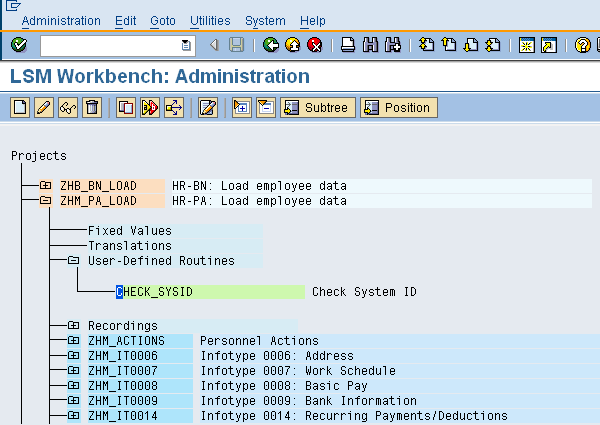
Figure 5
Display of project hierarchy to include the newly created user-defined routine
The SAP system automatically inserts the code displayed in Figure 6. Note that the form name is prefixed with ur_. When ready, reference your user-defined routine using the form name. You can now begin to insert your ABAP code within the body of the user-defined routine. When done, check your code by clicking the check icon (circled in Figure 6). If there are no errors, save the user-defined routine by clicking the save icon.
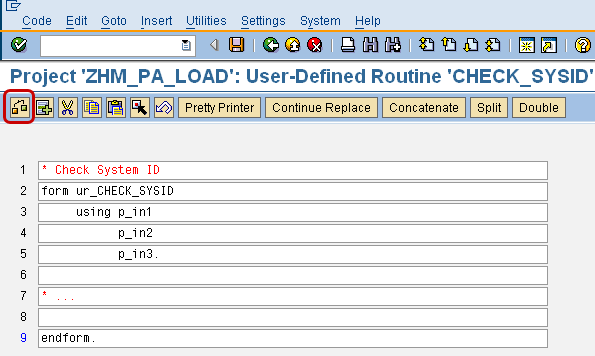
Figure 6
Code shell
Call a User-Defined Routine
In the following example, an LSMW for infotype 0007 (work schedule), I perform a call to the user-defined routine (ur_CHECK_SYSID) to introduce the functionality of the system ID check to this object. To start, select the Maintain Field Mapping and Conversion Rules radio button in the Process Step screen and click the execute icon (circled in Figure 7).
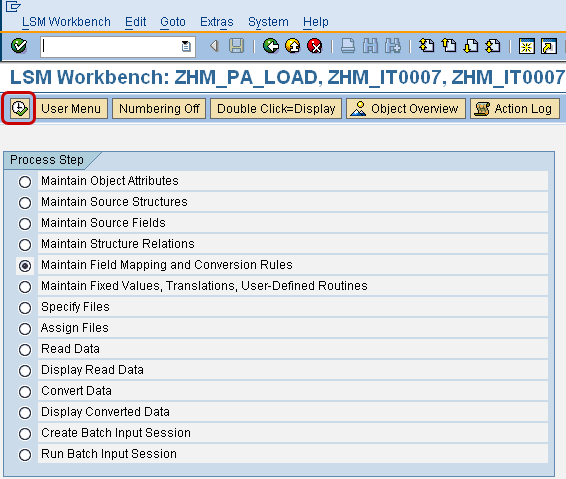
Figure 7
Select the Maintain Field Mapping and Conversion Rules step
Next, click the change icon, select a field where the call to the user-defined routine is made, and double-click the field name. For this example, insert the code in the BEGDA field (Figure 8).
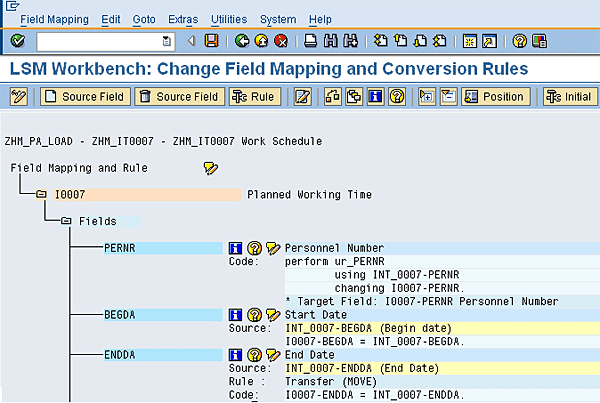
Figure 8
Field mapping and conversion rules (change mode) for infotype 0007 object
To make a call to a user-defined routine, I use the PERFORM statement, specify the routine name, and list the input and output parameters (if any) used by the routine during processing (Figure 9). You may enter comments as necessary to describe the purpose of the user-defined routine. When done, check your code by clicking the check icon. If there are no errors, save your code by clicking the save icon.
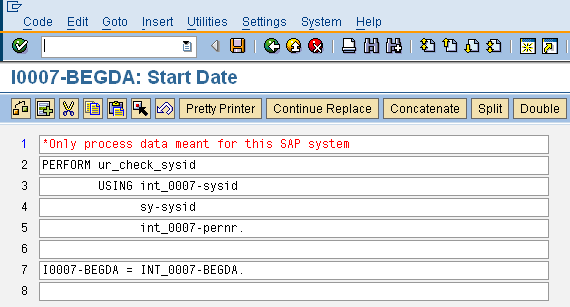
Figure 9
Call to the CHECK_SYSID user-defined routine
Write ABAP Code in the Maintain Field Mapping and Conversion Rules Screen
I’ve explored the option for creating user-defined routines and how calls to these routines are made. Now let’s look at how to write ABAP code directly in the field mapping screen.
To start, access the Process Step screen (Figure 7) of your LSMW and select the Maintain Field Mapping and Conversion Rules radio button. Click the execute icon. Next, click the change icon and determine which field to insert your code under (Figure 10). Double-click the field name to access the ABAP editor.
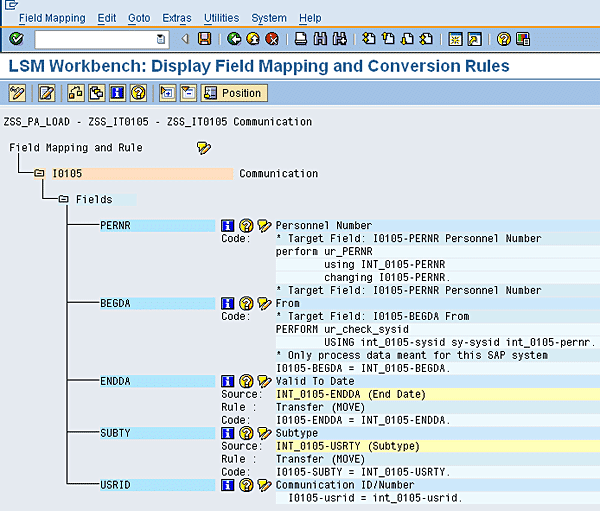
Figure 10
Field Mapping and Conversion Rules (change mode) for infotype 0105 object
For this exercise, I use a simple example related to infotype 0105 (communication) and insert the ABAP code into the USRID field (Figure 11). The objective of this code example is to first check each record to determine if the subtype value is equal to CELL (cell phone) or MPHN (mobile phone). If this is true, all the dashes are automatically removed in case they are in the wrong places. Then they are automatically reinserted in the correct places by the system. If the subtype is neither CELL nor MPHN, then the system skips the logic and processes the direct field mapping (in line 18 of Figure 11).
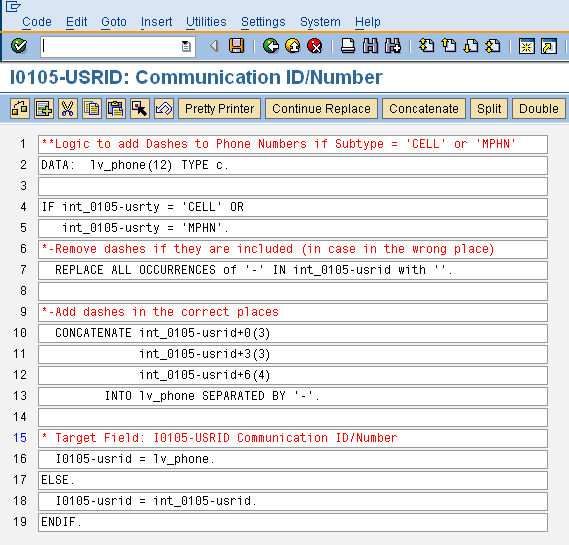
Figure 11
Sample code for inserting dashes into the correct places of a phone number
I have explored two options for using ABAP code to enhance the functionality of LSMW objects. Going forward, use these concepts early in your design to ensure that you are maximizing the efficiency and effectiveness of your LSMW objects.
Julian R Marquez
Julian R. Marquez is a senior SAP business analyst for Tesoro Companies, Inc., in San Antonio, Texas, and has been working in SAP ERP HCM since 2004. His areas of specialty include Personnel Time Management, Personnel Administration (PA), and Personnel Development (PD), with a background in ABAP development. He holds a BS in software engineering and an MS in industrial engineering, both from St. Mary’s University in San Antonio, Texas.
You may contact the author at Julian.R.Marquez@gmail.com.
If you have comments about this article or publication, or would like to submit an article idea, please contact the editor.