Learn how to model payment file structures with the graphical editor of the Data Medium Exchange Engine (DMEE). Understand the various node types that are available to create your own payment format trees and their differences. Comprehend the technical architecture, the graphical user interface, and the relevant configuration of the DMEE. Find out how the DMEE is integrated with the Payment Medium Workbench (PMW).
Key Concept
Format trees are a graphical representation of a payment format. Creating new format trees for outgoing payments with the Data Medium Exchange Engine (DMEE) consists of five steps: specifying the tree header with details, creating format tree nodes, checking the syntax for consistency, testing the format tree, and configuring the Payment Medium Workbench (PMW).
Creating and managing different payment formats can be burdensome to companies that are either operating in an international business environment or managing different bank relationships. Payment formats are not only different from country to country but are also subject to change over time. Cash and Treasury managers face challenges because their banks support only local or regional payment standards or send inconsistent account statements for reconciliation purposes. The Data Medium Exchange Engine (DMEE) and the Payment Medium Workbench (PMW) enable you to cope with these problems and provide an alternative to the traditional payment medium programs.
The DMEE is a software component within SAP Financials that provides a graphical editor customizing tool. This graphical editor allows you to model an externally defined file format to meet the requirements of your financial institution. The DMEE is integrated with the PMW, which facilitates generating Data Medium Exchange (DME) files for the defined payment format. You can use the DMEE for two different file types:
- Outgoing DME files, which are generated from the SAP system data and sent to a third party (e.g., a bank). These messages could be flat files or XML files.
- Incoming DME files, which are received from a third party and need to be interpreted by the SAP system. The documents in these files may need to be posted in the SAP system.
One of the features of the DMEE is the graphical user interface, which allows you to define and modify your payment format without deep ABAP knowledge. The DMEE also provides a single program interface for all payment formats. SAP components outside of Financials, such as SAP ERP Human Capital Management or Treasury Management, can use this interface. You can also transport payment formats into other SAP systems, which is useful for testing purposes or if you run multiple SAP instances.
DMEE Architecture
Part 1 discussed how the traditional payment program architecture of SAP has a payment program (RFFO*) that generates payment files according to a specific format. The RFFO* program handles the four major tasks: payment data selection, definition of the payment file structure, data mapping, and storage of the file. Because the file structure is different for each application area (e.g., sales tax, withholding tax, and payment instructions), you need at least one program per application area.
The PMW and DMEE software components use the SAP program SAPFPAYM, which creates different payment instructions from RFFO*. Figure 1 describes the five process steps that take place while a payment file is being created.

Figure 1
Process flow to create a payment file with the DMEE
Step 1. Select data. After the execution of the payment program, the system selects and reads relevant data from SAP tables REGUH and REGUP. The data selection in the SAPFPAYM program is performed via the logical database FPMF.
Step 2. Convert the selected data. Function modules FI_REGU2FPAY and FI_PAYM_FILL_FPAYHX convert the selected data from tables REGUH and REGUP to the general ABAP interface structures FPAYH, FPAYHX, and FPAYP. Additional data from certain customizing tables, such as T001, is also moved to the fields in the FPAY* structures. These ABAP structures are used for different applications that create payment data (e.g., Financials or Treasury Management) and contain no FI-specific fields such as BELNR. Instead, these structures contain general fields, including the reference field, as well as the payment document (FPAYH-DOC1R).
Step 3. Create an internal table in the required file format structure and execute the data mapping. The selected data is then moved to the DMEE controller, which is a part of the DMEE architecture. The DMEE controller must have the information of the file structure to create an internal table in the required file format structure. The main task of the DMEE controller is to execute a specified data mapping from the SAP fields to the fields of the payment file.
Step 4. Transfer the internal table. After successfully executing the data mapping, the DMEE controller passes the internal table back to the PMW.
Step 5. Create the payment file. The PMW then creates the DME file.
A Business Add-In (BAdI) is also available and allows you to modify the internal table created in step 3 before the payment file is saved. You can find this BAdI by following IMG menu path Cross-Application Components > General Application Functions > DME Engine > Business Add-Ins > Outgoing Files > BAdI: File Modification.
Depending on the application-specific options, you can create the payment file either in the TemSe (a store for objects that are not normally permanently held in the SAP system, short for temporary sequential data), the application server, or the presentation server.
DMEE Format Trees Header
Use transaction DMEE to launch the DMEE. Payment formats are modeled in format trees. Different tree types group the respective format trees for the available application areas. The tree type for the payment program is called PAYM. You have to create the corresponding PMW format before you can create a PAYM format tree (as described in part 1). The PMW format tree and the DMEE format tree must have identical names. Therefore, if you have already created a PMW format, then make sure that you use the same name for your DMEE format tree. SAP delivers a number of predefined PAYM format trees, such as the BACS format for domestic payments in the UK. You can find an overview of available formats in SAP Note 395679.
You can create, display, or change format trees with transaction DMEE. The DMEE format tree consists of two components (Figure 2):
- Tree header data that contains technical settings and properties that apply to the entire DME file. This header data is different for incoming and outgoing DME files and is stored in the root node of the DMEE format tree.
- Tree nodes that represent the DME file layout description. These nodes display in a hierarchical form, and you can select a number of different node types. You have to define the appropriate source (for outgoing files) or target fields (for incoming files) for each node to populate the nodes with the right SAP data.

Figure 2
Header data and nodes of DMEE format trees
Each format tree for outgoing DME files contains the following tree header data.
Administrative Data
You use this to document your format tree. For example, you can specify the name of your documentation text in the Documentation field. You can maintain the text directly in the SAPscript Editor by clicking the information icon  . You should only store general documentation that is applicable to the entire format tree here. You can maintain additional documentation under the Comment tab of each node. The administrative data also allows you to see the version of the DMEE format tree. The SAP system automatically assigns the value 000 to a format tree that you have successfully activated. The value 001 is assigned when you save but do not activate a maintenance version, which I describe later. You can only make changes to the maintenance version of a DMEE format tree.
Format Attributes
You use format attributes to specify SAP Data Dictionary (DDIC) structures if you want to use format-specific parameters. Depending on the type of file format, you can also specify other details. You can enter delimiter information for flat files, for example. In addition, you can specify whether you want the SAP system to print an accompanying sheet when the payment file is generated. If you need the accompanying sheet, which contains subtotals of the payments contained in the file, then you need to maintain the key fields under the Sort/key fields tab.
Levels
These are required to specify the number of hierarchy levels in the DME format. In addition, you can define a repetition limit for each level. This value determines how often the system can output a certain level. If the repetition limit is exceeded, the corresponding level can no longer be output. If the repetition limit is reached for the uppermost level in the format tree, and the system has to process additional data, then the system automatically generates a second file. If the repetition limit is reached for lower levels, the preceding level is repeated so that data can continue to be output for this level.
Sort/Key Fields
You use these to determine how certain fields in the payment format are sorted. For example, you can sort according to a particular currency or account. If you mark a Sort field as a Key field, changes to the value in the Sort field cause the corresponding format level to end. If you activate both the Key field and No Sorting selection boxes, you are specifying that the respective data not be sorted by this criterion. One reason for selecting both boxes could be that the data was already presorted in the settings of the PMW. The benefit of these PMW settings is additional space in the sort fields, which allows you to use additional fields from the payment file (e.g., the payment document number or paying company code) as sort fields.
File Data
You use file data to determine whether data segments in your payment file should be separated by carriage return or by line feed. If you want to explicitly include or exclude certain characters from the file then you can maintain them under the File Data tab. For example, if your bank does not accept certain characters then you can exclude these characters from your payment file; just enter the characters one after another with no spaces between them. The system automatically removes the specified characters from the payment file.
Example of Levels and Sort/Key Fields Tab
Imagine that you want to create a payment file that starts with a first line containing a header record. This header record appears only once and contains information about your company as well as some general data, such as the number of transactions that are valid for the entire file. The next line of the payment file will be the business partner record containing information about the vendor you want to pay. This payment record includes payment details, such as the payment amount or the payment currency. The file contains different business partners with multiple payment records for each partner. The payment records that belong to a specific business partner will be listed after the line of that business partner has been output.
This would imply the following level hierarchy in the tree header data (Figure 3):
- Level 0: This is only used for element subnodes below level 2 or 3. An example would be the field’s name or street address. For this, you would assign level 0 below a business partner that you maintain on level 2. Because there can be multiple subnodes, you can keep a repetition factor of 9,999,999 as the default entry.
- Level 1: Assign level 1 to the header record and the total record. Because this header record appears only once, assign the value 1 in the Repetition Factor field.
- Level 2: Assign level 2 to the business partner records with a repetition factor of 9999999, that is, you can include a maximum of 9,999,999 business partner records in the file. The system automatically creates another file if there are more vendors. The information for the business partner does not change until all the payment records for that business partner have been listed.
- Level 3: The payment records are assigned level 3 with a repetition factor of 9999999. This is the maximum number of payment documents that can correspond to a single vendor record. If there are more payment documents for one vendor, the system automatically regenerates a vendor record and writes the remaining payment documents under this second vendor record.
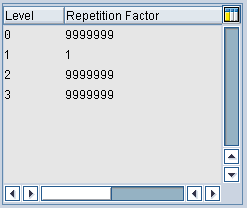
Figure 3
Level in the format tree
The company code is the Key field for level 1, which includes data about the company (Figure 4). Therefore, let’s assign the FPAYH-ZBUKR key field, which belongs to the ABAP structure FPAYH, to level 1. If this Key field is already included in the granularity of the PMW payment medium format (refer to part 1 of this series) then it does not have to be a sort field anymore and you can select the No Sorting check box. Because you want the SAP system to sort the data that was selected by the payment program for the company code before the data is transferred to the DMEE, you have to enter the value 1 in the Sequence column. The Due Date and Account ID fields (FPAYH-AUSFD and FPAYH-HKTID) are the Key fields for level 2.
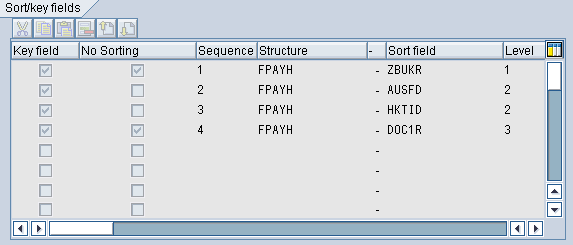
Figure 4
Sort and key fields
Let’s sort the data for these attributes as well (as second and third criteria). If they are not included in the granularity of the payment medium format then you would not select the No Sorting check box (because they are not yet sorted in the PMW). Level 3 gets the Key field payment document reference (FPAYH-DOC1R), but you do not want this as a sort field.
DMEE Format Tree Nodes
To enter the first node in the format tree, right-click the root node (the header data) and select the node type you want to create. For the nodes shown in Table 1, you have to double-click above the node where you want to insert the next node. The DMEE highlights the new node with a blue arrow, and you can specify whether you want to insert the node on the same level or as a subnode. There are various node types for different file types (XML or flat file) available in the DMEE. These node types have specific icons in a DMEE format tree. The node types shown in Table 1 are for XML files.
|
Node type
|
Icon
|
Use
|
|
Element
|

|
Contains one line of an XML file that has been structured with tags. For each of these elements you have to specify the value or the source field to populate the tag with the SAP data. You can also define additional elements and XML attributes as subnodes of an element.
|
|
XML attribute
|

|
Forms a subnode of an element and is used to define the values of an element more precisely
|
|
Atom
|

|
Populates an element with multiple source fields or defines certain mapping procedures between the source fields and the element
|
|
Technical node
|

|
Stores certain values that you need in other nodes of the tree by creating a reference to this technical node. This is an element that is not output in your payment file.
|
You have to maintain a number of tabs for each of the format nodes. These are similar to the format tree header data displayed on the right side of the DMEE format tree (Figure 5).
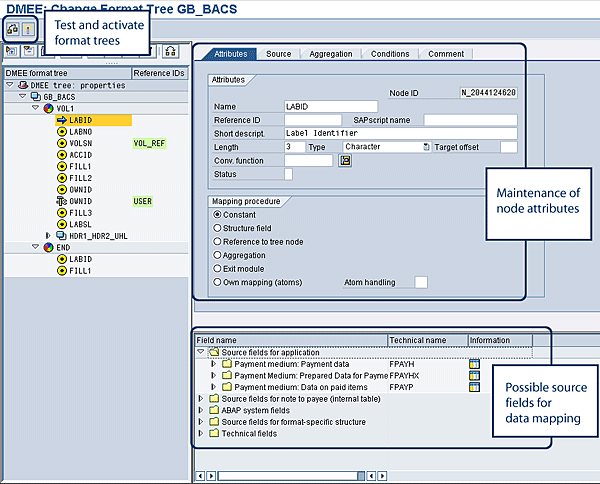
Figure 5
Node attributes and source field inventory
In addition to the Comment tab, you find the following tabs:
- Attributes: Contains administrative and technical information about the node, such as the name, node ID, type, and length of the field. You can maintain conversion functions depending on the field type. For example, you can define the date format or whether you want a character string left justified. An important parameter is the mapping procedure. You can define that the value of the field should be a constant (e.g., a currency code) or you can enter a specific data field from an SAP structure. SAP has predefined a set of possible source or target fields for each DMEE tree type. The SAP system generates the possible fields during the data selection step (Figure 1) and displays them at the bottom of the screen. If you want to select a field from the source/target field inventory (located at the bottom of the screen), you need to double-click the document icon
 to the left of the field name. The SAP system transfers the structure and the field name to the Source tab.
- Source: Contains the detailed source data of a structure field that you selected from the field inventory (e.g., the name of the debtor is the structure field FPAYX.NAMEZ). The PAYM tree type includes the application source fields in the structures FPAYH, FPAYHX, and FPAYP, or source fields for the note to payee (DMEE_PAYD).
- Aggregation: You can aggregate values for specified format tree nodes (called aggregation nodes) and make this number available to a defined field in the DME file. One example is the number of transactions included in the file.
- Conditions: You can define conditions that control whether a certain format tree node is processed during the file generation or conversion. For example, you can avoid a situation where certain fields remain empty and make sure that they are populated with a predefined value instead.
When you are done with the maintenance of your format tree you can click the check icon in the top-left corner of Figure 5 to validate whether your DMEE tree is correct. You receive a detailed log listing all the errors that the system has identified. Before you can use the DMEE format tree you have to activate it so that the payment program can use it to generate a DME file.
To activate a format tree, click the activate icon (to the right of the check icon). If there are no errors, the system activates the format tree and saves it as the active version (value 000). If the check determines that there were inconsistencies (errors or warnings), then the SAP system only saves the format tree in the maintenance version (value 001). Once the check is complete, you can test the active format tree by generating sample DME files. To do this, fill the DDIC structures FPAYHX, FPAYH, and FPAYP with sample data and click the check icon for your active format tree file. The system then generates and displays a DME file and you can check whether your sample data is displayed correctly in the different nodes of the file (Figure 6).
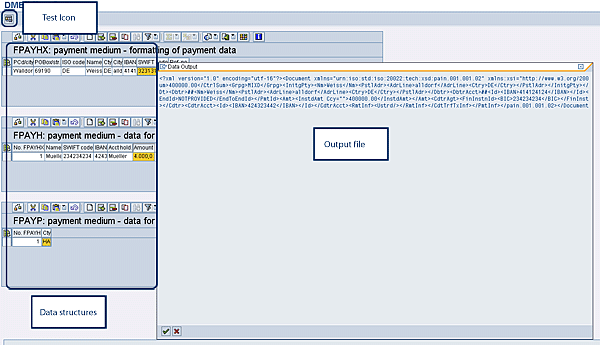
Figure 6
Test tool for DMEE format trees
Once the DMEE format tree is correct you have to configure the PMW and select the Mapping using the DME Engine parameter in the maintenance area of the payment medium formats in transaction OBPM1 (Figure 7). If you set this indicator, the SAP system uses the event modules of the DME mapping engine.
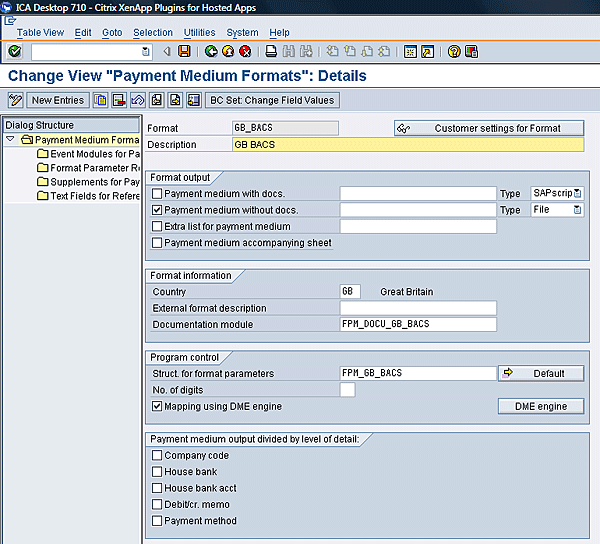
Figure 7
Configuration of the PMW
Juergen Weiss
Juergen Weiss works in the functional area of SAP Financial Supply Chain Management. As part of SAP’s product management team, he was globally responsible for the Financial Supply Chain Management applications, including Electronic Bill Presentment and Payment, Dispute Management, Collections Management, Credit Management, Treasury and Risk Management, Bank Relationship Management, and In-House Cash as well as Accounts Payable and Receivable.
You may contact the author at juergen.weiss@sepa-now.de.
If you have comments about this article or publication, or would like to submit an article idea, please contact the editor.