Follow these steps outlined by Lori Sanders to integrate SAP Solution Manager 7.1 with SAP Portfolio and Project Management (PPM). Then you can manage projects in one place, rather than jumping to Microsoft Project or other external tools.
Key Concept
SAP Portfolio and Project Management (PPM) allows you to perform the strategic management and analysis of a group of projects in a portfolio. PPM is used mainly by project and program managers, as opposed to the SAP Project System module, which is targeted at key users who may be team members or controllers.
SAP Solution Manager has been around for more than 10 years and has supported implementation project documentation and testing for most of that time. However, the software platform has not included specific functionality to manage projects at a detailed level. Project teams were restricted to creating customized roadmaps and then exporting them to Microsoft Project or other, more robust project management applications to track progress toward completion.
With the release of Solution Manager 7.1 Support Package Stack (SPS) 10, project teams can take advantage of the integration with SAP Portfolio and Project Management (PPM). PPM is delivered in Solution Manager 7.1 with component CPRXRPM. To verify that your Solution Manager installation includes this component, access System > Status from the menu, and select the Component information button under the Component Version field. The component information shown in Figure 1 is from a Solution Manager 7.1 system at SPS 12, so it may look different than yours.
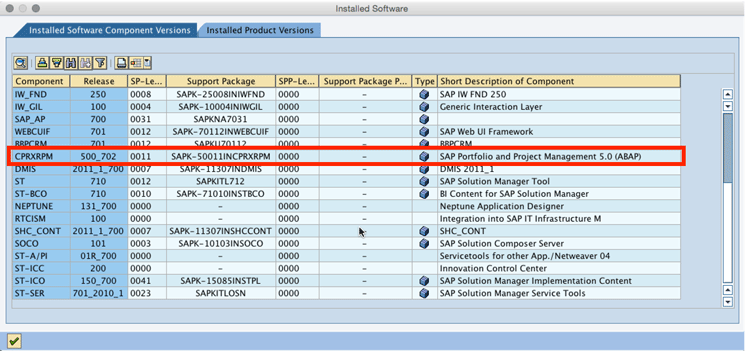
Figure 1
Solution Manager component versions with SAP PPM highlighted
SAP PPM is a project and project management platform that provides detailed resource and task management capabilities, two historical shortcomings of the Solution Manager platform. Now, with the integration between the two solutions on the Solution Manager system, Solution Manager can manage the what of the project, and PPM can manage the who and how of the project.
Integration between PPM and Solution Manager can also incorporate Change Request Management (ChaRM) functionality, with the ability to create ChaRM requests for changes manually or automatically from a project task. Time recorded by resources to ChaRM requests for change is synchronized back to PPM for time tracking against the task and project.
Following is an overview of how you can use the integration functionality between PPM and Solution Manager. I then show you how to set up the integration. It is not a detailed overview of either platform; that information is available at help.sap.com.
Managing Projects with PPM and Solution Manager
From a PPM perspective, a portfolio consists of a number of projects. Using PPM, you manage your project portfolio to maximize return on capital investment, manage projects to cost and time sensitivities, and optimize resources across projects. It is a strategic, global view of the cross-project landscape.
Projects in Solution Manager focus on what is to be implemented to solve a problem or take advantage of an opportunity. The emphasis is on documenting requirements and building a solution to meet those requirements. Changes to the proposed or implemented solution are requested and approved, built, documented, tested, and deployed using Solution Manager as the single source of truth.
Tying the two together provides a drill-down approach to task management, with a roll-up to costing, time tracking, and status management for resources. The integration between PPM and Solution Manager is activated at the project level. Not all Solution Manager projects must have a PPM project, and not all PPM projects are required to have an associated Solution Manager project. This is at the project manager’s discretion.
To associate a PPM project with a Solution Manager project, some configuration tying the PPM project type to the Solution Manager project type is required. This is covered in the “Setting It Up” section.
When the project manager creates a project in PPM of a type mapped to a Solution Manager project, the SAP Solution Manager Project tab becomes available for population in the PPM project (Figure 2).
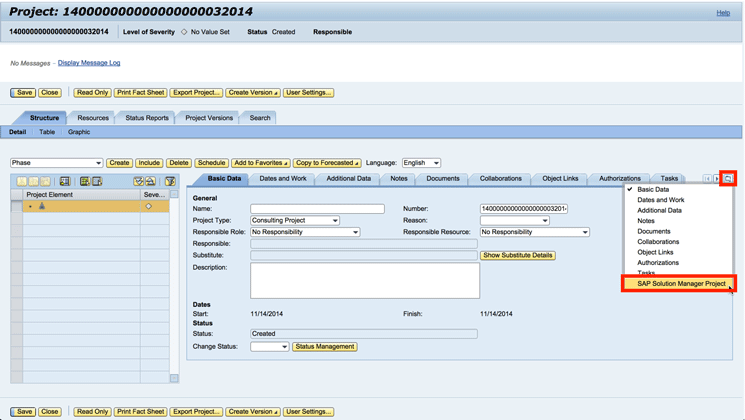
Figure 2
PPM project navigation to the SAP Solution Manager Project tab
The tab permits you to create a new Solution Manager project from the PPM project or to assign an existing Solution Manager project to the PPM project.
If you have already created a project in Solution Manager, select the Assign Project button to select the relevant project and assign it to the PPM project. If you have not created the project in Solution Manager, click the Create Project button to continue to the Create Project dialog. Then click the Continue button and save the project by clicking the Save button. Figure 3 shows the screen before you map the Solution Manager project. Figure 4 is the screen after you map the Solution Manager project and save it.
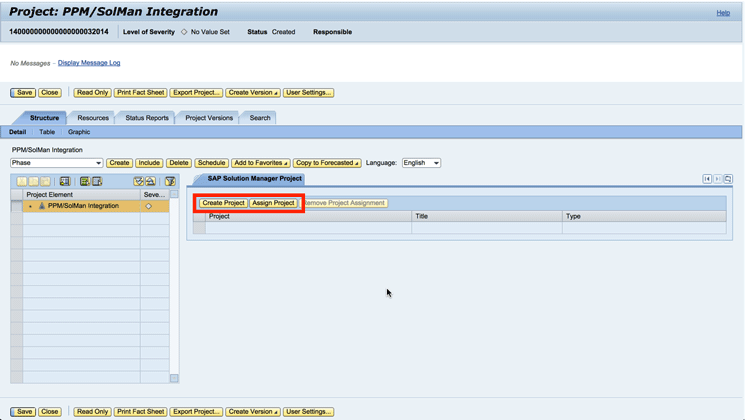
Figure 3
Creation or assignment of the Solution Manager project from the PPM project
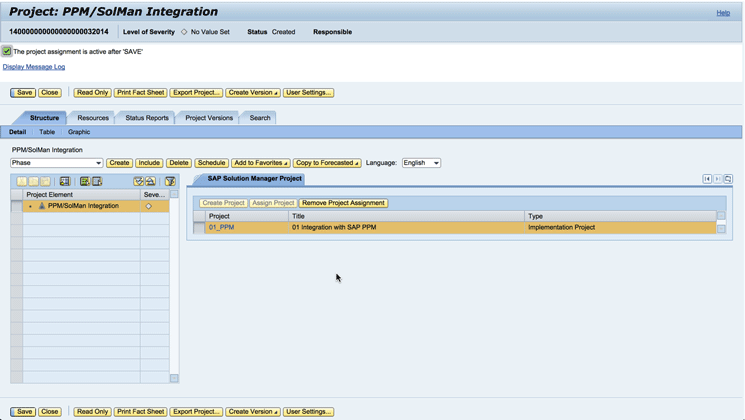
Figure 4
PPM project with linked Solution Manager project
If you then execute transaction code SOLAR_PROJECT_ADMIN in Solution Manager, you notice some changes (Figure 5):
- The Project Management Project connection is documented at the top of the window, below the Project, Title, and Solution fields.
- You can navigate to the PPM project from the Goto menu item.
- You no longer can update the project status from the Solution Manager project as it is grayed out.
- You no longer can manage project resources from the Solution Manager project.
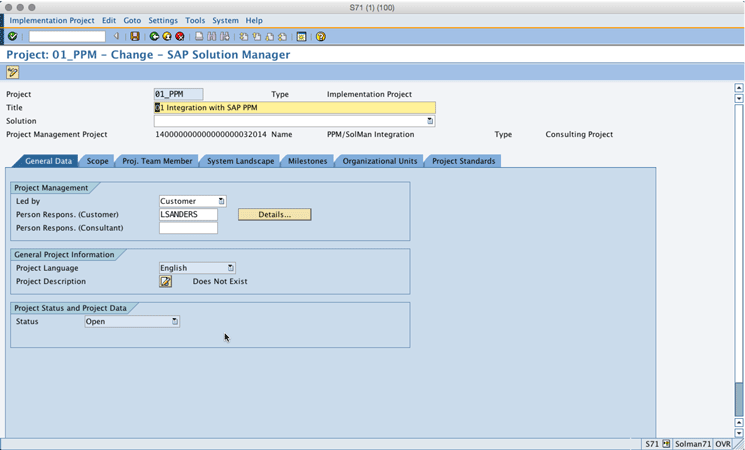
Figure 5
Solution Manager project with assigned PPM project
Once a Solution Manager project is tied to a PPM project and released, the PPM project is where the project status is updated and resources are managed. Any changes that happen in PPM are reflected in the Solution Manager project. Note that you must set the status of the PPM project to Released on the PPM Basic Data tab for these changes to be reflected.
At this point, the Solution Manager project activities, such as blueprinting, configuring or building, and testing, can continue as usual, and the PPM project-tracking activities also continue.
If the Solution Manager project has activated ChaRM (on the System Landscape > Change Management tab), tasks from the PPM project can generate change requests manually or automatically, depending on your system settings. Project resources can log time worked to the change request and see it posted to the PPM project in turn.
In the current project PPM/SolMan integration, I created a new task named Publish blueprint document and then clicked the Save button to save it (Figure 6). To create a task in PPM, make sure you are on the high-level Structure tab. Select Task from the drop-down menu and click the Create button. Nothing happens in the background, though, until I set the task Status on the Basic Data tab to Released.
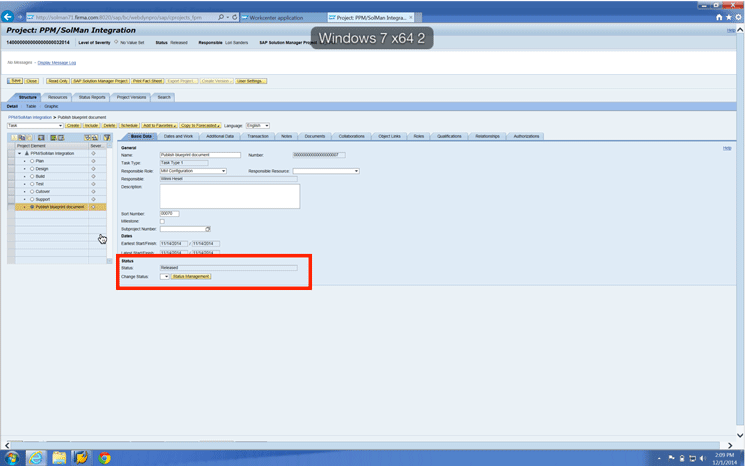
Figure 6
Set the PPM task to Released status in the PPM project
At this point, the system automatically creates a request for change in the background. A link to this request for change can be seen in the Transaction tab for the task in Figure 7.
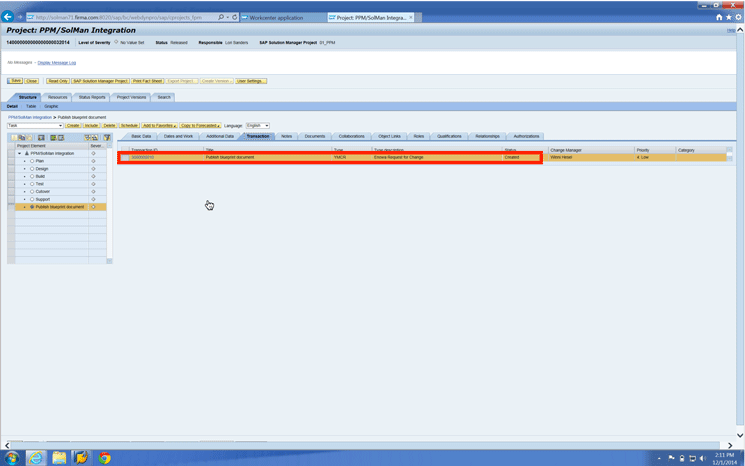
Figure 7
The Transaction tab in the PPM project with a link to Request for Change
Clicking the Transaction ID link takes you to the Request for Change document in SAP Solution Manager. As you can see, the PPM information is displayed on the Request for Change (Figure 8). (This may not be the case in your system. This is configurable.)
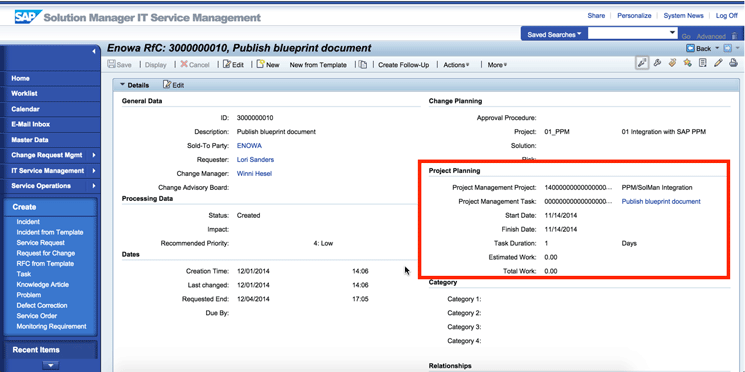
Figure 8
Request for Change displaying PPM information
Setting It Up
The configuration to tie PPM to Solution Manager is relatively straightforward. PPM is delivered with component CPRXRPM on the Solution Manager 7.1 system, so there is no need for a technical interface. Configuration tasks for the setup appear under both Implementation/Upgrade and Change Control Management headings within SAP Solution Manager > Capabilities (Optional). Figure 9 displays the menu path under Implementation/Upgrade.
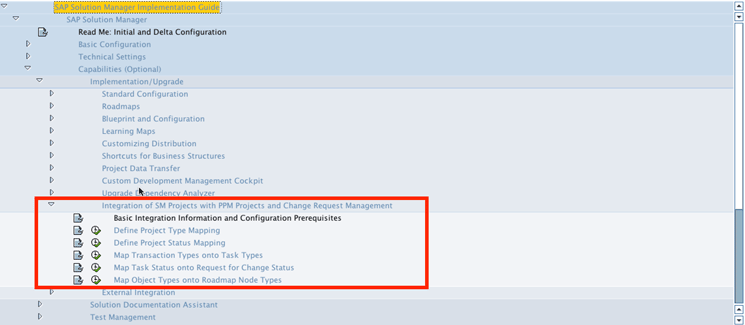
Figure 9
SAP Solution Manager Implementation Guide menu path to configure integration of Solution Manager projects and PPM projects
The first heading, Basic Integration Information and Configuration Prerequisite, provides fundamental information regarding the integration. It gives a brief overview of the functionality, and indicates specific steps you should take to enable the integration with ChaRM, particularly for status profiles, partner determination, and text determination.
The second heading, Define Project Type Mapping, is where you identify the various types of PPM projects and map them to various Solution Manager project types. Any PPM project types that do not appear in the table are not mapped to Solution Manager projects, so you can specify a limited number of project types to activate for this functionality. Figure 10 shows a PPM Consulting Project type mapped to a Solution Manager Implementation Project type.
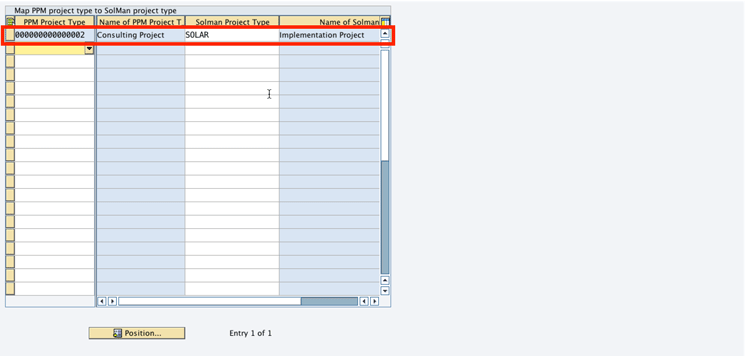
Figure 10
Map PPM project types to Solution Manager project types
The third heading, Define Project Status Mapping, is where you identify PPM project statuses and map them to Solution Manager project statuses. If you need to customize the Solution Manager project statuses, make sure you do that in transaction code SOLAR_PROJECT_ADMIN (Goto > Project Template) before performing this step. Figure 11 shows PPM statuses I1700 and I1701 mapped to Solution Manager Implementation project statuses 01 Open and 02 In Process, respectively. When the PPM project is set to I1701, the status of the related Solution Manager project changes to 02 In Process in the background. Because you have released the project, the status of the Solution Manager implementation project can only be changed by changing the status of the PPM project.
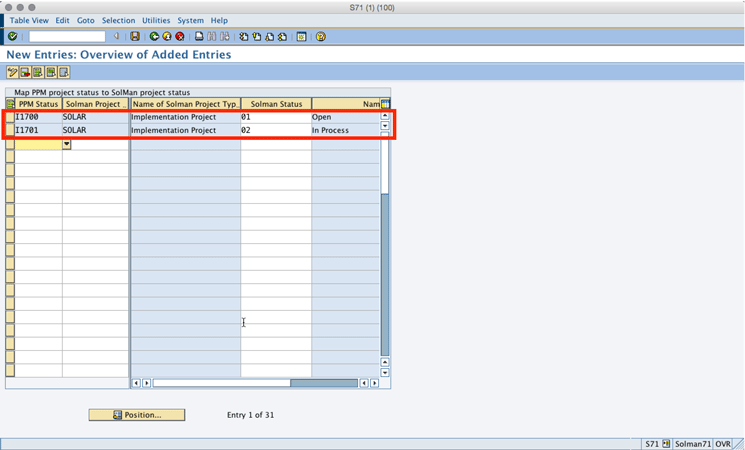
Figure 11
Map PPM project statuses to Solution Manager project statuses
The fourth heading, Map Transaction Types onto Task Types, is where you identify which Change Request Management transaction type is created from each released PPM task (Figure 12). You can choose whether to have the system create the request for change in the background automatically or whether you want the ability to create it manually from the PPM task’s Transaction tab. You can also control whether the partner function for time recording against the request for change is restricted.
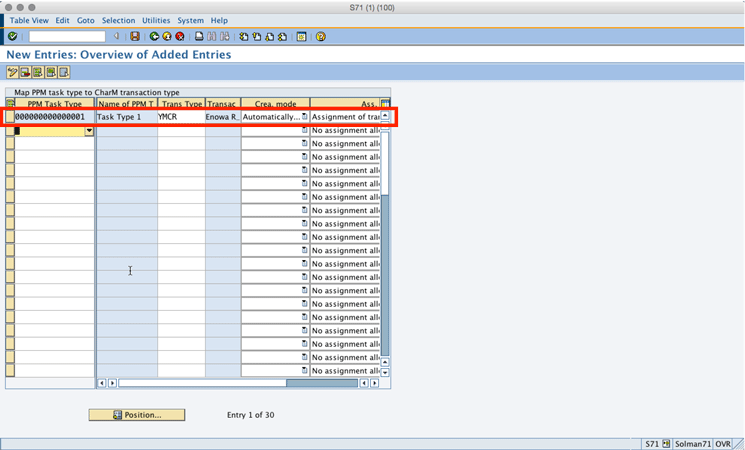
Figure 12
Map PPM task types to ChaRM transaction types
The fifth heading, Map Task Status onto Request for Change Status, establishes the mapping from a request for change status back to the status of its parent PPM task. Figure 13 shows that a YMCR request for change status of E0015 Being Implemented updates its related PPM task’s status to I710 In Process.
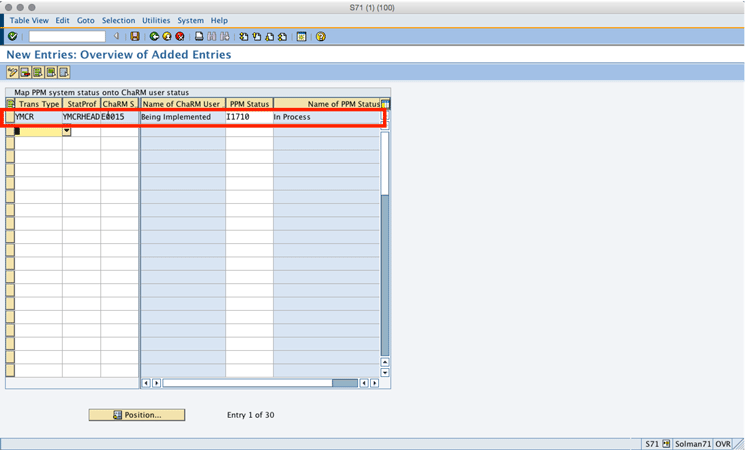
Figure 13
Map ChaRM transaction statuses to PPM task statuses
Lori Sanders
Lori Sanders has been working with SAP ALM and Solution Manager for more than 10 years. She consults with global customers and partners to create and implement strategies using SAP Solution Manager as the backbone of implementation and solution operations. She worked with SAP from 2004 to 2008 as a Platinum Consultant, the first named for SAP Solution Manager, and then in an executive role in SAP Active Global Support, before returning to a direct customer advisory role as a consulting partner.
You may contact the author at lori.sanders@me.com.
If you have comments about this article or publication, or would like to submit an article idea, please contact the editor.