Management
See how to successfully migrate your existing enterprise class SAP application servers to a commodity-based or cloud computing infrastructure. Understand the prerequisites of virtualized servers, the build process, and the steps required to transform a traditional SAP infrastructure into a virtualized environment.
Key Concept
Virtualization is the key technology that enables cloud computing. A virtual machine (VM) provides a layer of abstraction between the application and the hardware, allowing a single physical server to host multiple virtual servers. Hypervisor software controls the multiple VMs deployed on and across multiple physical servers. The combination of VM and hypervisor software provides numerous benefits to the application:
- Availability. The VM can be moved between hosts using the hypervisor in the event of hardware failure.
- Reliability. The VM can be brought up at a disaster recovery site on dissimilar hardware using the same virtualization software.
- Scalability. Additional resources such as memory and CPU can be added by changing the VM’s parameters up to the limits of the underlying hardware.
Most medium- and large-sized SAP systems deployed in the 1990s leveraged reduced instruction set computer (RISC)-based enterprise servers running a proprietary version of UNIX. Although this technology continues to be a very valid solution, many companies are considering a migration to commodity hardware using virtualization technology as a first step toward adopting a cloud computing model. (See the sidebar “Why Migrate?”)
I present a proven model that provides an efficient method for migrating from a proprietary UNIX landscape to a virtualized UNIX landscape based on supported SAP tools and methodologies. It is divided into four main sections: planning, migration, testing, and rollout. During the planning phase, I review consideration and selection of the SAP-supported virtualization software and hardware, differences between source and target operating systems, and sizing analysis. In the section on migration from source to target servers, I review a strategy that has been successfully deployed that minimizes overall risk. The testing section provides tips on conducting both functional and load tests that SAP fully supports and that require less investment. The final section details the production rollout strategy, which ensures total compute capacity is equivalent to or greater than initial capacity, and that a monitoring protocol ensures the end-user experience is maintained.
Why Migrate?
Companies consider application migrations to virtual environments for several reasons:
- Dedicating hardware to applications results in an inefficient use of corporate resources.
- A changing marketplace that includes vendor realignments often results in increased hardware costs for proprietary enterprise solutions.
- The hardware replacement life cycle and tough economic conditions lead CIOs to consider new lower cost options.
- Office of Management and Budget (OMB) mandates direct federal agencies to adopt cloud strategies (https://www.cio.gov/documents/Federal-Cloud-Computing-Strategy.pdf).
- Corporate stewardship initiatives such as Green IT
Note
SAP Basis administrators will be interested in this article as their IT management makes the decision to pursue migration of applications into the cloud.
Plan the Migration
Clearly defining the success criteria and all requirements is key to a successful migration. The success of the migration project is based on end-user acceptance. The primary goal is to ensure that the end-user experience is equivalent to or better than the current experience — during and following the migration. In addition, SAP Active Global Support (AGS) has to be available throughout to assist with any issue. Although it is low risk in my experience, it is conceivable that a migration will impact applications as the SAP application does rely on underlying OS services. To manage to this goal, leverage the documented capabilities that SAP has provided to support heterogeneous migrations of the UNIX application tier.
To remain under full SAP support the SAP guidelines must be understood and followed throughout the project. A quick summary of these requirements is:
- Select a virtualization platform that is supported by SAP
- Select commodity-based hardware that is supported by SAP for the selected virtualization software
- Choose a version of UNIX that is supported by SAP
In addition, to maintain end-user service levels you need to:
- Understand the impact of the technical differences between the source and target architecture
- Conduct a sizing exercise of the source and target application instances and landscape
- Align the source and target logon load balanced servers
Select the Virtualization Software and Hardware
SAP provides a master note (SAP Note 11223877) titled “Linux: SAP Support in virtualized environments.” This Note details the supported virtualization software vendor products and provides references to more detailed information based on the final selection. (See the sidebar “Supported Products.”) It is very important to review this SAP Note as well as other SAP Notes that I cite, as not all virtualization solutions are supported by SAP. Regarding hardware selection, SAP application support is provided based on the hardware partner’s explicit support of the virtualization product. In case you haven’t made a final decision on hardware, several combinations of servers and virtualization software that have been tested by SAP and their partners are listed at https://sdn.sap.com/irj/sdn/linux. However, to ensure support and avoid potentially complex issues ensure that your hardware combination (chassis, blade, and host bus adapters) is supported by your virtualization vendor before proceeding with a productive migration.
Sidebar: Supported Products
Examples of supported virtualization products and UNIX combinations for SAP on Linux and master SAP Notes:
- Xen-based virtualization products
- SUSE Linux Enterprise Server — see SAP Note 962334
- Red Hat Enterprise Linux — see SAP Note 962334
- Citrix XenServer — see SAP Note 1519590
- KVM-based virtualization products
- SUSE Linux Enterprise Server — see SAP Note 1522993
- Red Hat Enterprise Linux — see SAP Note 1400911
- Red Hat Enterprise Virtualization — see SAP Note 1400911
- VMware virtualization products
- VMware ESX / vSphere — see SAP Note 1122388
Select the UNIX Vendor
Selection of the UNIX vendor to implement on the target platform is a personal choice. Typically, companies have standardized on one or two UNIX vendors to maximize their level of expertise and lower total cost of ownership. All commodity hardware-based UNIX OSes — two of the most popular being Red Hat and SUSE Linux — are quite capable of supporting SAP’s applications as implemented in a virtualized infrastructure.
Understand the Differences Between the Source and Target Systems
Once the OS is selected, the differences between the source and target OS and infrastructure need to be reviewed for differences. A good example is that if the architectures change the endian byte order from big to little — a common occurrence when migrating off enterprise servers to commodity-based hardware — then the end user sees a difference in the sort order unless additional steps are taken (SAP Note 1069443 – Linux: Different sort sequence). There may be additional changes as well encountered during testing as SAP NetWeaver software does rely on OS services to improve performance. As every migration is unique — the source and target being specific to the user — the process for uncovering all known issues is to conduct a thorough notes review. Start with the master note — SAP Note 531096, Heterogeneous UNIX-UNIX Systems — and follow the paths specified for both operating systems involved (source and target). In addition, a general search of the target OS Basis notes should be conducted with the keywords migration, virtual, and <virtualization vendor name> to discover specific guidance and the setting relevant to your specific migration scenario.
Source and Target Application Server Sizing
The number of application servers required to replace your existing enterprise class servers varies from installation to installation. The SAP-recommended method is to determine the number of SAP Application Performance Standard (SAPS) the source hosts provide using either the hardware vendor’s SAP Competency information or SAP Benchmark’s Web site (https://www.sap.com/solutions/benchmark/index.epx). Next, determine the number of SAPS the target VM hosts provide. For a sanity check, validate that the number of CPUs/threads and memory available to the application are within reason as the transition between the source and target systems. Alternately, if your system is currently over- or undersized, you can use the SAP Quick Sizer tool using current data to reevaluate your system’s needs (https://service.sap.com/quicksizing). Table 1 provides an example of using SAPS and validation of cores/memory.
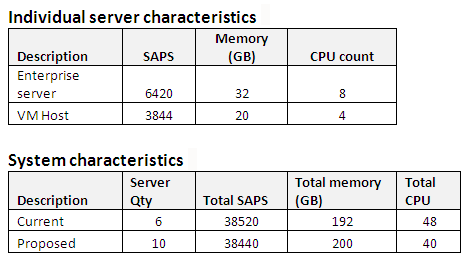
Table 1
A comparison of a current and proposed system
With regard to the actual target virtual machine configuration, there are a variety of successful architecture models. Best practices that are common throughout are listed here for your consideration:
- Define one to three VM models. For example, a small VM may have two VCPUs and 8 GB of memory, whereas a large VM may have four VCPUs and 20 GB of memory.
- Deploy similar sized VMs in log-on load-balanced groups
- Ensure VMs can only execute on equivalent hardware in a VM farm/cluster (it’s common practice to add new hardware to an existing VM farm — moving the virtual machine between the newer and older hardware results in an inconsistent end-user experience)
- Reserve the memory for production VMs; this step is important.
- I strongly recommend reserving the CPUs as well for production — especially during the initial migration — however, you can experiment with this at your own risk.
The Migration
Now the actual application server migration process begins. The key to the strategy is to leverage SAP’s full support of a heterogeneous mix of UNIX application servers (SAP Note 531096, Heterogeneous UNIX-UNIX Systems). Unlike an OS-DB migration with requirements to subscribe for an SAP Migration Service and contract with a certified migration consultant, the fact that a heterogeneous UNIX application tier is 100 percent compatible provides the flexibility to add capacity to an existing system, and then remove the existing enterprise servers in a controlled fashion. Ramping up overall application server capacity and removing capacity in a controlled fashion while the end-user experience is monitored eliminate much of the requirement for a full-load test scenario.
Now I describe the VM application deployment process that leveraged the VM tools to minimize the overall effort required. The team learned all its lessons on the first server build — often having to return and add a package or tweak a setting. Once the server was stable, a golden copy was made using the VM vendors cloning tools. From this point on that golden VM image was maintained with all changes and all new applications servers were a copy of that clone — cutting hours out of the build process. Our testing strategy leveraged existing plans — again, fully supported by SAP. Production implementation was slow and steady with careful monitoring of the end-user experience as VM servers were added and enterprise servers were removed. As I discuss the details, keep in mind that throughout the process our focus remained on (1.) maintaining SAP support and (2.) ensuring the SAP end users were not affected. See the sidebar “Key Notes in Support of Planning.”
Key SAP Notes in Support of Planning
- Heterogeneous UNIX-UNIX Systems (SAP Note 531096)
- Linux configuration procedures
- SAP software on Linux: Essential information (SAP Note 171356)
- SAP Memory Management for 64-bit Linux (SAP Note 941735)
- RHEL 5.x: Installation (SAP Note 1048303)
- Certified SAP and EMC solutions for Linux (SAP Note 800326)
- SAP Support Statement for third-party Linux kernel drivers (SAP Note 784391)
- VMWare Configuration
- Linux: SAP Support in virtualized environments (SAP Note 1122387)
- VMWare ESX (SAP Note 1122388)
- Known issues
- Linux: Different sort sequence (SAP Note 1069443)
- Software on Linux: Essential information (SAP Note 171356)
- SAP OS Collector supports VMWare virtualization today by providing a view of the VM instance and not the underlying hardware (SAP Note 1260719)
Implement the First Virtual Application Server
One goal of this implementation model is to leverage the advantages of a mature virtualization platform. By defining an application file distribution policy, I add additional flexibility for supporting operational tasks such as supporting capacity on demand, disaster recovery testing, and recovering from a host failure. Local to the VM host are only the files that are required at boot (host/network), user/group information, and SAP application logging directories. The SAP kernel and profiles are shared from either the database server or highly available NFS server. The design allows for all VM hosts to be 98 percent identical. Minimal change is required — the SAP system identifier (SID) in the directory path, user name, and a few file updates later and the host can be added to another SAP system as an application server — with confidence that it’s using the correct kernel version. The directory structure is defined in Figure 1.

Figure 1
SAP application server directory structure guidelines
I assume that VMWare VSphere virtualization software was chosen, and I define a 4-CPU VM with 20 GB of memory running Red Hat Enterprise Linux (RHEL) version 5. For the first application server build, I assume that a test or sandbox system is used.
First, following the guidance outlined in SAP Note 1122388, Linux: VMWare vSphere configuration guidelines, I define the virtual machine as follows:
- 20 GB of memory with the setting Memory Reservation – this ensures that memory is dedicated to this VM and not shared with other VMs.
- 4 CPUs – SAP recommends reserving CPUs for production instances.
- OS disk partition (20 GB)
- Application partition (20 GB)
- Swap (20 GB)
- Set kernel parameter elevator=noop to disable I/O scheduling as the VMWare hypervisor has its own I/O scheduling mechanisms.
- Install the VMWare tools as per VMWare (https://packages.vmware.com)
- Implementation of the new SAPOSCOL (SAP Note 1102124)
- Implement the optimum memory model based on the processor generation (SAP Note 941735 or SAP Note 386605)
Next, complete the application server software installation by following the appropriate software installation guide from SAP. Now finish the application server by completing these steps:
- Create system users as per company policy
- Create the SAP directory structures (/usr/sap/, …)
- Map all required NFS mounts – not only for SAP executables and profiles but also for any bolt-on applications and required interfaces.
- Ensure all corporate system policies are in place (NTP, monitoring and alerting, …)
At this point, start the application server and perform a technical checkout. Resolve any technical issues — maintaining kernel and profiles on an NFS mounted file system, and logs/boot-time required file updates locally.
At this point you have a working SAP application server on a virtual machine. Now it’s time to create a gold image from which all other application VMs are sourced. This is a relatively well known process, and VMWare provides a wizard that facilitates the process (reference vendor documentation from complete details). Once the VM clone is complete, the application software configuration must be updated. An overview of this process is provided in the sidebar “The Cloning Process.”
Sidebar: The Cloning Process
- Select a running application server as the clone source
- Define and allocate the target host name, IP address, and storage layout in preparation for new client
- Execute the clone wizard provided by the virtualization software vendor using the selected client as the source
- Boot the new VM without the network disabled
- Modify the host network settings and reboot
- Boot the server and validate the mount point and swap space
- Build the system profile
- Change the user and group IDs, SID
- Change file and directory user/group permissions/ownership
- Update the etc/services file (SAP gateway, message server)
- Start the SAP application
- Update the Remote Function Call (RFC) Server group (if required)
Test
The first SAP application server is available and technically ready. While technical testing has verified the basic functionality, processes are not happening, logs are not filling up with error messages, and there are no short dumps. However, no users are on the system at this point. It is time to engage the functional team for additional testing. Provide the system with a group of functional users to test the key business processes and the heaviest-hitting batch jobs. The purpose of the testing is to ensure the results are identical between the systems — screens, print, and lists. At the same time monitor both the VM performance using the virtualization software and the Basis transactions to ensure no obvious system anomalies appear.
Next, you should consider an integrated test. As SAP fully supports a heterogeneous UNIX-UNIX deployment, piggyback on the next scheduled major release and introduce the VM host during the functional testing. Ensure that system interfaces and bolt-on applications are using the VM host. One key lesson learned that I encountered during my go-live was that FTP ASCII translation does not work the same between all UNIX platforms. In my case, handling of the end-of-line sequence (carriage return, line-feed) changed as the source or target platforms UNIX changed.
Rollout Strategy
Once you complete the testing and sign off, the first production application server can then be added to a log-on group of the production system. When adding the new application server, do not allocate the maximum number of processes available. Start with a handful of processes, say five, and choose one type of process — dialogue or background. This step ensures that if anything was missed during testing, the impact is limited. Monitor the server and the server that it is replacing using the same tools used to gather the historical data and evaluate the average response times, load, and utilization. After two to three days, ramp up the load on the VM by adding additional processes and continue to monitor. Continue this process until the application server is at its optimal configuration — in my environment, this was 44 processes for a 4 VCPU x 20 GB memory VM.
The introduction of additional process types (background, spool, or update) can occur after the dialogue burn-in period. This ensures that as each type of process is introduced, system administrators can easily identify red flags to ensure that the scope of any impact remains limited. Additional servers can be added simply by cloning one, configuring its personality, and adding it to a log-in load-balanced group.
Remove the Existing Servers
The source enterprise class UNIX application servers can be removed following the same process. After adding an equivalent capacity of VMs — as measured in SAPS — the process of removing the enterprise servers began. A single system was selected and removed from the log-on load-balanced group. Once all the end users were off the system, the SAP software was stopped and the host was left online, but idle and available for redeployment at a moment’s notice. Load and response times were monitored for any deviation from historical performance. This process was repeated, one at a time, over a two-week period until all enterprise-class servers were removed with the exception of the Central Instance. After validation of performance, the Central Instance was migrated to a VM during the next maintenance outage.
End-User Experience Monitoring
Through the use of standard SAP tools — ST06N, Solution Manager Diagnostics, and the EarlyWatch Alert report — you have both current and historical data to review. The two key aspects to monitor are the throughput of the system (load) and the performance (response time). The EarlyWatch Alert Report provides historical and project load (active user) and response time data. As you can see from Figure 2, the load fluctuated as the implementation occurred over a year-end processing period. Year-end processing affects the system in two distinct ways — a user lockout occurs, and application servers are configured without time-out for long running dialogue processing. A typical year-end processing period requires additional capacity, which was provided by the VM hosts, but as you can see by Figure 3, the response time stayed the same or slightly improved over the project. In summary, the end-user experience under similar conditions is equivalent or slightly better.
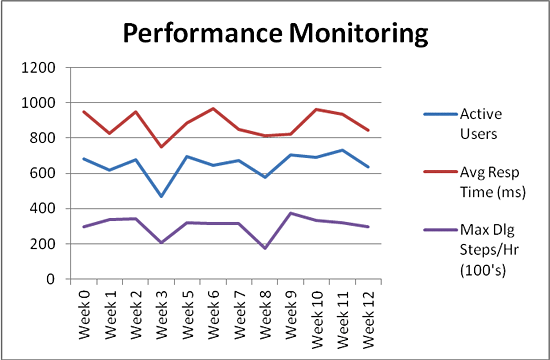
Figure 2
Performance monitoring details
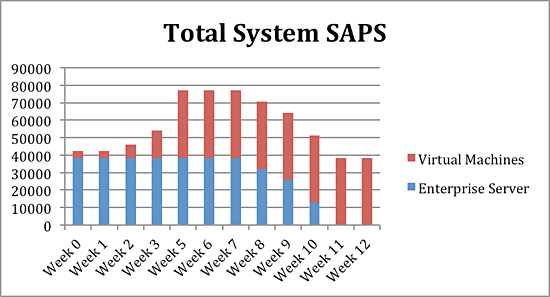
Figure 3
Total system SAPS available
The migration from enterprise class UNIX systems to Linux on commodity hardware can be accomplished with minimal downtime and virtually no end-user impact. By following SAP’s mature guidelines when defining your VMs, you can achieve a reliable and consistent performance profile. Safeguard the project by performing functional testing in a non-production environment, applying the lessons learned (sort order, FTP, reserved memory, integrated testing), and introducing the VM servers and removing the enterprise UNIX servers gradually from the production environment.
Now, your SAP infrastructure is prepared for the cloud. I challenge you to fully embrace the capabilities of a virtualized infrastructure by developing the operational processes to support the enhanced availability, reliability, and maintainability that come with a mature virtualized software product (see the sidebar “Virtualized Environment Benefits”).
Sidebar: Virtualized Environment Benefits
In addition to the high-level benefits of virtualized infrastructure — server consolidation, energy efficiency, data center space reduction — there are two operational efficiencies that should not be overlooked:
- Elimination of downtime required for server maintenance. Advanced virtualization software provides for migration of running systems between physical servers that participate in the server farm. The risk is the system that is migrated to may not have similar hardware, which could affect the overall user experience.
- New application servers can be provisioned in much less time by taking advantage of clone technology. A clone simply takes a host’s image complete with physical configuration (virtual CPU/virtual memory), operating system, operating system configuration, and application configuration and makes a new host available. Although the application still requires customization, the overhead required is substantially reduced.
Michael A. Moore
Michael A. Moore has been an IT consultant for 24 years with more than 12 years of experience as an SAP technical architect. Mike has held positions with DuPont, Westinghouse, IBM, and Accenture. His clients have included public sector, consumer products, manufacturing, and financial companies. For the past seven years, Mike's career has focused on SAP technical architecture, where he is responsible for SAP financial, logistics, asset management, and business intelligence solutions for a US federal public sector customer. Mike received his bachelor's degree from the University of Tennessee at Chattanooga and holds numerous certifications including PMP, ITIL Foundations, Certified Scrum Master (Agile), and several SAP certifications.
You may contact the author at mikeamoore@comcast.net.
If you have comments about this article or publication, or would like to submit an article idea, please contact the editor.