Find out how you can use Solution Manager to manage your SAP CRM and SAP ERP Central Component implementations. Follow the five phases of a typical Solution Manager project, from project preparation to project go-live.
Key Concept
SAP introduced Solution Manager in 2002 as the successor to AcceleratedSAP (ASAP)/ValueSAP. Offered as standard as part of your maintenance contract, Solution Manager supports activities such as blueprint, realization, testing, and documentation. For example, you now can store documents in Solution Manager instead of having them scattered all over the shared drive or on any team member’s hard drive. It also provides a central point of access to multiple SAP systems, such as SAP ERP Central Component and SAP CRM, provided the user has the appropriate authorization.
If you’re looking to implement SAP CRM for the first time, or perhaps are adding functionality (such as Interaction Center) to your existing SAP CRM implementation, you can use Solution Manager to support many aspects of the project. Also, instead of focusing only on SAP CRM, Solution Manager can cover all components of an SAP ERP system implementation. For example, Solution Manager allows you to manage simultaneous implementations of SAP CRM and SAP ERP Central Component (ECC).
I’ll give you some tips and guidelines on how to make use of the Solution Manager functionalities for SAP CRM. These best practices are based on my experience with Solution Manager 4.0.
To walk you through the Solution Manager process, let me use the example of a recent implementation. This was a single-site implementation project with all major ECC modules and limited CRM in scope. The implementation team included a one-to-one ratio between consultants and business process owners from the client. We built the project in Solution Manager during the project preparation phase, and refined the standards and conducted how-to training during the blueprint phase. Then the team loaded the related documents and processes in a Solution Manager project.
Note
Although I focus on using Solution Manager for an SAP CRM implementation, Solution Manager can help you manage other business processes beyond CRM. For example, as of April 2007 you need Solution Manager for all corrective software packages for SAP Business Suite 2005 and beyond. Solution Manager also offers monitoring and diagnostic, service desk, reporting, and change request management functionality. For more information about Solution Manager go to
https://service.sap.com/rkt- solman. You’ll need an SAP Service Marketplace user ID and password for this site.
Solution Manager Roadmap
As shown in Figure 1, Solution Manager supports all phases of a typical project, including preparation, business blueprint, realization, final preparation, and go-live/support. This is only one of the many roadmaps available in the latest release of Solution Manager, as shown in Figure 2.
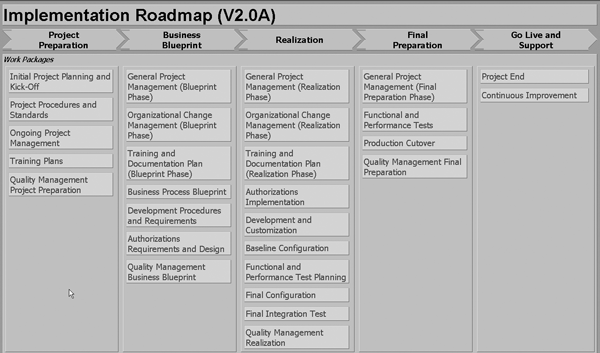
Figure 1
Activities and functions in Solution Manager at a glance

Figure 2
Available roadmaps in Solution Manager
You can also create specific roadmaps to meet your needs. You should decide which roadmap to select based on the type of project you are planning to run — for example, for an SAP ASAP project, choose ASAP Focus- Implementation. You still have access to all the roadmaps later on if you need them.
Before you start your project, make sure to create a Remote Function Call (RFC) connection between Solution Manager and the ECC and CRM clients. You’ll need to do this so you can access all the SAP systems within Solution Manager using executable node buttons. This is typically a system administrator or Basis task. Now let’s go through each phase in more detail.
Phase 1: Project Preparation
The first step in Solution Manager is to create a project using transaction SOLAR_PROJECT_ADMIN. You can create two types of projects: a template project and an implementation project. You use a template project to create a model for a multi-site SAP implementation. Each site’s implementation team can then use this model to create individual implementation projects. For example, in a global rollout you create a template project with predefined structures and then roll it out to different countries. Each implementation team adapts the pre-built structure of the template project into its individual implementation projects.
Alternatively, you can create a standalone implementation project. With this method you create your own model based on your specific needs. As shown in Figure 3, my team opted to create an implementation project because we had a traditional single-site implementation.

Figure 3
Implementation roadmap for an SAP CRM project
Tip!
For template projects, you can bring in the pre-built template structures under the Template Selection tab in Figure 3. This is especially useful when you have multiple projects and you want to share the similar contents between projects.
After you determine which type of project to create, maintain the following fields on the main screen, as shown in Figure 4.
- General Data: View overall administration information about the project
- Scope: Select templates, roadmap, industry, and countries for the project. Figure 3 shows an example of the roadmap my team selected for the example project.
- Proj. Team Member: Assign the users to the project
- System Landscape: Assign ECC, SAP CRM, and any other required systems for later use
- Milestones: Assign high-level dates to different milestones
- Project Standards: Agree and define documentation and project standards

Figure 4
Create a project in Solution Manager
Next, create a system landscape by clicking on the System Landscape tab. The screen in Figure 5 appears in which you assign the development, quality assurance (QA), and production systems. This is where it is important to have the RFC connections set.

Figure 5
Set up the system landscape for your project
Finally, in the Project Standards tab, set up the project standards by maintaining the Status Values, Keywords, and Document Types for this project. The most valuable function is the Document Types, which allows you to save different documents under the appropriate document types so that retrieval is easier. For example, you can store all your End User Procedures (EUPs) as document type EUP so that you can later run a report in the SOLAR_EVAL transaction to get an overview of all the EUPs written so far.
You should consider attaching templates to certain document types. This ensures the same look and feel for documents across various modules. We used ASAP templates wherever possible — for example, for business process procedures and test documents.
Phase 2: Blueprint Activities
In this phase of the project, you build a structure to use throughout the project's life cycle. This structure is specific to your implementation, unless you are using a template. To start, use transaction SOLAR01 to access the Business Blueprint for your project. If you typically use Business Process Master List (BPML) to list transactions in scope for testing and authorization purposes, you should be aware that no BPML is delivered. However, you can generate your own BPML based on the transactions assigned in your project. To do this follow menu path Analysis>Configuration>Assignment of Transactions.
You can take a couple of approaches to build the structure. You could structure by module with each module having its own structure and each team managing its own area. In one of the earliest projects my team used this approach to keep the project simple. However, using this approach means that you do not have a fully integrated implementation.
The other approach is to structure by business process, which is what we did for our project. This methodology is little difficult to build and manage because it requires complete understanding of all end-to-end processes. Also, you do need to address the variations to make sure you do not miss addressing any rarely used business transactions.
However, the advantage of following this approach is that teams start to appreciate the value of integration from the blueprint phase. In the recent project, my team used a hybrid approach, meaning that we listed end-to- end processes as much as we could and then we listed individual modules and transactions to make sure we did not leave anything out.
Figure 6 shows an example of structuring by the order-to-cash process. The structure includes Organization Units, Master Data, and Business Scenarios for your project.

Figure 6
Order-to-cash scenario structure in blueprint section of the project
After you build the structure, you can download it into Microsoft Project to create a detailed, task-level project plan. Here you can assign start and end dates to the tasks to develop a complete project plan for the Solution Manager project. To generate an MS Project plan in transaction SOLAR01, go to Business Blueprint>MS Project Download.
In the blueprint structure in SOLAR01, you can store documentation, assign transactions to nodes, and use them later during realization to access SAP CRM within Solution Manager, as shown in Figure 6. In the Structure tab, each substructure item under the Organizational Units, Master Data, or Business Scenarios is called a node. Click on the Transactions tab to assign SAP CRM transactions.
For example, in Figure 7, I assigned transaction code VA01 to the Create Sales Order node under Business Scenarios in transaction SOLAR01. This allows me to execute transaction VA01 within Solution Manager. For template projects, the system typically stores the documentation in the General Documents tab. For implementation projects, the system stores the documentation in the Project Documents tab.
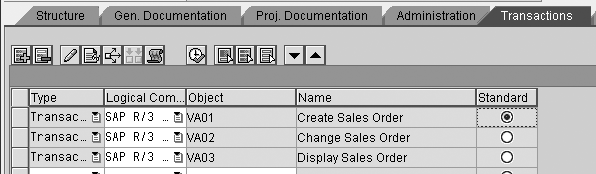
Figure 7
Assign transactions in transaction SOLAR01
You can use SAP-delivered scenarios as a starting point and modify them as necessary. All the nodes in Figure 8 are selected from standard content. The advantage of using the pre-delivered scenarios to build your project is that you get predefined process steps, associated transaction codes, and SAP documentation.

Figure 8
SAP-delivered processes
Blueprinting Tips
Here are several tips for creating the Solution Manager project structure:
Tip 1. Start with the basic business requirement. Before you get into too much detail, make sure the baseline structure is sound. You can always come back and add further detail. Starting small builds confidence in your team about using Solution Manager and you avoid any major rework.
Tip 2. Keep the main processes as few as possible by only keeping the integrated processes as main scenarios. For example, each business scenario has a number of variations. Think about all the different ways this scenario can run and place them into groups. In the end you have a few manageable main scenarios with a number of variations, which streamlines the configuration, testing, and training process.
Tip 3. Designate one process as the baseline process and attach all the documentation to that process. Build the steps for this process first and use the copy functionality to build steps for variations. Then use the copy/link functionality to attach the documentation. This option appears in a pop-up screen when you try to add a document.
Tip 4. Do not forget to include cross-module processes. If you decided to go with a module- based approach, make sure that you do not forget the integration aspects. For example, when you design a return order process and Warehouse Management (WM) is in scope, make sure to include the entire Sales and Distribution (SD), Materials Management (MM), and WM with Financial Accounting (FI) modules when you design the process.
Tip 5. Keep up to date with system patches. SAP enhances the delivered content by using Solution Tools: Implementation Content (ST-ICO). The latest patch, ST-ICO 150, fixes the SAP Solution Manager implementation content. Make sure to keep updated with the latest ST-ICO patches.
Phase 3: Realization
After you build the structure in the blueprint phase, you can reuse the structure during the realization phase by using transaction SOLAR02. In this phase, you configure the ECC and SAP CRM systems based on the selected plan and structure by accessing it within Solution Manager (Figure 9).
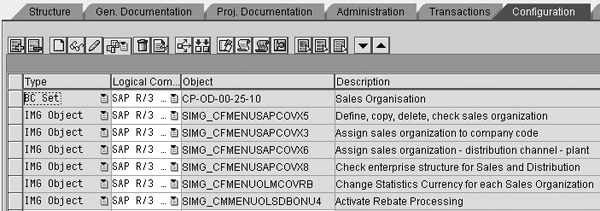
Figure 9
Configure the transaction assignment in transaction SOLAR02
To do this, assign the configuration transactions to the nodes, where applicable. For example, if you have a sales organization to configure, you can assign the configuration transaction or Business Configuration (BC) Set in transaction SOLAR02, as shown in Figure 9. The benefit is that after you assign these transactions, they are available when you complete the project. This allows the support team to easily access them for problem-solving, enhancements, or even roll-outs to other sites.
You should also store the configuration documentation for all the configuration changes you make. For example, you should store all your plant-related settings under the node Plant under Organizational Units. Note that some of the configuration items do not have transaction codes assigned in ECC. For those items, you cannot assign a transaction code in Solution Manager. You can see if a transaction code is assigned by looking at its status information.
Phase 4: Final Preparation
In this phase of the implementation you conduct unit and integration test cycles to test the business processes you configured during phase 3. Solution Manager offers the Test Organization (Testing Cockpit) area in transaction SOLAR03 (menu path Tools>SAP Solutions Manager>Test Organization). In this area you build your test cases and then manage the testing phase.
Figure 10 shows the Test Plan, Packages, and Tester Assigned for a demo test plan that has four test packages (Account Planning in CRM, Account Processing, Assemble to Order Processing in ERP, and Billing). The Account Processing test package has a tester, indicated by the DSS line. Note that the tester name reflects the Solution Manager user ID.
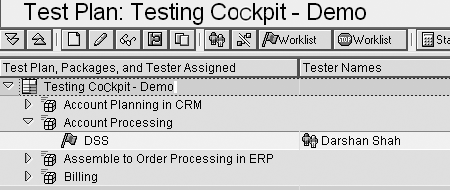
Figure 10
Test cases in Solution Manager
Figure 10 also shows the status overview in standard red, yellow, and green pattern for errors (red), no result (yellow), and completed (green) tests, respectively. The Testing Cockpit allows you to complete testing and record the results for each test case. My team found it a bit difficult to use this process on our project because it required creating all the test plans in Solution Manager up front.
As an alternative approach, we created a unique hierarchy for each unit and integration testing, as shown in Figure 11. You can store all kinds of documentation for your test processes (e.g., process flow diagrams, end-user procedures, and test scripts). This is particularly useful when Word-based documentation is very important, as each node can hold multiple documents, such as test scripts or results.

Figure 11
Hierarchy to represent test cycles in SAP implementation
You can also create a Computer Aided Test Tool (CATT) script or an extended CATT (eCATT) script and link them to Solution Manager test cases to execute the test transaction. The Test Organization tool with CATT is more useful for post-implementation testing needs — such as applying patches, upgrades, and functional enhancements — when your processes are finalized and configuration is frozen.
No predefined process to manage the technical implementation using the Solution Manager exists, so you can build the technical project structure in Solution Manager, just like any other functional area. You can then divide the structure into forms, reports, enhancements, or SAP Notes and manage the development process effectively.
When you complete the final preparation phase, you are ready to go live with your project and subsequently move into support phase. The details of this phase would be enough to fill another article, but suffice to say that in this phase you finish the initial project and begin continuous improvements — for example, add functionality you could not install during the original implementation due to time or cost constraints or enhancing reporting capabilities. We used Solution Manager to manage the project through testing, go-live, and support. Later on, it was very beneficial for roll-out teams to use what the original implementation team created.
At any point during the project you can use Solution Manager’s pre-built reporting functionality in transaction SOLAR_EVAL to generate project management reports. We used the Documentation node often to determine where we stood on storing the documents in Solution Manager (Figure 12). For more information about this, visit https://service.sap.com/solutionmanager. You’ll need an SAP Service Marketplace user ID and password for this site.

Figure 12
Project analysis structure
Darshan Shah
Darshan Shah is a platinum solutions consultant with itelligence Consulting. itelligence is a leading global mid-market SAP provider that offers a full scope of SAP services, including SAP consulting, licensing, managed hosting, customer support, and education. It is one of only 12 consulting firms to earn SAP Global Partner status and one of only six to earn SAP Global Hosting Partner status. With an MBA degree in finance, Darshan has managed and implemented several SAP projects over the last nine years in North America and Asia. He has extensive experience in designing and implementing solutions in conjunction with SAP. He is skilled in helping clients to make strategic decisions for overall ERP implementations.
You may contact the author at Darshan.shah@itelligencegroup.com.
If you have comments about this article or publication, or would like to submit an article idea, please contact the editor.