Learn how to report headcount data using SAP Query to save time.
Key Concept
An InfoSet is a grouping of data or fields that you may find in multiple databases within R/3. Using an InfoSet restricts the amount of data a query examines, thus reducing the amount of processing time required to execute a query. In some cases, organizations create InfoSets based on security levels within a department or team. For example, a company might create a payroll InfoSet that would allow access to infotypes a payroll analyst might need on a periodic basis.
Your company uses SAP Query to extract a variety of data fields, such as age, gender, and salary. However, you can also report headcount data from SAP Query. One of the most frequent questions or requests our team receives from field or corporate users is for headcount data for their unit, region, or sector. Traditionally, many companies would consider this a four-step process that includes running an active list, downloading the file to a spreadsheet application such as Excel, formatting the file, and then creating a function (like a pivot table) to analyze the data.
However, it is quite easy to create a query via transaction SQ01 that enables users to report headcount data. I’m going to explain five steps that are a one-time process. Then, you can save time by modifying the last step (step 6) for each headcount data request. Here are the steps you need to follow to create a headcount query:
Step 1. Set up the query
Step 2. Select the fields you want in your query
Step 3. Create the local field
Step 4. Set up the selection screen
Step 5. Set up the statistic
Step 6. Execute the query
Step 1. Set up the query. Use transaction code SQ01 to navigate to the main screen of SAP Query. Create a new query by selecting the create icon. A pop-up window then prompts you to select an InfoSet. An InfoSet is a grouping of data (in this case HR data) structured by infotypes that limit data available in a query. Make sure to select an InfoSet that includes employee data. Most likely, the InfoSet is based on data from the PNP (HR master data) database. Next, name the query in the Title field (I used ZBP_HEADCOUNT_1 in my example, where BP equals your initials). Click on SAP List Viewer as the output format of the query selection screen (Figure 1). Then, save the query.
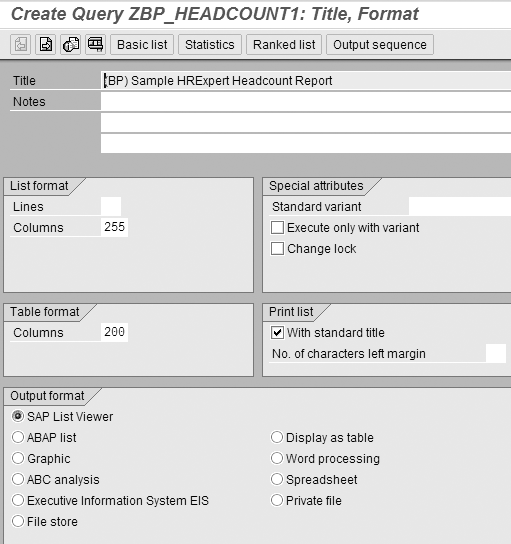
Figure 1
Name the query and set up the format
Step 2. Select field groups/fields. You can use the fields you select in the field groups step as possible sorting options when it is time to create the statistic. Only choose the fields by which you want your headcount data grouped (Figure 2). If you pick too many output fields your query becomes useless, as there are too many unique fields. For example, if you elect to output personnel numbers, you cannot group your headcount data on anything, because most personnel numbers are unique to an individual.
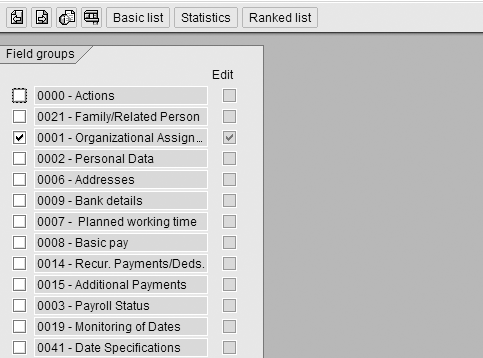
Figure 2
Select the field groups by which you want to group your headcount query
Navigate to the Select Field Group screen by pressing F6, which moves the user forward one screen in SQ01. Select the field groups you want included in your query by putting a check mark next to each field group. In my example, I selected infotype 0001 (organizational assignment) and 0208 (work tax area) by placing a check mark next to each field group. Next, move one screen forward by pressing F6 to bring up the Select Field screen. For this example, I used the following fields, some of which are listed in Figure 3:
Work tax area (infotype 0208 – work tax area)
Text:Personnel Area (infotype 0001 – organizational assignment)
Text:Personnel Subarea (infotype 0001 – organizational assignment)
Text:Employee Subgroup (infotype 0001 – organizational assignment)
Cost Center (infotype 0001 – organizational assignment)
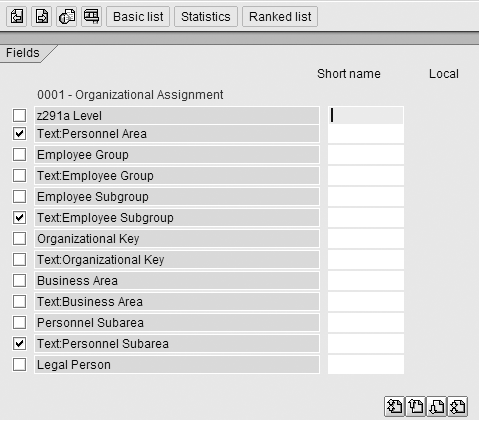
Figure 3
Once you select the field groups, select the fields within those groups to use in the query
Step 3. Create the local field needed to generate the headcount calculation. Now that you have set up the title and format and selected the fields, you create the local field used to count employee records. By using a local field, you are able to generate additional information in a query that is not available within a standard field. Local fields can be very useful in reporting HR data. For example, you could calculate the average annual salary in a division of the organization or difference in salary between males and females. You could also calculate length of service for associates, or even forecast salaries.
In the Select Fields screen, create a local field via menu path Edit>Local Field>Create (Figure 4).
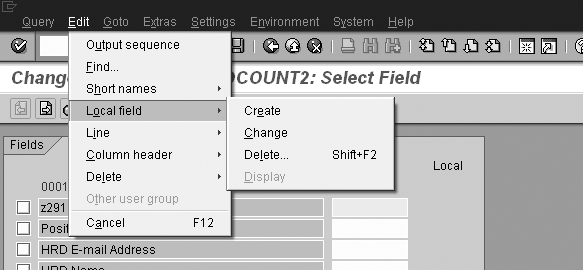
Figure 4
Create a local field
Then, a prompt to fill out information for your local field appears. Enter a Short name for your field as well as a Field description (Figure 5). On all subsequent screens, the text entered for Field description will be used to reference the local field. In this example, I used COUNTS as the Short name and HEADCOUNT as the Field description and Heading. Next, assign your new local field to a Field group by selecting the drop-down menu. This places the new local field under the appropriate field group or infotype on your Select Field Group screen used when setting up your query.
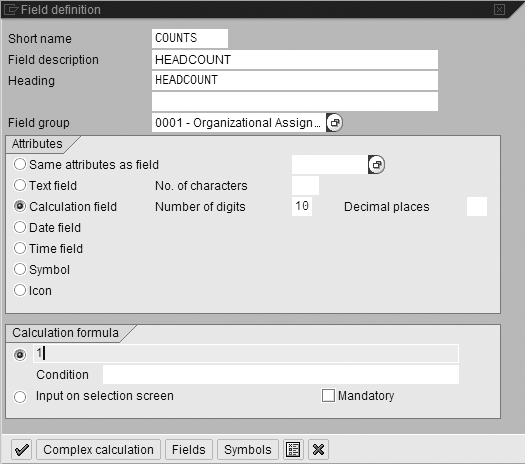
Figure 5
Set up your local field
In this example, I added the local field to infotype 0001 (organizational assignment). R/3 then adds the local field to that field group. In most cases, placement of the field is just a matter of preference. The field group you assign it to has no direct impact on the field itself.
Under the Attributes section, select Calculation field with anywhere from four to 10 digits depending on your population size (e.g., four digits limit output to 9999). Since the goal is to calculate headcount information and the output is a sum representing the number of employees found, make sure the number of digits you select accommodates the population you are referencing (e.g., don’t select three digits if you have 50,000 associates as the maxi-mum output will be 999).
Under the Calculation formula section, enter a value of 1 and click on the check box. This is a basic calculation, counting records. The system counts infotype 0001 records on a certain date, and in most cases it counts only active records. You specify the date and what groups you want to examine later in the variant right before executing the query.
Step 4. Set up selection screen. Navigate to the selection fields screen and select the check box next to any fields you want included on your selection (variant) screen. For this example, I added Cost Center and Work tax area (Figure 6).
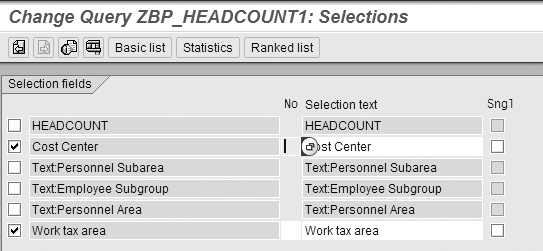
Figure 6
Specify which fields to include as options on the variant screen
Step 5. Set up the statistic. Now you are going to set up the report format under the Statistics section. Navigate to the Statistics section by clicking the Statistics button on the menu bar. You can use the Statistics function button on any screen in SAP Query past the title screen. Enter a Title for the statistic at the top of the screen. In this example, I used Headcount by Operations (Figure 7).
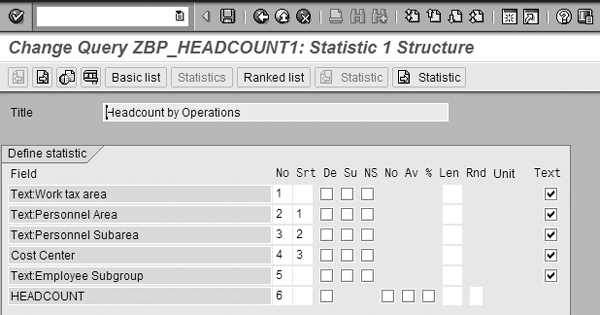
Figure 7
Set up the statistics structure
In this section, you define the output order of the fields you want to use in the No column. If you have any fields you want sorted, enter in a numeric value under the Srt column. For my example, I sorted based on Personnel Area, Personnel Subarea, and Cost Center. Once the statistic is set up, click on the save icon.
Step 6. Execute the query by pressing F8 or exiting back to the main menu and selecting the execute icon. On the variant screen under the period selection, select the radio button for today. Then select employee group 1 and 7 to pull active records. Your output now shows a headcount grouped by the fields you specified above (Figure 8). Modify this step based on your requirements.
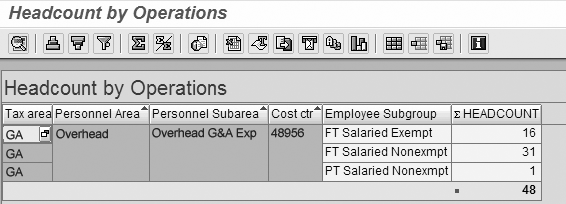
Figure 8
Report output grouped by specified fields
Bradley Pearce
Bradley Pearce specializes in SAP HR reporting. Bradley is currently working as the supervisor of the HR Information Systems Department at the corporate headquarters of Compass Group, The Americas Division in Charlotte, NC. He lives with his wife, Amy, in Huntersville, NC.
You may contact the author at brad.pearce@compass-usa.com.
If you have comments about this article or publication, or would like to submit an article idea, please contact the editor.