When displaying a characteristic by key and text, the BEx Query Designer automatically displays the shortest available text from the InfoObject's text table. But what if you want to have longer descriptions? The author presents a way to automatically provide long text descriptions with a characteristic's key without taking drastic steps such as deleting text table entries.
The BEx Query Designer has a number of options for displaying characteristic values. Depending on an InfoObject’s definition, you can display a name or key for a characteristic value, a combination of both, or display nothing at all. You can also provide a short, medium, or long name or description so users can more easily identify the characteristic. While the list of options is complete, you’ll have to take additional steps if you want to the system to automatically display a characteristic with its key and a long name.
BEx automatically selects the shortest text available from an InfoObject’s text table when displaying a characteristic by key and text. When a text table has a short, medium, and long text field, the short text displayed. If the text table has medium and long descriptions, BEx defaults to the medium text field. The system displays the key and long text only when no short or medium field is in the InfoObject’s text table.
If you want to display a long description along with a characteristic’s key automatically, the short and medium fields must be eliminated when maintaining the InfoObject. If you do this, however, you may face other headaches. Eliminating descriptions means they won’t be available if they become necessary at some future date, forcing you to recreate them. This results in a circular problem because the newly created short and medium fields must be deleted if it becomes necessary to display a characteristic’s key and long text automatically in BEx.
People are also squeamish, with good reason, about eliminating fields from a text table, especially if the table is already filled with data and the InfoObject is part of any fact table or InfoProvider in your system. A lot of work must be done to reactivate and load data into the text table after these text fields are gone. The process includes adjusting transfer rules and communication structures, deleting and recreating the whole text table, and so on.
I’ve discovered a sure-fire way to provide long text descriptions automatically for characteristics displayed with their key without eliminating any fields in the text table. Instead, I use display attributes to exhibit the longer text in BEx reports along with the key, which allows you to make sure your users view characteristic values with meaningful names. My solution has proven itself effective in many projects I’ve been associated with and has satisfied more than one client.
The Solution
Using Administrator Workbench in concert with your R/3 system, you can work around the problem. Let’s take a quick peek at my method, and then I’ll provide you with the details.
For this example, I’ll use the financial statement item InfoObject 0CS_ITEM, its text DataSource position 0CS_ITEM_TEXT, and its InfoSource item 0CS_ITEM. The financial statement item — which is represented by the term ITEM in objects, DataSources, etc. — is the fundamental account assignment of the consolidation system. It forms the basis for consolidation data entry, posting, and reporting in the transaction data for the consolidation InfoCube.
For my solution, you first build a generic DataSource of master data called YITEM_DISP_ATTR_TEXT, while using a view, V_FCIW_FT101, for the extraction that normally feeds the 0CS_ITEM_TEXT DataSource. Next, create a new characteristic, ZITM_ATTR, in Administrator Workbench and assign it to characteristic 0CS_ITEM as a display attribute. Replicating the DataSource YITEM_DISP_ATTR_TEXT into BW and assigning it to the 0CS_ITEM InfoSource creates a new communication structure and new transfer rules. After adjusting the transfer rules to provide proper data delivery and creating an InfoPackage, you load the master data for 0CS_ITEM. This master data is able to display the item characteristic with long descriptions in BEx reports.
Create a DataSource
The first step is to create a generic DataSource for the master data based on the same view, table, and extraction structure as a standard text DataSource. Because different DataSources use different structures to extract data, this step can be tricky.
In the R/3 system, use transaction RSO2 to reveal the Data-Source’s structure or follow the menu path Customizing for the Extractors>Maintain Generic DataSources in BW. Select the Texts button in the Maintain Generic DataSources screen and enter the name of the standard DataSource feeding your characteristic’s text table. To identify the View/Table, the extraction structure (ExtraktStruktur), or the Function Module on which the text DataSource is built (Figure 1), click on the display icon. In my example, the 0CS_ITEM_TEXT DataSource is based on view V_FCIW_FT101.

Figure 1
View V_FCIW_FT101 feeds the 0CS_ITEM_TEXT text source
Return to the Maintain Generic DataSources screen and set the Master Data Attributes button. Enter the name of the generic DataSource being built and click on the Create button. At the Create DataSource for Master Data attribs. screen (Figure 2), enter the name of the View/Table or extraction structure (ExtraktStruktur) and assign a DataSource tree in the Applic. Component field. You also must fill the three Texts fields (Short description, Medium description, and Long description), or the system will not allow you to save the new DataSource.

Figure 2
The circled field, and extraction details must be filled in before saving the new DataSource
After saving the settings, the system prompts you with the Create Object Directory Entry screen. From the drop-down menu, select the appropriate attribute for the Development Class field and click on the save icon. The Prompt for transportable Workbench request screen pops up. Although the Request window is filled as the default setting, I advise you to create a Workbench request dedicated to your new DataSource. First, click on the Create request button, and in the next screen, enter the appropriate description and save it (Figure 3).

Figure 3
Create a new Workbench request for the new DataSource
The next screen allows you to choose which fields in your new DataSource will be available to the InfoPackage. Check the applicable fields in the Selection column of the Data Selection screen (Figure 4). The checked items appear for selection when the InfoPackage is created in Administrator Workbench.

Figure 4
Set the fields in your new DataSource available to the InfoPackage
The new generic DataSource has now been created and packed and is ready to be transported to your test and production systems. It feeds the display attribute for the characteristic value that requires the longer name and key. In my example, the name of the master data DataSource is YITEM_DISP_ATTR_TEXT. Later, it will be mapped to the display attribute ZITM_ATTR, which is created next. Replicate the newly created DataSource in Administrator Workbench to activate it.
Create ZITM_ATTR
After activating the new DataSource, create a custom characteristic InfoObject (ZITM_ATTR) in Administrator Workbench. Double-click on the new InfoObject for access to the screen to customize the characteristic (Figure 5). On the General tab, enter CHAR - Character String in the Data Type field and 60 in the Length field to set a 60-character maximum for the string. Check the Lowercase letters box.

Figure 5
Custom characteristic properties
Note
If you don’t check the Lowercase letters box, the system will not allow you to load data unless all of characters in the long text field are converted to uppercase letters. BW forces you to use the uppercase convention in technical names such as TOUPPER in the transfer rules, which convert all characters to uppercase when they are displayed.
In the Master data/texts tab, uncheck the With master data and With texts boxes. These are set by default when the InfoObject is created, but are not needed for this custom characteristic. Leave the other tabs in the screen intact and press Ctrl+F3 to activate the InfoObject.
ZITM_ATTR must be assigned before it acts as the display attribute for the characteristic 0CS_ITEM. Originally, 0CS_ITEM had no attributes, so you must set the corresponding check box in the Master data/texts tab to create a master data table, which allows access to the Attributes tab (Figure 6).
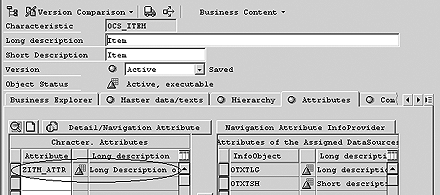
Figure 6
Assign ZITM_ATTR to 0CS_ITEM as a display attribute
Assign DataSource YITEM_DISP_ATTR_TEXT to the business content InfoSource 0CS_ITEM. As a result, a new set of transfer rules is created along with a new communication structure.
Now, make the final connection among all parts of the puzzle by mapping InfoObject ZITM_ATTR to the TXTLG field in DataSource YITEM_DISP_ATTR_TEXT. Map the standard long text field (TXTLG) coming from the generic DataSource to InfoObject ZITM_ATTR inside the transfer rules screen. In BW, the corresponding InfoObject is 0TXTLG (Figure 7).

Figure 7
Text DataSources use text fields TXTSH or TXTLG represented by InfoObjects 0TXTSH and 0TXTLG in BW
Note that the Short and Long Description fields are part of text DataSources only. The system recognizes the fields TXTSH for short text and TXTLG for medium and long text. In BW, these always map to InfoObjects 0TXTSH for short text and 0TXTLG for medium and long text.
View V_FCIW_FT101 feeds the generic master data DataSource YITEM_DISP_ATTR_TEXT in the example in Figure 7. The view was designed to feed the standard text DataSource 0CS_ITEMTEXT and contains the standard TXTSH and TXTLG description fields, so the system recognizes them regardless of the DataSource type.
Create an InfoPackage and load the data. If the text in your characteristic is language dependent, enter the language at the InfoPackage selection screen. If you fail to take this step, you risk receiving an error message during the load process indicating that you are attempting to load duplicate records. You also could receive an error message about invalid characters contained in the text. If this occurs, you must use transaction RSKC to permit extra characters in your BW system.
The last step is to insert the characteristic you want to display the key and longer name for into one of the reporting areas inside the BEx Query Designer. In this example, characteristic 0CS_ITEM is inserted into the rows area.
Right-click on the characteristic and choose Properties. In the Properties for Characteristic Item screen, enter key in the Display As field and click on the OK button, which returns you to the previous screen. Right-click on the characteristic again and select Attributes in the menu. You will see your newly assigned attribute (Figure 8), which allows the long text of the characteristic to be displayed along with its key.

Figure 8
The newly assigned attribute to be displayed in report
Iliya Ruvinsky
Iliya Ruvinsky is a managing partner at Skywind Consulting Ltd., Israel. He is an SAP-certified BW consultant and instructor with more than 12 years of experience working with SAP BW and SAP BusinessObjects. He is an implementation and project management expert, serving for more than eight years as a trusted advisor to a wide range of Israeli enterprises, including in the insurance, energy, sales, and logistics industries. He is a graduate of the University of Tel Aviv, Israel, holding an MBA in information systems analysis.
You may contact the author at iliya.r@skywind.co.il.
If you have comments about this article or publication, or would like to submit an article idea, please contact the editor.