Surveys and questionnaires can be the best source of marketing information for your customer base. See how CRM Survey Suite allows you to create surveys and use them in a BI-CRM environment.
Key Concept
With CRM Survey Suite you can create HTML-based surveys that include selection boxes, drop-down boxes, and other design features that you can use to gather critical customer information. Delivered with standard SAP CRM 4.0 and SAP CRM 2005, it’s integrated with SAP CRM for business processes and SAP NetWeaver BI for analysis.
In customer-focused business environments, companies use surveys everywhere: How did you like our hotel? How are we doing at managing the company? What issue is most important to you in the upcoming campaign? The list goes on and on.
Surveys collect opinions and gauge satisfaction with a product or service provided from one group to another. In many cases, a survey is the only way a company can assess how it is doing and if it should change approaches or stay the course. You can use surveys with both your external customers as well as your internal customers (employees) — for example, an HR employee survey.
You can integrate surveys in most CRM functions, including complaints, call center functions (also using scripts), service orders, opportunities, leads, and marketing. I’ll focus on leads, which offer your first glimpse at a potential sale. To avoid spending too much time on bad leads, you need to qualify the lead. This is where a few critical questions can come in very handy.
Although the online help has some details about using CRM Survey Suite, an overview with information about its features and how it integrates with SAP NetWeaver BI is not readily available. First, using a marketing example, I’ll explain the business process for surveys. Then I’ll go over the main features of CRM Survey Suite, including Survey Builder. I’ll show you how to build a survey, maintain its attributes, link it to a lead, and test it. Finally, I’ll go over how you can improve how you analyze your survey data by storing it in SAP NetWeaver BI. You can use CRM Survey Suite with SAP CRM 4.0 and 2005; SAP BW 3.5; and SAP NetWeaver 2004 and 2004s.
Business Process for Surveys
Before I discuss the details of using surveys in a lead scenario, I’ll describe a business process for surveys in a marketing scenario. Although many of you already know the business case and the basic business process for surveys, you may not know what happens before the system sends the survey out and after you send it back. Figure 1 identifies some steps you might take to launch a marketing campaign. It is a fairly advanced example, complete with data mining, Segment Builder, and surveys. For a list of CRM Expert articles that explain more about data mining and Segment Builder, see the sidebar “Additional Resources.”
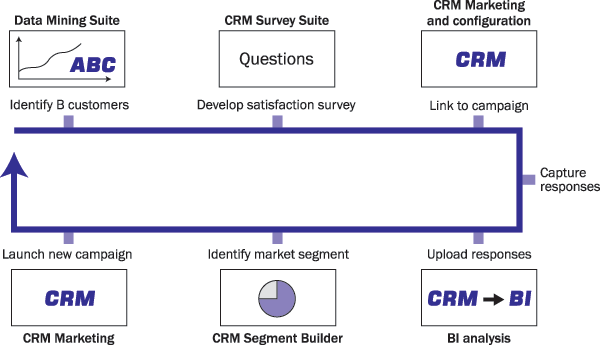
Figure 1
Survey process with CRM and SAP NetWeaver BI
First, you use the ABC data mining method to identify your “B = medium” customers — these are your typical customers. Then using CRM Survey Suite, develop a satisfaction survey that targets your B customers. In SAP CRM Marketing, link the survey to an email marketing campaign. When the customer responds, the system posts the answers to the CRM database. You can upload and analyze these survey results in SAP NetWeaver BI. Use Segment Builder to identify a market segment that based on the survey response has an interest in your product but has not bought the product recently. Finally, launch a new marketing campaign that targets the identified segment.
Now that I’ve shown you the business process for surveys, I’ll provide an overview of the features in CRM Survey Suite. I’ll walk you through the steps of creating a survey and evaluating the results, this time in a lead scenario. A big part of CRM is knowing how happy your customers are with your product or service. Another big part, within Opportunity and Lead Management, is determining what products they might be interested in and how strong this interest is.
Feature Overview
To access CRM Survey Suite, you can use several menu paths (Table 1). The menu paths all access the same CRM Survey Suite (transaction CRM_SURVEY_SUITE), but they call it either survey or questionnaire. Some areas have more deployment-related options than others. Access each option by going to transaction SPRO, then following menu path CRM>Transactions. From here, choose the menu path that is connected to the CRM business process that you want to link to a survey. For my example of defining a questionnaire for a lead, I would use the third option.
| Opportunities |
Settings for Opportunities>Sales Methodology>Questionnaire for Opportunities>Define Questionnaire |
| Activities |
Settings for Activities>Questionnaires>Define Questionnaire |
| Leads |
Settings for Leads>Questionnaires for Leads>Define Questionnaire |
| Complaints |
Settings for Complaints>Questionnaires for Complaints>Define Questionnaire |
| Service processes |
Settings for Service Process>Questionnaires for Service Processes and Service Confirmations>Define Surveys |
|
| Table 1 |
Menu paths to access CRM Survey Suite (transaction CRM_SURVEY_SUITE) |
Now let me show you how you can build surveys in CRM Survey Suite. After you are in the general configuration area, additional configuration steps for deployment logic are nearby.
Note
Originally, a “survey” was a term given to a grouping of questionnaires, for example, a loyalty survey. A “questionnaire” was a component of a survey, for example, loyalty questions for different sets of customers. This distinction has disappeared and most people use the terms interchangeably.
Build a Survey
When you go to CRM Survey Suite, the first screen you see is Figure 2. Surveys are arranged by application areas where the system uses them. Select the application area (in my case, Leads) and click on the create icon to start the design process and to name your survey. For my example, I named my survey LEAD PORTAL QUESTIONNAIRE.
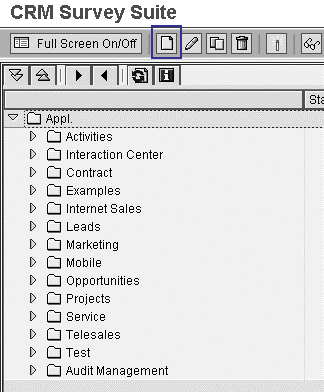
Figure 2
Initial CRM Survey Suite screen
After you name your survey, the system opens the design screen in Figure 3 in which you build your survey. The folders on the left side of the screen are organized by business process — for my example, I chose the Lead Qualification option.
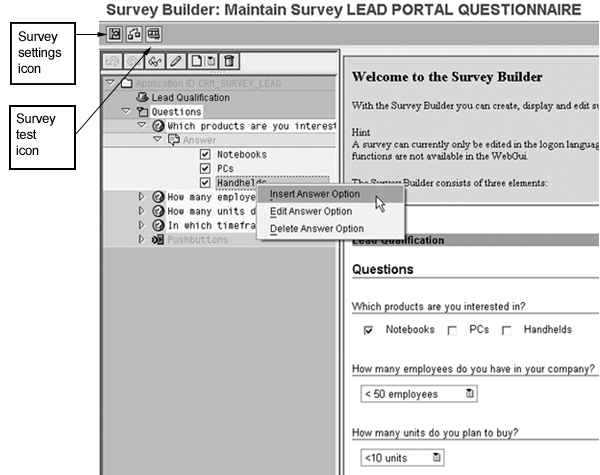
Figure 3
Survey design details
The design and preview areas are on the right side of the screen. In the design area on the bottom right side of the screen, the system proposes the first template question. Edit this question as needed, and then keep adding questions and possible answers using the context menu shown in Figure 3. Right-click on the Questions folder and select the format for the new question you wish to add. You can choose various formats, including multiple acceptable choices. For instance, you can define marketing attributes and responses by following menu path Marketing>Segmentation>Marketing Attributes. Then, in Figure 3, select the Add Question For Marketing Attribute format to automatically link these marketing attributes to the survey, complete with all of the possible answers that you defined.
Finally, you can give each answer a rating using the rating field under the answer text. You can use this rating to set the lead’s qualification level, such as from Unknown to Hot after the respondent selects several highly rated answers, automatically. (I’ll explain more about this configuration in the “Automatic Lead Qualification” section.) When you finish, click on the survey test icon to view your survey as the customer will see it.
Maintain Survey Attributes
When you finish building your survey, click on the survey settings icon to configure the survey attributes in Figure 4. The most important attribute is the analysis option — the whole point of surveys is to analyze the results. You have very limited survey analysis options inside SAP CRM. However, when you select Evaluation in Business Information Warehouse in Figure 4, SAP CRM makes the data available to SAP NetWeaver BI for more thorough analysis. For example, SAP NetWeaver BI can perform Web-based and Excel analysis using complex queries in contrast to the rigid and simple options provided if you analyze the data in SAP CRM.
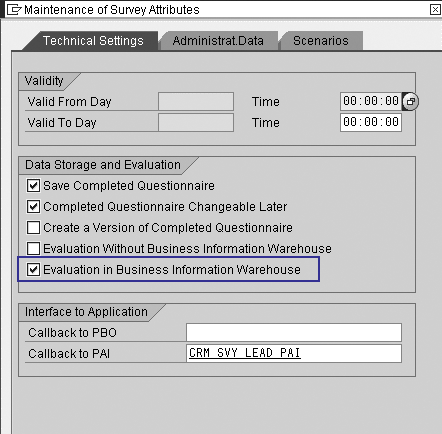
Figure 4
Make sure you opt to analyze the data within SAP NetWeaver BI
The system automatically assigns the Callback to PAI based on the folder you selected in Figure 2. This is the technical Process After Input (PAI) link that allows you to use your survey with leads. Now let me show you how to link your completed survey by attaching it to a lead to help make it a more systematically qualified lead.
Link the Survey to a Lead
First, tell SAP CRM which transactions to link to your survey. Follow menu path SPRO>CRM>Transactions>Settings for Leads>Questionnaires for Leads>Define Determination for Questionnaires (Figure 5). I previously created a transaction called ZNED as a copy of SAP’s lead creation transaction. So, for this example, I created the Questionnaire ID NED LEAD QUESTIONNAIRE. The determination ZNEDS in Figure 5 connects the transaction ZNED with the NED LEAD QUESTIONNAIRE, which gives the person processing the lead access to the survey.
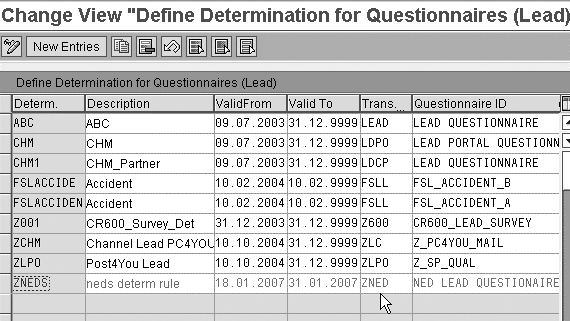
Figure 5
CRM survey tool deployment
If you want to email the survey, you could generate a URL link to post the survey results back to CRM. Alternatively, you could generate a PDF of the survey if you wanted to mail a hard copy to your customers and enter the data later. These options are available as links in the Survey Builder screen in transaction CRM_SURVEY_SUITE. In my example, the call center agent taking the lead just fills in the answers, so these options are not necessary.
Note
As an alternative to surveys, you can use Interaction Center scripts to gather information and store it in SAP NetWeaver BI in a similar way to surveys. The main difference is that scripts are interactive.
Test the Survey
It is always important to test the survey to see if it looks right and has the desired questions and answers. You could use the option shown in Figure 3 for an isolated test, but a more thorough option is to use the testing option shown in the Evaluation tab for the lead transaction ZNED in Figure 6. This is a real-world check that tests the configuration of attaching the survey to the lead as well as the layout of the survey.
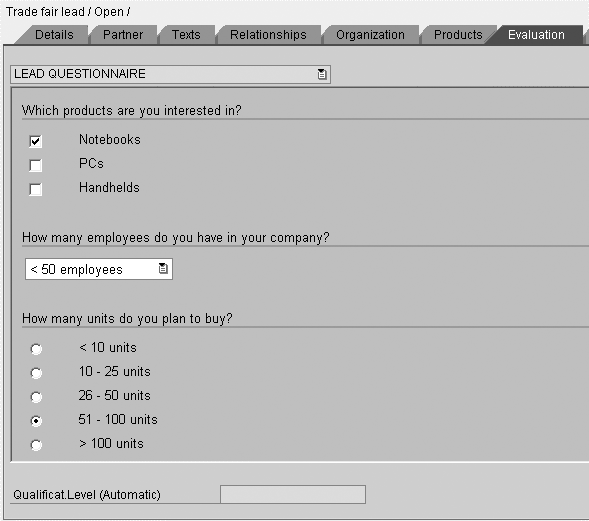
Figure 6
The survey the call center agent sees
Automatic Lead Qualification
If you click on the Details tab in Figure 6, you can view additional configuration that automatically changes the lead priority based on answers to specific questions (Figure 7). A snapshot of this configuration is shown in Figure 8, which you access by using transaction code SPRO and following menu path CRM>Transactions>Settings For Leads>Questionnaires for Leads>Assign Qualification Levels to Questionnaires. The SAP training class CR600 goes into this configuration in more detail.
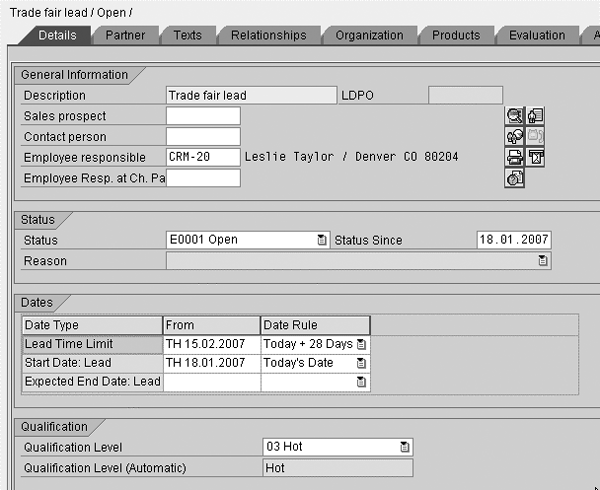
Figure 7
Automatic lead qualification level determination
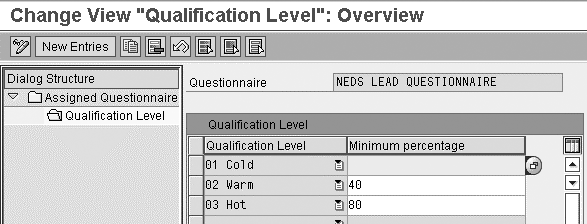
Figure 8
Configuration for automatic qualification of leads
The automatic qualification is based on the sum of the ratings for the answers selected in the survey as a percent of the total possible ratings or points. In the Details tab in Figure 7, the system automatically set the Qualification Level to 03 Hot based on the ratings connected to each selected answer. For example, say the survey had two questions:
1) How many pieces?
__ 100 or more (Rating = 10)
__ Less than 100 (Rating = 0)
2) Brand?
__ Expensive (Rating = 15)
__ Mid-range (Rating = 5)
__ Cheap (Rating = 0)
In this example, the maximum rating you could have is 25. You could indicate in Figure 8 that when a series of responses has a value that is at least 40 percent of the maximum rating, the system should set the qualification level to 02 Warm. So, if a company had 100 or more pieces of the mid-range brand, it would be considered a warm lead (15 is 60 percent of 25).
After you complete and test your survey, you can work with your BI team to configure SAP NetWeaver BI to store the survey response data. This allows you to analyze your data more comprehensively.
Configure SAP NetWeaver BI
If you select the Evaluation in Business Information Warehouse option in Figure 4, the next step is to make sure the system uploads the answers to SAP NetWeaver BI. Some preparation is necessary before you deploy the survey to make sure the survey results data is collected. You may need to work with your BI team to carry out these steps. The description of this process is purposefully on the technical BI steps. The terms delta queue, DataSource, InfoSource, transfer rules, update rules, DataStore objects (formerly called an operational data store [ODS] object), and InfoCubes are terms your BI consultant will know very well.
CRM business content is delivered in BI to upload all of the questions and answer texts (master data loads). Also delivered are the CRM-BI content objects to load the answers to specific surveys as transaction data to BI. Your BI professional should know how to activate these objects in preparation for the actual data loads. Follow these five steps to upload the CRM survey data:
Step 1. Activate all of the business content related to the surveys. Use SAP NetWeaver BI transaction RSA1. You can use the 0WS_C01 InfoCube as a collection object to activate all of the dependent objects. This includes all of the extraction, transformation, and loading (ETL)-related objects necessary to evaluate surveys.
Step 2. Load the survey master data using BI process chains. Include all of the question text and the possible answers and their texts in all of the languages in which you want to evaluate the survey. The necessary DataSources for this step are located under Web Survey Master Data and include 0WS_ANSWER, 0WS_QSTNNR, and 0WS_QUEST.
Step 3. Initialize the transaction survey data. In this step, use the DataSource 0SVY_DATA_1. This initializes the delta process to load the actual survey results. The data flows to a DataStore object, then to the InfoCube 0WS_C01.
Step 4. Schedule a process chain to load the 0SVY_DATA_1 DataSource in delta mode. This reads the data from the CRM delta queue.
Step 5. Design custom or execute delivered BI queries. You can use BI queries to generate reports for Excel or the Web. SAP provides the basic queries, but you may need to customize them for specific needs identified by your project. Consult your BI team for further assistance with this step.
Analyze the Data
Now that you have the data in SAP NetWeaver BI, you can analyze it. Although you have many options, I’ll use a simple example, shown in Figure 9. In this example, I left the data in SAP NetWeaver BI and executed a simple query off the information. This minimal query allows the analyst to see who (business partner) answered what question. By incorporating more fields (BI InfoObjects) into the query design, the analyst could slice and dice on many areas, such as the time of response and the person who qualified the lead.
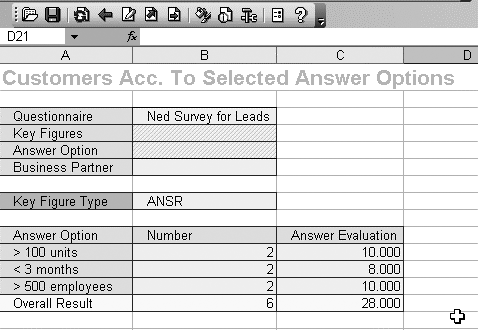
Figure 9
Example query
One interesting point is the way in which SAP NetWeaver BI stores the data. Each question asked and each answer selected receives a Boolean value 1 or 0. You can then create conditions on this Boolean key figure to find only those customers who selected a specific answer (hit counter 1>0).
You also could perform more complex analysis — for example, using ABC analysis to determine the most popular answers and Analysis Process Designer (APD) to move values for questions to marketing attributes in CRM. You could use Segment Builder to generate target groups based on answers to specific questions.
Note
The SAP CR900 class shows how to use various tools, including Segment Builder, based on SAP NetWeaver BI data. You also can fill marketing attributes with survey results, a topic that is covered in the CR900 class also.
Additional Resources
To read more about the processes related to analyzing surveys, refer to the following articles in the CRM hub of SAPexperts.
Ned Falk
Ned Falk is a senior education consultant at SAP. In prior positions, he implemented many ERP solutions, including SAP R/3. While at SAP, he initially focused on logistics. Now he focuses on SAP HANA, SAP BW (formerly SAP NetWeaver BW), SAP CRM, and the integration of SAP BW and SAP BusinessObjects tools. You can meet him in person when he teaches SAP HANA, SAP BW, or SAP CRM classes from the Atlanta SAP office, or in a virtual training class over the web. If you need an SAP education plan for SAP HANA, SAP BW, BusinessObjects, or SAP CRM, you may contact Ned via email.
You may contact the author at ned.falk@sap.com.
If you have comments about this article or publication, or would like to submit an article idea, please contact the editor.