Many businesses would like to customize Employee Self-Service (ESS) to meet employee requests, but it’s difficult to know where and how to begin. See how one project team facilitated a smooth change management process by making modifications to its ESS environment to the applause of its users.
Key Concept
User buy-in is essential to ensure a successful ESS implementation. If the “look and feel” of the solution is not right, users find it difficult to engage with the system. Some users will focus on screen layouts and behaviors, while others will care more about aesthetics. The key to achieving a high rate of user buy-in is to have a strong change-management plan in place.
Companies are drawn to Employee Self-Service (ESS) for good reason. It offers an effective approach to recording and managing HR information, allowing the HR team to focus less on administrative tasks and more on specialist HR and strategic development issues. However, achieving an effective implementation is not as straightforward as it might seem.
I recently helped the UK branch of a leading pharmaceutical company successfully implement ESS. Here, I highlight some of the challenges we faced and provide you with a better understanding of how to get the most out of an ESS environment. In particular, I explain why my client found SAP’s standard ESS solution limited and describe how the project team addressed those concerns by customizing ESS using HTML and Business HTML. Those customizations had a substantial impact on user buy-in, smoothed implementation, generated excellent levels of user acceptance, and provided real business benefits for the client.
Note
This implementation involved ESS for SAP R/3 4.6C, Workplace 2.11, and Internet Transaction Server (ITS) 6.10. The screenprints refer to ESS Business Package for SAP Enterprise Portal 5.0, which contains the same ITS services as deployed in Workplace 2.11.
Note
ESS services are release dependent. This means that depending on the R/3 release, you may not be able to leverage all the desired functionality of ESS. You can find the availability of ESS services for each release of R/3 from
https://service.sap.com/ESS. Follow the links for
Employee Self-Service in Detail>Service Availability.
Challenges
With sales forces distributed across the UK, the client wanted to relieve the time-consuming and logistically problematic administrative headache of keeping HR data up to date. The project also aimed to simplify the client’s leave request process via ESS workflow. The ability of employees to print their own pay slips would also mean a huge cost savings. Previously a dedicated printer was required, which used preformatted remuneration stationery. It took one employee an entire day just to put the slips into envelopes. The ESS project freed HR staff from time-consuming low-level tasks, allowing them to concentrate on more strategic HR issues.
My project team’s first challenge during the project preparation phase was the fact that the employees at the pharmaceutical company felt that ESS is not easy to use out of the box. The usability of standard ESS depends purely on the client’s requirements and expectations, and in many cases, ESS can be used out of the box with high user-acceptance levels. Some clients realize that the functionality is what’s important and that minor cosmetic issues should not affect the use of the application.
The pharmaceutical company wanted to make the system more intuitive by simplifying screen elements, functionality, and ESS processes. In addition, I had to customize the way payroll functionality affects ESS as a whole. For instance, ESS forced users to make changes to their details in the next payroll period, but this was not practical because the company uses a mid-month payroll.
The goal was to have little or no compromise in terms of the user interface, because it is the key to success with Web-based systems. My team’s goal was to achieve 100 percent buy-in from the project sponsor. Standard Workplace and R/3 customizing settings, however, were not enough to meet these rigorous user interface requirements.
Note
SAP does not fully support changes made to HTML code and
generator.html. Standard SAP upgrade processes can overwrite these changes. Modifications to the core may jeopardize your support contract with SAP.
To minimize these problems, make copies of all files before making alterations. Furthermore, always open files in Notepad, because other programs such as Microsoft FrontPage affect the formatting of the SAP-delivered Business HTML code and render it unusable.
The generator.html file is in the SAP name range, so when you upgrade the ITS installation or source files from the core R/3 system, you overwrite it. This means that making changes to the generator.html file is analogous to making a core code change in ABAP, so there will always be post-maintenance activities when upgrading the ITS/ESS installation.
Note
The directions for viewing Web page source code are specific to Internet Explorer. The directions differ for Netscape, Mozilla, FireFox, or other browsers. Similarly, the View Source option does not necessarily call Notepad, a Microsoft Windows application that is not available on non-Microsoft platforms. Additionally, many users use different text editors as their default text-editing application.
Front-End Changes
I avoided making changes to screens in SE51 and SE80 because subsequent HR Support Packages might alter screens or services and result in system downtime. Instead, I looked at the client’s customizing requirements from the perspective of the front end, altering template files and existing HTML code.
Simplicity was key to my client’s ESS navigation requirements. For example, one condition was that users should skip directly to change screens for particular services instead of having to navigate through an overview screen and choosing among change or display options. I implemented more straightforward navigation by altering the URLs in the user roles on the Workplace server. Instead of adding transactions to the menu tab of the role in transaction PFCG, I included a URL with the necessary additions in the query string. For example, the bank details service PZ03 became:
https://:
/scripts/wgate/PZ03/!?~client=

&~language=EN&~logingroup=SPACE&~okcode=CHAN
The okcode=CHAN statement forces the service to open in change mode. In many ways, ESS is easy to modify if you have the requisite skills. It is certainly configurable beyond the customization options supplied. When altering the HTML code, however, any change can produce unforeseen effects for other elements of the module. The trick is to trace back through the system to find where to make the changes. If the changes are not in a template file for the service, then they need to be made in the file generator.html. This file controls the appearance and behavior of screen elements that are not template-based. The following examples show how to use functions such as INPUTFIELD and COMBOCONTROL2HTML to make custom changes to screen elements within specific services and generically across services.
Customize PZ03
The project included a number of cross-service customizations as well as changes to the specific services PZ02 (address details), PZ03 (bank details), PZ05 (emergency contact), and PZ13 (personal data).
The client wanted to display, but disable, the PZ03 bank country and payment method combo boxes. A combo box is both a text and list box that normally displays a single line, but you can open a list by clicking on it. These would always need to appear as United Kingdom and BACS Transfer, respectively. Follow these steps to customize PZ03.
Step 1. Enter the PZ03 screen. Right-click the screen and select View Source or select View Source from the tools menu. You see the source code of the page displayed in Notepad.
Step 2. Select Find from the Edit menu. Enter country and press Enter (Figure 1).
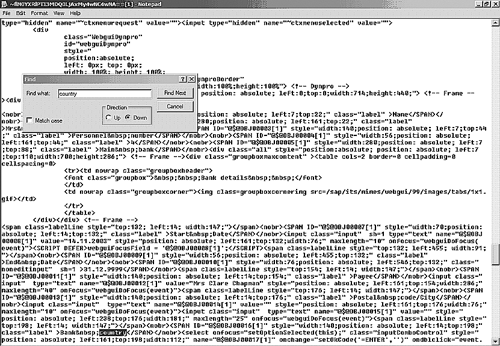
Figure 1
Find the term "country" within the ESS Notepad
Note
The generator.html file is the key to all front-end modifications for services that do not use templates. To implement changes in the generator.html file, a sound understanding of HTML and Business HTML is imperative.
This search finds the label for bank country. The SELECT tag that follows identifies the combo box that requires modification. The name of this combo box is given in the HTML code as name="@$@OBJ00017[1]". This object name is used to alter the code in the generator.html page.
Step 3. Open the generator.html file in Notepad and go to the function COMBOCONTROL2HTML. This function is displayed in Figure 2.
function combocontrol2html ( ~object_name, ~index, with_position=0, columnwidth)
|
| Figure 2 |
Function COMBOCONTROL2HTML |
Step 4. In the body of this function, a section performs a number of checks using conditional statements. This is where you add code (Figure 3).
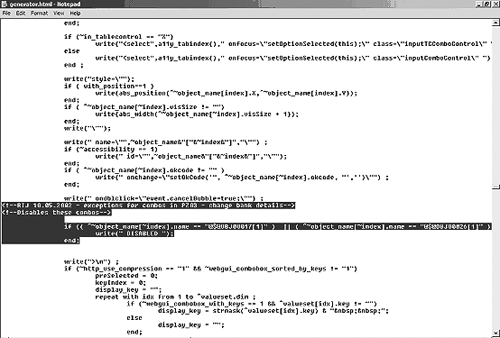
Figure 3
Add code using conditional statements
This code checks the combo box’s object name, and if it matches the criteria specified, then it writes the statement DISABLED into the HTML SELECT tag. The other object names refer to the combo box for payment method and the corresponding fields on the display screen for this service (Figure 4).
 if (( ^~object_name[~index].name == "@$@OBJ00017[1]" ) || (


^~object_name[~index].name == "@$@OBJ00026[1]" ) || (
^~object_name[~index].name == "@$@OBJ00030[1]
" ) || (
^~object_name[~index].name == "@$@OBJ00029[1]" ) )
write (" DISABLED ");


end;
|
| Figure 4 |
IMG configuration for infotypes to be logged |
You can use the generator.html file to hide fields in the function INPUTFIELD using the code in Figure 5.
function inputfield ( ~object_name, ~index, with_position=1,
columnwidth="" )
if ( ^~object_name[~index].exists == "" )
return("");
end ;


if (( ^~object_name[~index].name ==
"@$@OBJ00027[1]" ) && ( ^~object_name[~index].type == "Password" ))
return("");


end;
|
| Figure 5 |
Code to hide fields in the INPUTFIELD function |
By supplying the object name and object type, you can write a conditional statement to hide this particular field. Similarly, it is possible to hide objects based on their labels. For instance, in one ESS implementation, the project team was asked to turn all the Back buttons off, as demonstrated in the code in Figure 6.
function inputfield ( ~object_name, ~index, with_position=1, columnwidth="" )

if ( ^~object_name[~index].label == "Back" )
return("");
end;
|
|
| Figure 6 |
Code to turn off the Back buttons |
Functional Changes
While the changes my project team made to the Web pages met the client’s requirements for front-end customizing, we encountered further challenges on the functional side. One limitation of the standard ESS implementation related to payroll: Users could see payroll details six days ahead of time in standard ESS, but the client wanted to prevent the users from seeing their payroll details before HR employees had executed a correction run. My team developed ABAP code for this purpose, but now SAP note 207519 deals with it.
As previously mentioned, the project team discovered that ESS prevented any changes from being made for the rest of that payroll period when the system runs payroll in the middle of the month. The client wanted any aspects of payroll that were not time-dependent to be free of this restriction, so that users could still change their personal details without waiting until the beginning of the next payroll period.
The reason this is a problem is because R/3 checks the begin date of an HR record against the “accounted to” date (technical name P0003-ABRDT). This is the date up to which the employee has been paid. If the begin date of the change is earlier than the “accounted to” date, the system does not allow the user to change HR records. If the begin date is later, then changes are allowed.
Personnel records are locked during the payroll run. The payroll program reads the master data as well as time and date infotypes. Any changes to these infotypes during the payroll run could jeopardize the accuracy of payroll, which is why ESS doesn’t allow such changes. The client expected that once payroll was completed, ESS users should be able to change information on infotypes that did not activate the retroactive processing of payroll.
Companies often run their monthly payroll in the middle of a month. Once payroll has been run, the “accounted to” date (P0003-ABRDT) is set to the last day of the month. ESS changes are permitted beginning the first day of the next month, i.e., the start of the next payroll period. If the payroll run begins on day 18 of a month, then users cannot make changes from day 18 to the last day of the month. When users enter changes during this period, it does not update the system. This could cause such problems as deliveries ending up at the wrong location because users could not update their delivery address.
My team’s functional consultant pointed out that address information in most companies would not affect the execution of payroll. To solve this issue, my team altered infotype behavior, which is generally controlled through configuration table T582A. However, the settings in T582A are not relevant for ESS. Infotype behavior within ESS is hard-coded in function module HR_CHECK_PAYROLLSTATUS. Prior to calling the function HR_CHECK_PAYROLLSTATUS, R/3 processes function module HR_CHECK_BEGINDATE.
My team modified this function module (Figure 7). The additional code checks to see if the begin date of the change is earlier than the “accounted to” date (P0003-ABRDT). If so, it checks if the infotype would impact payroll. If not, the change is permitted. This simple change allowed the users to make the required ESS changes while ensuring correct data in the system.
FUNCTION HR_CHECK_BEGINDATE.
*"------------------------------------------------------------
*"*"Lokale Schnittstelle:
*" IMPORTING
*" VALUE(INFTY) LIKE P0001-INFTY
*" VALUE(BEGINDATE) LIKE P0003-BEGDA
*" VALUE(ACCOUNTEDTO) LIKE P0003-ABRDT
*" VALUE(PAYROLLAREA) LIKE P0001-ABKRS OPTIONAL
*" VALUE(OPERATION) LIKE PSPAR-ACTIO DEFAULT SPACE
*" VALUE(TIMECONSTRAINT) LIKE T591A-ZEITB DEFAULT SPACE
*" EXPORTING
*" VALUE(RETURN) LIKE BAPIRETURN1 STRUCTURE BAPIRETURN1
*"------------------------------------------------------------
DATA: FIRSTOFMONTH LIKE SY-DATUM.
DATA: ACCOUNTEDTO_DATE_EXTERN(10) TYPE C,
PAR1 LIKE SY-MSGV1. CLEAR RETURN.
********* to be reflected ************************************
* if accountedto is initial.
* if operation eq create. "Insert
** ACCOUNTEDTO is ultimo of month before
* firstofmonth = begindate.
* firstofmonth+6(2) = '01'.
* accountedto = firstofmonth - 1.
* else.
* accountedto = sy-datum.
* endif.
* endif.
************************************************************** IF INFTY EQ '0022' OR INFTY EQ '0023'.
* do nothing for infotypes 0022, 0023
ELSEIF OPERATION EQ DELETE AND ( TIMECONSTRAINT EQ '2' OR
TIMECONSTRAINT EQ '3' ).
ELSEIF OPERATION EQ DELIMIT.
IF BEGINDATE <= ACCOUNTEDTO. "begindate is delimitdate
WRITE ACCOUNTEDTO TO ACCOUNTEDTO_DATE_EXTERN.
PAR1 = ACCOUNTEDTO_DATE_EXTERN.
* fill return parameter
CALL FUNCTION 'BALW_BAPIRETURN_GET1'
EXPORTING
TYPE = 'E'
CL = 'PWWW'
* NUMBER = 205 "XZIL9CK045130
NUMBER = 237 "XZIL9CK045130
PAR1 = PAR1 "XZIL9CK045130
IMPORTING
BAPIRETURN = RETURN.
ELSE.
IF NOT ( PAYROLLAREA IS INITIAL ).
CALL FUNCTION 'HR_CHECK_PAYROLLSTATUS'
EXPORTING
INFTY = INFTY
BEGINDATE = BEGINDATE
PAYROLLAREA = PAYROLLAREA
IMPORTING
RETURN = RETURN.
ENDIF.
ENDIF.
ELSE.
*{ INSERT LBDK901479 2
IF BEGINDATE <= ACCOUNTEDTO and INFTY NE '0009'. ACCOUNTEDTO = BEGINDATE - 1. endif. *} INSERT
IF BEGINDATE <= ACCOUNTEDTO.
WRITE ACCOUNTEDTO TO ACCOUNTEDTO_DATE_EXTERN.
PAR1 = ACCOUNTEDTO_DATE_EXTERN.
* fill return parameter
CALL FUNCTION 'BALW_BAPIRETURN_GET1'
EXPORTING
TYPE = 'E'
CL = 'PWWW'
* NUMBER = 205 "XZIL9CK045130
NUMBER = 237 "XZIL9CK045130
PAR1 = PAR1 "XZIL9CK045130
IMPORTING
BAPIRETURN = RETURN.
ELSE.
IF NOT ( PAYROLLAREA IS INITIAL ).
CALL FUNCTION 'HR_CHECK_PAYROLLSTATUS'
EXPORTING
INFTY = INFTY
BEGINDATE = BEGINDATE
PAYROLLAREA = PAYROLLAREA
IMPORTING
RETURN = RETURN.
ENDIF.
ENDIF.
ENDIF. CALL CUSTOMER-FUNCTION '001'
EXPORTING
INFTY = INFTY
BEGINDATE = BEGINDATE
ACCOUNTEDTO = ACCOUNTEDTO
PAYROLLAREA = PAYROLLAREA
OPERATION = OPERATION
TIMECONSTRAINT = TIMECONSTRAINT
*{ REPLACE LBDK901467 1
* IMPORTING
CHANGING
*} REPLACE
RETURN = RETURN. ENDFUNCTION.
|
| Figure 7 |
Code to modify function module HR_CHECK_BEGINDATE |
My Approach to Implementing ESS
This project experience led me to alter my approach to implementing ESS. I originally believed that the implementation required only an HR consultant, but now I feel that a small, multiskilled team that includes a Web resource expedites a successful implementation. In the pharmaceutical company implementation with a Workplace 2.11 environment, a Basis consultant was an important part of the project team. Table 1 summarizes the ideal ESS implementation skill set.
| BHTML/ITS/HTML |
40 |
| HR |
20 |
Basis (Workplace/
SAP Enterprise Portal) |
15 |
| ABAP |
10 |
| Workflow |
10 |
| Authorizations |
5 |
|
| Table 1 |
Breakdown of skills suggested for an ESS implementation |
In addition to the right skill set, you need a plan to pilot the project and a good educational program post implementation. It has been my experience that “big bang” implementations of SAP solutions invariably fail. Successful implementations occur after careful planning and the targeted involvement of the user community in a pilot scheme. The iterative feedback loop that characterizes the pilot phase helps to smooth out functional and technical problems, and breeds a mentality within the user community that they have contributed to the creation of a robust, user- friendly solution that benefits themselves and the company.
When the full-scale rollout occurs, all major risks have been eked out and dealt with. Furthermore, the training program and materials generated for the pilot phase are now augmented by a knowledgeable and enthusiastic super- user base community. See Figure 8 for an example of an ESS screen from this implementation.
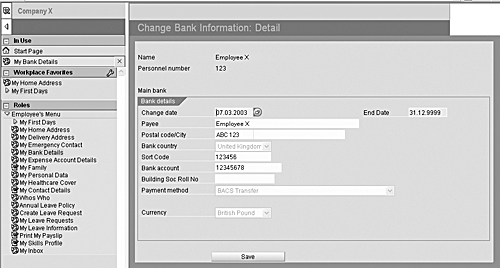
Figure 8
Customized ESS screen
Factors such as user involvement and skilled project team members facilitate the change management process and smooth the acceptance of the solution in the wider end-user community. See Table 2 for the key ingredients that contribute to a successful implementation.
| The right blend of skills and experience on the project team |
Combine technical and functional knowledge with previous experience. Even simple alterations to the standard solution, which may be critical to achieving satisfactory levels of user friendliness and functionality, require significant technical intervention. |
| A targeted pilot scheme |
Use a small group of employees to elicit the necessary feedback required to fine tune the solution prior to rollout. |
| A clear education program |
Familiarize users with the system and help them understand its benefits. |
|
| Table 2 |
Critical factors for successful ESS implementations |
Rob James
Rob James is an SAP consultant for one of the UK’s leading SAP consultancies, Absoft. He has more than eight years of management information experience and more than three years of SAP experience. Rob is BW certified and has implemented and supported projects across various industries. He has a wealth of experience in ITS applications, particularly Online Store and ESS, as well as other Web technologies such as CRM Internet Sales, WAS, ASP, JavaScript, and Java.
You may contact the author at rjames@absoft.co.uk.
If you have comments about this article or publication, or would like to submit an article idea, please contact the editor.