The configuration of personnel actions such as hiring, terminations, and organizational assignments in R/3 is completely customizable. The R/3-delivered actions, also known as personnel events, can be customized to your company's needs so that you can collect necessary data and assign specific employment statuses. The employee data collected during your actions then can be classified with reason codes that will provide you with better employee groupings for reporting. The author says that to achieve the best results, you should ask three questions before you configure new actions.
The configuration of personnel actions such as hiring, terminations, and organizational assignments in R/3 is completely customizable. The R/3-delivered actions, also known as personnel events, can be customized to your company’s needs so that you can collect necessary data and assign specific employment statuses. The employee data collected during your actions then can be classified with reason codes that will provide you with better employee groupings for reporting. Before you configure new actions, here are three questions to ask:
- What data do I need to collect?
- What statuses do I want to assign?
- What reporting goals are related to these actions?
I’ll explain why these questions are so important. Then I’ll show you how to create your own HR actions.
What Data Do I Need to Collect?
Determining which infotypes go into each action boils down to what data you want to collect. Take organizational actions, for example. For a simple promotion, you could start with an infotype 0000 (using an infotype 0000 at the beginning of an action records the action and its reason code), an infotype 0001 that records the organizational change, and an infotype 0008 that records the change in salary. Those are the basics, but you need to think a step further. Is there any other pertinent information that you wish to recall along with the promotion? See Table 1 for a sample checklist to stimulate your thought process on what infotypes to include in an action.
| Does this action require a change to any dates collected for the employee? |
Infotype 0041 - Date Specifications |
| Does this action require any reminder dates to be updated for the employee? |
Infotype 0019 - Date Monitoring |
| Does the change in status (PT to FT or vice-versa) have an impact on benefits eligibility? |
Infotype 0171 - General Benefits Information (and other benefits-related infotypes) |
| Does the employee life event require update or delimitation of spouse or dependent information? |
Infotype 0021 - Family/Related Person |
| If you are processing employee address changes, do employees also have a bank change that would affect their direct deposit? |
Infotype 0009 - Bank Details |
| Does a leave event require a change to travel privileges while the employee is on leave? |
Infotype 0017 - Travel Privileges |
|
| Table 1 |
Sample questions when configuring personnel actions |
After you determine what data you want to collect, you need to determine what statuses to assign.
Note
It is possible to create an action without an infotype 0000. For example, if you are creating an action to update an address, you can decide whether or not you want an infotype 0000 to be recorded for the address change. The system already date delimits the old address, so history is properly preserved. Therefore, you may not want an infotype 0000 created.
What Statuses Do I Want to Assign?
Actions can be used to change the status of an employee — e.g., new-hire actions make them active, terminations make them withdrawn. You have three options for the statuses to assign for each event. The first is the basic employment status. You use this to set the status to which
you want the employee to be changed. This appears on infotype 0000 in the Employment Status field. The options include:
- 0: Employee not with company (used for termination actions)
- 1: Employee with company, but inactive (used for unpaid leaves)
- 2: Employee with company, but as retiree (used for retiree actions)
- 3: Employee active in company (hire/rehire and non-status change organizational actions)
Next is the Special Payment Status. The three options that would update the infotype 0000 are:
- 0: Special payment: no entitlement
- 1: Special payment: standard wage type
- 2: Special payment: special wage type.
The third status is optional. You can use the Customer Specific Status to determine your own custom statuses to be assigned during the actions.
What Reporting Goals Are Related to These Actions?
HR actions not only collect information and assign statuses, but they also provide groupings of your employees for reporting purposes. Having reason codes associated with your actions is the only way to ensure that you can classify your employees into the appropriate groups so that you can obtain the data you need. For example, if you have a termination action without reason codes, you may be able to determine that you had 100 terminations in the past month, but you would have no idea why. Creating reason codes that allow you to distinguish between avoidable (quit for better pay) and unavoidable (death) terminations provides a comprehensive look at your employees.
One action for which a reason code is very important is a pay-change-related action. Employees can have changes in pay for a variety of reasons, the most common being promotions and demotions. Being able to report on promotions and demotions is required for governmental reporting in many states in the United States. Making reason codes for your pay-change-related actions for promotions and demotions is the best way to ensure that you are collecting the appropriate information.
Maximize the Use of Reason Codes
The use of reason codes can make or break you when it comes time to evaluate the employees who have undergone actions. The termination example is a good indicator of that. Without recording why someone was terminated, the actual record of a termination action does not give you much. A best practice is to determine what reasons you want to track and to evaluate your turnover reports to see what you really wish to measure. After making a list of termination reasons, see if you want to group them to make them more useful. See Table 2 for a sample list.
| A1 |
Death |
| A2 |
Military duty |
| A3 |
Medical |
| B1 |
Better opportunity – more money |
| B2 |
Better opportunity – better benefits |
| B3 |
Better opportunity – commute-related |
| C1 |
Excessive tardiness |
| C2 |
No call no show |
| C3 |
Gross misconduct |
| D1 |
Dissatisfaction with job |
| D2 |
Dissatisfaction with supervisor |
| D3 |
Dissatisfaction with pay |
|
| Table 2 |
Sample list of reasons for termination |
These sample codes allow you to classify your termination reason codes into four categories: unavoidable termination (A), employees who took positions at another company (B), employees who were terminated for cause (C), and employees who quit because they were dissatisfied with the company (D). Using the A, B, C, D designation allows you to group the codes as needed and simplifies reporting later on.
You can also maximize the use of the reason codes for pay-change-related actions. An employee’s pay could change for at least a dozen reasons. Only through properly grouping these pay changes into categories can you address your reporting needs. For example, distinguishing which employees were promoted and demoted in a certain period of time is a frequent reporting need to satisfy governmental regulatory reporting, such as affirmative action plan reporting. Creating actions specific to promotions or demotions or having multiple specific reason codes for a single pay-change action is a way to meet that requirement.
Creating actions in SAP is an easy task. Once you have thought through the three questions above, you can complete the configuration using the SAP Implementation Guide (IMG). The
configuration of actions and reason codes is most often performed by the functional person responsible for system configuration. It is important to note that the business side of the organization should dictate what the actions and reason codes are. They should not be driven by the payroll department or the IT organization. Below are basic step-by-step procedures for creating an action and its related reason codes in R/3.
Creating an Action
Routine personnel procedures within master data administration, including hiring, terminations, and reassignments, are referred to as personnel actions or events. Each personnel action contains a sequential set of infotypes related to the event, which is referred to as an info group.
The purpose of actions is that each infotype relevant to the employee event is sequentially presented so that all of the necessary data can be entered. This means you do not have to manually navigate to each infotype to enter the information. The action can assign the statuses relevant to the event; for example, it sets the employment status to 3 for a new hire, indicating the employee is active.
Step 1. Create a User Group Dependency for the Info Group
To create an action, navigate to the IMG menu path Implementation Guide for R/3 Customizing>Personnel management>Personnel administration>Customizing procedures>Actions. You are prompted with a dialog box with three items, the first of which is User group dependency on menus and info groups. Double-click on this option. You will see a screen with five columns for each line in the table. See Table 3 for a description of the data required for each column.
| Infotype menu |
Infotype menu number that will be used for your info group. |
| Text |
Description of the infotype menu. |
| User group dependency |
Marking this box makes this infotype menu user-group-dependent (you can make different actions available to different groups of users). Do this by creating the user group parameter in the system settings (System>User Profile>Own data>Parameters). |
| Reaction |
If you have not maintained the parameter user group in the user defaults, you can indicate that you want the system to have a reaction (warning, error, etc.).
|
| Reference user group |
If parameter user group is not set in the user defaults, enter the
reference user group to be used for the menu layout. |
|
| Table 3 |
Data description for user groups |
Step 2. Create an Info Group
Next you need to create a group of infotypes that you would like bundled together for your action. This bundle is called an info group. Define info groups is the third action item in the list in the Action section of the IMG. Upon execution, you see a screen with a table like the one shown in Figure 1.
On this screen, enter the list of infotypes in the order you wish them to appear during the action. Each line in the table has eight columns. See Table 4 for a description of the data required in
each column.
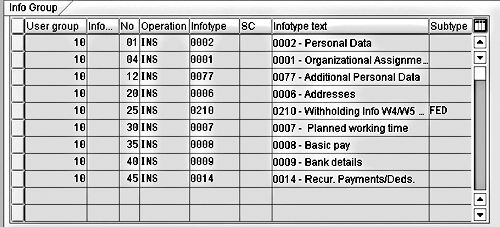
Figure 1
Step 2 of configuration of HR actions - Display View “Info Group” overview
| User group |
Enter the user group number for which this info group will be available. |
| Info group modifier |
Allows you to store the contents of variable key T588D-IGMOD according to the company code, personnel area, employee group or subgroup, action type, and reason for action. |
| Number |
Sequence number for the presentation of the infotype in the action. |
| Operation |
Determines what operation the system uses when presenting the new infotype. |
| Infotype |
Infotype number you want to present in the action. |
| Infotype screen control |
Used to assign several infotype texts to one infotype. These infotype texts must be assigned to different screens. |
| Infotype text |
Column populates automatically with the name of the infotype associated with the number in the infotype column. |
| Subtype |
Here you can specify a particular subtype of the infotype. For example, infotype 0006 can have several different subtypes for different addresses. If your main address infotype is 1, you can specify subtype 1 in this column to ensure that you get the correct subtype. |
|
| Table 4 |
Information for list of infotypes |
Creating an info group is simple. Having an understanding of which operation is best for each action takes a little thought. The options include:
- INS (best for new hires): creates a new infotype and presents it if none exists for the employee
- COP: looks to see if the employee who is undergoing the event already has the infotype and makes a copy of it
- INSS: inserts a new record for the employee regardless of whether one existed in the past
- LIS9 (best for terminations): delimits (puts an end date on) the employee’s current record
- DIS: displays the most current infotype
- DEL: deletes the most current infotype
- EDQ: locks or unlocks an infotype
- MOD: presents the current infotype for changes
Creating info groups for new hires (initial entry) is probably the easiest. An initial entry new hire does not already have records in R/3, so an info group for that person would contain only the INS operation. That configuration consists of a simple list of the infotypes on which you want to store new hire data and the INS operation for each.
Termination actions are different. You may not want to use the INS operator, because you likely will not want to insert new infotype records. Rather, you use the LIS9 for many of the infotypes, because you want to delimit them as part of the termination. The delimit operator ensures, for example, that benefit plans are terminated.
You will want to use the COP operator for some infotypes in the termination action. Therefore, you want to preserve the employee’s data as it was, but keep it updated to the new event. You never want to delimit infotype 0 or 1, as these should always exist until 12/31/9999.
Tip!
Changes made to an infotype or infotype fields often affect field entries in other infotypes. For example, if you change an employee’s work schedule on infotype 0007 - Planned Working Time, it may impact some fields on infotype 0008 - Basic Pay. You can set up dynamic personnel actions in the system settings to handle these. For more information on dynamic actions, see the article, “Unleash the Power of Dynamic Actions: Tips and Tricks to Get the Best Results,” by Rehan Zaidi, in the July 2003 issue of HR Expert.
For organizational change or personnel status change actions, use the COP operator, as you want to make a copy of the employee’s previous infotype in order to ensure that history is maintained appropriately.
Tip!
When you are creating your action menu, use two-digit numbers with intervals of 10 between them for the sequential numbers in column 2. These numbers determine the order in which actions are presented on the screen. If on your initial configuration you number them 10, 20, 30, 40, you can always return and insert new actions in the middle of the existing sequence – i.e., 15, 25, 35, 36, 37.
Step 3. Create the Personnel Action
Now that you have created the infotype menu (step 1) and the info group (step 2), all you need to do is to tie them together with the action. Go to the IMG menu path Implementation Guide for R/3 Customizing>Personnel management>Personnel administration>Customizing procedures>Actions>Setup personnel actions. Upon execution, you are prompted with a dialog box with three items. Double-click on the second, Personnel action types. Each line in the table has 16 columns. A description of the data that is required in each column is listed in Table 5.
| Action type |
Two-digit number assigned to the action. |
| Name of action type |
Description of the action (hiring, termination, etc.). |
| Function character for action |
The options are 1 = first hiring, 7 = first hiring and transfer of data from the recruitment module, and 0 = all other action types. |
| Customer-specific status |
If your company takes advantage of the customer-specific statuses, you can preset what you want that status to be. |
| Employment status |
Sets the status that you want the employee to be changed to. The options are 0: not with company, 1: with company, but inactive, 2: with company, but as retiree, and 3: active in company. |
| Special payment status |
Sets the special payment status you want the employee to be changed to. The three options are 0: Special payment: no entitlement, 1: Special payment: standard wage type, and 2: Special payment: special wage type |
| Action sequence feature |
System checks whether the features of this action match the features of the previous action. The feature entered here controls performance of this check. Examples include MSN20 for withdrawal, MSN21 for reentry, and MSN32 for early retirement/retirement. |
| Input field for personnel action |
These four checkboxes allow you to control organizational assignment data input options in the initial screen of the Personnel Actions infotype (PA40) and in the Actions infotype (0000). If indicator PA is set, the personnel area field is ready for input on the initial screen of the Personnel Actions transaction (PA40), or of the Actions infotype (0000). You can then control the input options for the position (P), employee group (EG), and employee subgroup (ES) fields if you have integration turned on. |
| Infotype group number |
Enter the number of the info group from step 2. |
| Update infotype 0000 |
Creates an infotype 0000 during the action. Leaving this checkbox blank ensures no infotype 0000 is created during your action. |
| Update infotype 0302 |
U0302 defines whether the personnel action type is stored in the Additional Actions infotype (0302). |
| Country reassignment action |
Describes whether the type of personnel action indicates a country reassignment. A personnel action indicated as a country reassignment is not a true personnel action. It is not stored in the Actions infotype (0000), and no infotype group is processed. |
|
| Table 5 |
Personnel action types |
Step 4. Create Reasons for Your Action
Now that an action has been created, you need to create reasons associated with the event. Go to the IMG menu path Implementation Guide for R/3 Customizing>Personnel management>
Personnel administration>Customizing procedures>Actions>Create reasons for personnel actions. Upon execution, you see a screen that contains four columns for each line in the table. See Table 6 for a description of the data that is required in each column.
| Action number |
Corresponds to the action created in Step 3 (i.e., Hiring action 01 and Family Status Change action 60) |
| Name of action type |
Displays description of the action created in Step 3. |
| Action reason |
Create a number for your reason that corresponds to your action. |
| Action reason description |
Create the text that corresponds to the action reason. |
|
Step 5. Add Your New Action to the Action Menu
Now that you have created an action and its associated reason codes, you add that action to the action menu (transaction PA40) via the IMG menu path Implementation Guide for R/3 Customizing>Personnel management>Personnel administration>Customizing procedures>Actions>Create action menu. Upon execution, you see a dialog box with two options, the first of which you saw in Step 1. Double-click on the second option, Action menu. You are prompted to enter the action menu number 01. You’ll see the screen that contains four columns for each line in the table. See Table 7 for a description of the data required in each column.
| User group |
Menu setup for a menu-guided or system-guided transaction in table T588B or infotype setup for a menu in table T588D can be defined according to the user’s needs. |
| Number |
Enter a sequential number that determines in what order the actions are output on the actions screen (PA40). |
| Action number |
Corresponds to the action created in step 3 (i.e., Hiring action 01 and Family Status Change action 60). |
| Action description |
Displays the description of the action created in step 3. |
|
Table 7 Action entry information
|

Danielle Larocca
Danielle Larocca is currently the Senior Vice President of Human Capital Management for EPI-USE Labs. Previously she was the Executive Vice President of Operations/Chief Knowledge Officer at a technology start-up. She has more than 20 years of strategic leadership experience in multi-national business, business process re-engineering, and project and people management. Danielle is an expert on SAP Human Resources (HR) and reporting and has authored four best-selling books on SAP. She is a regular speaker at numerous conferences around the world on topics such as HR, technology, change management, and leadership. She is an official SAP Mentor, a global designation assigned to less than 160 professionals worldwide, who serve as influential community participants in the SAP ecosystem. This group is nominated by the community and selected by the SAP Mentors’ Advisory Board to keep SAP relevant. Danielle also serves as an expert advisor for SAP Professional Journal.
You may contact the author at me@daniellelarocca.com.
If you have comments about this article or publication, or would like to submit an article idea, please contact the editor.