See how you can enable the transfer of call attached data to the interaction record, which allows your agents to easily access call-relevant information. Learn how to reduce call processing time by defaulting input fields with values the telephony environment collects automatically.
Key Concept
Call attached data (CAD) allows you to publish information collected by a telephony system, such as customer concerns, to your Interaction Center and provide an agent with this information when they answer a call. Combining CAD with Intent Driven Interactions (IDI) to push the data into the business flow provides a transparent and flexible approach in which you can easily adapt a process change from the business side by changing the relevant IDI rules.
Many call centers would benefit from directly providing customer information collected by telephony technology to their agents. This technique allows agents to see customer requirements (e.g., a complaint regarding a given order number) easily during a call. In call centers where agents are processing different marketing campaigns in parallel, it is beneficial if they can avoid pulling information from the customer manually and instead collect it in the telephony automation (e.g., through interactive voice response [IVR]) and push the information directly into the SAP CRM Interaction Center interface.
We will show you a technique for a scenario in which a phone call reaches an agent in the Interaction Center. By defaulting, for example, the field value Campaign ID, the agent can access an enriched version of the automatically created interaction record. The system creates the enriched version when it reads the relevant call attached data (CAD) and pushes it as an example into the corresponding field of the interaction record.
Note
Using CAD within the feature of Intent Driven Interactions (IDI) allows the flexible automation of business processes. For example, this includes the automated creation of business transactions, dedicated navigation within the Interaction Center, or running the correct call script based on information provided by the telephony equipment.
To publish the CAD into the field, three steps are required:
Step 1. Build the Fact-Gathering Service and the Action Handling Service
Although a little ABAP coding is necessary for this step, you don’t need to be an experienced programmer to understand the logic. Before you create the fact-gathering service in the IMG, you have to implement the service class in transaction SE24 that defines the required logic for adding the CAD to the fact base.
For this example, we created a class ZZCL_CRM_CAD_TO_FB using super class CL_CRM_SMF_ABSTRACT_SERVICE and redefined the interface method IF_CRM_SMF_SERVICE~EXECUTE. Enter the name of your class in the Object Type field and click the Create button. Select Class for the object type in the pop-up screen. In the next pop-up screen, enter a description, select the Public option under Instantiation, select Usual ABAP Class as the class type, and select the Final check box. Save your class. On the Properties tab on the screen that appears, click the Superclass button, enter CL_CRM_SMF_ABSTRACT_SERVICE, and press Enter (Figure 1).
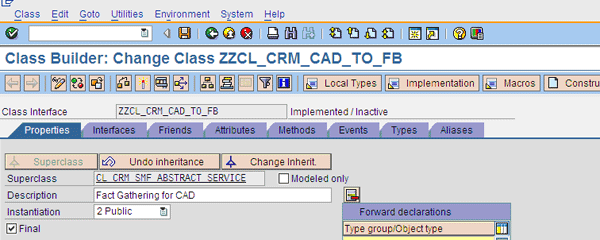
Figure 1
Create a service class
Tip!
If your programming skills are not as developed as your knowledge of SAP CRM customizing, it is helpful to check existing customizing objects for previously implemented logic you can use.
To redefine your interface, click the Methods tab, click the method IF_CRM_SMF_SERVICE~EXECUTE, and then click the redefine icon (Figure 2). For this example, we used code you can download at the end of this article to read the CAD attribute Z_CAMPAIGN into the fact base. The action-handling service later assigns this value to the field CAMPAIGN_ID in the interaction record. Click the activate icon to activate your class (Figure 3).
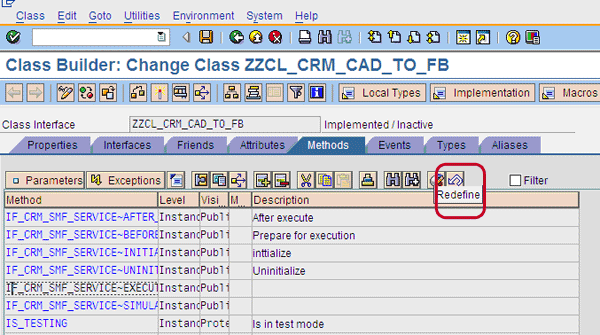
Figure 2
Redefine method IF_CRM_SMF_SERVICE~EXECUTE
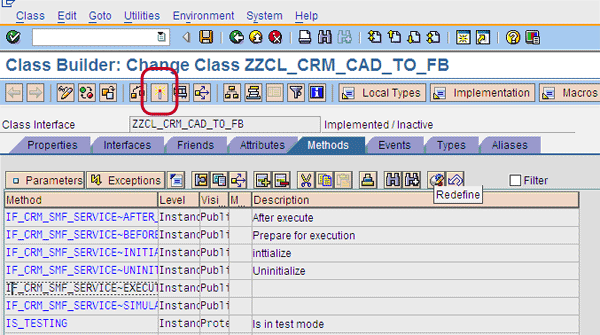
Figure 3
Activate the service class
For the service used in the action to add the campaign value to the interaction record, we created another class, ZZCL_CRM_CAD_TO_IREC, by using super class CL_CRM_SMF_ABSTRACT_ACTION and redefining the interface method IF_CRM_SMF_ACTION_HANDLER~EXECUTE. For the redefined method we used the second code found at the end of this article. Use this code to read the data from the fact base and set it in the attribute of the interaction record.
The last task is to prepare the services for use in the IDI rule framework. To define a service, you can either use the SAP CRM customizing activity Define Services (via IMG menu path Customer Relationship Management > Interaction Center WebClient > Additional Functions > Intent-Driven Interactions > Service Manager > Define Service Manager Profiles) or transaction CRMC_ERMS_SM_SRV. Services defined here are available for use in the IDI repository to define attributes and actions.
A service is defined by its type and the class that is used when the service is executed. For this example, we defined service ZFG_CAD of the service type Fact Gathering (using previously created class ZZCL_CRM_CAD_TO_FB) to add the call attached data to the fact base. This system calls this service automatically when an incoming call is accepted. To define a service you have to click the New Entries button in Figure 4, enter the service ID (in this case, ZFG_CAD) and the corresponding service class (ZZCL_CRM_CAD_TO_FB), and select Fact Gathering as the service type. Save the entry by clicking the Save button.
Also, create a service ZAH_CAD_CMP of service type Action Handling using the previously created class ZZCL_CRM_CAD_TO_IREC to set the data in the interaction record. You do this by repeating the last steps in the SAP CRM customizing activity Define Services.

Figure 4
Define a service in the repository
Step 2. Create an Action in the IDI Repository to Publish the CAD
By defining objects of the IDI repository, you can create attributes, actions, and other objects to use in the creation and maintenance of rule policies. In some specific cases you can also use them in the integration of the rule engine for background processing.
You can access the corresponding CRM customizing dialog via transaction code CRMC_ERMS_REPOSITORY or through the customizing activity Define Repository by following IMG menu path Customer Relationship Management > Interaction Center WebClient > Additional Functions > Intent-Driven Interactions.
As this example takes place within the Interaction Center context, we created our action ZAH_CAD_CMP in the ICRULE context. Therefore, open the previously mentioned customizing activity Define Repository and mark the context entry ICRULE. Click the entry Actions in the Dialog Structure to see the available actions. Create a new entry by clicking the New Entry button and enter an action ID and a meaningful description, such as ZAH_CAD_CMP and Add Campaign to Activity from FB (Figure 5). To use the action later in the rule modeler, select the Show Action check box. For conflict type, select 0 Any Number of Occurrences is Allowed. This leaves more flexibility in your rule design later on, but you could alternatively select Only execute last occurrence, depending on the logic you want to implement (diving deeper into this is beyond the scope of this article). Save your entry by clicking the save icon.

Figure 5
Create a new action in the repository
Step 3. Create a Rule Policy in the CRM WebClient UI to Trigger the Action
Using the IC_MANAGER business role to access the rule modeler, you can define event-based actions or other SAP CRM IDI rules that are related to a specific business role key. As the rules are maintained within the SAP CRM WebClient UI, you can also perform this task without any in-depth knowledge of SAP CRM customizing or ABAP programming. Note that for each business role, you can only maintain one rule policy. Although SAP CRM allows you to create different rule policies for the same business role, the system only executes the policy created first.
Tip!
If your user is not assigned to the IC_MANAGER business role, you can temporarily assign this user with the parameters of your user profile. In SAP GUI, open the menu System > User Profile > Own Data and navigate to Tab Parameters. Enter the parameter CRM_UI_PROFILE with the value IC_MANAGER. After creating the SAP CRM IDI rules, you can delete the parameter.
To create the relevant SAP CRM IDI rule, open the CRM WebClient UI using the corresponding link or with transaction CRM_UI in the SAP GUI. Log in and choose the business role IC_MANAGER. In the menu, go to Process Modeling > Rule Policies and click the New button in the results list. Because the rules lie within the IDI context, you should select the context Intent Driven Interaction (IC WebClient), which is another name for ICRULE mentioned above (Figure 6).
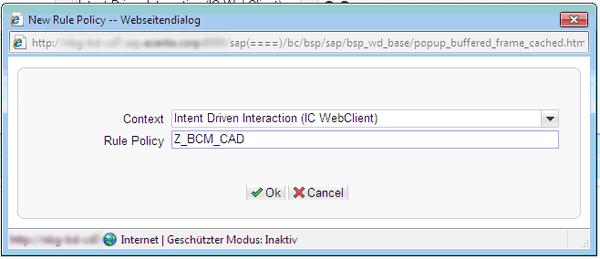
Figure 6
Create a new rule policy
Note
Because the relevant CRM WebClient UI work center for rule policy is included in the IC_MANAGER role navigation, you can either use this role or any other role with the work center IC-MGRPM assigned and active.
After entering a rule policy name in Figure 6, click the Ok button and you are directed to the Rule Policy Overview Screen. For our example, we created rule policy Z_BCM_CAD, which includes rules relevant for this scenario and other call center-relevant alerts and rules. To set up the rule policy, click the first line in the policy tree structure in the Rule Policy Overview containing the name of your rule policy. Enter the relevant business role you want to use the rules for in the Business Roles table (Figure 7). For our example, we added InteractionCenter Agent BCM. We also added the event BPConfirmed in the IC Events table (Figure 8). These entries are available later to define the IDI rules.

Figure 7
Add the relevant business role to the rule policy

Figure 8
Add the relevant event to the rule policy
After creating the policy, add a new draft rule to call your action triggered by the BPConfirmed event. In the policy tree structure, select the entry Draft Rules and click the New button to create a new folder. Next, create a new rule in this folder by selecting it in the tree structure and clicking the New button again.
In the Conditions table, enter a new line with the Attribute Current Event, the Operator Equals, and a Value of Business Partner Confirmed (Figure 9). In the Actions table, add a new line with the action you created in step 2 (in our case, Add Campaign to Activity from FB) as shown in Figure 10.

Figure 9
Add the relevant Conditions to the rule

Figure 10
Add the relevant Actions to the rule
In the policy tree structure, click the More button and then click Release Draft Rules in the menu that appears. After saving your rule policy by clicking the Save button, the campaign entry fills with the CAD in the defined business role.
Now the call attached data is automatically inserted to the correct field in the interaction record once a contact is confirmed. As this is only an example to serve as a basis for developing further functionality (e.g., a generated link to the campaign view in the CRM WebClient UI), you can use any data that you collect via the IVR or any other technologies in your telephony environment in place of the campaign ID.
Tobias Scheele
Tobias Scheele is a senior consultant and project manager at ecenta AG in Walldorf, Germany and has four years of experience in SAP CRM and other SAP products. With a background in technical and functional consulting as well as development and project management, he has contributed to many successful SAP CRM and SAP NetWeaver BW projects worldwide.
You may contact the author at tobias.scheele@ecenta.com.
If you have comments about this article or publication, or would like to submit an article idea, please contact the editor.

Sebastian Angerer
Sebastian Angerer is a consulting manager for the EMEA region at ecenta AG in Walldorf, Germany, with a total of nine years of experience in SAP products. In the role of solution architect, he has contributed to many successful SAP CRM projects worldwide, providing functional and technical consulting as well as managing the delivery of projects.
You may contact the author at Sebastian.angerer@ecenta.com.
If you have comments about this article or publication, or would like to submit an article idea, please contact the editor.