See how you can update SAP CRM marketing attributes, such as customer lifetime value and student education level, using Analysis Process Designer (APD). The technique includes how to prepare your data, map it from SAP NetWeaver Business Intelligence to SAP CRM, and then use APD to process it.
Key Concept
Analysis Process Designer (APD) provides an intuitive graphical interface that enables you to visualize, transform, and deploy data. It simplifies how you update marketing attributes for business partners by combining all the steps in the process, such as calculating the marketing attribute values. APD then feeds the updated data from SAP NetWeaver Business Intelligence to SAP CRM in a single data pass.
I recently completed a project for a rapidly growing mid-sized company that provides courses and tools that help you learn a new language online. The company embarked on an ambitious SAP project to achieve operational scalability by replacing its legacy business systems with SAP-enabled processes.
With this process in place, the company creates the business partners and contracts in SAP CRM 2005. When a customer places an order, the system replicates the sales order for billing in SAP ERP 6.0 using CRM Middleware. SAP ERP then extracts the order information to SAP NetWeaver Business Intelligence (SAP NetWeaver BI) to calculate the student education level (SEL) and customer lifetime value (CLTV) ratings.
I developed a technique in which I use Analysis Process Designer (APD) to help me update these attributes. APD has a graphical user interface, which makes setting up the data transfers easier. Let me walk you through the steps to prepare your system to use APD for this purpose. Then I’ll show you how to set up the data transfers in your system. When you complete the process, you’ll have created an interface between SAP CRM and SAP NetWeaver BI to update the business partner marketing attributes, CLTV, and SEL.
You can implement this APD technique to update any marketing attributes. In fact, you can update not only the marketing attribute data, but also customized data targets in SAP CRM, and then transfer the data from SAP NetWeaver BI to SAP CRM. I used SAP NetWeaver BI 7.0 and SAP CRM 2005 for this article. Experience with SAP R/3 Enterprise or SAP ERP Central Component (ECC) 6.0 is also helpful.
Preparation Steps
Step 1. Create a custom table for the SEL data. SEL is the business partner attribute that defines whether students are beginning, intermediate, or expert speakers in a given language based on the products they purchase. For example, if a customer buys product 5000 and product 5001 together, the customer is an intermediate speaker. This information appears in SAP ERP at the sales order line item level.
You use a custom table to find the SEL values for a combination of products. If you add to, change, or delete the combination of product logic in future, you can easily update the table maintenance rather than modifying start routine for the transformations.
To set up this table, follow menu path Utilities (M)>Table Contents>Create Entries. In my example, I named the table ZBP_MKTATTR_SEL with the description Marketing Attributes: Student Education Level. Table 1 shows the definitions for the table data. You can view the table by going to Utilities (M)>Table Contents>Display, as shown in Figure 1.
| CLIENT |
X |
MANDT |
CLNT |
3 |
Client |
| SEL_KEY |
X |
/BIC/OIZSEL |
CHAR |
30 |
Student education level |
| COURSE |
X |
/BI0/OIMATERIAL |
CHAR |
18 |
Material |
| SEL |
|
/BIC/OIZSEL |
CHAR |
30 |
Student education level |
| |
| Table 1 |
Values for the ZBP_MKTATTR_SEL table |

Figure 1
Display of the ZBP_MKTATTR_SEL table
Step 2. Calculate the CLTV data. CLTV is the business partner attribute that is based on the aggregated net value of each product the student has bought. The system calculates CLTV using 1:1 mapping with the 0NET_VALUE InfoObject coming from source DataStore object (DSO) ZSDO. The system populates the data in this DSO using a standard extractor from SAP ERP.
You may need the help of your ABAP team to set up the custom table for SEL and then calculate the CLTV and SEL data. You can download the necessary code to share with your ABAP team for this process in the Downloads section at the end of this article. Now let me show you how you can use the downloaded code to set up the data sharing through APD.
You create the start routine logic to calculate CLTV in the transformation/update rules. First select all the education level combinations from the ZBP_MKTATTR_SEL table. Then loop at the source package internal table I_PACKAGE. Move the contents to another table I_TARGET and sort by SOLD_TO. Finally, delete the records from I_TARGET where SOLD_TO is not equal to I_TARGET-SOLD_TO. Also delete adjacent duplicate records comparing material. This calculates CLTV values for a single business partner and populates in to the target DSO.
Step 3. Calculate the SEL. The technical code is a part of the downloaded code, which is written in a transformation start routine. It populates SEL values based on the data coming from ECC 6.0.
Move the records from I_SEL to a temporary internal table I_SEL1 and sort by SEL_KEY descending. While I_SEL1 is not empty, read the first record from the table I_SEL1. Find all the occurrences of SEL_KEY in I_SEL1 and capture the line count in a variable V_LIN. Loop at I_SEL1 where SEL_KEY equals I_SEL1-SEL_KEY.
Then read table I_TARGET with KEY MATERIAL equals I_SEL1-COURSE. If the system finds a record, increment the counter V_INDEX by 1. Then ENDLOOP. If V_INDEX equals V_LIN, then find the first occurrence of SEL_KEY in I_SEL1. Read table I_SEL1. If the system finds a record, then update the education level for the SOLD_TO. If no record is found, delete the records from I_SEL1 and continue until I_SEL1 is empty.
After you calculate the SEL value for each business partner and store it in an internal table I_SEL1, you have to pass these values to an InfoObject ZSEL in a target DSO ZMKT. For this you modify SOURCE_PACKAGE in the downloaded code start routine and pass the values. The system calculates the SEL values based on all the values for a single business partner, so you must make sure that no data exists in the internal table before calculating.
First, modify the records in SOURCE_PACKAGE transporting the SEL (bwapplnm in i_target). Then delete the I_PACKAGE internal table for records that have been processed. Finally, place an ENDLOOP for I_PACKAGE.
The code doesn’t contain a field that maps to SEL, so I used the field coming from the source package for mapping and modifying/passing its value to SEL. The field used for SEL is bwapplnm.
Map SAP NetWeaver BI Data to SAP CRM
After you calculate the SEL and CLTV values in SAP NetWeaver BI from the information in SAP ERP, you then transfer the records to your SAP CRM system to update the marketing attributes. To do this in SAP CRM you maintain the InfoObjects that you use in SAP NetWeaver BI for SEL and CLTV. Here are the steps to do this.
Step 1. Go to transaction SPRO and press F5. Click on Release Data Targets for Replication from SAP BW. Here you can define data targets for different data target adapters such as BPMKT Marketing Attributes for Business Partner Segmentation, as shown in Figure 2. Note that you need to have authorization for the authorization object C_SAP CRM 5.0BWTGT in SAP CRM.

Figure 2
Define the data target for BPMKT
Step 2. Click on the Insert Row button. From the drop-down menu select BPMKT Marketing Attributes for Business Partner Segmentation. In the Data Target field press F4 to list all the marketing attributes that are configured in your CRM system (Figure 3). Select EDUCATION_LEVEL.

Figure 3
Select the class for BPMKT
Step 3. Select the target that the system populates with data. SAP CRM maintains these fields internally as marketing attributes. In the Target Attribute field press F4. In the pop-up screen that appears, select EDUCATION_LEVEL.
Step 4. Map the fields in SAP NetWeaver BI and SAP CRM to transfer the data. In the InfoObject in BW field, enter the InfoObject name that represents SEL in DSO ZMKT. In my example, this is ZSEL (Figure 4). Click on the save icon. Repeat the same procedure for CLTV, entering 0NET_VALUE for the InfoObject.

Figure 4
Map BPMKT in SAP CRM and SAP NetWeaver BI
Use APD to Pre-Process Your Data
After you configure SAP CRM, you next must pass the data from SAP NetWeaver BI to SAP CRM using APD. The steps below show how to use APD to pre-process your data.
Step 1. Create the analysis process. Go to transaction RSANWB. Right- click on the General folder and select Create. In the screen that appears, enter ZSEL for the Analysis Process and Description.
Step 2. Select the source of data to transfer to SAP CRM. In my example, this is a DSO. Drag and drop the DSO icon into the design screen. In the pop-up screen that appears, enter the DSO’s active table, Database Table 1 in my example (Figure 5).
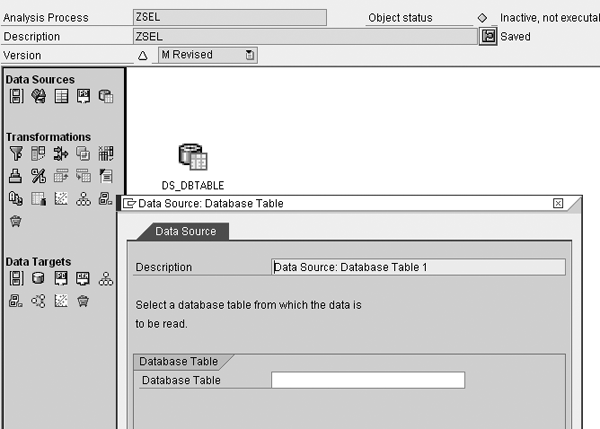
Figure 5
Enter the active table for the DSO
Step 3. Select the target system for the transferred record. Drag and drop the update CRM attributes (DT_CRM) icon into the planning area (Figure 6). In the screen that appears, enter a description for the data target. Then enter the logical system name and enter your user name and password when prompted.

Figure 6
Enter the target for the data
In my example, the data target specifies the marketing attributes for the business partner. After you select the value, the system automatically populates the Subobject field with the student education level, based on the configuration you completed in the previous section (Figure 7). Next, click on the Attributes tab and select Student Education Level.

Figure 7
The system populates the Subobject field automatically
Step 4. Join the objects. When you finish setting up the data target, join the active table and the data target in APD by drawing a link between them (Figure 8). The link serves as a transformation that helps to link DSOs to SAP CRM target fields. Here I have to map the required fields that I want to transfer to SAP CRM.

Figure 8
Join the two objects together
Click on the transfer rule icon  , which appears automatically when you join (link) the source and the target. A pop-up screen appears for mapping the source fields (Figure 9). In this screen you map the corresponding objects from the source structure (DSO ZMKT). Click on the Method button to map the fields. In the screen that appears press F4 in the Source Char. field and select SOLD_TO (Figure 10). Similarly, assign the /BIC/ZSEL field to Student Education Level.

Figure 9
Enter the Target Structure

Figure 10
Enter the field assignment
Step 5. Save and activate the APD process. Click on the save icon to save and then click on the activate icon to activate the APD process. When finished, you see Active in the Version field. To execute the APD process, click on the execute icon or press F8. The system displays the logs for each successful and error process (Figure 11).

Figure 11
Check the logs for success
In Figure 11 you can see that I transferred the SEL data successfully from SAP NetWeaver BI to SAP CRM. You can follow these same steps to transfer the CLTV data from SAP NetWeaver BI to SAP CRM. The configuration is the same as SEL. After the activation of an APD you execute it in a similar way (Press F8) as you did for SEL.
Check the SAP CRM System
After you finish developing the APDs, you need to see whether the values are transferred. Log in to SAP CRM and use transaction BP. Enter the corresponding business partner number and click on the Marketing Attributes tab. Double-click on Lifetime Spend of the Student and a pop-up screen appears with the attribute values (Figure 12). To see if the data transferred correctly, compare the attribute values here with the data in SAP NetWeaver BI.

Figure 12
Review the attribute values
Ankur Shah
Ankur Shah is a certified SAP NetWeaver BI 7.0 consultant with Capgemini US LLC and is based out of Cupertino (CA). He has been part of end-to-end implementations for SAP NetWeaver BI 7.0 and SAP BW 3.x at various clients. Before working on SAP NetWeaver BI implementations, Ankur started his career with TCS in India.
You may contact the author at ankur.shah@capgemini.com.
If you have comments about this article or publication, or would like to submit an article idea, please contact the editor.