You can use two different methods to allow customers to track orders via the Web. The simplest method involves tracking orders with the Bill of Lading field and works best when all items for one line item in an order ship together in the same package. A more complex method involves the Express Delivery Company (Express Shipping Interface, XSI). Use this second method when you want to track multiple packages for the same line item in an order.
Key Concept
SAP E-Commerce provides companies with a platform to turn the Internet into a profitable sales and interaction channel. One of the Web self-services available with the solution allows online customers to track their orders online in real-time. Benefits include reducing inquiries to a live customer service agent and driving customers to return to the Web site to increase site stickiness and customer loyalty.
If you use SAP E-Commerce for mySAP
ERP to make tracking information available
via the Web, these customers can track
the delivery of their orders in detail
through various freight carriers by accessing
a link on your Web site. In addition,
you can make status and tracking information
available for orders that were placed
through other channels such as telesales.
Note
SAP E-Commerce is delivered as part of mySAP ERP. To run SAP E-Commerce with SAP R/3, you can order it or download it from SAP Service Marketplace. This version includes the same functionality as SAP E-Commerce for mySAP ERP. The release numbers for the solution, however, do not correspond directly to the SAP R/3 releases. The release numbers for SAP E-Commerce correspond to the mySAP CRM releases, since the solution was initially developed for mySAP CRM. The current release of SAP E-Commerce is 4.0 (which runs against all SAP R/3 releases beginning with 4.0B). Release 5.0 will be available in ramp-up in Q4 of 2005.
This article focuses on the use of SAP E-Commerce for mySAP ERP.
Driving customers to your Web site
to check their order status reduces
support costs considerably, since
customers no longer need to speak to customer
service agents to find out the status
of their orders. Instead, real-time
shipping information allows your
customers to track which items have shipped,
as well as their scheduled delivery
dates, based on a direct link to
the freight carrier's Web site. The
tracking detail available to your
customers depends on the information provided
by each freight carrier.
Based on Java technology, SAP E-Commerce
supports both business-to-business
(B2B) and business-to-consumer (B2C)
scenarios on the Web. Both B2B and
B2C support order status information
with a link to tracking information
of various freight carriers.
With SAP E-Commerce, you have a choice
of configuring the order status tracking
in one of two ways:
1. Track orders with the
Bill of Lading field. A
simple configuration method allows
you to enable order status tracking
on the Web quickly. The delivery
document in the mySAP ERP system
stores the carrier tracking number.
Since the system stores the tracking
number at the header level of the
delivery document, you can make only
one tracking number per delivery
document available via your Web site.
In this method, for the display of
tracking information on the Web,
one delivery document can be displayed
per line item. This means that if
one delivery document is created
for the entire order, the same tracking
link is displayed for each line item.
If multiple delivery documents are
created, only the first delivery
document per line item of the order
is shown.
2. Track orders with an express
delivery company. This option
requires more complex configuration
and a communication with the freight
carrier's systems. Using XSI,
you can enter multiple tracking numbers
for one delivery document using the
concept of handling units (separate
packages). Although only one link
to the freight carrier is shown per
line item of the order on the Web,
multiple tracking numbers can be
accessed through this link.
Table 1 provides
an overview of the differences between
the two shipment tracking options.
| |
Option
1 (Bill of Lading field)
|
Option
2 (XSI)
|
| Number
of packages you can track |
One per order
line item |
Multiple per
order line item |
| Where
tracking number provided |
Delivery document
(header) |
Handling unit
(header); you can associate multiple
handling units with one delivery
document |
| Automated
entry of tracking number |
No |
Yes |
| Manual
entry of tracking number |
Yes |
No |
| Effort
for configuration |
Low |
High |
|
Table
1
|
Overview
of shipment tracking option functionality |
Note
SAP E-Commerce can also be implemented to run against mySAP CRM instead of directly against mySAP ERP. This option provides additional functionality available only through mySAP CRM, including marketing features such as product recommendations. In SAP E-Commerce for mySAP CRM, order status and tracking is also provided, but only the XSI option is available for carrier tracking.
Configure Web
Shop Parameters
The Web shop is the online storefront
that customers access through the Internet
as part of the SAP E-Commerce solution.
The Web shop contains the parameters
that determine the product data shown
to online customers, how the system
processes orders, and the type of order
tracking used. You configure these
parameters through a Web-based interface.
In the standard version of SAP E-Commerce,
access the Web shop configuration (Figure
1) with the following URL:
https://:
/shopadmin/
shopadmin/init.do. Enter the user ID
that you use for direct logon to mySAP
ERP. Click on the Orders tab.
In the section Follow-on documents,
check the check box beside No
Tracking with Express Delivery Companies (XSI).
This means that order tracking occurs
using the Bill of Lading field
in the delivery document.

Figure 1
Web shop configuration screen
The default setting for order tracking
in the Web shop is the use of XSI.
In other words, the box for No
Tracking with Express Delivery Companies (XSI)
is not checked. This means that the
system reads the XSI data for the handling
units' order-tracking information.
Track Orders with
the Bill of Lading Field
The following steps discuss the configuration
and data entry required to make freight
carrier tracking available on the Web
using the Bill of Lading field.
Make sure that you check the No
Tracking with Express Delivery Companies
(XSI) check box for this option in the Web
shop configuration.
Step 1. Enter the freight
carrier URL into table TCAURL.
Table TCAURL contains
the URLs for each freight carrier
that supports order tracking. The
freight carriers provide basic URLs,
the parts of which are specific to
each individual delivery, such as
the tracking number, or include additional
required information, such as the
destination country or shipping date.
To handle the delivery-specific information,
table TCAURL contains
a placeholder variable that the system
replaces with the specific value
from the delivery document.
For example, a company might use
URLs that end in =, where represents
the tracking number from the company's
tracking label. The system must read
this number from the individual delivery
document.
The standard system includes entries
for several major carriers. You may
add other carriers; most freight carriers
provide the URLs and instructions to
link to their Web sites on their home
pages.
To access the table directly, use
transaction code SM30,
or follow the menu path System>Services>Table
Maintenance> Extended Table Maintenance.
Step 2. Assign function modules
to the URL variables. The
system reads the data from the individual
delivery documents to complete each
variable in table TCAURL.
Table TCAVAR contains
an entry for each variable in the
URLs in table TCAURL.
The standard system includes entries
for the tracking number, country
of origin, destination country, and
shipping date. You may add other
entries as needed, although to accommodate
the additional fields you need to
have new function modules written
for each new entry, or variable.
For example, in the URL in the previous
step in table TCAURL,
the variable is the placeholder
for the actual tracking number. In
table TCAVAR, this
variable is linked to the function
module WS_READ_AIRWAYBILLNUMBER.
This function module contains the code
that reads the Bill of Lading field
in the delivery document header, or LIKP-BOLNR.
Once the tracking number has been read
from this field, the tracking number
value is inserted into the URL to replace
the variable, or placeholder.
To access the function modules, use
transaction SE37 or
follow SAP Easy Access path Tools>ABAP
Workbench> Development>Function
Builder. From here, enter
the function module referenced in table TCAVAR,
such as the function module WS_READ_AIRWAYBILLNUMBER,
to access the code for the function
module; this is for informational purposes.
It is not necessary to change the coding
within the function module.
Step 3. Set up the freight
carrier as a vendor. You
must create a vendor in your system
for each freight carrier that you
use. To create a vendor, use transaction XK01,
or SAP Easy Access path Logistics>Materials
Management> Purchasing>Master
Data>Vendor> Central>Create (Figure
2). The name of the vendor
in the Name field in the Name section
must be the same as the object ID
that identifies the freight carrier
in table TCAURL.

Figure 2
Set up the freight carrier as a vendor
Step 4. Enter the tracking
information in the delivery document. As
part of the standard delivery process,
a delivery document is created based
on the sales order, either manually
or automatically via a scheduled
batch run. To enable order tracking,
the two fields required are the Bill
of Lading field and the
partner function Forwarding
Agent with a corresponding
selection of the desired vendor (freight
carrier).
To enter the required information
into the delivery document, create
the delivery from the sales order.
Display the sales order using transaction VA03,
or use SAP Easy Access path Logistics>Sales
and Distribution>Sales>Order>Display.
From within the order, use the menu
path Sales document>Deliver.
From within the delivery, use the menu
path Goto> Header>Shipment.
You must enter the tracking number
into the BillOfLad.
field (Figure 3).

Figure 3
Enter the tracking number in the BillOfLad. field
Next, follow the menu path Goto>Header>Partners.
Enter the partner type Forwarding
agent in
the Partn.Funct.
column and select the appropriate vendor
(Figure 4). Continue
with your normal delivery process.

Figure 4
Select the vendor from the partner list
In Figure 5, the
system displays the tracking results
in a B2C Web shop. Since the Bill
of Lading field is at the
header level, and only one delivery
was created for the entire order, the
link for each line item is the same.
You can click on the truck icon to
access tracking information for each
item. A pop-up window from the shipping
vendor's Web site appears with
the tracking information.
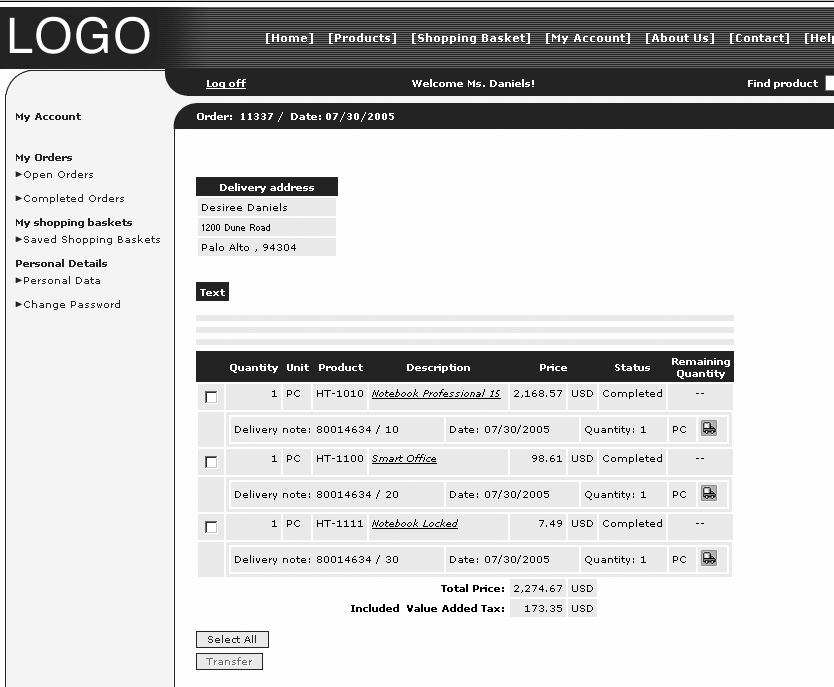
Figure 5
Click on the truck icon to access shipping information
Note that if one delivery document
had been created per line item of the
order, then the tracking number for
each truck icon would be different.
If multiple delivery documents had
been created for each line item, only
the tracking number associated with
the first delivery document for each
line item would be available.
Order Tracking Using
XSI
The XSI functionality provides comprehensive
integration with specific shipping
vendors. This includes printing of
labels, electronic data interchange
(EDI) and end-of-day manifest communications,
and parcel tracking. XSI relies on
a direct connection to shipping vendors' systems,
which automates the creation of the
tracking numbers and the update of
detailed tracking information. Since
it is necessary for you to work directly
with the shipping vendor to achieve
this level of integration, the automation
of the communication with the shipping
vendors is beyond the scope of this
article.
You can set up XSI so that you can
store the tracking information from
the freight carrier within mySAP ERP
and can then access shipping vendor
information quickly from delivery documents
without linking to the shipping vendor's
Web site. However, SAP E-Commerce for
mySAP ERP does not access any tracking
data stored in mySAP ERP — SAP
E-Commerce only accesses the URL-based
shipping vendor information that is
available from the Web site. The following
steps describe the configuration for
the shipping vendor tracking with XSI
via the XSI transaction, which provides
access to various configuration tables
from a single point of entry. In the
Web shop configuration mentioned earlier,
make sure the No Tracking with
Express Delivery check box is unchecked.
Step 1. Access the XSI configuration
with transaction code VTRC.
You can also follow SAP Easy Access
menu path Logistics>Logistics
Execution>Master Data>Master
Data>Service Agent> Maintain
Express Delivery Company.
As you navigate through the different
menu paths, you access the configuration
tables that are also available through
various menu paths in the IMG. Configuration
settings for one major carrier as
an XSI is delivered with the standard
system (Figure 6).

Figure 6
Standard settings for a shipping vendor as an XSI
Step 2. Set up the delivery
company from within the XSI transaction. The
delivery company represents one shipping
vendor in mySAP ERP. Multiple settings
are required for the XSI, such as
entering the company account number
with the shipping vendor. Another
key setting involves the selection
of the function modules and Remote
Function Call (RFC) destinations
that allow the automatic communication
with the shipping vendor systems.
This requires you to work closely
with the shipping vendor to ensure
that your system sends and receives
the correct data and format.
Other key settings for shipping vendor
tracking include the following:
- Set the allowed maximum number
of handling units that you can assign
to one delivery document. You can
access this setting on the initial
screen that is shown when accessing
the XSI company transaction. Under
the tab Exp. dlv. cmpny control,
shown in Figure 6, see the field Max.
no. parcels - multi-trck in
the Browser section.
- Assign a vendor to the express
carrier company. Follow the menu
path Goto> Assign svc.
agnt to express delivery co.
You should create an entry both with
and without the export indicator.
The export indicator specifies whether
a delivery occurs to a foreign country,
which typically involves additional
processes and paperwork for customs.
- Activate the shipping points (e.g.,
mail depots) that are relevant for
the shipping vendor tracking. Follow
the menu path Goto>Express
delivery company and meta data and
select the node Shipping
point activation. Select
the shipping points to activate for
XSI functionality.
- Define the fields the shipping
vendor populates with information.
Access these fields (metadata) using
the menu path Goto>Express
delivery company and meta data.
The system defines metadata for the
shipping vendor designation (SERVICE),
the type of shipment chosen (such
as ground or overnight) (SERVICELEV),
the shipping account code (SHIPACCT),
the package tracking number (TRACKN),
and the tracking counting number
(TRACKNR) which
is a sequential number in a range
provided by the freight carrier,
so that tracking numbers can be generated
by mySAP ERP. The standard system
includes default values for the metadata.
This metadata contains a document
category that determines the hierarchy
of data. For example, if you set the TRACKN document
type to handling unit (value X)
and the higher-level document is a
delivery (value J),
then the delivery requires a handling
unit. With this setup, the system generates
the tracking number at the handling
unit level. Each metadata parameter
also contains a default value, or may
require you to determine the value.
For example, the default value of
the TRACKN parameter for a given carrier
may be 1A
.
The system generates the tracking number
based on the values in the SHIPACCT, SERVICELEV,
and TRACKNR metadata.
For each of these parameters specified,
the system may assign a default value,
function module, or number range that
determines the value. Another option
may be to obtain the value through
communication with the shipping vendor
system.
Configure the URLs containing the
direct link to the shipping vendor
using the menu path Goto>Express
delivery company master data.
Under the URL node,
set up the Individual parcel
tracking URL template (used
when only one tracking number is available
per order line item) and the Multiple
parcel tracking URL template (used
when multiple tracking numbers are
available per order line item). The
shipping vendor may provide the tracking
number information or the system may
generate the values from within mySAP
ERP.
Step 3. Turn on XSI globally. You
must activate the express delivery
company configuration for XSI processing
to take place. XSI is activated globally,
meaning that activation occurs on a
client level, not on an individual
company code or plant level. From within
the XSI transaction, use the menu path Goto>Global
setting> Activate globally.
Step 4. Pack the order items
and enter the shipping vendor into
the delivery document. Once
you complete the XSI configuration,
enter the appropriate shipping information
in the delivery document to ensure
that all the necessary data is available
to populate the tracking number.
To enter the required information
into the delivery document, create
the delivery from the sales order.
Display the sales order using transaction VA03 or
use SAP Easy Access path Logistics>Sales
and Distribution>Sales>Order>Display.
From within the order, follow the
menu path Sales document>Deliver.
As part of creating the delivery,
you must pack the products in the order.
You create handling units within the
delivery by packing the items in the
sales order into a packaging material
(Figure 7). Use the
menu path Edit>Pack.
Enter the packaging material in the Packaging
materials column. If the order
requires more than one package you
can enter the same packaging material
in multiple lines. Press Enter to generate
the different handling units. Select
the material and the handling unit
and click on one of the pack icons.
Repeat this process until you have
packed all of the materials.

Figure 7
Create the Handling Units within the delivery
Note
As a prerequisite, you must have the appropriate packaging available. Create a material of material type VERP (packaging). You must enter data in the Packaging material data section of the Sales: general/plant view of the material master for the material to be processed as a packaging material.
Note
The system can propose packaging suggestions, using menu path Extras>Automatic Packing.
Goto> Header>PartnersForwarding
agentVTRKHVLBL Figure 8 shows the
tracking results in a B2B Web shop.
Since you may create multiple handling
units for a delivery document, the
tracking link can be different for
each line item. After the customer
clicks on the truck icon, the detailed
tracking information on the shipping
vendor Web site appears in a pop-up
window. If more than one handling unit,
or tracking number, is available for
the link on the order line item level,
the multi-package URL (from the XSI
configuration) is used to pass the
multiple tracking numbers to the freight
carrier Web site.

Figure 8
Shipment tracking results in a B2B Web shop
As part of SAP E-Commerce, availability
checks using mySAP SCM are an integral
part of the selling process. Nonetheless,
once an order has been taken over the
Web, managing the production of products
through mySAP SCM is primarily an internal
process within the selling company.
It is still critical to provide information
to customers about milestones along
the way, such as when the product has
shipped, to manage the customer's
expectations for receiving the products.
In addition, once the shipment has
been handed over to a freight carrier,
such milestone information can continue
to be made available to the customer
using order tracking.
Providing a self-service such as
order tracking to online customers
provides customers real-time information
about their orders (such as when they
can expect to receive their items)
based on the detail provided by the
individual shipping vendors' Web
sites. In addition, you may increase
loyalty and revenue by driving customers
back to your Web shop on a regular
basis.

Birgit Starmanns
Birgit Starmanns is a senior director in solution marketing at SAP for EPM (Enterprise Performance Management) and Finance solutions. Birgit has more than 20 years of experience across solution marketing, solution management, strategic customer communities, and consulting. Her functional experience is in finance, including core SAP ERP and enterprise performance management, as well as customer relationship management, which has allowed her to focus on the integration of cross-functional business processes. Prior to joining SAP, she was a principal in management consulting organizations, redesigning business processes and implementing SAP R/3 and R/2 for numerous Fortune 500 and SME companies, with a focus on management accounting. Birgit holds a BA and an MBA from the College of William and Mary.
You may contact the author at birgit.starmanns@sap.com.
If you have comments about this article or publication, or would like to submit an article idea, please contact the editor.