Receive hands-on guidance for building a simple prototype for data profiling using SAP’s Data Insight application. The technical and operational framework established during this prototype, combined with the familiarity gained with the application, helps organizations use Information Steward as part of their operational data quality and management procedures.
Key Concept
Information Steward is a key component of SAP’s Enterprise Information Management suite that is a powerful tool for organizations’ data stewards. Its Data Insight application enables you to do a 360-degree profile of extracted data, including monitoring and analysis of metadata and data quality at both the aggregated and detailed levels.
A lot of large enterprises are not aware of how much they are affected by bad data. They have a vague idea that there are instances of bad data based on certain manifestations (such as duplicate vendor payments), but they have no concrete idea of the true amount of bad data. So what should they do?
Clearly, fixing bad data involves more than just cleaning it up—it also involves improving business processes, establishing governance, and analyzing how to retrofit clean master data into your existing transaction data. As result, you are very quickly looking at a major enterprise-wide effort that straddles departmental boundaries, is spread over many months, and is costly. Consequently, enterprises typically defer dealing with it, or make some cursory fixes and move on to other projects. Unfortunately, bad news does not just get better on its own, and the effects of bad data get worse over time. So is there any way out of this scenario? Yes, absolutely.
With SAP Information Steward (IS), users of SAP’s Enterprise Information Management (EIM) suite have a tool that provides functional users, small and medium-sized enterprises (SMEs), analysts, and data stewards with multiple data quality analyses and improved functionality, with minimal IT support. In addition, IS can be used for purposes other than just data profiling (for which it is widely known and used), such as monitoring the quality of your data and maintaining an enterprise-wide business lexicon using Metapedia.
I show the different ways and use cases of how to use IS, based on my own experience. I also provide a step-by-step guide to putting together a basic IS data profiling prototype that helps identify both the strategic and tactical aspects of your (bad) master data.
Note
Although the functionality discussed and the screenprints used to illustrate my points are based on the latest (4.2) version of IS, the concepts discussed are germane to all versions.
Use Cases for Information Steward
Here are the key use cases that I recommend companies consider when determining how best to use IS to get the most from its versatility:
- Get an initial look at data quality for a particular data domain – I often have conversations in which I hear something such as, my vendor data needs to be cleaned up or I am worried about the quality of our customer master. IS is a very effective tool for taking a direct look into master data from a particular domain. When you pass a subset of the data through IS, you can get a 360-degree profile of the data. This is a good starting point from a data quality management perspective.
- Clean up your data prior to data migration – If you have worked on large SAP implementations, you know that data migration (usually from legacy systems to SAP systems) is onerous. Most often, legacy data is migrated to the SAP system without any cleansing. With IS and Data Services, you can combine the data profiling and cleansing steps as part of your overall data migration effort.
- Make data profiling a part of your standard operating procedures for master data – Enterprises that do a good job of regularly managing data make data profiling part of their standard operating procedure for managing master data. Running IS data profiling jobs according to a pre-determined schedule after setting up desired validation rules and analyzing results (primarily with scorecards) is key. Data stewards then can dig deep into discrepancies and take appropriate action to fix them or have them fixed by the relevant owner.
- Establish a standard enterprise-wide IT and business lingo – It is rare to find enterprises in which business and IT speak the same lingo. It can be as basic as the business referring to a subsidiary as an entity or business unit, but in the SAP system of record, it might actually be called company code instead if it is a separate legal entity. These minor differences can lead to miscommunication and misunderstanding between IT and business. IS helps standardize these terms and references with its Metapedia application, and it also helps reduce redundancies. (Metapedia is an IS module that helps organizations maintain a common business terminology.)
- Gain a comprehensive picture of data use – With the ability to trace lineage of your data, you receive a comprehensive understanding of where data originated, where it is being used, and where it is going. With this information in hand, you can plan better for activities such as system decommissioning and subsequent retirement, upgrades, and building interfaces among systems.
A Simple IS Prototype
Now I walk you through the seven steps required to create this prototype:
- Identify master data for the prototype
- Prepare a subset of this master data
- Register in BusinessObjects Central Management Console (CMC)
- Set up a file format
- Add a file to your workspace
- View data
- Run basic data profiling
I assume that IS (4.2) has been installed and you have access to it. This is a prerequisite for successfully building this prototype.
Step 1. Identify Master Data for the Prototype
Identify the master data for your prototype. This should be fairly easy, but it often turns out to be the hardest step. This is especially the case if there’s bad data in all the master data categories, as it becomes a challenge to decide what area of master data to choose for the prototype. When facing this challenge, remember that your goal is to pick the master data category that contains the most bad data. Typically, if SAP ERP Central Component (ECC) is your system of record for financial and supply chain application data, then you can connect directly to your ECC system and extract a subset of the data using SAP Data Services. However, this method requires additional setup effort from your BusinessObjects administrator or technical architect. My recommended approach is to use master data that you (as a subject matter expert [SME] or functional user) might already have on your local drive in an Excel spreadsheet or flat file. Alternatively, you can download master data from your ECC system to a spreadsheet. Remember, this is ultimately an illustration. I focus on determining what kind of bad data you need to feed into IS rather than on how to extract it.
Step 2. Prepare a Subset of This Master Data
In this prototype I use a flat file containing a subset of vendor master data that a business user at one of our clients retained in a spreadsheet on his local machine. Note that I have applied appropriate masking to desensitize the data. The advantage of using a flat file is that you can be as creative as you want to be in introducing inconsistencies in your data set in case you feel that it is not dirty enough. The data set that I use for this prototype has a variety of data issues. I have also included some additional inconsistencies for maximum effect.
Step 3. Register in BusinessObjects CMC
In this step you need to create a new connection in the CMC for the flat file. First, log in to your BusinessObjects CMC by entering the appropriate URL in your browser’s address bar. This should open the logon screen, shown in
Figure 1.

Figure 1
Log on to the CMC
After you’ve successfully logged on, in the screen that appears (
Figure 2) select Information Steward from the CMC drop-down options. This action takes you to the main Information Steward page (not shown) where you double-click Connection to create a new connection. This opens the Update Connection screen (
Figure 3).

Figure 2
Select Information Steward from the CMC main menu

Figure 3
Create a flat file connection
Enter an appropriate name in the Connection Name field and an appropriate description in the Description field. Since I am only showing you an example, I used generic names. From the Connection Type drop-down options, select File Connection. In the last field, Directory path, enter the directory path. (For this you need to work with the administrator of the server where you are placing this file. The administrator will create the directory for you if one does not already exist). Finally, test this connection by clicking the Test Connection button. If you see a pop-up window with a success message (
Figure 4), save your connection by clicking the save icon. If you receive an error message, contact your BusinessObjects administrator to troubleshoot it.

Figure 4
Flat file connection created successfully
Now you need to copy this flat file to the directory that has been specified in the path. Drag the customer master data text file from your local machine and drop it into the directory path specified earlier in the CMC.
Step 4. Set Up a File Format
To set up a file format, you first need to identify the file format of your (flat) file. The purpose of this step is to ensure that IS recognizes the metadata of your file. In the landing or default page of IS, click the Data Insight tab, and then click the file formats icon (circled in
Figure 5).
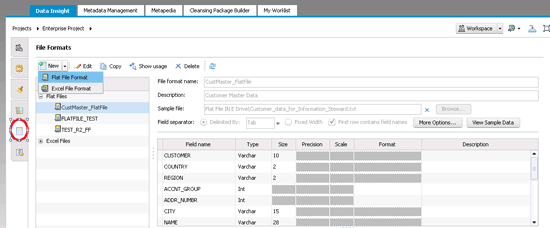
Figure 5
Assign a file format
Now click the New button. The system gives you the option to choose either a Flat File Format or an Excel File Format. In this case choose the Flat File Format because you will upload customer master data in the flat file format later. You also need to assign a name for the format and provide a description and a location for the sample file. Since the sample file is the actual customer master file, the location of the sample file is the directory in which your customer master file resides. Do not change any other defaults at this time.
Notice that the screen (
Figure 5) is populated with the metadata in the customer master data file. To view the data in the file, click the View Sample Data button. This action opens the screen in
Figure 6, which displays sample data from your customer master data file for you to review.
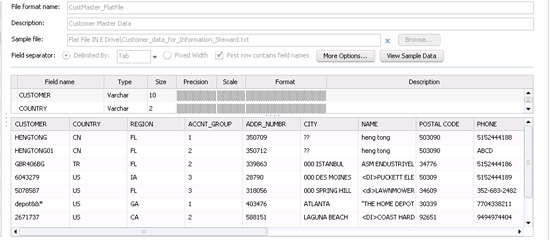
Figure 6
Sample data from the customer master file
Step 5. Add a File to Your Workspace
In this step you add the customer master data file to your workspace. In the screen in
Figure 5, click the workspace icon on the left (next to File Formats). In the screen that appears (
Figure 7), click the Add icon (circled). You are presented with three options: Tables…, Table by Name…, and Files… . Select the Files… option, which opens the screen on the right in
Figure 7. In this screen you may add the desired file to an existing project by clicking the Add to Project icon. If you need to search for your file, type in some part of the file name in the Search field. Once you’ve identified the file, select it, and then select the desired format name from the drop-down options in the Format name section. Click the Close button (not shown) to save the information and add it to the highlighted project.

Figure 7
Add the file to your workspace
Step 6. View Data
You are now ready to view the data (in the same screen shown in
Figure 7). Check the box next to your file—Customer_data_for_Information_Steward—circled in
Figure 8, and then click the View Data icon. This action opens a new screen that displays the data in your customer master data flat file (
Figure 9 is a subset of the data). Click the X on the upper right to close this screen when you’re done reviewing the data. This action takes you back to the screen shown in
Figure 7.

Figure 8
Prepare the view of the customer master data

Figure 9
Customer master data list in IS
Step 7. Run Basic Data Profiling
Now that you have verified that your customer master data file is available for IS, you are ready to do some basic profiling. These basic profiling activities give you a good sense of the quality of your data.
Note
You need to have a Data Services job server set up for IS Data Insight. Otherwise, your profiling tasks or jobs will not run. This is an activity your IS or BusinessObjects administrator needs to set up. A good starting point is
SAP Note # 1648053 (requires log on).
In the screen in
Figure 8, click the Profile button (in the ribbon to the left of the View Data icon). This opens a pop-up window (not shown) with the six drop-down profiling options: Column, Addresses, Redundancy, Dependency, Uniqueness, and Content Type. In this example, select the Uniqueness type (since I have a suspicion that your customer master data has duplicate data). This opens the pop-up screen shown in
Figure 10.
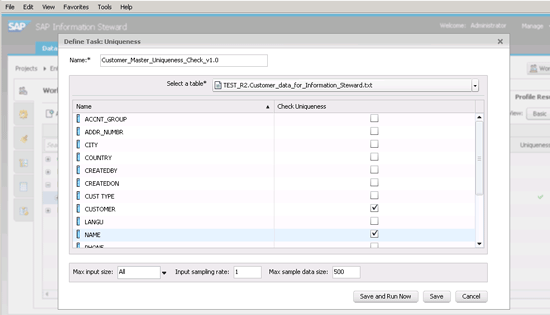
Figure 10
Set the parameters for the data profiling task for uniqueness
In this screen enter the name of the task in the Name field; this is a mandatory field. Since you have already selected the table on which you are running this task, the Select a table* field is filled in by default (e.g., TEST_R2.Customer_data_for_Information_Steward.txt). If you wish to change it to something else, you can do so now.
The default table lists all the field names. Select the check box against each field for which you wish to do a uniqueness check. In this example, you are only interested in the uniqueness of the CUSTOMER and the NAME fields. If you want to save these parameters to run this task at a later time, make your selections and then click the Save button. If you want to run it immediately, click the Save and Run Now button. Disregard any warning messages that may appear.
Once the job is complete, you should see a green checkmark in the Uniqueness column next to the table name (
Figure 11). To verify and validate that this task has been successfully completed, click the tasks icon

on the left and you should see your task listed with the Status of Completed (
Figure 12).

Figure 11
Validate the status of the uniqueness profile job

Figure 12
Verify the completion of the data profiling job
Click the green checkmark icon in
Figure 11.This action opens a new screen (
Figure 13) that displays a summary scorecard of the data quality based on the uniqueness criteria that you specified earlier.

Figure 13
A summarized scorecard view of results
In the summary scorecard you see that two profiling jobs have been run on this data with different parameters. Pick the one with Customer and Name as parameters. Notice that 11.30 percent of the data is non-unique. To view the non-unique data, click the red, Non-Unique portion of the doughnut. You see the 20 records that are non-unique. In
Figure 14 you see a partial list of non-unique records in the bottom half of the screen.

Figure 14
Drill down into the non-unique records
At this point, you can also export this information to Microsoft Excel by clicking the Export to Excel button. If it’s the first time your organization is using IS, I highly recommend that you export the data to Excel to share with stakeholders and to show them concrete evidence of bad data quality. At a more operational level, downloading to Excel enables more detailed analysis (especially if you have a large volume of non-unique data) in an offline mode.
Next, I show how to do one other profiling task: profile by content type. This useful profiling activity provides detailed information on the actual contents of the selected fields. This time click the Profile button (
Figure 8) and select Content Type from the drop-down menu. In the pop-up screen that appears (
Figure 15) select the fields that you want to be subject to the content-type profiling. Notice that all the fields are checked by default. Uncheck all the fields except the following four, whose content you want to check: NAME, PHONE, REGION, and STREET. Then click the Save and Run Now button.

Figure 15
Select fields for content-type checking
Once the task has been successfully completed, the screen in
Figure 16 appears in which you see a green checkmark in the Content Type column. The results are also displayed. In the section of the screen in which the results appear in blue, you can click these items to drill-down to the details.

Figure 16
Results of content-type check
There are multiple content-type criteria, some of which you can see listed in the screen on the right of
Figure 16. More options appear when you scroll right. In this case, my curiosity is piqued when I notice that the STREET field has a minimum length of 3 and maximum length of 31 (
Figure 17). As a data steward I had expected to see an exact street number in the street field, not a range of street numbers. To investigate further, click the questionable number—in this case 31, and the screen at the bottom of
Figure 17 opens with the corresponding records.
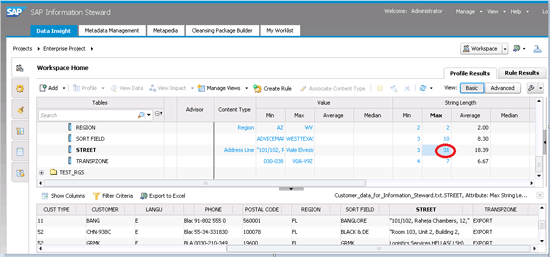
Figure 17
Drill down into details of maximum street length
Now I find that there are a few customer records with more than just the street number. Some have a unit number or a building number or building name. Either the person that created these records in the organization was unaware of the purpose of this field or knew the purpose, but was careless. Either way, such discrepancies have downstream impacts such as transmission failure during data exchange (with other systems and entities, such as banks), inability to save data in a fixed length field (of say 6–7 characters) without losing important information, and difficulty in consistently applying conversion routines.
As a data steward, you now have the evidence to plan for corrective courses of action, including:
- Expanding the scope of data profiling to include all your customer master data and other master data categories
- Profiling your transaction data to analyze the impacts of these discrepancies
- Presenting findings of the discrepancies to senior management and articulating the impacts of these
- Establishing procedures for creating master data that include at least one extra level of oversight and approval
- Establishing a regular schedule for running data profiling jobs
Anurag Barua
Anurag Barua is an independent SAP advisor. He has 23 years of experience in conceiving, designing, managing, and implementing complex software solutions, including more than 17 years of experience with SAP applications. He has been associated with several SAP implementations in various capacities. His core SAP competencies include FI and Controlling FI/CO, logistics, SAP BW, SAP BusinessObjects, Enterprise Performance Management, SAP Solution Manager, Governance, Risk, and Compliance (GRC), and project management. He is a frequent speaker at SAPinsider conferences and contributes to several publications. He holds a BS in computer science and an MBA in finance. He is a PMI-certified PMP, a Certified Scrum Master (CSM), and is ITIL V3F certified.
You may contact the author at
Anurag.barua@gmail.com.
If you have comments about this article or publication, or would like to submit an article idea, please contact the
editor.