Process chains are the new generation (as of BW 3.0) of job scheduling and monitoring tools for tasks such as data loads, Reporting Agent jobs, or index rebuilds. The author recently automated a large BW system using process chains, and these 12 tips will get you started on your own automation project.
Those of you responsible for data-target administration and data-load monitoring probably have tasks that you would like to automate such as transactional and master data loads, Reporting Agent jobs, or index and statistic rebuilds. With BW 3.x’s new process chain functionality, batch automation is easier to set up and manage. Process chains form the building blocks for the next generation of job scheduling and monitoring tools within BW.
During the past 10 months, I have used process chains extensively to automate a large, 24-by-7 global BW system, and I have compiled a laundry list of lessons learned. I’ve grouped these lessons into four categories, which mimic a modified version of the system-development lifecycle. The four categories include analysis, design, build and test, and support. The 12 tips I present here will help you productively work through the analysis phase. To take full advantage of the tips, you should be using BW 3.0B or higher and Support Package 13, which offers a number of process chain enhancements.
What Is a Process Chain?
Before I present the tips, let me review the process chain basics. A process chain is a logical grouping of jobs linked together in a predetermined sequence dictated by the dependencies that exist between each process. When activated, each process is assigned a system-generated event. During execution, eachprocess waits for the predecessor to complete based on the dependency assigned. A process is the object created when a developer selects a process type and configures a specific variant. This variant contains unique parameters for running a process in a particular form. A process chain may have any number of process variants. Each process has a defined beginning and end point. You cannot reuse the same process twice in a chain, but you can create any number of variations of each process type. The one exception to this rule is that a process chain must have only one start process. Figure 1 shows a simple process chain.
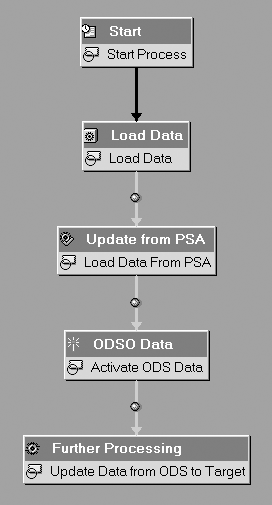
Figure 1
This process chain loads data into an ODS object and then further updates this data into an InfoCube. This chain contains five process variants, including one start process, an InfoPackage, an update from the PSA, an ODS activation, and a further processing step.
SAP has developed 32 predefined process variants that you can use out-of-the-box to develop process chains. If these 32 variants are not enough, you can also customize your own individual process variants. The process variants provided cover many jobs, allowing you to run everything from data loads to ABAP programs.
Process chains are built using the new process chain configuration utility, which you can find via transaction RSPC or by clicking on the chain-link icon that appears on the menu bar in Administrator Workbench. The process chain utility offers a planning view, a checking view, and a monitoring view, which allow users to build, check/test, and monitor process chains in real-time, respectively. SAP has created a centralized maintenance utility here that allows users to perform all relevant tasks from one location. Figure 2 shows an example of the different views that you can use to build process chains.

Figure 2
The process chain maintenance utility centers around two frames. I refer to the first frame as the “utility” frame and to the second as the “display” frame. In this case, the process chain is displayed and all configuration activities occur in the display frame. The utility frame, always on the left side of the screen, contains a number of views including (1) the process chain list, (2) the process type list, (3) the build by data target list, (4) the build by InfoSource list, and (5) the log view. Clicking on each of these icons changes the utility view.
Note
It is a good idea to outline development standards, assign the right resources, and gather the correct requirements before starting analysis.
- When should you start process chain design? The best time to start the design of your process chains is after the overall data-flow diagram has been defined. The data-flow diagram is the best gauge of where data is coming from, where it is going, and how it is moving within the data warehouse. Knowing how the data is going to move within the data warehouse is the most critical piece of information. It enables developers to understand the dependencies among data loads and allows for accurate definition of process sequencing.
I strongly advise you to wait for the data-flow diagram to be 100 percent completed. However, if you are pressed for time, you may be able to pick off completed pieces of your data-flow diagram and work with those first. This works only if your data-flow diagram is not interconnected extensively among different areas. I realize that stability is a complex objective to achieve, but having it helps eliminate the possibility of rework. Once the design is complete, you can begin building your process chains.
- When should you begin the build process? Constructing the process chains should commence during the latter part of the overall build phase of your project, since you cannot build processes around objects that do not exist. For instance, if an ODS object has not been built, you cannot load data into it. I suggest waiting until the end of the development phase before developing process chains. This ensures that the objects around which you are building have been properly unit tested and are somewhat stable. Again, the more stable your objects, the easier it is to build and test process chains.
- When should you start testing and performance-tuning exercises? It is best to test and tune all your process chains as a last step in your prestartup routine before going live in production. If you are using delta-enabled extractors, you must initialize these loads first. You may also have historical data to load. After these tasks are complete, you should be able to start using the process chains. This is the best time to conduct stress testing as well as a simulation or dry run of the complete end-to-end integration of all loads and processes in your system before the environment gets too busy. These tests provide a benchmark of how well your system will perform while running the batch schedule.
- What information do you need before starting design? As discussed in tip 1, a completed data-flow diagram is the most important component. Next, try to establish the frequency of your loads (daily, weekly, or monthly), the total time needed to execute the batch window, and the potential data availability targets (the time by which data is needed). You also need to align the batch schedules of other source systems in your landscape — such as an R/3, APO, or CRM system — with one another. Establishing runtimes and interactions with other systems reveals the best times for scheduling jobs.
Estimates of data volumes help establish which data loads and data administrative jobs consume the most system resources. This allows you to arrange your jobs in a manner that minimizes the total amount of time needed to complete the batch window. Finally, have an understanding of how much horsepower the system will provide. Knowing how many background and dialog processes you have during runtime allows for better planning and less risk of accidentally maxing out the processing power. With these four key pieces of information, you should be able to plot the total time needed (the time per each job) and how well your system will hold up under the strain.
- What information do you need before starting construction? Two key pieces of information are invaluable during the build: a list of InfoPackages and a list of data targets. Technical names of InfoPackages are easy to extrapolate from the system. You can either pull the names from BW tables or simply copy and paste the names from Administrator Workbench. The same goes for the data target list. You can easily obtain this information from the data-flow diagram, Administrator Workbench, or BW tables.
For InfoPackages, you should know the type of load defined, the data targets to be updated (whether or not the PSA is used), the PSA retention time (helpful in setting up PSA clean-up jobs), and whether or not overlapping requests are to be deleted. This information allows you to quickly assemble necessary processes within each of your process chains. However, having the list of data targets is equally important. Using the build option By Data Target gives you another method to quickly assemble process chains. You also have a By InfoSource build option. Figures 3 through 5 show the three main build techniques.

Figure 3
To build by process type, click on the chain-link icon to display the process type selection frame. This allows the developer to drag and drop process types into a process chain, process by process.
- How much test data do you need to ensure processes work? If not enough data is available in the source system, you cannot accurately test the processes within your chains. Loading zero records proves nothing. Having enough data to ensure that you have more than one record transferred with each load guarantees that the load process, activation steps, update/transfer rules, and other administrative tasks are functioning correctly. This is especially the case when using delta extraction. Once all the data in your source system has been extracted, more data needs to be created; otherwise, zero records will be loaded. Since full loads always pull the total number of records, data is not as important.
You have two methods to populate data in the source systems. Automated test tools have scripts that help you get basic transactional data entered on a daily basis or at least before data loads are executed. If no automated test tools are available, connect with other functional teams to ensure records can be created manually during the test cycles. It is best to align the test load cycles with the test cycles of other integrated systems to ensure the best quality testing. This improves efficiency and maximizes effort. Otherwise, you could waste a lot of time testing processes that aren’t capable of successfully completing because of a lack of transactional data.
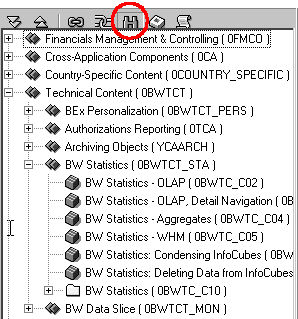
Figure 4
To build by data target, click on the data-target icon to display the process type selection frame. The icon is a pair of binoculars here, but it starts out as the characteristic data-target icon. This allows the developer to drag and drop process types into a process chain by data target.
- How should the development team be organized? Building a process chain is simple; it is like putting a puzzle together. The real complexity lies in how all the process chains and all the jobs are organized to run cooperatively. To improve the efficiency by which the team manages these tasks, I suggest the following: Create two roles and assign them to the personnel on your development team. The first role is “developer.” This is the person who builds the chains, configures the process types, and tests the chains’ functionality. The developer should understand how load and administrative processes fit together — i.e., the flow of a data load from the source system to the data target and all the steps in between. The second role is “automation coordinator.” This person is responsible for knowing the times and frequency of each process chain, essentially acting as the keeper of the schedule. In all cases, the developer role can span a number of people. However, the automation coordinator role should be assigned to only one person to ensure consistency and one point of reference for all automation timing and frequency questions/decisions. One of the developers may fill this role.
- How can developers be trained to build process chains? The process chain utility has an important feature that you can use to learn how to build process chains. It is called the “expert mode.” Working in non-expert mode allows a user to have the system quickly generate dependent processes, thereby enabling the developer to see how processes are related. This can be a good training tool for the novice or act as wizard for the more experienced developer during the creation of simple process chains. Working in expert mode allows developers to insert each process manually without a generated suggestion from the system. Expert mode works well when you have complicated streams to assemble using logical operands such as AND, OR, and EXOR to create complex branches in your process chains. To toggle expert mode on or off, use the menu path Settings>Default Chains. Checking the option box turns the expert mode setting on.

Figure 5
To build by InfoSource, click on the InfoSource icon to display the InfoSource selection frame. The icon is a pair of binoculars here, but starts out as the characteristic InfoSource icon. This allows the developer to drag and drop process types into a process chain by InfoSource.
- What standards and guidelines should you establish for developers? You probably have standards for development such as naming conventions or transport processes already in place. Take advantage of these standards when possible. You should also establish standards for process chains and load activities. These standards should include defining consistent InfoPackage configurations, standardizing ODS settings (such as automatic activation, quality management, and reporting availability), and when to break a large chain into multiple subchains. If all chains are designed to run the same way in all circumstances, support will be consistent and personnel will have an easier time working with the process chains. The table RSPROCESSTYPES provides a view of all process types and specific attributes important to understanding how process types work. Use transaction SE16 to access this table.
- How important is a good naming convention? The interface for building and maintaining process chains is easy to use. However, the methods by which a user interacts with the different views of the process chain utility can be cumbersome. One way to make the methods the developers employ less difficult is to provide a clear, concise naming standard for all process chains and all process variants.
When working with a process chain, the user can turn the details on or off. With the detail view on, the technical names and attributes for each process type are clearly displayed on each process variant. This provides extra information that helps you understand what each variant is supposed to do. However, considerably more screen real estate is needed to display the process chain, making navigation somewhat difficult. With the detail view turned off, having a concise description for each variant still makes it easy for support personnel to figure out what each variant is doing while allowing easy navigation of the process chain. Figures 6 and 7 (on the previous page) show a process chain displayed with the detail view on and off, respectively.
- What guidelines should you include in the transport standards? When developing process chains, it is best to create all objects in your development system and to migrate those objects to acceptance and then onward to production. It is also important to determine early on how much maintenance will be required in each environment. It is a good idea, especially during startup, to allow developers to make minor “tweaks” to the process chains, such as changing scheduling options and disabling sections of each process chain.

Figure 6
Notice the complexity with the detail view turned on. The chain takes up more screen and is less user friendly. In larger process chains, this could quickly become unmanageable.

Figure 7
With the detail view turned off, you see only the descriptions of each process type, and navigation is easy. Good naming standards ensure that you can figure out what happens in this process chain.
Say that you have a process chain composed of a number of smaller process chains. Each subchain has a collection of processes. During startup, a problem occurs with an extractor within the source system and one of the chains fails consistently. However, the other process chains are working as expected. A quick modification in production to eliminate the failing chain allows you to run the rest of the process chain without failure. When the error is corrected, add the subchain back to the overall process chain, reactivate it, and schedule the chain as planned. This also allows support personnel to execute process chains on an ad-hoc basis, as well as perform complex repair work.
Tip!
For navigating large process chains, use the navigator. Use the menu path VIEW>NAVIGATOR ON to toggle the navigator on and off. This provides a small view of the entire chain. If you know the quadrant of the screen to which you are working on, you can quickly navigate to that section of the chain (Figure 8).
- How can you minimize rework? Object stability is critical to improve the quality of your end product. If the data targets are constantly in flux, testing could be severely impaired. If this happens, there is no telling what types of errors will erode performance and slow down progress, and you could be faced with unnecessary rework or redesign of the process chains. The biggest tip to minimizing rework is to wait as long as you can before building the automation components. Allow data targets and other relevant objects to
stabilize as much as you can in your acceptance system. You should have manually run loads to many of these objects already and have a good idea of the objects that are working and those that are in flux. You will waste a lot of time working on developing automation for objects that are being changed.

Figure 8
The process chain is large and takes up considerable screen real estate. Having toggled the navigator on, a small snapshot of the entire chain is displayed providing an easy way to maneuver around the chain. Drag the orange square in the navigator window around to the area you want to view. This eliminates having to use the horizontal and vertical scroll bars. In addition to viewing different areas of the chain, the navigator window may also be dragged to any location in the workspace to help keep the workspace tidy.
Craig Handjian
Craig Handjian is a BW consultant. He has been working with supply chain management software solutions for the past five years, with three of those years dedicated to SAP BW. During these three years, he has worked with everything from Basis and security to back- and front-end development.
You may contact the author at chandjian@sylack.com.
If you have comments about this article or publication, or would like to submit an article idea, please contact the editor.