Using business content in your SAP BI system saves time and customization. With these tips, you can take advantage of more standard-delivered content than ever before.
Key Concept
SAP developed business content based on best practices from nearly 10,000 BI installations. SAP BI business content is an evolving set of information models. They come standard with BI. Since the first release of BW in 1998, SAP has enhanced these information models to include thousands of objects. SAP business content delivers virtually all types of BI objects including queries; InfoObjects (both key figures and characteristics); data targets (InfoCubes and DataStore objects — formerly operational data store [ODS] objects); data mining models; open hub destinations; update and transfer rules; roles; and extractors for SAP products.
Business content for SAP BI accelerates your implementation and significantly reduces the project cost. By following these nine tips, you can make the best use of business content and avoid serious pitfalls.
1. Know the Lingo
Make sure you translate the business requirements into the language of SAP. Before you can determine which parts of the business content you can use, you must know what SAP calls a certain object. For example, your company refers to a customer’s location as state, but SAP doesn’t refer to it as state — it’s called region. When you research the business content, you want to search for region, not state.
Ensure that the teams helping you define the business requirements documentation understand the BI or R/3 systems and are well aware of SAP terminology. Remember to revisit your search terms if you search for something you expect SAP would have developed in business content and come up empty. You should ask what term SAP uses and search again. Work with your subject-matter expert (SME) to better understand the functional area you’re searching.
2. Locate Information in Content Browser or SAP Help Portal
Business content for both BW Release 3.5.3 Add-On and SAP NetWeaver 2004s provides Content Browser to assist in analyzing the delivered objects. This new tool works better than the search function in transaction RSA1. In my article “Quick Tip: What’s New in SAP NetWeaver 2004s Business Content,” I’ll discuss the redesigned features of Content Browser.
If your system is earlier than BW 3.5.3, you can use the metadata repository by running SAP report RSO_REPOSITORY_ EXPORT_HTML from transaction SE38. Then, output the data into an HTML file on your workstation and view the data in an internet browser tool offline.
Another way to find business content information is to check SAP Help Portal (https://help.sap.com or https://service.sap.com) for information about business content. It contains information about both SAP NetWeaver 2004s and previous versions. For example, Figure 1 shows a search for Sales district that yields information about queries, characteristics, and InfoSources.
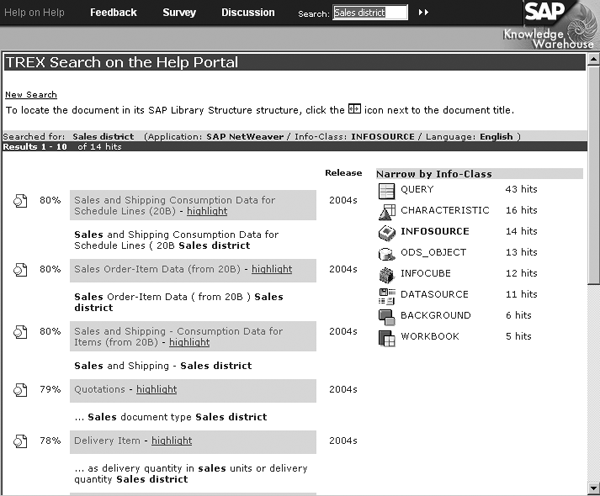
Figure 1
Search for Sales district in SAP Help Portal
Note that the SAP Help Portal also documents your extractors and other technical design documents. When you select the Delivery Item InfoSource, you see detailed information about the InfoSource to use in design documents (Figure 2).
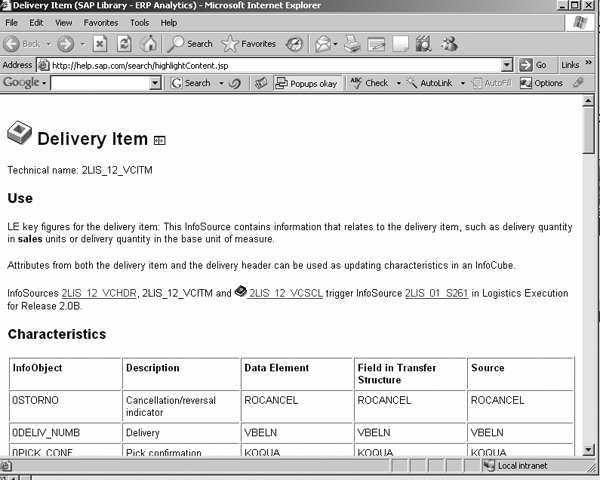
Figure 2
Search for Sales district in SAP Help Portal
3. Use the Partial Match Feature
After performing a search, you find something that doesn’t quite match what you had in mind. Perhaps the business content objects match the business requirements for some but not all business requirements. If this happens to you, see if a partial fit can help. Review InfoProviders and extractors to see if you can use part of the standard business content. Perhaps all you need to do is write a new query using an InfoProvider to use all the extractors, InfoObjects, DataStore objects, InfoCubes, and transfer rules. I’ll explain how best to install these SAP-delivered objects. Once you activate them, you can further enhance the objects using standard BI enhancement techniques if needed.
It has been my experience that the extractors, InfoObjects, and data modeling objects (DataStore objects and InfoCubes) frequently are close to what you need and require little or no enhancement. However, I have not had nearly as much luck with the queries. I have found some good ideas and starting spots with the queries, but rarely a very close match.
4. Verify R/3 configuration
Even if needed BI business content objects exist, verify that your company’s R/3 configuration supports them. Check with your R/3 functional colleagues to ensure they are using the specific R/3 functionality to populate all the fields you need for your reporting. Usually, your users do not ask for data that is not being populated in R/3, but sometimes it happens. It’s always best to check.
5. Install Objects with Ease
You need to perform several steps to be able to use business content. First, assign your source system. For source-system-dependent objects (such as transfer rules, file DataSources, and InfoPackages), select only the source system you need to save time, since your BI system assigns all source systems automatically otherwise. To assign your source system, use the source system assignment icon (Figure 3). Use the check box in the Default assignment column to assign your own source systems.
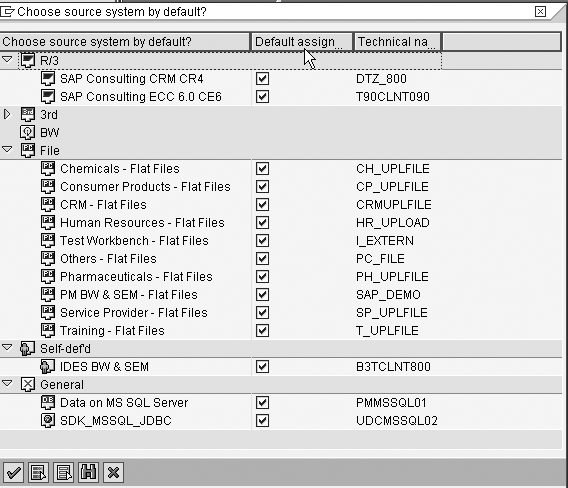
Figure 3
Assign the source system
Next, determine how your BI system should collect your business content objects. Collect Automatically is the default setting mode (Figure 4). This setting means that BI collects all required associated data (based on your grouping setting) each time when you drag and drop the selected object into the Collected objects column.

Figure 4
Choose Collect Automatically (the default setting) or Start Manual Collection
Click on the Collection Mode button to choose the Start Manual Collection setting (Figure 4). In this mode, the BI system collects data when users click on the collect dependent objects icon to gather dependent objects (Figure 5). I prefer this mode when I select many objects because it reduces the waiting time. BI collects all the associated dependent objects at once, so there’s only one wait time.

Figure 5
Click on the collect dependent objects icon
After determining the collection mode, include the business content objects in the Collected objects area. Drag the desired objects from the far left column showing the available objects and drop them into the Collected objects column. To locate objects in the Collected objects area, use the search icon. You may enter the complete object name or a partial string of characters depending on what you are looking for. For example, 0MATERIAL in Figure 6 finds all objects starting with 0MATERIAL. You also may perform wildcard searches (for example, *APO_APN*) to explore for objects (Figure 7) if you want to identify several objects or you are not sure of the exact object name.
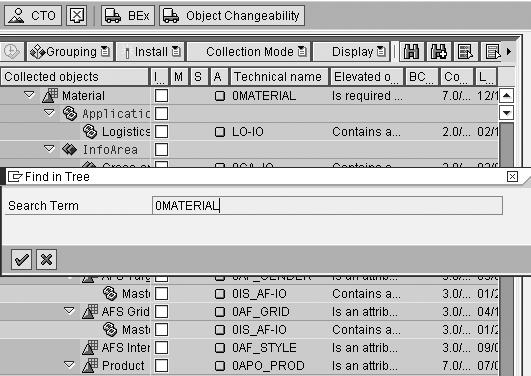
Figure 6
Search for strings of characters such as 0MATERIAL
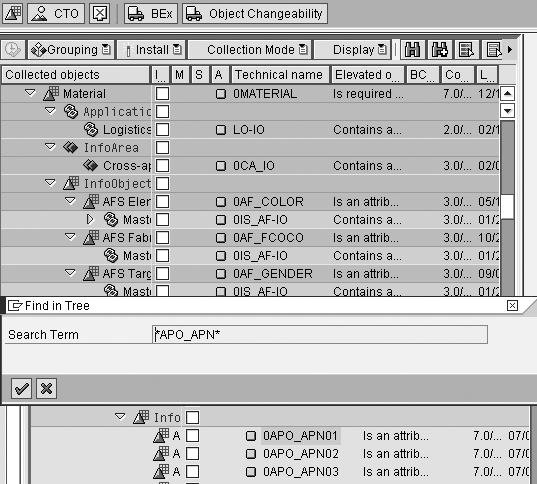
Figure 7
Perform wildcard searches such as *APO_APN*
6. Understand the Hidden Details of Active Version Available and Install Columns
Let’s look at some of the important Collected objects columns (Figure 8). These columns display the status of the objects you selected. BI highlights two types of business content objects in the Install column:
- New means that no active version exists yet for the new objects. This is the first time they were activated.
- D version represents redelivered business content objects. SAP identifies these by comparing time stamps.
Several possible column values exist for the Active version available column:
- If there is no symbol, then the object is not active.
- A green circle icon indicates that the object is active. You can keep the current active version or install the delivered version.
- The date icon shows that the current active version belongs to a previous release. SAP recom- mends that users install the latest version.
- The diamond-shaped gray symbol means that the object is inconsistent and not available for use. You need to transfer and activate the SAP-delivered D version again. Find the appropriate object in the far left column showing the available objects and drag and drop it into the Collected objects area as described in tip 5.
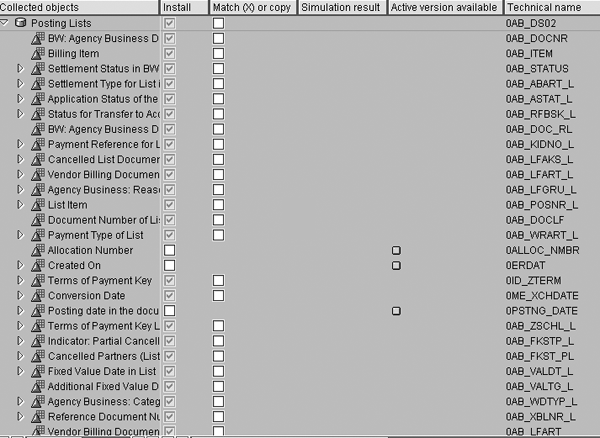
Figure 8
Improve the way you use the Collected objects area
7. Safely Merge Old and New Business Content
Always use the Match (X) or copy option when installing business content unless you are sure you want to overwrite any enhancements you have made. BI uses the Match (X) or copy column to merge your changes with new changes. If you have changed and activated the delivered objects from a previous release, you probably do not want the new delivered objects from a new release to overwrite the object and your changes. You normally should not replace the modified objects with the new delivered objects, but may want to enhance your modifications with the new features of the newly delivered version.
Note that the default setting for the Match (X) or copy check box is on. This stops accidental loss of work by preventing unwanted replacement of the active version with the new delivered version. The Match (X) or copy check box does nothing unless you check the Install box. The only way to replace the active version with the delivered version is to check the Install box and uncheck the Match (X) or copy box.
Let’s look at a few examples. Say you extended 0MATERIAL with a few custom InfoObjects. Then SAP delivers a new version of 0MATERIAL with a few additional InfoObjects. You may want to merge the new added InfoObjects with your previously enhanced 0MATERIAL. Thus, your version of 0MATERIAL would contain the new delivered InfoObjects along with your added custom InfoObjects.
You have to decide whether to use automatic matching or manual intervention. Use Automatic Matching when you still are using the object in the same way as before you transferred it from business content. Here’s a scenario in which you would use automatic matching: You have added and activated attributes to an InfoObject. The new SAP business content contains three additional attributes. Naturally, the new delivered version does not contain your new attributes. You want to use the newly delivered changes while preserving your previous work.
To accomplish this, select the check box in the Match (X) or copy column for that collected object. When you install that object, it retains your custom attributes as well as the new attributes. If you do not check the Match (X) or copy box, BI deletes your previous custom attributes, causing you to lose your previous work.
Manual Matching must occur when you need to determine whether to keep the property’s characteristics from the active version or to use the new characteristics from the delivered version. An example of when you must perform manual matching is when a text change, such as a description change, occurs. When you install the object, a screen pops up asking you to decide which text to install, the one from the active version or the one from the delivered version.
8. Breeze Through Installation
Simulate your installation to avoid losing your work. Reinstalling an object removes the enhancements that you or your team have performed on an object. Business content allows you to execute a simulation to see whether any errors are likely to occur during the installation. However, this does not identify all errors that may occur; it serves only as a rough guide to discover basic issues. Follow menu path Install>Simulate Installation (Figure 9).
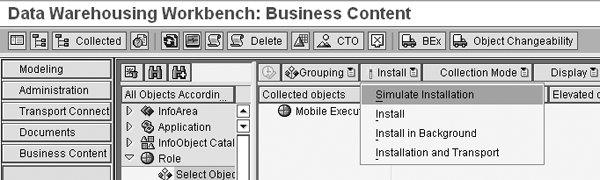
Figure 9
Run a simulation to detect basic problems
For example, using simulation, you might find someone else already has activated and changed an object. You would overwrite his or her changes if you were to activate the business content item again. To avoid this issue, some companies have a policy that no one can modify all items starting with a zero (SAP-delivered objects). Instead, they make a copy and save it with the Z prefix (customer namespace). This has the drawback that the new Z objects do not inherit the new changes that might be delivered to SAP-delivered objects in future releases.
Since installing a large number of objects can take a long time, use the Install in background option, especially when modifying objects that already are active. To install in the background, click on Install>Install in Background (Figure 10). When using this feature, be sure that the objects have no custom modifications so you install the delivered versions only. You check for this by running the above simulation. No matching takes place and the system activates the delivered versions. You usually can achieve optimal system performance by running long jobs in the background.
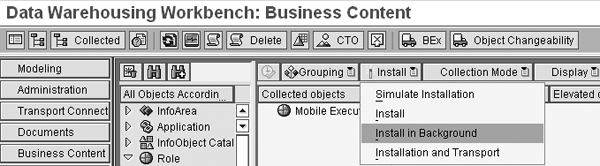
Figure 10
Install business content in the background to save time
9. Make the Most of the Context Menu
Right-click on an object to see the context menu. This does not work if the technical name is grayed out because the object is inactive. It displays several options (Figure 11):
- The Merge All Below option checks the Match (X) or copy check box for the selected object and all objects in the levels below.
- The Copy All Below setting clears all Match (X) or copy check box entries for the selected object and all objects below. You need to use caution with this setting. If you’ve also set the Install indicator, the system may replace your active version objects with the delivered versions. You potentially can lose work in the objects if you have enhanced them.
- The Display Description option provides a description of the object. For example, you can see a good description of a DataStore object, which you can use for documentation by selecting this option (Figure 12).
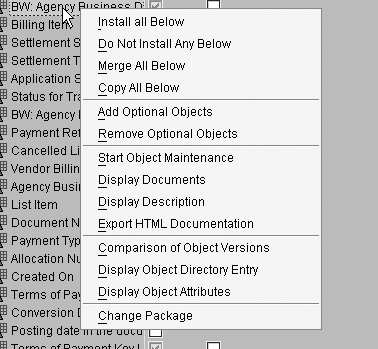
Figure 11
Context menu options
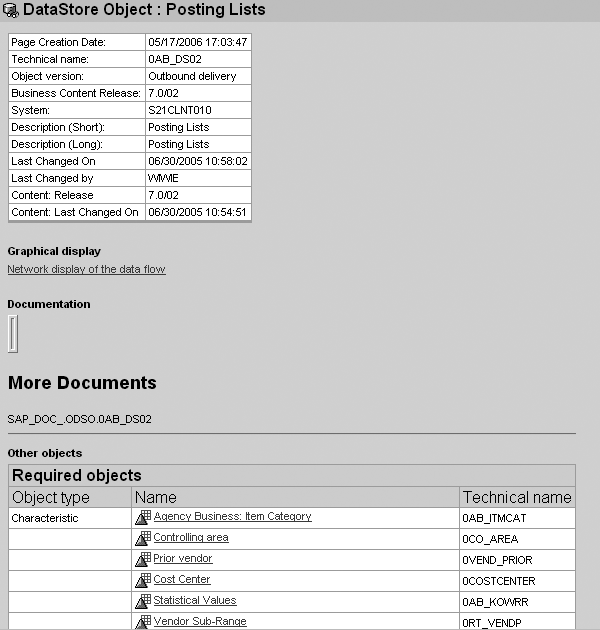
Figure 12
Description of the DataStore object
Glenn Ball
Glenn Ball, a BW senior consultant at SAP America, is a former SAP BW developer and charter member of the technical core competency (TCC) team. He has more than 11 years of experience with SAP America, working with all major areas of SAP R/3 and BW, including design, development, implementation, training, and post-production support. He also has been a key player in numerous successful implementations. Glenn has delivered several BW sessions at ASUG, TechEd, and biweekly BW Knowledge Network seminars. He has conducted solution reviews and training sessions, and frequently is called upon to resolve the most difficult performance issues in his areas of expertise.
If you have comments about this article or publication, or would like to submit an article idea, please contact the editor.