Find out the seven steps you should take to avoid common oversights that can set back your SAP E-Commerce for mySAP CRM implementation.
Key Concept
SAP E-Commerce is a mySAP CRM tool that allows you to interact with customers on the Internet. SAP E-Commerce encompasses four main areas (E-Marketing, E-Selling, E-Service, and E-Analytics) to help you maintain customer relationships.
Before you go live with SAP E-Commerce, have you considered two of the most important aspects of your application — performance and stability? Without assurance that you've fulfilled these two application aspects, you risk all of your hard work. Simply setting up SAP’s E-Commerce technology components on adequately sized hardware is not enough. You must set up these components with the correct parameters under load or the application can experience performance bottlenecks and worse yet, instability.
In this article, I document the seven steps that you need to take to ensure optimal performance and stability of your SAP E-Commerce application. Included with the steps are key technology components and recommendations for their parameters. I focus on SAP E-Commerce for mySAP CRM in this example, but the same parameter recommendations are relevant for E-Commerce for ERP (also known as Internet Sales — R/3 Edition). Technology members on the implementation team can use these tips to ensure that the various mySAP CRM components do not adversely affect the Internet sales application processes.
Ntes
I developed the steps in this article with mySAP CRM 4.0. You can apply all the steps in this article (except for the Internet Pricing and Configurator [IPC] step) to set up your SAP E-Commerce for mySAP CRM 2005 environment initially. However, prior to applying the steps, you should search for current SAP notes, which may contain updates specific to mySAP CRM 2005.
Step 1. Contact SAP support to schedule your SAP GoingLive Check. SAP GoingLive Check consists of three different remote sessions (checks) SAP Support performs on your SAP installation. The checks provide useful data that serves as a starting point for your analysis. The three sessions are part of the standard SAP maintenance contract, so take advantage of them. Table 1 lists the timing and objective of each session.
| Session |
Timing |
Session objective |
| Going-live analysis |
Two months prior to go-live |
Gathers information about your mySAP CRM landscape and proposed user/document load. Based on these numbers, SAP Support provides you with SAP’s recommended system parameters to support productive operations. A great starting point for landscape parameters and general stability, this session also includes solution maintenance recommendations. |
| Going-live optimization |
One month prior to go-live |
Optimizes end-to-end business processes. Focuses on functionality and identifies current and potential performance bottlenecks. Includes recommendations to resolve all identified issues. It is critical to work out these issues prior to stress testing because load tests can magnify their impact. |
| Going-live verification |
One month after go-live |
Evaluates system based on one month of productive operation. Verifies parameters and makes suggestions for further fine-tuning of the live environment. |
| Table 1 |
The three remote sessions involved in SAP GoingLive Check |
Notes
SAP Support uses a tool for SAP GoingLive Check sessions that it updates continually with best practice performance and stability data. This article incorporates parameters that are current as of its publication; the parameters recommended by your sessions supersede those in this article.
Step 2. Optimize your J2EE Engine. The J2EE Engine is the heart of your SAP E-Commerce solution. It handles session context (data gathered during a Web browser session) and sends requests to the other mySAP CRM technology components (CRM Server, IPC, and SAP Text Retrieval and Information Extraction Engine [TREX]). The J2EE Engine sends and receives requests as needed and renders the information for the user.
Based on this explanation, you might think that the J2EE Engine requires a significant amount of CPU resources to run SAP’s E-Commerce application. In fact, it is the other mySAP CRM technology components that handle the bulk of the work for SAP E-Commerce. Because the J2EE Engine consumes a low amount of CPU resources, it is common to install the J2EE engine and IPC on the same server. Despite the low CPU consumption, an incorrectly configured J2EE server can cause major performance and instability issues with the SAP E-Commerce application.
You should focus on two key areas when tuning your J2EE Engine for user load: the Java Virtual Memory (VM) parameters and the communication between J2EE and the CRM Server. The following recommendations can prevent bottlenecks at these key points.
Java VM settings. Table 2 lists the parameters you set for Java VM, depending on which version of J2EE you are using. If you have HP-UX, you may notice that J2EE doesn’t start. Refer to SAP note 534867, which details how to work around this issue. You may also research specific details about the various Java VM parameters and how they affect performance in the “Java Tuning White Paper” available on Sun’s Web site at https://java.sun.com/performance/.
| Setting |
SAP note |
Title |
| J2EE 6.30/6.40/7.0 |
723909 |
Java VM settings for J2EE 6.30/6.40/7.0 |
| J2EE 6.20 |
696410 |
Java VM settings for J2EE 6.20 |
| HP-UX |
534867 |
J2EE server on HP-UX (J2EE server can’t start on HP-UX) |
| Table 2 |
Recommended Java VM settings |
J2EE (also known as SAP NetWeaver AS Java) Communication. Communication between the J2EE Engine and the CRM Server involves two key components that you must configure correctly to allow for optimal throughput. On the J2EE end, the Java Connector (JCo) facilitates communication with the CRM Server. SAP Gateway facilitates communication on the CRM Server side.
Before you configure the JCo and SAP Gateway settings, verify the load balancing settings. When more than one CRM Server exists, make sure that you configure the Web application to take advantage of the application server logon groups (transaction SMLG) to load balance across servers. You configure logon group settings for your Web application in Extended Configuration Management (XCM) Administration (Figure 1).

Figure 1
Access XCM Administration via transaction SMLG to load balance across servers click here to view a larger version of this image
In XCM, under the Parameter Configuration area, set the Base Configuration field to group_connect and configure the parameters group and mshost based on your mySAP CRM logon group configuration (transaction SMLG). For information about logon group configuration, refer to SAP note 26317.
You should also configure JCo settings for your Web application in XCM (Figure 1). Size your application JCo connection pool (maxcon parameter) based on your peak concurrent load estimate. Set this parameter value twice as large as the estimated peak user load. For example, if you estimate a peak user load of 200 users and have one J2EE server, set the value to 400. If you have two J2EE servers, set the value to 200 because the system spreads the load across both servers.
Keep in mind that the majority of the processing in mySAP CRM Internet Sales happens on the CRM Server, so increasing the JCo connection pool only increases the width of the pipe that connects your J2EE Engine to the CRM Server. Your CRM Server must have the resources to handle your peak load. You verify this in the step 7 stress test.
After you make the change to the JCo connection pool, you must also increase the number of Remote Function Call (RFC) connections that SAP RFC Library uses. SAP JCo uses SAP RFC Library to communicate to the CRM Server. Set the RFC connections using the operating system (OS) environment variable CPIC_MAX_CONV. Specify a value equal to or higher than your JCo connection pool. For more information, refer to SAP note 314530.
Implement the SAP Gateway parameter recommendations on the CRM Server as documented in SAP note 316877. Set the OS environment variable CPIC_MAX_CONV to an appropriate value (e.g., 1000) on the CRM Server where your gateway resides. For more information, refer to SAP note 314530.
Step 3. Optimize your IPC. There are not many tuning parameters to set on IPC 4.0; however, neglecting the following key items can affect performance in your application.
Tip!
These same IPC recommendations also apply to my SAP CRM online scenarios (e.g., Interaction Center [IC] WebClient).
Notes
mySAP CRM 2005 incorporates a major architectural change regarding IPC. In mySAP CRM 2005, the IPC runs on the CRM Server in the Virtual Machine Container (VMC). This avoids the need to set IPC and Java VM parameters. The specific IPC steps in this article are not relevant for tuning the VMC IPC. For further details regarding the VMC IPC, refer to the article “mySAP Business Suite 2005 Features Changes in IPC Usability” by Michael Zarges, which appeared in the December 2005 issue of CRM Expert.
Verify custom pricing formulas exist. First, for your pricing procedures, ensure that you create all custom pricing formulas in Java in the IPC user exit file. SAP supplies the standard pricing formulas (numbers 1-599) in Java for IPC. You must maintain any pricing formulas in the customer number range 600-999. For more information about implementing the pricing formulas in IPC, refer to the configuration documentation in the DOC directory of your IPC Server.
If you have not implemented custom pricing formulas, the IPC Server spends considerable CPU time writing error messages to the log files, which is especially apparent during catalog browsing. You can quickly identify whether you are missing custom pricing formulas by checking the size of the following error files located in the IPCBIN directory: IPCServErr.log, IPCServ1Err.log, IPCServ2Err.log, and so on, depending on how many IPC Servers you configure on the same machine.
If you find that any of these files is over 1 MB after moderate user activity, open the file in a text editor. It is common to find many error messages that identify which formulas are missing. For example, in Figure 2, the IPCServ1Err.log file shows that in the Pricing user exit, formula number 716 does not exist.
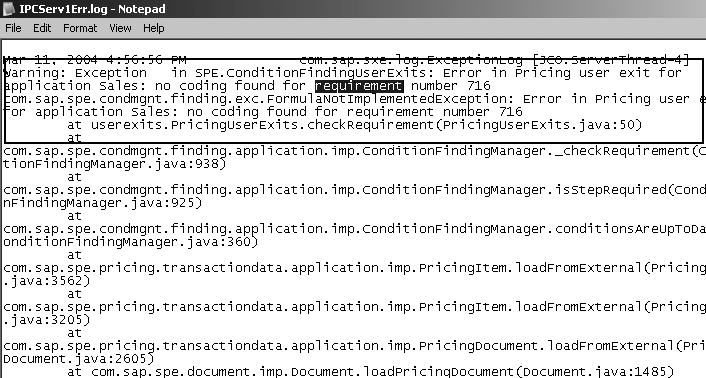
Figure 2
IPCServ1Err.log file with message no coding found for requirement number 716 click here to view a larger version of this image
Set IPC logging levels. You can find SAP’s recommended logging settings for productive operations in the file logging_productive.properties, which is located in the IPCLIBPROPERTIES directory. The logging configuration file that the IPC uses is called logging.properties. You can simply copy logging_productive.properties to logging.properties to set the recommended productive logging levels. Don’t forget to restart IPC to activate the new logging levels.
Set IPC Java VM parameters. Garbage collection is a Java Virtual Machine (JVM) maintenance activity to recycle used memory. Performance issues can result if you set the JVM’s startup parameters for the application and user load incorrectly. Set the Java maximum heap (Xmx) between 512 MB and 768 MB to collect garbage in smaller amounts and in shorter increments.
Setting the Xmx to higher than 768 MB can cause longer JVM garbage collection times. In some instances of high memory requirements (e.g., buffering large variant configuration knowledge bases) you may raise this parameter, but under most productive situations, setting the Xmx value between 512 MB and 768 MB is sufficient. If you find that the estimated concurrent user load for normal business operations causes high memory consumption, you should configure more IPC Server instances rather than raising the Xmx value.
In addition, the following settings provide good standard Java VM parameters to run your IPC servers and dispatchers. If your OS is Microsoft Windows, set the following strings in the files serverservice.properties and dispatcherservice.properties, respectively. In UNIX, set the following strings in the ipcserver and ipcdispatcher files, respectively.
IPC Server: -Xms64m -Xmx512m -Xrs
IPC Dispatcher: -Xms64m -Xmx256m -Xrs
For HP-UX, refer to SAP note 534867 (J2EE server on HP-UX [J2EE server can’t start on HP-UX]).
Increase database connections. The IPC Server has no data buffered after initial startup. To fulfill the initial user requests, it must contact the CRM Server database to load the buffers. To allow for more concurrent database connections while the IPC buffers data, increase the number of database connections to 10 in the configuration file PARAMETERS.XML located in the LIBPROPERTIES directory. After these initial requests, IPC buffers the data. Refer to SAP note 765900 for more information about database connections and IPC.
Update the IPC patch. Every IPC has a Support Package level (which must be the same as your mySAP CRM application) and a patch level. You should routinely update your IPC server’s patch level to the latest patch available on SAP Service Marketplace (https://service.sap.com/ patches). IPC patches not only include functional fixes — in some cases they include performance fixes. Follow the steps in SAP note 486061 to patch your IPC.
Step 4. Buffer the mySAP CRM organizational model. Schedule the report HRBCI_ATTRIBUTES_BUFFER_UPDATE on the CRM Server. This report buffers the mySAP CRM organizational model and assists the performance of all mySAP CRM business processes that require access to the organizational model. Schedule the report to run after midnight daily. This is very important because the system invalidates the organizational model buffering every night at midnight. Prior to scheduling the report, set up the buffering indicator for the scenario CRM via transaction OOATTRCUST. Check field buffering for the fields Sales or Service, depending on which mySAP CRM scenarios you use. Refer to SAP note 110909 for details.
Step 5. Configure TREX. To enable TREX to use the server’s full CPU resources, set the number of TREX RFC servers to the number of physical CPUs available on the TREX server. Configure this setting in the TREXDaemon.ini file under the section [rfcserver]. In the TREXDaemon.ini file in Figure 3, instances refer to the number of CPUs (2 in my example).
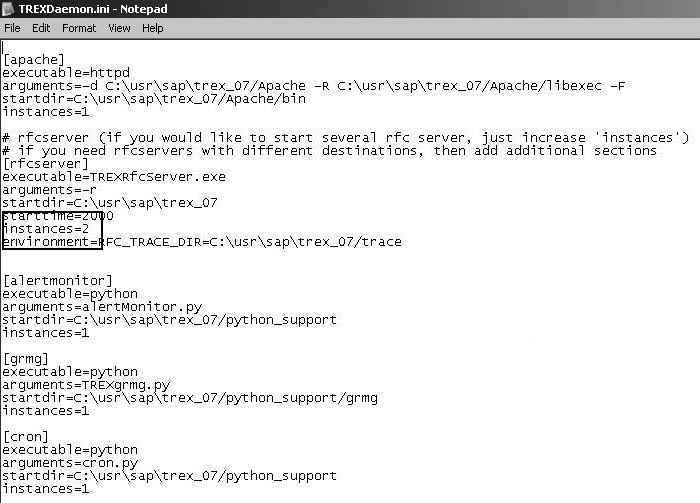
Figure 3
TREXDaemon.ini file showing 2 CPUs available on the TREX server click here to view a larger version of this image
Step 6. Lower Web application logging levels. Open the Web application’s administration page on each J2EE server and set the logging levels to ERROR level, which is SAP’s recommended logging level for production operations. The URL to access the administration page uses the syntax:
https:////admin (e.g., https://pwdf0881:5000/b2b/admin)
The user name and password is the same as your J2EE administrator user name and password.
Overwrite the log levels with the word ERROR and then select the apply changes button to activate the new log settings (Figure 4). If you have more than one J2EE server, make sure you perform this step for each one (log into each J2EE admin page by replacing in the URL string).
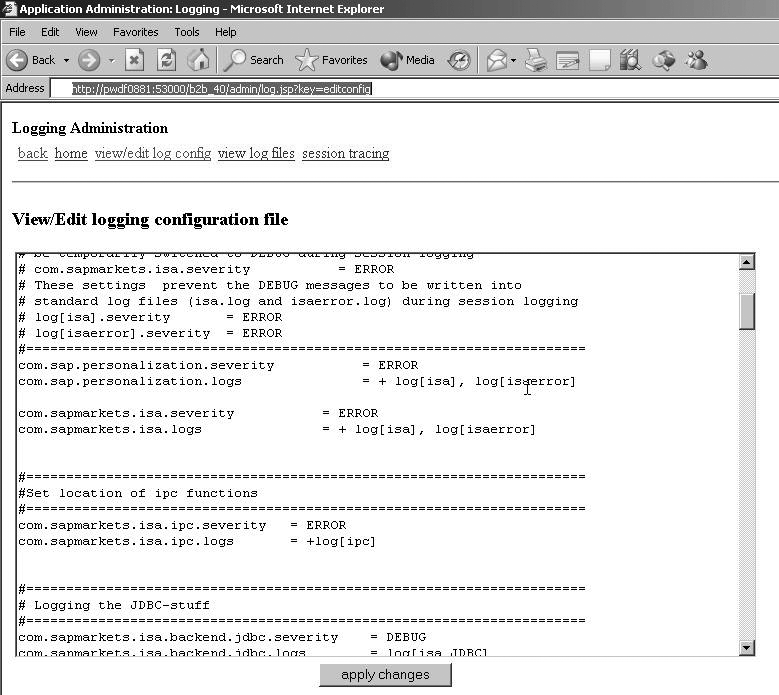
Figure 4
Set the logging levels to ERROR and click on the apply changes button click here to view a larger version of this image
Step 7. Perform a stress test. Stress testing the SAP E-Commerce application is one of the most critical steps prior to going live. It reveals bottlenecks in the application that can go undetected during integration testing. Even if you have successfully removed all bottlenecks from your business process, unknown factors may be lurking that the system can detect only during load testing (e.g., load-balancing problems).
If you are using a Web load balancer to spread user requests across multiple J2EE Engines, you must configure the persistence settings correctly. If you incorrectly set persistence, users could lose their session context by jumping servers, or worse yet, the system could send all requests to one server causing it to overload. Once you go live, it is extremely difficult to troubleshoot since you often do not have access to the users to assist in the investigation process. So reduce your stress by stress testing before you go live.
I have visited many SAP E-Commerce customers and their knowledge regarding these SAP E-Commerce components varies widely. Nevertheless, I have never encountered a customer that didn’t miss at least one of the previous steps. Follow the steps as I have outlined to strengthen your foundation on which to base any further performance decisions relating to hardware and development.
Sei Drake
Sei Drake is a product specialist with the CRM Solution Management group at SAP. He has worked in SAP’s Global Support Organization for eight years and is experienced in the areas of R/3 Sales & Distribution, CRM E-commerce, and performance tuning of the mySAP Business Suite. He has recently joined the CRM Solution Management Organization in the area of Customer Project Management. Sei holds a bachelor’s degree in information sciences from Drexel University in Philadelphia, PA.
You may contact the author at sei.drake@sap.com.
If you have comments about this article or publication, or would like to submit an article idea, please contact the editor.