Many SAP users think that only third-party tools can carry out a security audit of your SAP system. If you know where to look in your SAP system, you can find some hidden gems that provide you with information that auditors want. See seven standard reports that you can use to better prepare for your audit.
In your standard SAP system, you can find multiple reports that provide you with information that forms the crux of a lot of audits. In fact, these reports have been available since early SAP releases. These reports belong to the User Information System available in a standard SAP system from its area menu, which you can invoke by running transaction SUIM. Your security team needs to run these reports on a regular basis if it’s not doing so already as part of its standard SAP system operating procedures and policies. When you engage an external company to perform a security audit and to assess the degree of compliance your organization has achieved from a Sarbanes-Oxley standpoint or otherwise, it probably runs these very same reports.
Although you can save some money by doing your homework regularly, you can save yourself a lot more in terms of embarrassment when a security audit unearths holes that you could otherwise plug by looking at the innate capabilities in your standard SAP system, understanding their usage, and using them.
I’ll discuss seven reports that you can (and should) use in preparation for your audits. Although the screenprints that I use are from an SAP NetWeaver system, the concepts are release independent.
Note
Not everyone will have the authorization to run these reports. Typically, an end user or a business analyst has very little need for these reports. At minimum, your Basis (or SAP NetWeaver administration) and SAP security teams will have full authorizations. Other technical resources may be granted authorization to run these reports as needed.
This report is called Check the Passwords of Standard Users in All Clients. By standard users, I am referring to user IDs such as DDIC and SAP* that are standard for every SAP system and are created during an SAP installation.
The system displays some very important information to security teams and auditors. Among other things, it provides you details of your password setup, including minimum number of digits, minimum number of letters, minimum password length, and so on. The information helps you assess whether or not you are in compliance with your corporate security standards and policies.
From an operational standpoint, you, as part of your organization’s SAP security team, need to know the values of these profile parameters. To understand and evaluate which of these parameters are relevant to you, carry out the following navigation at https://help.sap.com: SAP NetWeaver Application Server Security Guide > SAP NetWeaver Application Server ABAP Security Guide > User Authentication > Authentication and Single Sign-On > Logon and Password Security in the ABAP System > Profile Parameters for Login and Password (Login Parameters). If you need to change one or more of these parameters, you need to run transaction RZ10 and make the necessary changes there.
When you execute the report, there’s a check box labeled Display Profile Parameters (Figure 1). When you check this box, the system displays all the profile parameters that I mentioned earlier and their values. (To keep things straight and simple, let’s just disregard the Title and Layout and run the program as it is).
Note
I’m not going into the details about the title and layout for simplicity. Some complications arise based on different system configurations. For instance, if you are on Basis 7.0 and do not have a certain Support Package, a bug prevents users from assigning a title and from saving a layout variant before executing the report. SAP Note 923528 contains the correction for this bug.
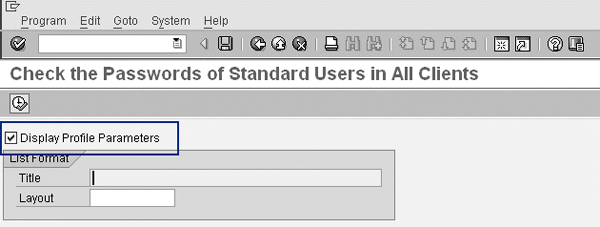
Figure 1
Selection screen for report RSUSR003
The display splits into two panels (Figure 2). The top panel provides information about all the profile parameters and the bottom panel provides information on passwords of system users.
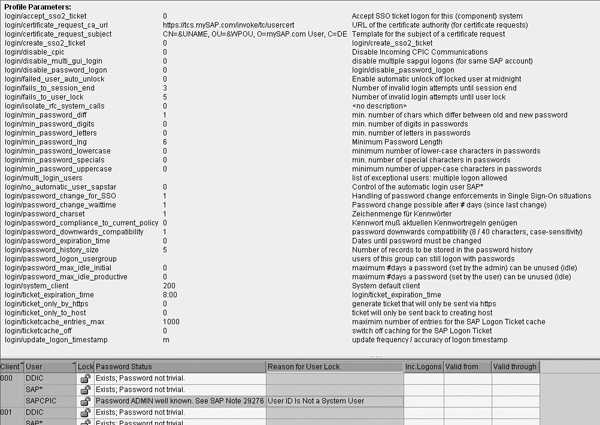
Figure 2
Output of report RSUSR003
Both internal and external audits often use a dump of the results to get a listing of the critical authorizations that each user has in a particular SAP system. Examples of authorizations that are deemed critical by SAP are administrative rights for running background jobs — Administration: All Rights for Background Jobs (Background Admin.) — and the ability to change customizing tables — Customizing: Change All Tables (Figure 3). Note that this is not a complete list of all authorizations that each user has, but only the critical ones. It is a good starting point if your auditor is interested (initially) in the list of critical authorizations. The information provided by this report enables auditors to analyze why a particular user has been given a particular authorization. Often, the need for operational efficiencies creates a situation wherein the system copies roles and profiles from one user to the next. This can cause inadvertent granting of inappropriate privileges to certain users. For example, the system should only grant authorization to execute logical operating system commands to Basis or SAP NetWeaver administrators. This report tells you which of the users (including the non-Basis ones) have the authorization to do so. You can quickly spot these anomalies and take corrective measures.
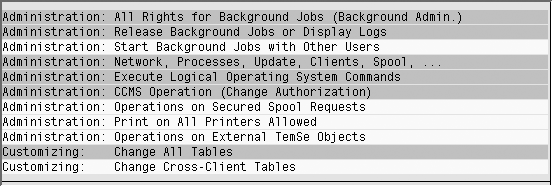
Figure 3
Critical authorizations for a user in an SAP system
Figure 3 displays a screenprint of the critical authorizations assigned to a particular user in an SAP development system. These authorizations give you the ability to run transactions that can affect the operations of your system. This report does not have a selection screen, and therefore no selection criteria. You just need to execute it.
Note
The existing documentation on RSUSR005 is helpful. If you need to know the names of authorization objects and a description of what each of these objects encompasses, check out the documentation by entering the name of the program, pressing Enter, and carrying out the following navigation in transaction SE38: Goto > Documentation > Display.
This report provides information pertaining to unsuccessful or unauthorized login attempts to a particular system. As a result, the report is extremely relevant from both an operational and audit standpoint, and SAP recommends running it daily. Delving deeper into this report, you might want to consider locking out a certain user from a particular system if there has been no activity by this user in this system for a certain time period (per your enterprise’s policy). Let’s look at the information provided based on a partial output of this report (Figure 4).

Figure 4
Output of program RSUSR006
I intentionally blanked out the values in the User column for security reasons. I also used SAP List Viewer functionality to reduce the number of displayed fields so that they fit into a standard page. From either an operational or audit standpoint, you can see even with a quick glance all users who have attempted to log into the system that you are checking, albeit unsuccessfully, including those users who are locked. In the screen shown in Figure 4, the user in the last record is locked due to Incorrect logons. For those who are not locked (as is the case with the first four users), display the number of incorrect logon attempts and the date and time of the last logon. Additionally, the list also shows the dates on which each user was created (Created On), the validity period in the system (Valid from/Valid through), and, assuming it got locked, when that happened (Logon).
This report is the successor to reports RSUSR008 and RSUSR009 and has many enhancements over its predecessors. The overarching purpose of this report is to provide information about users with critical authorizations and users with critical combinations of authorizations. It helps you assess the level of compli- ance with your segregation of duties (SoD) policies.
A detailed discussion of this report would require an entire article and is beyond the scope of this article. Instead, for some good documentation on the report, go to this SAP Help page, and then follow menu path Identity Management > Identity Management of the Application Server ABAP > Administering Roles and Users > User Information System > Determining Users with the Users Node > With Critical Authorizations (New Version, RSUSR_008_009_NEW). See SAP Note 664213 for details on setting up this report and other information. The output of this report provides information that you can analyze to get a better picture of the critical authorizations or combinations (per your definition) that users share. You can see its selection screen in Figure 5.
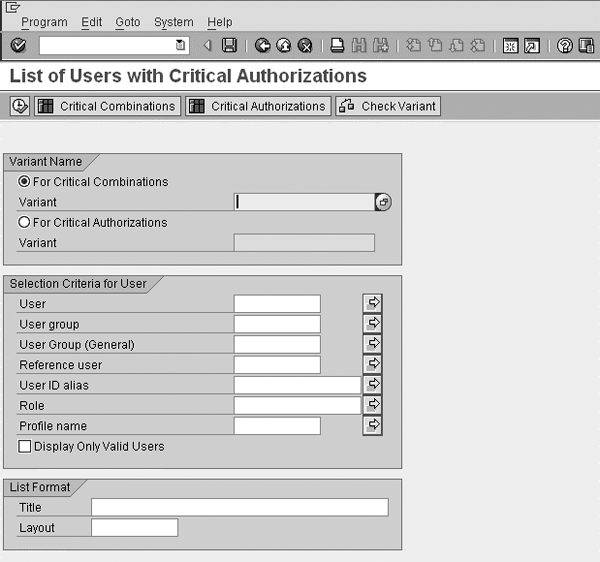
Figure 5
Selection screen for program RSUSR008_009_NEW
You can use this report to track all changes to a user based on the various selection criteria that you enter. The functionality provided by this report is analogous to the change document function that is available in SAP applications for standard business processes such as sales orders and invoices. As you might infer, the report may provide you with more information than you need, and take longer than you would like it to run, if you do not choose your selection criteria in a judicious manner. It can answer many questions, including:
- “Who deleted a particular profile?”
- “How many times has a particular user’s password been changed?”
- “Who deleted a particular user?”
All this information is not only important from an audit perspective but also from the standpoint of your regular operational procedures around SAP security. It is prudent to run this report on a daily basis. You can see its selection screen in Figure 6.

Figure 6
Selection screen for program RSUSR100
You can provide a lot of specific information to narrow down your search, such as date and time range for changes to one or more users. You can control the output of the display. Furthermore, you can choose to display authorization-related changes to one or more users by selecting one or more of the check boxes in the Selection Criteria for Changed Authorizations section. If you keep all the boxes in this section unchecked, the output lists all password, user-group, and validity-date changes, but no authorization-related changes. This information can be a key component of a security audit. The output of this report is not displayed due to the sensitive nature of the information.
This report provides very detailed level information on changes to profiles. Unlike RSUSR100, this one is driven by profiles. When you execute this report, the system presents you with a selection screen in which you can specify one or more profiles (if you don’t know the profiles, you can press F4 to retrieve them), the user that made the changes, and the date range. Fill in the selection criteria (SAP_ALL for profile name and a particular date range) and run the program to get the output shown in Figure 7.
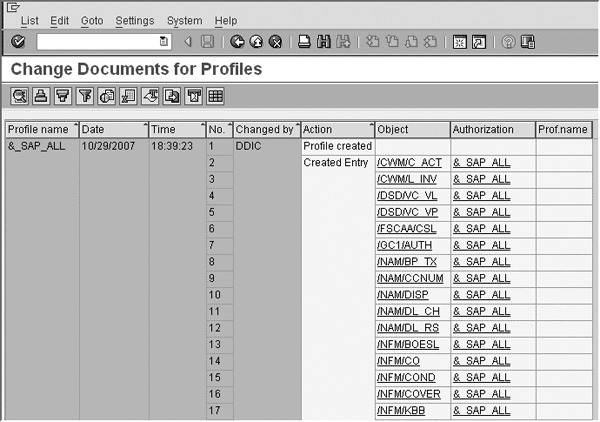
Figure 7
Output of program RSUSR101
All changes to authorizations for a given profile are displayed in this report. This level of detail is necessary when your system is undergoing a full-blown audit and you need to track every change regardless of its importance.
This report supplies you with logon and password information for one or more users. This report answers a number of questions, including:
- When was the last time and date a particular user logged onto a system?
- When was a particular user locked out of the system?
- What is the list of users whose passwords have been deactivated in the last four months?
- Who are the users who have not changed their initial password?
The frequency at which you should run this report depends on your enterprise’s specific needs. This is a critical report for your security team in that it provides actionable information, so you can run it as frequently as needed. If, for example, one of the reasons why you use this report is to lock out users following a period of inactivity (as per your definition), running this report frequently helps you take speedy corrective action.
This information is critical to audits because it helps the auditing team understand the deviations from defined standards. As a simple example, if the enterprise policy is for users to change their initial passwords within five days of creation, this report’s output provides the auditing team with a list of users who have violated this policy. The report has multiple selection options that help tailor the information to your needs. Figure 8 displays the selection screen.
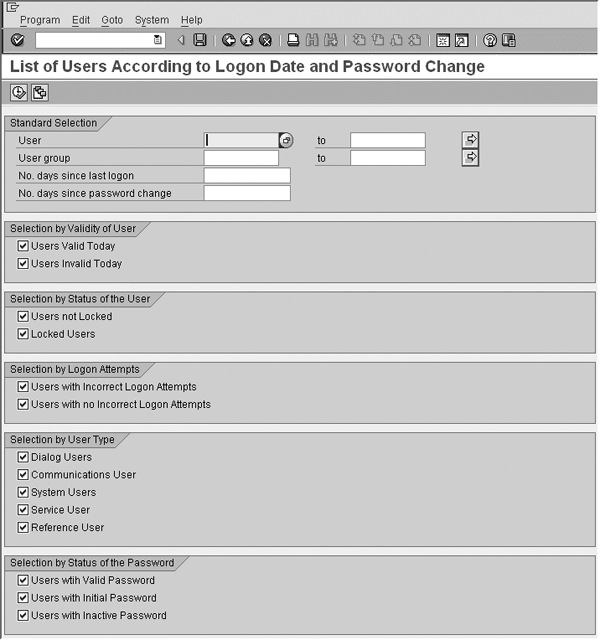
Figure 8
Selection screen for program RSUSR200
You can narrow down or broaden your results set by checking or unchecking one or more check boxes. As an example, the purpose of your audit may be to get information only about users that are not locked. In that case, you may want to keep the Users not Locked check box checked and the Locked Users check box unchecked. Similarly, you can narrow down your search to the type of users such as Dialog Users or Communication Users by checking the respective check boxes. If you run it with the boxes checked in the way they are in Figure 8, you get user ID and password information for all users.
Anurag Barua
Anurag Barua is an independent SAP advisor. He has 23 years of experience in conceiving, designing, managing, and implementing complex software solutions, including more than 17 years of experience with SAP applications. He has been associated with several SAP implementations in various capacities. His core SAP competencies include FI and Controlling FI/CO, logistics, SAP BW, SAP BusinessObjects, Enterprise Performance Management, SAP Solution Manager, Governance, Risk, and Compliance (GRC), and project management. He is a frequent speaker at SAPinsider conferences and contributes to several publications. He holds a BS in computer science and an MBA in finance. He is a PMI-certified PMP, a Certified Scrum Master (CSM), and is ITIL V3F certified.
You may contact the author at Anurag.barua@gmail.com.
If you have comments about this article or publication, or would like to submit an article idea, please contact the editor.