You might typically extract R/3 master and transactional data for which no standard extractors exist based on timestamps or as a full load. Neither method captures all the data, however. A true delta load is possible using Application Link Enabling (ALE) message types. The author describes two undocumented options for building an ALE-based extractor.
SAP presents few options for performing delta loads to BW from R/3 master or transactional data for which no Business Content extractors exist. This could be data from R/3 standard tables or from one of the several Z-tables you have in your R/3 system. You might typically extract this type of data as a full load nightly or monthly, or you might do a delta load based on timestamps.
Neither method performs a true delta load, however. A full load captures all changes, but it is inefficient because it transfers a lot of data unnecessarily. A delta update using timestamps can only identify new records in a table and cannot be used if the existing (old) records change or if no timestamp is in the table, which is the case most of the time. To achieve a true delta load for the described circumstances, you should use Application Link Enabling (ALE) message types.
Several of SAP's standard Business Content extractors use ALE message types to delta-enable their extractors; most of these are master data extractors. As you might have discovered, SAP has not documented how to perform a delta load using ALE without a standard extractor. I've discovered the secret through a lot of trial and error. What I've learned follows, and it applies to both BW 2.x and BW 3.x.
Building an ALE-Based Extractor
ALE controls messaging across loosely coupled R/3 systems, ensuring that data is always consistent. It is also used to exchange data between R/3 and non-R/3 systems.
You can use ALE message types during delta updates to capture changes and new records for R/3 master data tables and also the tables that log changes in change document history. With this method, you can also capture changes to transaction data tables.
You have two ways to build an ALE-based extractor and set up the delta. I will walk you through each one. The first method is used mostly for extracting data from a single table. I call this the semi-standard method because it does not require custom code, just some non-standard configuration. The second method can extract data from more than one table, including transaction data tables. This is the custom method. You set up everything yourself and write custom code to populate the extract structure.
Option 1. The Semi-Standard Method
Say that you want to extract sales order header data from R/3, and your extractor needs to have delta capability. (SAP provides Business Content extractors to do this, but for demonstration purposes, assume that they don't exist.)
Before this extractor can be built you must:
- Identify the fields and tables that need to be extracted to BW
- Create the view joining those tables, if you need data from multiple tables
To begin building the extractor, go to transaction code RSO2. My example requires data only from the VBAK table (Sales Order Header). Create a custom DataSource — e.g., Z_GENERIC_VBAK. Give the extractor a description and save the DataSource.
Select
Generic Delta in
RSO2 (
Figure 1) and make sure you choose
Numeric Pointer as the delta method in the following screen; do not select any fields. Save the DataSource. On the next screen, select the data fields and generate the DataSource (
Figure 2). You may choose to hide some fields if you do not need them in the extract structure.
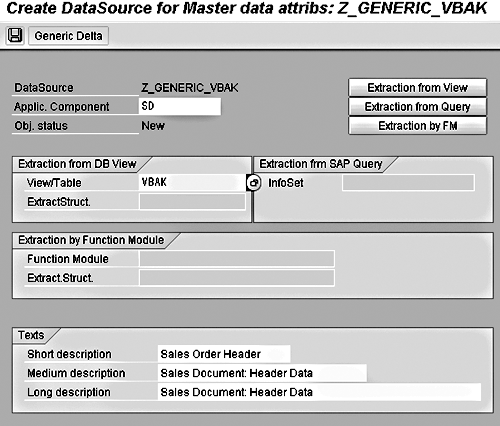
Figure 1
Select Generic Delta
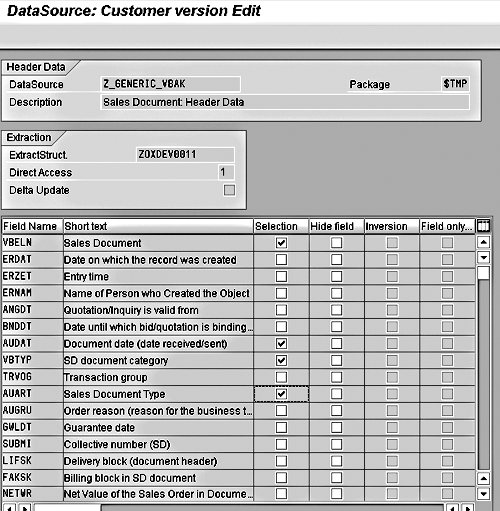
Figure 2
Choose the fields you want to use for the update
To set up the delta functionality, you need to identify the
Change doc. object. All standard change document objects are listed in table TCDOB. Go to the table entries screen for table TCDOB (transaction code
SE16). Enter the name of the table used to build the generic extractor — VBAK in this case — and execute.
Figure 3 shows that the
Change doc. object for table
VBAK is
VERKBELEG.
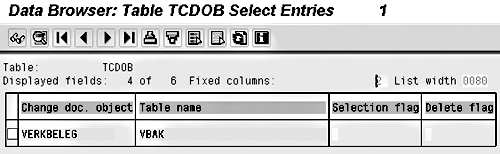
Figure 3
Identify the Change doc. object for VBAK
Go back to transaction
RSO2 and select
ALE Delta from the
DataSource menu. In BW 2.x, the menu option is called
Set up Delta. Enter the table name and
Change doc. object in the pop-up box, and press the
Enter key. You should now see the screen shown in
Figure 4. Notice that some fields are checked in green in the status column. The system keeps track of any value changes or additions to these fields in the change log. Click on
Transfer to activate the delta setup for the DataSource.
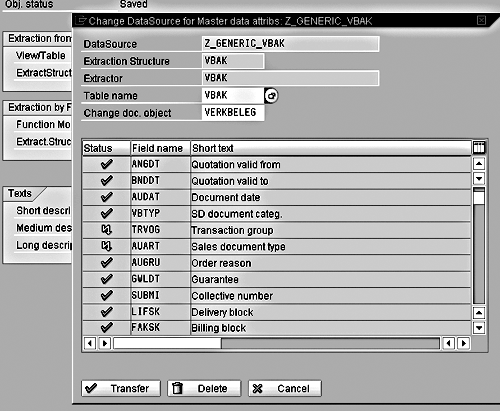
Figure 4
The system tracks changes to the fields with the green checkmarks
Once the DataSource is generated, it has to be replicated in the connected BW system. Create an InfoSource and assign it to this DataSource. Activate the new InfoSource.
The sidebar, “How ALE Message Types Work with Delta Extractors,” explains what happens behind the scenes when you create a delta-enabled extractor using ALE change pointers. This will also be helpful when I describe the second option.
Option 2. The Custom Method
The custom method is most useful (almost necessary) when the delta mechanism demands more complex logic like accessing more than one table than specified in the DataSource. It works only for the tables that have change document objects where the fields in the tables are enabled for change management. If you are unsure whether a field has been enabled for capturing changes, execute transaction code
SE11 and click on
Further Characteristics for your data element. Make sure the
Change document option is checked.
How ALE Message Types Work with Delta Extractors
You might decide to customize the two delta-load methods I describe or create a custom extractor yourself. In either case, the following details about how ALE message types and delta extractors work together will be helpful.
SAP R/3 creates an ALE message type and assigns it to a DataSource. The names of all the standard BW-relevant message types start with “RS” (
Figure 1). You can view all the message types using transaction code
BD50.
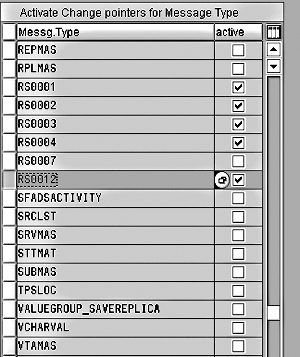
Figure 1
ALE message types listed via transaction code BD50
You can find the message type assigned to the DataSource that I use in my example, Z_GENERIC_VBAK, by looking into the ROOSGEN table using transaction code
SE16. Enter the DataSource (VBAK, in my example) in the selection screen.
Figure 2 shows that the assigned message type for the DataSource is RS0012.
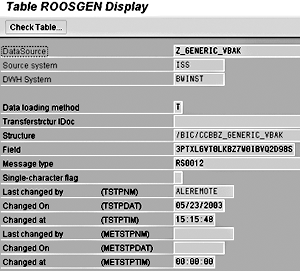
Figure 2
Table ROOSGEN details
As you see in
Figure 4 of the main article, only changes or additions to fields with green checkmarks are captured. If you need to delta-enable more fields from VBAK, you can edit the message type created for this DataSource. To do so, go to transaction code
BD52 and enter the name of the message type (
RS0012). You can now enable fields that are not active for delta in the status column of transaction
RSO2 as long as those fields are from the tables/views in the DataSource
(Figure 3).
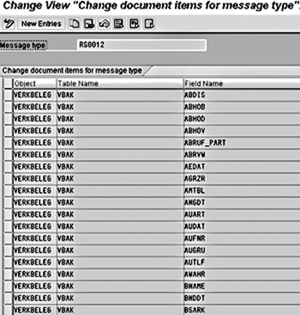
Figure 3
Enable inactive fields in your DataSource
Tip!
Table ROOSGEN is populated with the message type only after you replicate the DataSource in BW and assign it to an InfoSource. You will not find the message type just by generating the DataSource in R/3.
After the InfoSource is created in BW, the R/3 system activates the message type. That means the system starts logging the changes in respective ALE pointer tables. BDCPS and BDCP are main ALE change pointer tables, and they contain the delta information for a given message type.
When you trigger the delta run from an InfoPackage in BW, R/3 receives the request for the delta for the DataSource in question. R/3 then gets the message type from ROOSGEN and accesses the BDCPS and BDCP tables, which are typically large. To understand which delta records are being captured in the change logs, you can view the contents of these two tables using transaction code
SE11.
Each delta request from BW looks primarily for the records marked “Not processed in BDCPS.” Once it collects all the unprocessed records, the delta request gets the table keys for VBAK and prepares the data packets for BW. The system R/3 then changes the process indicator to X, which represents “processed.”
Tip!
Before setting up the delta update using ALE, check whether the appropriate change pointers are active using transaction codes BD61 and BD50.
Tip!
Always load the ALE deltas via the PSA. This will help you recover your data within BW, avoiding the expensive route of re-initializing from R/3.
1. Create an ALE message type (see the sidebar on page 18)
2. Create a function module with the data extraction logic
3. Create a custom DataSource that uses extraction method F1/F2
4. Update entries in the ROOSOURCE, ROOSFIELD, and ROOSGEN tables
1. Create an ALE Message Type
Before creating the ALE message type, you need to know the fields and tables where ALE pointers are activated. See the sidebar for more information.
Go to transaction code
WE81 to create the ALE message type (
Figure 5). Activate the change pointers to fields for which delta changes are to be captured. To do this, go to the transaction code
BD52. Enter the name of the custom message type,
ZBW_BETA, created in the previous step. Create a new entry by entering the appropriate message type, change document object, and table and field names (
Figure 6). Obtain the change document object using transaction
SE11 and table TCDOB.
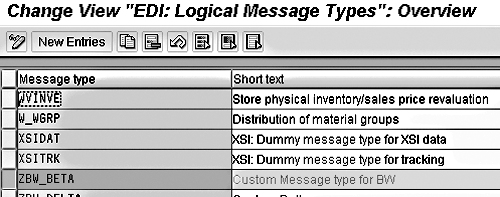
Figure 5
Create the new ALE message type
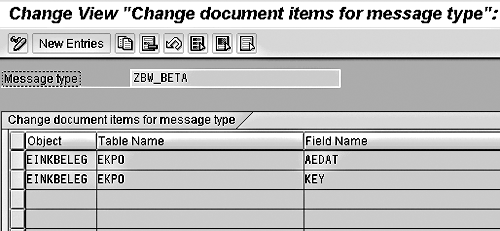
Figure 6
Activate the change pointers by entering the required information
Check the active indicator for the new message type in transaction
BD50 and save the entry for the new message type. This activates the change pointers for your new message type. You have now successfully created an ALE message type for BW. In the following steps, you will learn how to use this new message type in the custom extractor.
2. Create the Extractor
First, create the extract structure — called
ZOXED10010 in this example — using transaction code
SE11. This structure includes all the fields that need to be extracted from one or more tables (
Figure 7). Enter all the fields that need to be extracted by the extractor.
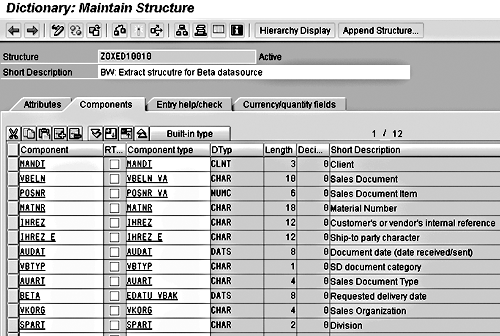
Figure 7
Activate the change pointers by entering the required information
- The extractor in this case is an API function module that:
- Accesses the data from more than one table
- Prepares the generic data packets
- Runs the full/initial loads
- Gets the delta changes from ALE tables
You or your technical team create this function module based on the extraction logic of SAP function RSA3_GEN_GET_DATA (
Figure 8). Use the extract structure you just created in the function code. Sample code (Extractor Source Code) for this function module is available for download at the bottom of the article.
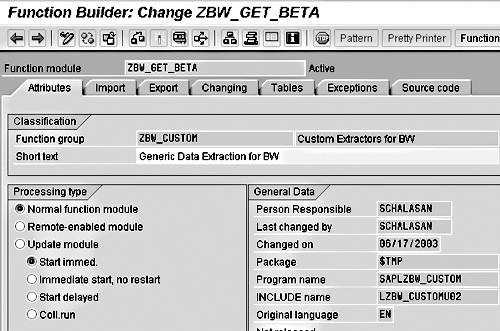
Figure 8
Creation of delta-capable generic function module
This custom module is designed to give full and intermediate delta loads. It uses the SAP function CHANGE_POINTERS_READ to give all changes for delta requests. The change-pointer read function gives mainly the table keys for any new purchase-order numbers and changes to existing numbers based on the change pointer you defined. Based on these keys, you need to gather and process other data necessary to fill the extract structure defined in the previous step. The other data could be from another table or could just be a subset of the data from the same table.
3. Create a Custom DataSource
This important task generates the extract structure. To create a custom DataSource that uses extraction method F1/F2, first create the DataSource using transaction code
RSO2. Follow the steps described in Option 1 of this article to create the DataSource. This time, you are going to create a DataSource for master data.
You may use any database table to create it — EKKO, for example. Save and generate the DataSource. This step creates the entry in table ROOSOURCE and other interfaces to IDocs. Go to ROOSOURCE and locate your custom DataSource,
ZBW_BETA1. Notice that the DataSource uses the extraction method
V and the
EKKO extractor. You need to replace the:
- Extraction method V with F1
- Extractor for EKKO with function module ZBW_GET_BETA
- Default extract structure with ZOXED10010, which you created earlier
You can carry out the above steps directly in ROOSOURCE if the Basis settings permit you to do so. Otherwise, run the Update ROOSOURCE program available at the bottom of this article.
Tip!
In BW 3.x, the step to update ROOSOURCE can be avoided by directly defining the DataSource using the Extraction by FM (function module) option in transaction RSO2 (Figure 9).
Having made the changes, you now need to generate the DataSource. Go to transaction code
RSA6 and locate your custom DataSource. Select it and click on the
Change button to generate it. The system takes you to the screen where you can see all fields available in the extract structure (
Figure 10). You can enable some as selection fields, which can be used later in the InfoPackage for selective data loads.

Figure 9
In BW 3.x, you can use the Extraction by FM option instead of a table
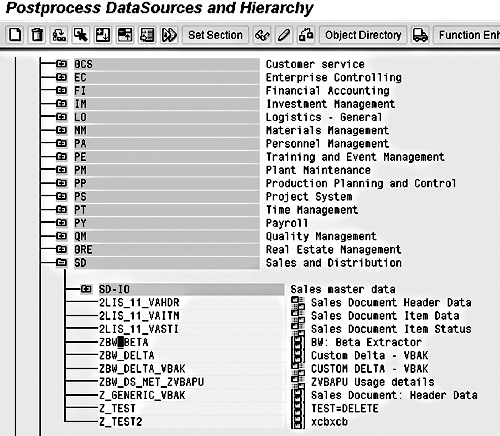
Figure 10
All available fields for the extract structure
4. Update Entries in the ROOSOURCE, ROOSFIELD, and ROOSGEN Tables
If you do not see any fields selected, that means all the fields are hidden in the ROOSFIELD table. Just save the screen and exit.
Go to the ROOSFIELD table using transaction
SE11 to unhide the fields for that extract structure. Again, changing the settings in the ROOSFIELD table depends on Basis settings. If the ROOSFIELD table is closed for changes, use the Update ROOSFIELD program to execute the changes. The program is available at the end of the article. After carrying out the necessary changes, go back to
RSA6 to generate the DataSource.
Now the custom DataSource is ready for use. Log into BW and go to the
Source Systems tab in Administrator Workbench. Replicate the DataSource you created in BW. You should now be able to see the custom DataSource in the application component you created. Assign this DataSource to an InfoSource. Activating the InfoSource generates an entry in the ROOSGEN table for this DataSource.
Tip!
Unless the ROOSGEN table is active with relevant entries, especially message type, delta loads will not work.
If Basis/system settings stop you from editing entries in this table using the standard table maintenance methods, use the Update ROOSGEN program available at the end of the article.
Note
The Update ROOSFIELD program does not allow modification of entries generated for standard SAP DataSources. SAP does not recommend modifying entries in any of the ROO* tables for SAP-delivered DataSources.
Satish Chalasani
Satish Chalasani is a SAP-certified independent BW/SEM consultant with more than four years of business intelligence and business analytics packaged product implementation experience. Prior to his independent status, he worked for Deloitte Consulting and Cap Gemini Ernst & Young. His data warehousing experience includes extracting data from both non-SAP and SAP products (EBP, CRM, Marketset, and R/3). His expertise also involves delivering BW content via SAP Workplace and SAP Enterprise Portal. He also does BW project reviews and project team training. Satish has been through seven BW/SEM implementations so far.
You may contact the author at
sapv4@usa.net.
If you have comments about this article or publication, or would like to submit an article idea, please contact the
editor.