Find out about the functionality available in SAP CRM Marketing on-demand, including updates available since SAP introduced it in May 2006. Also see how it relates to the functionality available in the on-premise SAP CRM.
Key Concept
With SAP CRM 2006s, companies can choose between SAP CRM on-demand (CoD) and the on-premise version of SAP CRM. Those who start with CoD have the option to migrate to the standard on-premise SAP CRM with minimal work and training. The functionality available in SAP CoD is a subset of the on-premise SAP CRM solution, which also includes integration to R/3 and SAP ERP Central Component.
As part of SAP CRM on-demand (CoD), SAP introduced SAP CRM Marketing on-demand in May 2006. The key marketing capabilities available in CoD include:
- Campaign Management: Develop, execute, and measure campaign activities through inbound and outbound interaction channels
- Segment Management via target groups: Discover and gain insights into customer segments, define segments, and manipulate and generate target groups.
- Lead Management: Generate qualified leads, prioritize leads, and follow up on every lead to closure
- Marketing Analytics: Understand the marketing effectiveness of a campaign by providing operational reporting and analytics capabilities
I will give an overview of each of these capabilities within Marketing on-demand, including updates in the wave 3 functionality that was released in February 2007 and planned enhancements for wave 4 in June 2007. Then I will go over the additional marketing functionality available if you choose to migrate to the on-premise version of SAP CRM. To learn about SAP CoD and the marketing concepts discussed in this article, refer to the CRM Expert articles listed in the “For More Information” sidebar.
Campaign Management
Campaigns are a set of actions that offer products or services executed within a period of time to existing or potential customers. It is an important activity in the marketing cycle. In Marketing on-demand, you can create and edit campaigns as you would in the on-premise version, using data from the accounts and contact management areas. In SAP CoD, click on Campaign in the left navigation bar in Figure 1 to work with campaigns. The campaign ID, campaign Description, and Planned Start and End dates are some of the critical data requirements to create a campaign.

Figure 1
Campaign screen in Marketing on-demand
Click on the Start Campaign button to execute it immediately. As a new feature to Marketing on-demand, you can also schedule the campaign to run at a later time by clicking on the Schedule Campaign button. After you execute the campaign, the system sets the status in the Campaign Execution section to Campaign executed. The Change History section also keeps track of when you executed a campaign. You can execute campaigns using communication channels such as email, task generation, lead generation, and file export. These communication media are available in SAP CoD for internal or external campaigns.
Segment Management via Target Groups
A target group defines the list of accounts and contacts that you can use in a campaign. By segmenting the customer base precisely, the campaign can be more effective. To create a target group, click on Target Group in the Create menu in the left navigation bar in Figure 1. In the screen that appears, enter the target group ID and description, then select accounts and contacts in Figure 2.

Figure 2
Select the contacts and accounts for your target group
You can search for accounts and contacts based on variables such as industry, region, owner, category, rating, and service levels. In fact, you can search for any header-level fields in the accounts and contacts, such as account ID, first name, last name, created by, created on, changed by, changed on, contact name, city, and Web site. When you complete your search, save the results to create a target group that you can use in a campaign. Currently, you can assign only one target group to one campaign. However, you can reuse target groups in different campaigns and modify them to suit your needs.
Lead Management
A lead represents a potential business opportunity. It provides a streamlined link between the marketing and sales departments to accelerate the sales process and increase the lead conversion rate. Figure 3 shows a typical Lead Details screen.

Figure 3
Top portion of Lead Details screen in Marketing on-demand
You also can add notes and attachments for leads. Furthermore, you can create and assign activities, such as tasks and appointments, to team members. Finally, you can capture products that might interest the lead. Figure 4 shows the bottom portion of the Lead Details screen in Figure 3, which you access by scrolling.

Figure 4
Bottom portion of Lead Details screen in Marketing on-demand
Each area of the Lead Details screen, called assignment blocks, displays data relevant to the lead. Some of the assignment blocks are hidden, but if you click on the name (e.g., Show Sales Team), the system shows the details for the assignment block. By clicking on the New button in the relevant assignment block, you can create a new object. For example, click on the New button in the Contacts assignment block to create a new contact.
The links in each of the sections take the user to the object’s main screen. For example, when I click on Mr. Frank Baxter in the Contacts assignment block, the system displays Frank Baxter’s contact screen in which I can manage his information. Similarly, when I click on ARI Group Inc., the system displays the account screen for the ARI Group account to allow me to manage that information.
If you convert a lead to an opportunity, the system transfers the lead information to the opportunity, automatically filling in the information into the opportunity fields. To do this, click on the Follow-Up Opportunity button in Figure 4, which allows you to avoid all the steps that are required to create a new opportunity from scratch. For example, when you convert a lead that has account, contact, and product information to an opportunity, the system automatically populates the opportunity with all of the lead information.
In June 2007, SAP will offer lead routing and distribution as part of the new functionality available in the wave 4 release of CoD. In Figure 4, click on the Assign button to initiate lead distribution. Lead routing is based on the predefined rules that power users maintain in the administrative area.
SAP CoD Analytics
SAP CoD Analytics uses standard query, SAP NetWeaver BI, and the new Online Transaction Processing (OLTP) reports. These reports help users —both employees and managers — understand and manage their customers better. Access to analytics reports is based on roles, so you can control who receives the information. You can personalize the CoD Analytics home page to show frequently used reports for easy access. You also can save various report results views for quick access.
Query reports. These are pre-built reports that are based on real-time information. You can export query results to standard data formats such as MS Excel. Some of the pre- built queries for marketing include My Open Leads, My Team: Hot Leads, and My Campaigns.
SAP NetWeaver BI reports. These reports allow you to personalize predefined reports that incorporate data from SAP NetWeaver BI transparently. Two examples are campaign effectiveness reports and lead origin analysis reports. Advanced analysis lets you slice and dice the data —you can select the required data and desired report layout for presentation. You also can define filters for data selection and store the final result for viewing. You can export this data to Excel to analyze further or share with other team members.
OLTP reports. This is a new functionality that will be available in the wave 4 release of SAP CoD, planned for June 2007. This interactive reporting tool, which allows you to create reports online, is available only with SAP CoD at this time. Power users design the reports and publish them for a wider audience. This new design-time tool allows SAP CoD users to create and maintain their own reports through a wizard interface that guides them through the six-step process (Figure 5).

Figure 5
The six steps for the OLTP report wizard
Step 1. Select the report area. For example, you can select leads, campaigns, or opportunities. In this step, you also define the report name and description.
Step 2. Select the required fields for the report. The fields available for selection depend on the report area you selected in step 1.
Step 3. Define the report filters. Also, define the input parameters for the report.
Step 4. Define the report layout (the table). You can display the selected fields in row or column format.
Step 5. Select the chart type that you see by default when you open the report. Options for chart types are: pie chart, line chart, bar chart, or stacked charts.
Step 6. Define who can see the report. This could include organizations, roles, or individual employees.
Figure 6 shows an example OLTP report for Lead Status Analysis. This is a standard report that displays current leads by qualification level. Several standard views are available for this report. Figure 7 shows the tabular view of the same report. In the report screens, you can select filters, personalize the layout, and export the information to Excel.

Figure 6
Graphic view of the My Team: Lead Status Analysis report
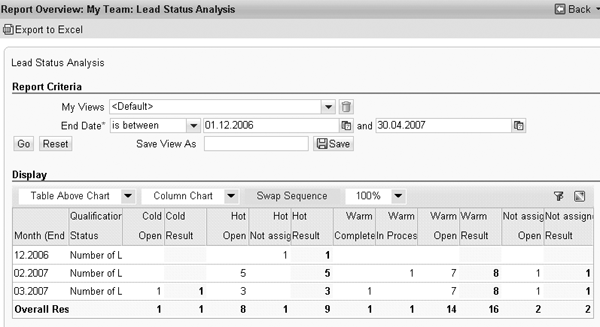
Figure 7
Tabular view of the My Team: Lead Status Analysis report
Other Recent Updates
In the past few months, SAP has updated Marketing on-demand to include the following features:
- Lead generation campaign types support, which allows you to create leads in the
system that you can qualify and convert to opportunities to finalize sales
- Campaigns that create a file when you execute them have multiple file export formats available such as Excel, Comma Separated File (CSV), and XML
- Lead distribution based on predefined rules via the rule modeler
- Creation of follow-up quotations from leads, which enables transparent lead conversion to quotation
- Links that you can insert in campaigns and leads. For example, you can insert the account’s Web site for the lead.
- Addition of campaigns and leads as favorites to the home page via the Add to favorites functionality
Marketing in SAP CRM On-Premise
The on-premise version of SAP CRM offers the following additional marketing functionality:
- Marketing planning to define critical milestones during the marketing program execution
- Cost planning and budgeting to help distribute cost at different levels and monitoring progress against planned and actual
- Customer segmentation using various levels of data to create offers tailored to specific customers
- Campaign planning including product planning, cost planning, and distribution, coupon planning with redemption rate, and response planning
- Integrated calendar functionality with Campaign Management, which allows you to see the calendar with all the tasks and deliverables that are in the campaign plan
- Campaign automation with process modeling to fully automate event- triggered campaigns
- Integration with SAP ERP Financials for closed-loop ROI analysis
- Workflow-based approval process and enhanced authorization concept
- Segment Builder
- External list management to integrate data from other sources
- Enhanced lead distribution via rule modeler
For More Information
To read more about SAP CoD, including Sales on- demand and Service on-demand, refer to these articles in the CRM hub of SAPexperts.
To read more about the marketing concepts discussed in this article, refer to these articles in the CRM hub of SAPexperys:
Seema Thomas
Seema Thomas is a solution manager in the CRM solution management group of SAP Labs, LLC. She has been involved with CRM on-demand since 2005. Seema has more than 10 years of SAP experience in customer project implementations and development projects in many different capacities, including functional, technical, and project management roles. She has a bachelor of engineering degree in computer sciences from Birla Institute of Technology and Sciences in Pilani, India. Currently, she is studying for her MBA at Villanova University.
You may contact the author at seema.thomas@sap.com.
If you have comments about this article or publication, or would like to submit an article idea, please contact the editor.