Gain insight into the capabilities of each of the 12 user exits available in the quota management module. Review expert recommendations on how to implement the quota user exits to meet your unique requirements.
Key Concept
The absence quota configuration is flexible and capable of handling highly sophisticated requirements. When the standard configuration does not fulfill your needs, however, you can use one or more of the 12 user exits available in the quota management module.
The SAP ERP HCM system uses absence quotas to manage an employee’s various leave entitlements such as vacation or sick leave. You can create absence quota balances manually or automatically depending on the leave type requirements. The standard absence quota configuration is highly capable of handling most absence quota requirements.
Occasionally, however, the requirement for a particular leave type is so complicated that you cannot implement it with standard absence quota configuration. That is where user exits come into play. User exits are breaks in the flow of a transaction such as the generation of absence quotas in which you can add your own custom logic to the transaction process and implement customized solutions.
I’ll show you the various user exits delivered in the absence quota module and how each of these user exits influences absence quota processing. I’ll also provide examples of how you can use each user exit.
Note
All user exits are assigned to an object called an SAP enhancement. You can use transaction SMOD to view the user exits assigned to an enhancement. The user exits I discuss are contained in enhancement HRPTIM03 – Time Management Enhancement: Absence Quota Deduction. These user exits allow you to modify the absence quota functionality to fit your custom requirements not supported by standard quota configuration. For example, you can use these enhancements to modify the default quota amount or the validity dates when a new absence quota record is created.
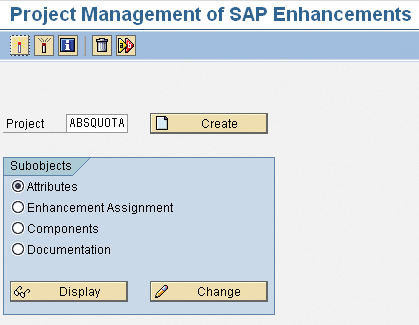
Figure 1
To implement a user exit you must first create a Project
Create an Absence Quota Enhancement Project
To implement the user exits I discuss, you first must create an enhancement implementation. After you create the absence quota user exit enhancement, you then create an enhancement project by accessing transaction CMOD. In transaction CMOD, enter a project name such as ABSQUOTA and click the Create button (Figure 1). On the Attributes screen, enter a Short Text for the project, click the Enhancement Assignments button and then assign enhancement HRPTIM03 (Figure 2).
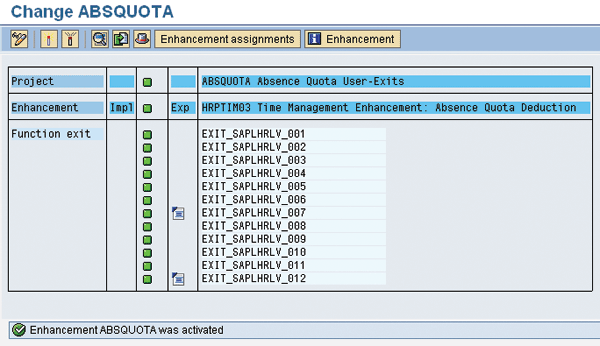
Figure 2
List of user exits assigned to the HRPTIM03 enhancement
After you have created the enhancement project, you can view each of these user exits from transaction CMOD by accessing the components assigned to the enhancement project. Alternatively, you can find this enhancement in the absence quotas configuration by following IMG menu path Time Management > Time Data Recording and Administration > Managing Time Accounts Using Attendance/Absence Quotas > Calculating Absence Entitlements > Rules for Generating Absence Quotas > Develop Enhancements for Quota Type Selection.
In addition to the absence quota user exits I discussed earlier, SAP ERP HCM delivers the following Business Add Ins (BAdIs):
- PT_QUOTA – Automatic absence quota Generation
- PT_QUOTA_DEDUCTION – Quota Deduction
- PT_QUOTA_DEF_VAL – Default Values for Quotas
To keep the article simple, I focus exclusively on the user exits.
User Exits
The absence quota deduction enhancement HRPTIM03 contains the user exits listed below:
- Quota selection rule applicability
- Re-evaluate accrual entitlement
- Rules for reducing quota entitlement
- Re-evaluate base entitlement
- Modify transfer specification
- Re-calculate entry and leave dates
- Determine record validity default values
- Set quota type selection rule group (QUOMO)
- Quotas default values
- Calculate the validity and deduction interval when using quota corrections
- Override the validity and deduction interval
- Modify the accrual period
Note
It is important to confirm that the absence quotas are generated correctly before attempting to modify their behavior via user exits.
User Exit #1: Quota Selection Rule Applicability
An employee’s organizational assignment may make him or her eligible to receive a diverse number of absence quota types. The configuration object you use to perform quota eligibility determination is called a quota type selection rule. The selection rules are configured by following IMG menu path Time Management > Time Data Recording and Administration > Managing Time Accounts Using Attendance/Absence Quotas > Calculating Absence Entitlements > Rules for Generating Absence Quotas > Define Generation Rules for Quota Type Selection (Figure 3).
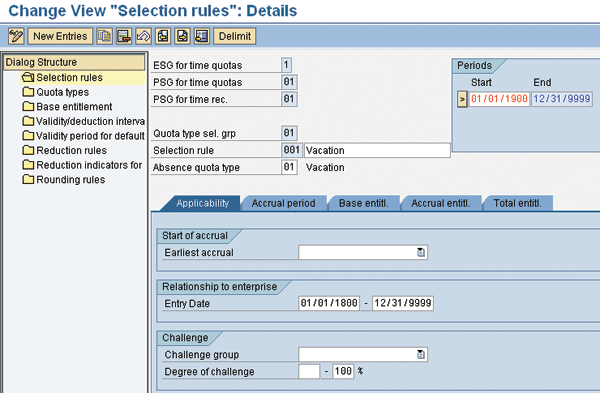
Figure 3
Quota selection rules are used to customize quota eligibility rules
With user exit #1, you can implement additional quota eligibility logic. For example, you can use this user exit so that hourly employees who joined your company as a result of a merger can be eligible for a special absence quota. To allocate this absence quota type to these hourly employees, you must set up the absence quota type to be available to all hourly individuals and then use this user exit to implement your custom logic to determine whether or not the employee meets the criteria for this absence quota type (Figure 4).
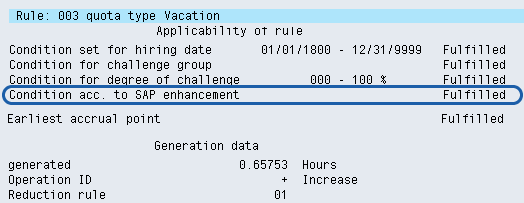
Figure 4
Time evaluation log showing the result of the user exit condition check
This user exit has access to the following information: personnel number, start and end date, and the contents of table T559L specific to the employee type being processed. Additionally, infotypes 0000, 0001, 0002, 0007, 0008, 0019, and 0041 as well as the employee’s hire and termination dates (in structure PHIFI) are available.
User Exit #2: Re-Evaluate Accrual Entitlement
An absence quota’s accrual entitlement is the amount of absence quota calculated for a period of time. You can use the re-evaluate accrual entitlement user exit to calculate the accrual entitlement allocated to an employee using your own logic. This user exit is triggered during time evaluation as well as during manual absence quota creation.
This user exit’s starting point is the accrual entitlement generated by standard customizing settings. You can then choose to make small modifications to the entitlement or you can disregard the calculated entitlement and re-calculate it completely using custom logic (e.g., if you wanted to calculate the accrual entitlement according to the values in a custom infotype).
The user exit has access to the following data: personnel number, quota type, accrual period, accrual entitlement, as well as infotypes 0000 (Personnel Actions), 0001 (Organizational Assignment), 0002 (Personal Data), 0007 (Work Schedule), 0008 (Basic Pay), 0019 (Monitoring of Tasks), and 0041 (Date Specifications).
User Exit #3: Rules for Reducing Quota Entitlement
A reduction rule is a quota configuration item you use to influence the way a quota entitlement reduces according to certain employee circumstances. For example, you may want to reduce the calculated entitlement when a person goes from being a full-time employee to working part time.
User exit #3 allows you to use your own logic to complement or replace the base entitlement calculated standard reduction rules. The system-generated entitlement amount is stored in the parameter accrual base entitlement (XQTNUM) user exit. You can trigger this user exit via the absence quota manual generation process and still have access to the contents of time evaluation tables SALDO (period balance) and ZES (daily balance). The following data is available to this user exit: personnel number, quota type, reduction rule, accrual period, and the calculated accrual entitlement.
User Exit #4: Re-Evaluate Base Entitlement
The term base entitlement represents the total entitlement an employee is eligible to receive in a set period of time (i.e., base period). For example, if an employee is eligible to receive 20 days of vacation between January 1 and December 31, then the 20 days of vacation represent the base entitlement and the period of time between January and December represents the base period.
Use absence quota user exit #4 to modify the calculation of the base entitlement and/or the base period as a constant either from table T559E (Figure 5) or as calculated by time evaluation. For example, you can use this user exit if you wish to take into account the employee’s date of birth in the calculation of the base entitlement or base period. This enhancement is triggered when the quota record is manually or automatically (via time evaluation) created.
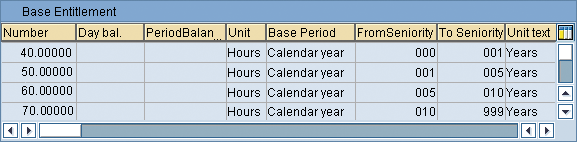
Figure 5
User exit #4 allows you to modify the base entitlement and period
User Exit #5: Modify Transfer Specification
Absence quotas can be generated manually and automatically (via time evaluation). When absence quotas are calculated during time evaluation, the quota amount calculated is not immediately transferred to the absence quota infotype, but is stored until the transfer time is reached. This transfer time is known as the transfer date.
User exit #5 is triggered during time evaluation and you can use it, for example, to trigger an absence quota transfer on an irregular schedule. This user exit is commonly used to override the transfer date in order to transfer the accrued entitlement on an employee’s termination date.
This user exit has access to the absence quota entitlement generated by time evaluation as well as the daily and periodic time balances stored in tables QTACC, ZES, and SALDO.
User Exit #6: Re-calculate Entry and Leave Dates
Sometimes it is necessary to include an employee’s hire date to properly calculate the absence quota entitlement. The SAP system delivers standard functionality you can use to calculate hire dates. If you need to calculate an employee’s hire date based on data not supported by the standard system configuration, implement user exit #6. For example, you may want to give an employee credit for years of service at a previous company after a merger.
This user exit is triggered by time evaluation as well as by manual absence quota generation. The system calls this user exit before performing the appropriate start and end date calculations for the absence quotas according to the customization settings in table T559D.
User Exit #7: Determine Record Validity Default Values
Absence quotas are valid for a set period of time. For example, you may grant your employees an absence quota entitlement for a calendar year. On the other hand, you may only want employees to use this absence quota during a certain period of time. For instance, you may generate a personal holiday quota record on an employee’s birthday, May 1. To limit the employee to using this personal holiday only on his or her birthday, you can set the validity date from May 1, 2010, to May 1, 2010 (one day), but the deduction period could be May 1, 2010, to April 30, 2011 (Figure 6). These two dates are related but do not have to match. A company may want to know when the leave was granted (e.g., May 1) but may give the employee a whole year to use the quota.
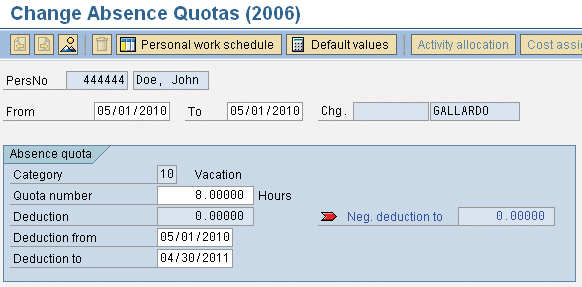
Figure 6
Absence quota validity and deduction Intervals
The configuration for the absence quota validity intervals is stored in table T559V (Validity Period: Absence Quotas for Default Values), which you can access by following IMG menu path Time Management > Time Data Recording and Administration > Managing Time Accounts Using Attendance/Absence Quotas > Calculating Absence Entitlements > Setting Up Methods for Quota Accrual > Determine Default Values for Hiring > Set Validity Interval for Quota Accrual.
You can use user exit #7 to calculate the default and validity interval dates using company-specific logic. This user exit is triggered only during manual generation of absence quotas. Additionally, SAP provides sample user exit code for the following scenario: If an employee leaves the company during the validity period and rejoins the company within one year, you must set the validity of the quota as the re-entry date and not the start of the validity period.
User Exit #8: Set Quota Type Selection Rule Group (QUOMO)
The quota rule group is a configuration object used to identify the different absence quota types for which an employee may be eligible. SAP provides multiple ways to assign a rule group to an employee such as the QUOMO feature or operation MODIF Q=<Rule Group> in time evaluation.
You can access the rule group selection configuration via IMG menu path Time Management > Time Data Recording and Administration > Managing Time Accounts Using Attendance/Absence Quotas > Calculating Absence Entitlements > Rules for Generating Absence Quotas > Specify Rule Groups for Quota Type Selection.
Sometimes, however, the rules for selecting the quota rule group cannot be set up using standard configuration. In this scenario, you can use absence quota user exit #8 to set the rule group using company-specific logic. This user exit is triggered when you create a quota record manually or during time evaluation via time function QUOTA. For example, if you need to include information in a country-specific infotype as part of the determination of the rule group, you may want to use this user exit. The user exit has access to the absence quota generation date, the quota modifier calculated by the system (via feature QUOMO), as well as data from infotypes 0001, 0007, 0008, and 0016.
User Exit #9: Quotas Default Values
You can use this user exit to override the quota accrual amount calculated by standard absence quota configuration (Figure 6). Be aware that this only applies to the manual generation of absence quotas and not automatic generation via time evaluation. The user exit has access to the personnel number, quota valid-from date, valid-to date, and the table of the generated quota records.
User Exit #10: Calculate the Validity and Deduction Dates When Using Quota Corrections
As I discussed earlier, absence quotas can be generated automatically by time evaluation. You can then use infotype 2013 (Quota Corrections) to adjust the quota amount generated by time evaluation. You could, for example, use infotype 2013 to manually increase the amount of absence quota calculated automatically by time evaluation.
You can modify the validity and deduction dates of infotype 2013 with user exit #10.This user exit, which is only triggered when time evaluation processes a quota corrections (IT2013) infotype, allows you to modify the following values:
- Accrual point for leave entitlement (function module parameter ACCFR)
- Period parameter (AFREQ)
- Date type (ACCDT)
- Relative position (ACCRV)
- Time/Measurement Unit (ACCRU)
- Time of transfer to leave entitlement (LVPER)
- Period parameter (LFREQ)
- Date type (LVDAT)
User Exit #11: Override the Validity and Deduction Interval
The deduction interval specifies the date range in which an absence quota infotype can be deducted. User exit #11 modifies the deduction dates calculated by the system. The absence quota infotype record from and to dates represent the validity period of the quota. For example, a quota record could be valid for a calendar year (January 1 through December 31) but the deduction interval could be set to July 1 through December 31, limiting the employee to only use the quota in the second half of the year.
The configuration for the determination of validity and deduction periods is stored in table T559D (Validity Period: Absence Quotas for Default Values), which you can access by following IMG menu path Time Management > Time Data Recording and Administration > Managing Time Accounts Using Attendance/Absence Quotas > Calculating Absence Entitlements > Rules for Generating Absence Quotas > Determine Validity and Deduction Periods.
User Exit #12: Modify the Accrual Period
The SAP ERP HCM system uses the absence quota accrual period to calculate quota entitlements. The system then uses the end date of the accrual period as the generation date for the absence quota. For example, if you identify a monthly accrual period for an absence quota then the system calculates the employee’s quota amount at the end of the month.
The purpose of this user exit is to override the quota corrections accrual date calculated by the system based on the accrual period settings from table T559L. You can use data from infotypes 0000 (Personnel Actions), 0001 (Organizational Assignment), and 0041 (Date Specifications) to calculate your own accrual period end date. A common scenario for using this user exit is to adjust the accrual end date when an employee leaves the organization.
You can access the configuration for the accrual period by following IMG menu path Time Management > Time Data Recording and Administration > Managing Time Accounts Using Attendance/Absence Quotas > Calculating Absence Entitlements > Rules for Generating Absence Quotas > Define Generation Rules for Quota Type Selection > Selection Rules.
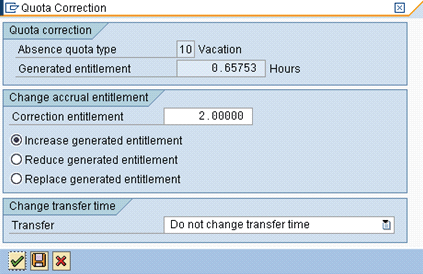
Figure 7
The Quota Correction infotype allows you to modify the automatic accrual specifications
Manuel Gallardo
Manuel Gallardo is the director of HCM consulting at /N SPRO. He is a former SAP platinum consultant and his area of expertise is SAP HCM enterprise architecture, SuccessFactors, and enterprise mobility. Since working on his first SAP implementation in 1994, he has also worked on a wide variety of SAP HR modules, as well as SAP NetWeaver Portal and ABAP development. Manuel is the author of Configuring and Using CATS, and is a frequent conference speaker.
You may contact the author at manuel.gallardo@n-spro.com.
If you have comments about this article or publication, or would like to submit an article idea, please contact the editor.