Discover how to include entry pages that contain key information for the end user’s daily work in the user’s roles. See how to attach side panels to those transactions that the user works with within that role. Understand how to use the CHIPs that SAP delivers within the entry pages and side panels and how to configure these CHIPs to meet the needs of your end users.
Key Concept
An entry page is the initial screen that the end user sees in the canvas area of the SAP NetWeaver Business Client. A side panel is an additional screen to the right of the canvas area that contains the main transaction that the user is processing. Access to both entry pages and side panels is controlled by the user’s role. Both entry pages and side panels can contain CHIPs. According to the documentation, a CHIP (Collaborative Human Interface Part) is an encapsulated piece of software that, together with other CHIPs, provides functions on a page or side panel of the Web Dynpro ABAP Page Builder. To put it simply, CHIPs provide access to snippets of information, such as the attributes of a cost center, the expenses on an internal order, or a note created to document a posting. A CHIP catalog provides access to all CHIPs delivered by SAP. Users can add CHIPs to their entry pages and side panels as they see fit.
The SAP NetWeaver Business Client (NWBC) provides a new look to your SAP ERP system by offering role-based access to the transactions that the user is authorized to perform. Figure 1 shows a classic transaction (KB31N) running within the framework of SAP NWBC.
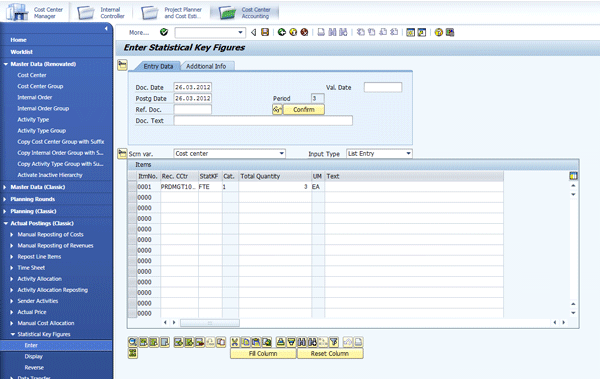
Figure 1
A sample transaction running in SAP NWBC
You see a shell area on the left that contains the menu structure, as well as generic functions, such as system connection and search. A canvas area on the right contains the screen for the transaction that the user is performing. In my example, I use the role Cost Center Accounting (selected at the top of the screen) and navigate through the menu structure on the left to transaction KB31N (Enter Statistical Key Figures). If you aren’t yet working with SAP NWBC, you can find instructions for installing and operating this client in SAP Note 1029940.
In enhancement package 5 for SAP ERP 6.0, SAP enhanced all delivered portal roles and automatic roles to allow them to run within SAP NWBC without the need for the portal infrastructure that used to be required to handle navigation. To check which automatic roles SAP delivers, refer to SAP Note 1000291. I discuss use of these roles in my article, “Should Your Financials Team Consider the Portal?” Although my description in that article of how to maintain roles is still relevant, from enhancement package 5 on you no longer need to update these roles to the portal. Instead, you can assign the roles maintained in transaction PFCG (Role Maintenance) to your users using transaction SU01 (User Maintenance). In my experience, this takes a lot of the fear out of modernizing the user experience.
In enhancement package 6 for SAP ERP 6.0, SAP offers entry pages for many of the delivered roles and side panels to enhance the transactions within those roles. I explore these enhancements using the role for Cost Center Accounting (SAP_EP_RW_CO_KSMN). For details of the settings for the other transactions included in this role, refer back to “Should Your Financials Team Consider the Portal?”
Entry Pages
Let’s start by looking at what a user working with the enhanced Cost Center Accounting role would see when accessing the SAP NWBC. Figure 2 again shows the shell area with the folders included in the Cost Center Accounting role. However, instead of seeing a transaction in the canvas area, this time you see a number of CHIPs that contain information relevant to this role. These CHIPs provide quick access to existing transactions and reports, and to master data such as the cost center (transaction KS03), the activity type (transaction KL03), and the statistical key figure (transaction KK03). They also provide a couple of simple reports that show the situation for the cost centers for which this user is responsible. These reports access the data in SAP ERP in real time and require you to implement the business function for Simplified Reporting (FIN_REP_SIMPL_4) in addition to the side panel business function.
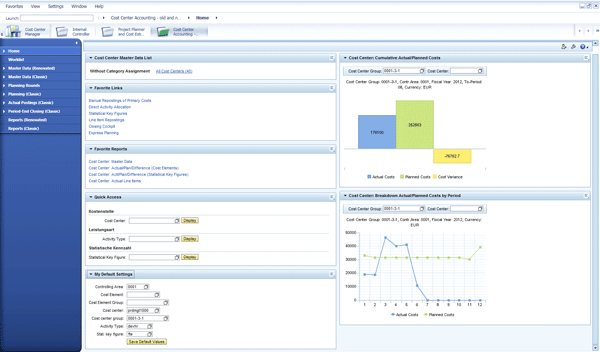
Figure 2
A delivered entry page for Cost Center Accounting
Most users agree that this is a more appealing way to start the day than with what many of them are used to, but the best thing about the entry pages is that end users can easily configure them. To change the look of the page, choose the personalize page icon in the top right-hand corner of the page. Click the Add button in Figure 3. In the CHIP Catalog box you can choose a CHIP to add to the page. In the CHIP catalog you can choose between application-specific CHIPs, such as those for the internal orders or investment orders, or generic CHIPs, such as those for Collaboration or Shared Service Center. In this example, add the list of open service requests for the Shared Service Center to your entry page.
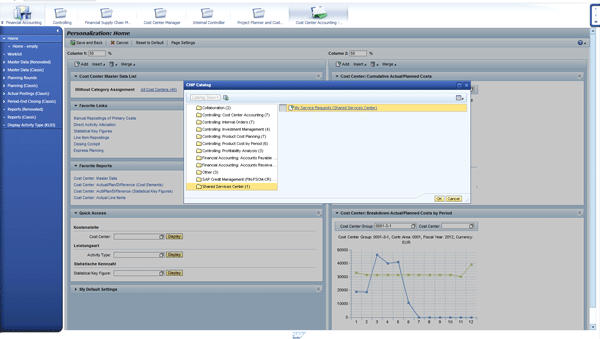
Figure 3
Choose a CHIP for the entry page from the delivered CHIP catalog
Figure 4 shows the new entry page after you add a new CHIP to it. If you like the result, click the Save and Back button to save your settings or click the Add button to include more CHIPs.
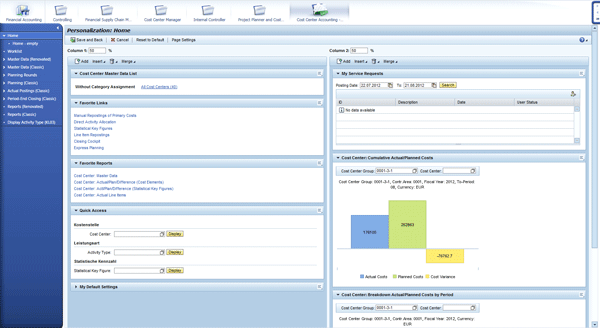
Figure 4
A newly personalized entry page
Now I show you how to enhance the transactions included in the role by adding side panels.
Side Panels for Master Data
First, look at the repost line-item transaction (KB61). To navigate to this transaction follow menu path Actual Postings (Classic) > Enter > Repost Line Items. To select the relevant line items, fill out the selection parameters and choose the execute icon (not shown). A list of documents appears along with the original account assignments, as shown in Figure 5. This is when many users open a second session to check details of the account assignment and perhaps even the cost element before making the reposting. The side panel allows the users to access this information in context, without having to open a second session, and re-enter the selection parameters to identify the relevant cost center or cost element.

Figure 5
Repost a line-item transaction
If a side panel exists for the transaction, an arrow lets the user know that additional information is available for this transaction. For the list view there is no such arrow, but as the user switches from the list view to the row view by double-clicking the item to be reposted, they see this arrow. This might seem a little confusing, so let me explain. It is not possible for the system to pass the parameters for every posting in the list to the side panel, but it is possible to pass the parameters for the single row selected within that list. When you have the row view, to display the side panel for the item to be reposted, click the arrow in the far right of the screen.
Figure 6 shows the side panel for the reposting transactions and the master data CHIP. The master data CHIP shows the cost element details and cost center details for both the old and the new cost center. This feature works because the relevant fields in transaction KB61 are tagged so that the keys of the cost element and the two cost centers can be passed as selection parameters from the row view of the transaction to the side panel. This tagging allows the system to access the relevant information from the master data. As you work through the list of the line items to be reposted, the contents of the side panel change.
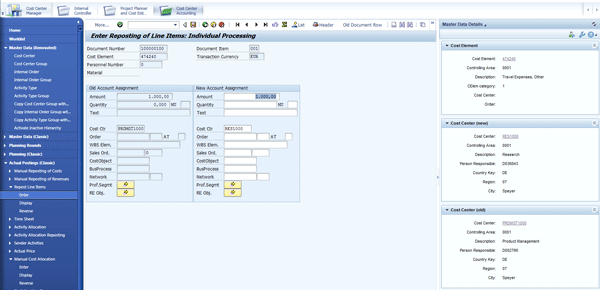
Figure 6
The side panel for reposting a line-item transaction
The contents now show the cost element and the two account assignments for each posting. If you look closely at the side panel, you notice that the same icons that appear in the entry page also appear in the top right-hand corner of the side panel. Because you are unlikely to work with every account assignment (e.g., cost center, order, Work Breakdown Structure [WBS] element, and so on) used in KB61, you might use the personalization settings to remove those account assignments from the master data panel that are not used in your organization.
The same master data panels are offered in the context of many transactions. Figure 7 shows the same master data CHIP being used for transaction KB31N (the statistical key figure posting). Again, note that the key for the cost center is passed to the CHIP along with the key for the statistical key figure (e.g., full-time equivalent [FTE]). You also see empty CHIPs because the screen variant I use includes cost centers and statistical key figures only. If I were to shift to a different screen variant, then the cost center CHIP might be empty, but the order master data would receive parameters. Again, you probably want to remove account assignments that your organization does not use from the side panel.
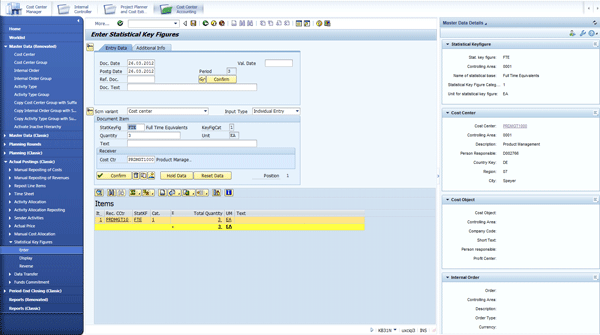
Figure 7
The master data side panel for statistical key figure posting
As you think about adding CHIPs to your side panels, it’s important to understand which fields in the transaction are tagged to communicate with a side panel. From enhancement package 6, Support Package 5, when you add a CHIP from the CHIP catalog, the system checks which fields are tagged in your transaction and sets a star to indicate whether this CHIP is relevant for your transaction (Figure 8). This shows, for example, that the controlling area and cost centers are tagged within the transaction, but the futures account is not.
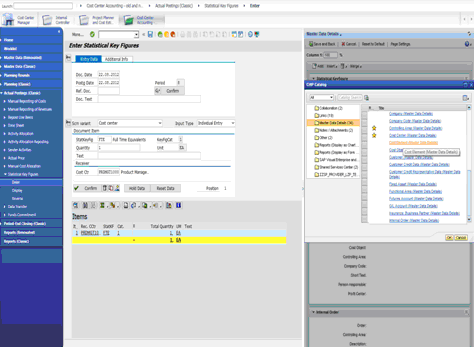
Figure 8
The CHIP catalog with the relevancy star
Side Panels for Reports
Master data is by no means the only thing that you can include in side panels. Before updating a statistical key figure, you might also want to check the current number of FTEs on the cost center. To complete this process, click the triangle to the right of Master Data Details (Figure 8) and choose Reports. Now the title switches from Master Data to Reports and a list of reports relevant in the context of statistical key figure maintenance appears as shown in Figure 9.
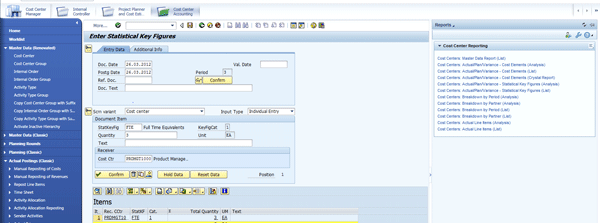
Figure 9
The report side panel for statistical key figure posting
If you choose one of the reports in the list, you see a detailed report for the FTEs on your cost center (Figure 10). Again, this data is being accessed in real time from the tables in the controlling application.
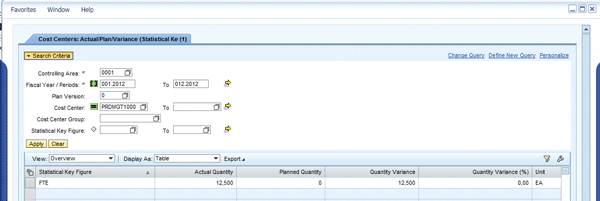
Figure 10
A report showing statistical key figures
One noteworthy point is that you need to know what other dependencies affect whether a side panel works for you. From enhancement package 6, Support Package 5 documentation is available for each CHIP. Figure 11 shows what details are available for one of the reporting CHIPs. It shows the tagged fields (in this case, controlling area and cost center) and the dependencies in terms of other business functions (in this case, the business functions for Simplified Reporting that you also saw in the entry page).
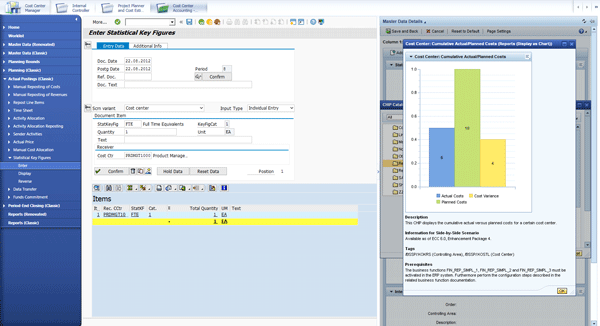
Figure 11
CHIP documentation
Side Panels for Notes/Attachments
In addition to helping users to complete a reposting, side panels can also be used to record why the posting was necessary. Figure 12 shows additional documentation associated with a correction posting (transaction KB13N). In this example, I include a note explaining why the reposting was necessary and upload an attachment that documents the rationale behind the reposting decision. This information is attached to the document number and, if it is a public note, is available to anybody else who displays that document. Therefore, this process is a good way to document any extraordinary posting. Keep in mind that this document is stored with reference to the document number of the posting document, so anybody who views this document via SAP NWBC can potentially see the public note.
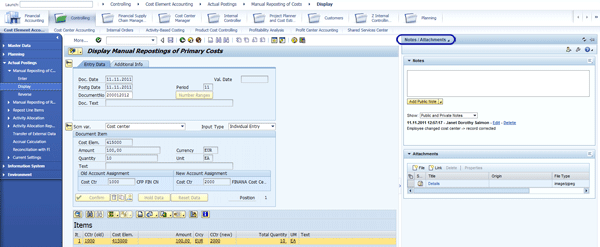
Figure 12
The notes side panel for manual reposting
Side Panels for Web Services
Besides the ERP-based CHIPs, I recommend that you also consider the use of Web services to access external information from within your FI and CO transactions. These services are useful in FI to allow you to display, for example, an address look-up for your customer on Google Maps or a Google Search for the name of your customer. They are also a great way to create mash-ups that mix the old — in the form of the customer master data transactions — and the new — in the form of the Web services that most users are familiar with from their everyday Web browsing activities. To provide you with a taste of where you can take this kind of mash-up, take a look at the address data in transaction KS02 (change cost center). To access the list of available Web services, click the triangle to the right of Notes/Attachments (Figure 12) and choose Web Services, then choose the Web Services (Cost Center) CHIP in the side panel (Figure 13).
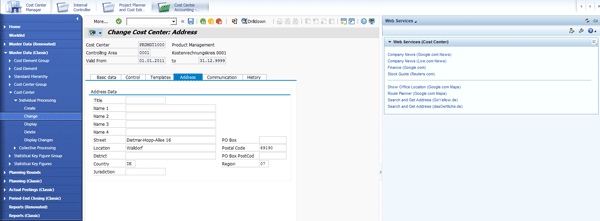
Figure 13
Web services for cost center transaction (KS02)
As you choose Show Office Location (Google.com Maps), the system passes the address parameters for SAP’s Headquarters in Walldorf from the Address tab in transaction KS02 to Google, giving you the sort of link your end users are familiar with from their everyday Internet life (Figure 14).

Figure 14
Transfer of an address to Google Maps
In total, SAP delivers 70 reusable CHIPs, including the analytic CHIPs. Although I looked at the use of side panels for three transactions in Controlling, the scope of this article is not limited to Managerial Accounting. More than 600 transactions are available for Controlling, Financial Accounting, Financial Supply Chain Management, and Treasury, in enhancement package 6, Support Package 0 and SAP is adding more CHIPs for most parts of the SAP Business Suite in enhancement package 6, Support Package 4.
How to Activate Entry Pages
After looking at the enhancements from the perspective of the end user, I now want to explain how to work with your system administrator to include such entry pages and side panels in your existing roles. In most cases, you won’t be working with the SAP role SAP_EP_RW_CO_KSMN directly, but you define your own roles for compliance purposes. Once you know where the entry pages are, you can easily copy these entry pages into your roles and link your roles with the relevant side panels.
Let’s start with the entry page. To display the SAP role, call transaction PFCG (Role Maintenance) and enter the role ID SAP_EP_RW_CO_KSMN. Press Enter. Figure 15 shows the folder structure for role SAP_EP_RW_CO_KSMN. I first look at the entry page, so open the top folder, Home Page, and display the details of the Web Dynpro application home page (WDR_CHIP_PAGE). This is the generic Web Dynpro application for all entry pages. To see the configuration specifically for Cost Center Accounting, right-click the Home Page application to see the Application Configuration CO_KSMN_HOME. It is this application configuration that contains the settings for the entry page shown in Figure 1. You can use the page builder settings to configure this page with the CHIPs that best meet the needs of your organization.
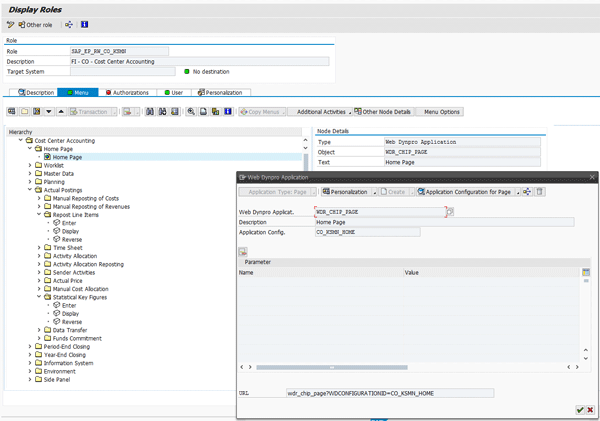
Figure 15
Role folders with settings for an entry page
To use these settings to call up your own role for Cost Center Accounting, choose Copy Menu > From Another Role and enter the role ID SAP_EP_RW_CO_KSMN. From the dialog box shown in Figure 16, select the Home Page settings. You also notice a folder Side Panel. This folder is a sample implementation for the use of side panels, but it works only within the context of the delivered role, so ignore this folder for the moment.

Figure 16
The copy function for a Cost Center Accounting role
Once the home page is part of your role, your main job is to introduce your end users to the main functions. To make sure that they don’t see empty reports, make sure to introduce them to the My Default Settings part of the screen (as shown in Figure 2) and explain how to enter the cost centers, activity types, and statistical key figures for which they are responsible, because these are passed to the CHIPs as starting parameters. Once the users update these settings, they can collapse the tray by clicking the small arrow to the left of the title bar.
Now that you have added the entry pages, you are ready to learn how to activate the side panels.
How to Activate Side Panels
To use the side panel functions you need to install SAP NWBC version 3.5 or later. Note also that the side panels require you to install SAP NWBC on your users’ desktops. The HTML or browser version is not supported. You can find the latest versions of the SAP NWBC on the SAP Service Marketplace.
The side panels are delivered from SAP enhancement package 6 for SAP ERP 6.0 as part of the business function ERP_CA_SIDEPANEL (Side Panel for Business Suite). If your organization likes the idea of side panels, but doesn’t have an upgrade on the horizon, refer to SAP Note 1691206 for details of how to work in a side-by-side scenario, leaving your ERP system on its current release but operating the side panels from a more up-to-date SAP NetWeaver server.
The best place to start to explore the side panels that SAP delivers is to use transaction PFCG to look at the contents of role SAP_BSSP_FI_CO_FSCM. This role includes the side panels for Financial Accounting, Controlling, and Financial Supply Chain Management (Figure 17). Once you have checked the transactions with mappings to side panels included in the role, assign this role to your end users. Side panels automatically are displayed for every transaction that they are authorized to use in SAP NWBC. Thus, there is minimum disruption to your existing business.
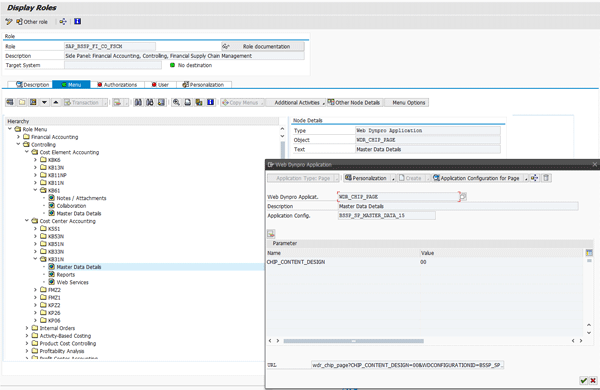
Figure 17
Side panel settings in role SAP_BSSP_FI_CO_FSCM
Notice that transaction code KB61 offers the side panels Notes/Attachments, Collaboration and Master Data Details, whereas transaction KB31N (statistical key figure posting) includes the side panels Master Data Details, Reports, and Web Services (as I explored for transaction code KS02) that are assigned to this role. As you open the folders for different transactions, you see that different side panels are attached to each transaction.
With more than 70 CHIPs to choose from in SP0 and 100 CHIPs to choose from in SP4, exploring the delivered CHIP catalog and embedding these CHIPs in entry pages and side panels represents a quick and easy way to update the look and feel of your ERP system. In Financials alone, 613 transactions already have side panels attached. The exceptions are typically those transactions for which a tagging is not possible such as a write list. Enjoy the journey.
Janet Salmon
Janet Salmon joined SAP in 1992. After six months of training on R/2, she began work as a translator, becoming a technical writer for the Product Costing area in 1993. As English speakers with a grasp of German costing methodologies were rare in the early 1990s, she began to hold classes and became a product manager for the Product Costing area in 1996, helping numerous international organizations set up Product Costing. More recently, she has worked on CO content for SAP NetWeaver Business Warehouse, Financial Analytics, and role-based portals. She is currently chief product owner for management accounting. She lives in Speyer, Germany, with her husband and two children.
You may contact the author at janet.dorothy.salmon@sap.com.
If you have comments about this article or publication, or would like to submit an article idea, please contact the editor.