Discover how using a well-planned approach for configuring SAP BusinessObjects Planning and Consolidation, version for SAP NetWeaver can also serve as the starting point for troubleshooting system-related problems that can arise.
Key Concept
Troubleshooting consists of the ability to apply debugging and logging techniques to technical problems caused by inconsistent configuration. If you understand common configuration issues, you can quickly resolve them and optimize system performance.
Debugging, logging, and tracing are the tools you need to troubleshoot errors that can disrupt workflow and productivity. When moving to SAP BusinessObjects Planning and Consolidation, you can help your company avoid common technical problems, such as incorrect server or message queue configuration, by using a well-planned and comprehensive approach to setting up and installing the application. To ensure that SAP BusinessObjects Planning and Consolidation performs as desired, we cover six steps to check for common issues. These six steps cover critical points in the application that if configured incorrectly, can lead to a sub-optimal system.
Note
Two SAP BusinessObjects Planning and Consolidation platforms are currently available: SAP BusinessObjects Planning and Consolidation 7.0, version for the Microsoft platform and SAP BusinessObjects Planning and Consolidation 7.0, version for SAP NetWeaver. For the purposes of this article, we focus on the version for SAP NetWeaver.
The first thing to realize when troubleshooting is that most issues within the system exist because of improper configuration. Most of the configuration options for SAP NetWeaver Application Server systems for ABAP (SAP NetWeaver AS ABAP) are pretty well known to SAP NetWeaver administrators (e.g., RZ10 default and instance profile parameters). However, because the architectural tier of the application includes the Microsoft .NET Server tier, you need to know how to configure the Windows operating system parameters and SAP BusinessObjects Planning and Consolidation parameters on this server.
When your users encounter problems on the.NET Server tier — for example, the process dimension in the BPC Admin Console is hanging — you need to go back to make sure you have accurately configured the .NET Server. We developed a six-step checklist (based on our experience) that guides you logically and methodically through the existing configuration settings:
Step 1. Run server diagnostics via Server Manager
Step 2. Make sure all the COM+ components exist and are running
Step 3. Make sure the librfc32.dll is deployed
Step 4. Check the Microsoft IIS Web Server port
Step 5. Check the ServerConfiguration.config for the correct user name and password
Step 6. Check the Windows host file for a qualified domain name
All system administrators should do these basic checks to ensure their SAP systems are installed and configured properly.
Step 1. Run Server Diagnostics via Server Manager
When a user encounters system problems, your first line of defense is Server Manager. Launch Server Manager by logging in to the Microsoft .NET Server operating system and navigating to the ServerManager.exe file located in the <BPC_SERVER>Server Management folder. Select Server > Diagnostic to open the Server Diagnostic window (Figure 1).

Figure 1
Check the first-level system parameters using server diagnostics
The server diagnostics performs a quick check of the SAP BusinessObjects Planning and Consolidation installation and configuration to ensure that all tiers of the architecture (Microsoft .NET Server and ABAP) can communicate with each other. For example, in Figure 1, SAP Server Connection has a green check mark, which means that the Microsoft .NET Server can successfully connect to the back-end SAP NetWeaver AS ABAP. All the configuration and connections are green except SAP Components, which is flagged with a red X. To drill into more details about the errors, you can expand the item flagged with a red X. In this example, the error might stem from the .NET Server and ABAP system being on different Support Package levels, which is an unsupported configuration by SAP.
A log stores the server diagnostics output. To view the diagnostics log, open the log, which is typically located at <BPC Server>Server ManagementOsoftDiagnostic.txt. This is a special log that is not located in the typical logging folder (described in the April 2009 article on logging and tracing). You access the log from the Server Manager folder using a text editor, such as Notepad.
This log file shows the information that is available in the Server Diagnostic window (Figure 1). You only need to launch this log manually if you have issues launching Server Manager.
Before going to step 2, ensure that all your checks in the server diagnostics are green. Typically, the resolution to your issues becomes apparent as you drill into the error.
Step 2. Make Sure All the COM+ Components Exist and Are Running
COM+ is an extension of Component Object Model (COM), Microsoft’s strategic building block approach for developing application programs. SAP BusinessObjects Planning and Consolidation uses some COM+ components that are critical to the product operating as desired.
If the initial diagnostics log provides the information you need to address the issue you are troubleshooting, you can move to the next major area in which you may find incorrect configuration ? COM+ components.
To view COM+ components, log in to the operating system of the Microsoft .NET Server and then follow menu path Control Panel > Administrative Tools > Component Services. Next, follow menu path Component Services > Computers > My Computer > COM+ Applications, and then expand the COM+ Applications node to display the list of COM+ components (Figure 2).

Figure 2
COM+ components
You have two checks you can carry out with COM+ components:
- Check that the required COM+ components exist
- Check that the COM+ components can be started
Refer to the Component Services screen — which shows the installed COM+ components on SAP BusinessObjects Planning and Consolidation 7.0, version for SAP NetWeaver, Support Package 02 — to check whether the correct COM+ components exist (Figure 2). If you see a few of them, then you’re OK. If you don’t see any COM+ objects starting with OSoft, then these were not successfully installed during your SAP BusinessObjects Planning and Consolidation installation and you need to reinstall the application. One of the primary reasons why they weren’t installed is that a virus checker was running during installation. To fix the issue, disable your virus checker during the installation.
Note
The list of COM+ components may change with subsequent Support Packages.
To check whether the system can start the COM+ components, right-click COM+ Applications in Figure 2 and choose Start from the context menu. The COM+ components should appear in the Running Processes folder (Figure 3).

Figure 3
List of running processes
The COM+ component becomes a running process once it has been started. If the COM+ component doesn’t become a running process because it fails to start, then this is most likely due to a credentials issue — for example, if someone changed the password of the administrator that was used during the application installation. In this situation, log in to Server Manager and choose Server > Reset COM+ Credentials.
Step 3. Make Sure the Librfc32.dll Is Deployed
When you are sure that the COM+ components are configured, your next task is to check whether the SAP NetWeaver AS ABAP stack can communicate with the .NET Server. This communication occurs through the SAP-provided Remote Function Call library (librfc32.dll), which is one of the prerequisites for running SAP BusinessObjects Planning and Consolidation. We’ve found that organizations forget to deploy this sometimes, which can be a common cause for errors.
To check whether this is installed correctly on the Microsoft .NET Server, log in to the Windows operating server and search for this file to make sure that it exists. Also, search for all dependent DLLs that are described in SAP Note 182805. For more information on this file, see the five-step installation process we detailed in our January 2009 article on optimizing system performance.
Step 4. Check the Microsoft IIS Web Server Port
The Microsoft IIS Web Server port is the port for which communication occurs for Web requests on the Microsoft IIS Web Server. You must synchronize the Microsoft IIS Web Server port with the Web.config file for the Web Server. Follow the Windows menu path Control Panel > Administrative Tools > Internet Information Services (IIS6) Manager to launch Microsoft IIS Web Server. Right-click Default Web Site and choose Properties from the context menu.
Select the Web Site tab and look for the TCP port value (Figure 4). In the example, the port value is 1080. Write down this port, because you need to verify the port number next.
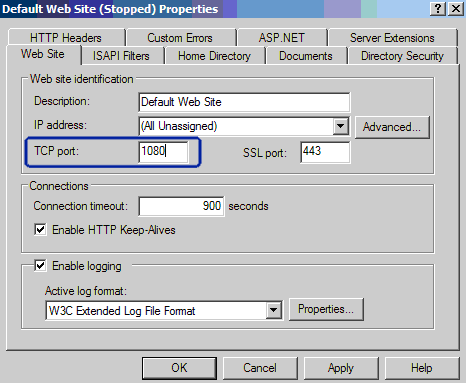
Figure 4
Note the TCP port number
Find the Web.config file at the <BPC_SERVER>WebsvrWebWeb.config location (Figure 5). Open this file in a text editor, such as Notepad. Make sure the TCP port (e.g., 1080) for the AppServer URL is correct, as shown in Figure 6.

Figure 5
Web.config location

Figure 6
Check to make sure the AppServer URL points to the correct TCP port
Note
If the port is 80, then you don’t need to specify another port in this file, because port 80 is the default port.
Step 5. Check the ServerConfiguration.config for the Correct User Name and Password
Check the ServerConfiguration.config file to make sure that the user name set during installation is valid. The ServerConfiguration.config file is located at <BPC_SERVER>WebsrvrWebServerConfiguration.config (Figure 7).

Figure 7
Check the ServerConfiguration.config file for the correct user name
Open the ServerConfiguration.config file with a text editor (Figure 8). If you need to change the user name, launch the Server Manager, switch to the Option tab, and then select Reset Login Credentials (Figure 9).
Note
The connection between SAP NetWeaver AS ABAP and the Microsoft.NET Server is specified under the <serverHost> tag. In the example, the serverHost is DEMO7A. After the installation, the Server Manager does not allow you to change the server host, client, system number (SID), and language for the connections. If you need to update the connection, you must edit the ServerConfiguration.config.

Figure 8
Edit the ServerConfiguration.config file using a text editor
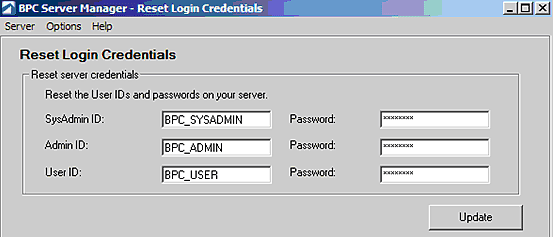
Figure 9
Reset the login credentials
Keep in mind that the users you enter in Figure 9 must be valid ABAP service users. Also, they must have the corresponding roles as described in the BPC Installation Guide located at https://service.sap.com//instguides > SAP Business Planning and Consolidation > 7.0, version for SAP NetWeaver (logon credentials required).
Step 6. Check the Windows Host File for a Qualified Domain Name
To avoid certain networking-related issues, such as the hostname to IP address resolution, make sure that the hosts file resolves the fully qualified domain name to the IP address on the Microsoft.NET Server. Navigate to the folder that contains the hosts file, typically <%WINDIR%>system32driversetc (Figure 10). Open the hosts file and make sure an entry for your host exists in this file that points to the IP address of the Microsoft .NET Server.
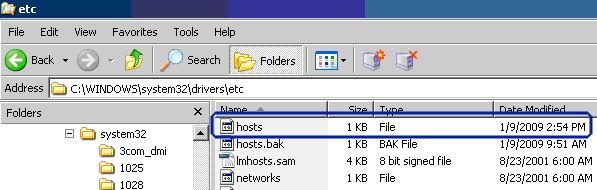
Figure 10
Location of hosts file
Prakash Darji
Prakash Darji is currently director of product management in the Enterprise Performance Management area within SAP Business Objects. In his current role as a director of product management for the SAP BusinessObjects Planning and Consolidations product, his responsibilities include inbound product management through working on the short- and longer-term roadmap for SAP's Planning Solutions, managing deliverables for multiple releases, as well as creating product specifications for innovative features and functions to differentiate against key competitors. His full bio is available at: www.linkedin.com/in/prakashdarji.
You may contact the author at prakash.darji@sap.com.
If you have comments about this article or publication, or would like to submit an article idea, please contact the editor.
Ryan Leask
Ryan Leask currently runs the SAP BusinessObjects Planning and Consolidation solution management team for SAP, based out of Palo Alto, CA. Prior to this position, he led the EPM solution architecture team with a main focus on the design of SAP BusinessObjects Planning and Consolidation 7.0, version for SAP NetWeaver. Ryan has also worked on SAP xApp Analytics, SAP NetWeaver Visual Composer, SAP NetWeaver BW, SAP SEM, ABAP, SAP CRM, analytics/data mining, and whatever else seemed interesting. He has also co-authored SAP xApp Analytics (SAP PRESS, 2006), written many articles, and presented at numerous conferences.
You may contact the author at ryan.leask@sap.com.
If you have comments about this article or publication, or would like to submit an article idea, please contact the editor.