Engage executives, management, and end users with real-time data visualizations using virtual InfoProviders and Xcelsius.
Key Concept
Using virtual InfoProviders in SAP NetWeaver BW and Xcelsius, you can carry out on-demand analysis of enterprise data in real time without the heavy lifting of data extraction or extraction, transformation, and loading (ETL). End users can build sophisticated, engaging dashboards based on data coming into transparent (Data Dictionary) tables in the SAP system.
As transactional data comes into an SAP system, you typically need to stage it via extraction, transformation, and loading (ETL) into SAP NetWeaver BW for reporting purposes. When the transactional data is created in the transparent tables, SAP NetWeaver BW extracts analytics data for management and operational reporting. A time lag exists between the time data is posted to SAP ERP tables and when the data is available in SAP NetWeaver BW for reporting and analysis.
We show you how to use a virtual InfoProvider to read the data in real time from underlying SAP ERP tables and present the data in Xcelsius for reporting. The time lag is significantly reduced because data loading is completely eliminated, thereby making the posted data instantaneously available for reporting.
The advantages of using this approach are:
- No need to run lengthy data extraction programs or complex ETL processes
- Data is available for analysis immediately as it is entered into the system
- Ability to make real-time decisions based on critical business data
However, note that Xcelsius can only handle about 500 rows of data and still maintain responsive performance (1,000 rows max). For some scenarios this may be a critical limitation. In this situation, many reports require large data sets to be pre-aggregated.
System Requirements
This scenario takes advantage of new direct SAP NetWeaver BW connections available in Xcelsius 2008 Support Pack 02 running against SAP NetWeaver 7.01 SP05. Here is a list of the system requirements you need to have in place:
- SAP NetWeaver 7.01 SP05
- SAP NetWeaver BW 7.0
- Xcelsius 2008 Support Pack 02
- SAP BEx Query Designer
- User with a developer role in transaction RSA1
Implementation Steps
There are five steps to build the Xcelsius dashboard:
Step 1. Identify the table or view required for analysis
Step 2. Create an SAP NetWeaver BW DataSource for the table/view
Step 3. Create a virtual InfoProvider based on the new DataSource
Step 4. Build a BEx query using the virtual InfoProvider
Step 5. Create the Xcelsius dashboard using the BEx Query
Step 1. Identify the Table or View Required for Analysis
First you need to determine what data you want to analyze. Using transaction SE11, find the transparent SAP ERP table or view that contains the data you want. For this example we chose a table, but you could also use a view, which is a join of two or more tables.
Step 2. Create an SAP NetWeaver BW DataSource for the Table/View
In transaction RSO2, create a new DataSource on top of the transparent table you’ve identified as the source SAP ERP table (Figure 1). Select Transaction data and click the Create button. In our case, we used one of the SAP Price Optimization for Banking tables (ZDS_MOD_GOF in this example). This table shows the goodness-of-fit measure for our modeling engines’ core parameters.

Figure 1
Source table for the new DataSource
After creating your DataSource, you should now see the Display DataSource view shown in Figure 2. Use the default SAP NetWeaver BW Source System (Master Client), which should already be defined.
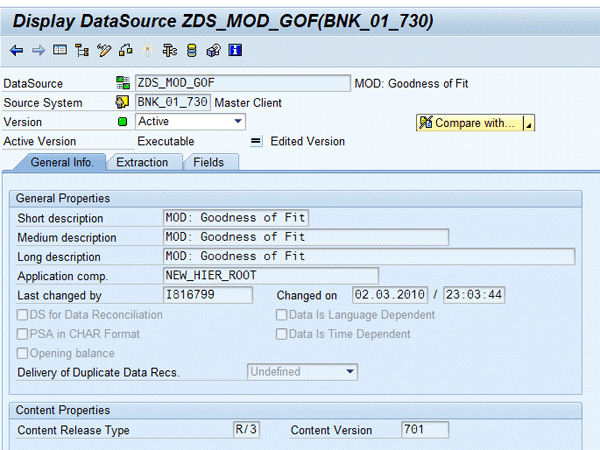
Figure 2
Define the DataSource
Under the DataSources menu in transaction RSA1, select the BW DataSources node where you created the new DataSource. Right-click the DataSource and select Replicate Metadata from the context menu (Figure 3). This process replicates the DataSource along with the extract structure into the SAP NetWeaver BW environment for further use in mappings and transformations.
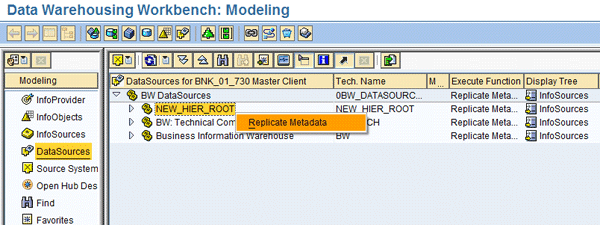
Figure 3
Replicate the DataSource
Step 3. Create a Virtual InfoProvider Based on the New DataSource
A virtual InfoProvider acts as a virtual InfoCube on top of a transparent table or other data source. Data is read in real time from the underlying source tables. It does not have a request maintenance screen as available in standard and transactional InfoCubes.
To create the virtual InfoProvider, go to transaction RSA1. Under Modeling, click the InfoProvider option. On the view on the right, right-click the appropriate InfoArea node and select Create VirtualProvider (Figure 4). We called ours Virtual Cube: Goodness of Fit. After you create the virtual InfoProvider, assign the dimensions and key figures as you would for a traditional InfoCube, based on the fields in the underlying data source.

Figure 4
Create a virtual InfoProvider
Next, create a transformation by right-clicking your new Virtual InfoProvider. Define the field mapping from the data source to the dimension fields in the InfoProvider (Figure 5).
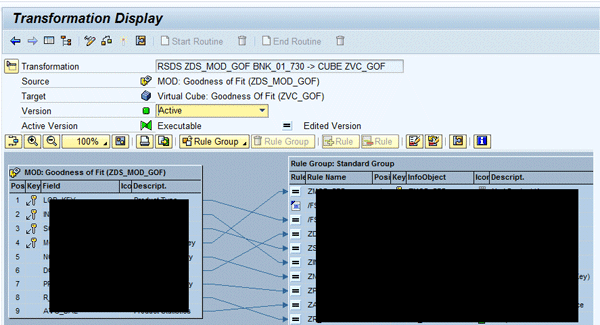
Figure 5
Transformation field mapping
Then create a new data transfer process (DTP) using Synchronous Extraction SAPI for the adapter type. Right-click the Virtual InfoProvider again and select Create Data Transfer Process. This takes you to the Display DTP view in Figure 6.
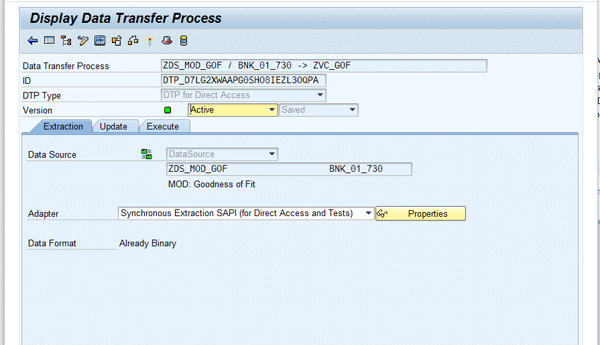
Figure 6
Create the DTP
BI Service API (SAPI) is a technology package in the SAP source system that enables the close integration of data transfer from SAP source systems into a BI system.
The SAPI allows you to:
- Make SAP application extractors available as a basis for data transfer into the BI system
- Carry out generic data extraction
- Use intelligent delta processes
- Access data in the source system directly from the BI system (Virtual Provider support)
Now that you have built the InfoProvider and its associated Transformation and DTP, the data from your transparent table will be immediately available as soon as the virtual InfoProvider is called. You can right-click the virtual InfoProvider in transaction RSA1 and select Display Data to see the data in the InfoProvider.
Step 4. Build a BEx Query Using the Virtual InfoProvider
Now you’re ready to create a query that connects to Xcelsius to grab the data for your dashboard. The query serves as a data broker between the InfoProvider and Xcelsius.
Create a BEx query using BEx Query Designer (Figure 7). This query should contain all the fields from your InfoProvider that you want to display in your Xcelsius dashboard.
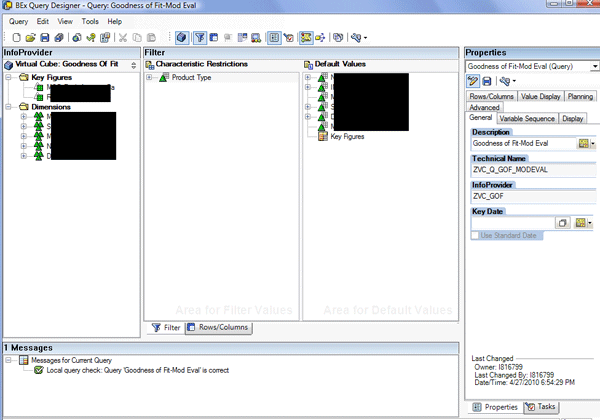
Figure 7
Create the BEx query
Now that you have the query with all your dimension and key figure fields, you’re ready to pull the query into Xcelsius.
Step 5. Create the Xcelsius Dashboard Using the BEx Query
Launch Xcelsius and go to Data > Connections or click the connections icon  . Add a new Connection and choose SAP NetWeaver BW Connection. Assign a name and click the Browse button to log into SAP NetWeaver BW (Figure 8). Import the SAP NetWeaver BW query you created in the previous step.

Figure 8
Define the Xcelsius data source
Select the cross tab (Tabellenubergreifende Daten — yes, we haven’t set up our English localization of Xcelsius. A great chance to learn German!) and click the insert in: range icon to select the area in which to write the data in Xcelsius. In our example, we have about 500 rows of data.
Once you have mapped the data, it’s essential to select the Refresh Before Components Are Loaded option on the Usage tab (Figure 9). This is necessary for extracting the most current data into the dashboard.

Figure 9
Select the Refresh Before Components Are Loaded option
Depending on your requirements, select an appropriate visualization component to graph your data (e.g. List View, Time Series, Scatter Plot). All the visualization components are available under the View > Components menu under the Charts tab. Then save the dashboard and go to SAP > Publish within Xcelsius to publish the dashboard in the .swf format. Once your dashboard is published, go to SAP > Launch to view the dashboard in the portal.
The Final Product
Our final product is an Xcelsius dashboard showing some critical system parameters that we analyze to determine a Goodness of Fit for our modeling engine (Figure 10). This allows analysts implementing or using Price Optimization for Banking to determine what parameters may require tuning.
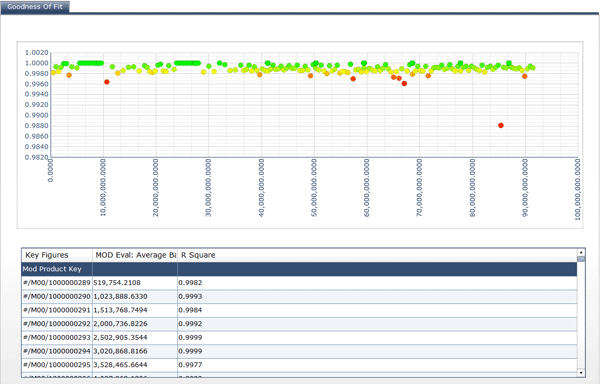
Figure 10
Final dashboard
Hopefully this article has been helpful in showing you how you can present critical data in real time to users across your organization. There are data size limitations in Xcelsius, but keep in mind Xcelsius is not meant to be an OLAP or OLTP reporting tool that can drill down into large data sets. Xcelsius dashboards are meant for presenting relevant, high-level overviews of business data using sophisticated visualizations.
When reporting against real-time data as illustrated in this article, focus on data that can be quickly grouped in the BEx query. You’ll avoid the laborious task of staging data through ETL and give the business users access to data that is more meaningful and actionable.
Anthony Fresina
Anthony Fresina has more than 15 years of IT experience in the facilities management, education, trade, and financial services industries. For the last five years he has been the development manager for the Price Optimization for Banking group at SAP, where he guides business intelligence and business warehouse teams as well as customer implementations.
You may contact the author at Anthony.Fresina@sap.com.
If you have comments about this article or publication, or would like to submit an article idea, please contact the editor.

Ravin R Angara
Ravin R. Angara, PMP is a BW architect on the P&S Ops COO Mgmt US team at SAP. He has more than 10 years of experience in the IT industry, with more than five years in the SAP BI area. As a consultant, he has successfully implemented BW solutions for FI, CO, logistics, CRM, and treasury modules, and is currently involved in developing integration scenarios for SAP NetWeaver BW in financial services using SAP BusinessObjects tools.
You may contact the author at ravingar@hotmail.com.
If you have comments about this article or publication, or would like to submit an article idea, please contact the editor.