Companies often extend their mySAP CRM systems with their own transactional fields, also called attributes. Here is a step-by-step description about what to do so that you can use your own attributes in pricing configuration.
Key Concept
You can use business partner and transactional fields (attributes) for pricing purposes — to set discounts, for example. The standard system offers several attributes that you can use in pricing. When you have an attribute that you want to use in pricing, but the attribute is new — for example, if you created it via Easy Enhancement Workbench — you need to define it for pricing before you can use it.
When you set up pricing configuration in mySAP CRM, you may want to use custom business partner and transactional fields (attributes). For example, you may need to create additional fields via Easy Enhancement Workbench in both the business partner’s master data and in the business transaction. However, neither of these fields is defined in the standard mySAP CRM system, so you cannot work with them directly in pricing configuration. To my knowledge, no one has documented the process of using new fields in pricing in an easy way prior to this article. The following step-by-step directions show how to set up a scenario that many companies may need.
In my example, I use a new field called Has concession on the customer’s master data to give the customer a discount. The selling company uses this field to flag customers for complimentary discounts and gifts. I also added a new transactional field called Years in care. The transaction uses the Years in care field to allow customers to indicate that they are members of a support organization for a certain number of years and thus can get a discount. I created both fields using Easy Enhancement Workbench.
How to Use a Business Partner Attribute in Pricing
Step 1. Create the attribute for pricing. For business partner attributes, first create a new data element for pricing that you can later map to the business partner attribute. This allows you to insert logic while mapping your pricing attribute to the business partner attribute (described in step 3).
In transaction BP, find the business partner attribute you want to use. In my example, I chose an attribute I generated from Easy Enhancement Workbench by double-clicking on the existing Has concession field. Find the business partner attribute that you want to use for pricing and press F1 to view its details. Then click on the technical details icon  to view the attribute’s technical details. Double-click on the Data Element field to view the screen in Figure 1. Note the Domain characteristics — in this example, XFELD. With the attribute domain characteristics, you can create your own data element to use in pricing that should be similar to the data element used on the business partner.

Figure 1
Domain characteristics for the attribute
In transaction /nSE11 enter the new data element that you want to create in the Data type field. I called my new attribute ZC_PR_CONCESSION. Click on the Create button, then select Data element. Enter a Short Description, such as Pricing BP Concession. In the Data Type tab, select Domain and enter the domain for the new data element, XFELD (Figure 2).

Figure 2
Enter the Domain for your new data element
Next, click on the Field Label tab (Figure 3). Copy the full description that you used in the Short Description field and paste it into the Short, Medium, Long, and Heading fields. When you press Enter, the system determines the length for each field automatically, in this case 10, 20, 21, and 21 characters, respectively. Click on the save icon. You should always maintain the field label or an error may occur later in the process.

Figure 4
Assign the field labels for the new data element
Next, add the saved data to a package (Figure 4). Generally, you group objects that belong together in a package. In my example, I saved the information to the zprice package — confirm with your technical team what package you should use. Click on the save icon. Adding a new data element is a global, cross-client change, so you must add it to a workbench request. For more information about workbench requests, refer to https://help.sap.com/saphelp_crm50/helpdata/en/57/38e1824eb711d182bf0000e829fbfe/frameset.htm.

Figure 4
Add the new data element to a package
The data element details screen appears after you save the workbench request. Click on the activate icon  , and then press Enter to activate it.
Step 2. Add the attribute to the field catalog. Next, you need to add this data element to the field catalog for pricing. The field catalog contains the fields that you can use for pricing. Use transaction code SPRO and follow menu path SAP Implementation Guide>Customer Relationship Management>Basic Functions>Pricing>Define Settings for Pricing>Maintain Field Catalog. Click on the change icon  .
.
In the screen that appears (Figure 5), add the new attribute to the Header and Item Fields tab. Scroll down to an empty row and enter the new pricing field, in this example ZZPR_CONCESSION, that you want to map to the data element you created.

Figure 5
Add the new attribute in an empty row
Click on the save icon and add this to your package using the existing workbench request. Click on the generate icon  to add the new field to the field catalog. If you run into an issue with the generation, refer to the sidebar, “Stopped or Interrupted Generation,” to find out how you can correct this.
Step 3. Map the pricing field to the business partner field during pricing. In this step you implement a Business Add-In (BAdI), CRM_COND_COM_BADI, which tells the system to map the new data element to the business partner field. Follow menu path SAP Implementation Guide>Customer Relationship Management>Basic Functions>Pricing> Define Settings for Pricing>Adopt User-Defined Fields.
First you create a BAdI implementation, such as ZC_PRC_COND_COM_EXT, and then you update it. In the Attributes tab, enter the new implementation name in the Implementation Name field to let the system know that you want to create a new implementation. Click on the Interface tab, and then double-click on the item method, ITEM_COMMUNICATION_ STRUCTURE (Figure 6).

Figure 6
Double-click on the item method
In the screen that appears, enter the code shown in Figure 7. (This code is also available in the Downloads section at the end of this article.) The code reads the current sold-to party’s details. It stores the information in an internal table that the system can access if multiple line items exist for the same sold-to party. The code retrieves the business partner attribute and places it in the pricing attribute content.
method IF_EX_CRM_COND_COM_BADI~ITEM_COMMUNICATION_STRUCTURE. data : ls_but000 type but000,
lv_days type i,
lv_age type p decimals&n
bsp;8. *== get sold to party
read table gt_but000_ob
into ls_but000
with key partner_guid = cs_acs_i_com-sold_tparty.
if sy-subrc <> 0.
select single *
from but000
into ls_but000
where partner_guid = cs_acs_i_com-sold_tparty.
if sy-subrc = 0.
append ls_but000 to gt_but000_ob.
endif.
endif. * populate additional fields in comm structure
cs_acs_i_com-zzpr_mem_cat = ls_but000- ZZHASCONCESS.
endmethod.
|
| Figure 7 |
Code for obtaining the business partner attribute and placing it in the pricing attribute content |
Save and activate the item method. Press Enter to refresh the screen. Make sure the implementation ZC_PRC_COND_ COM_EXT is active when you leave by checking the header of the implementation, which should say Active.
Step 4. Create the condition table. Follow the standard pricing configuration procedure to create a condition by following menu path SAP Implementation Guide>Customer Relationship Management>Basic Functions>Pricing>Define Settings for Pricing>Create Condition Tables.
Enter a condition table name and description, which must start with CUS. I started with CUS99999 and am working backward. Select and add the field names SALES_ORG, DIS_CHANNEL, PRODUCT, and ZZPR_CONCES. The field that I just created to map to the Has concession field (ZZPR_CONCES) has a condition that can vary depending on the sales organization, distribution channel, and product used on the transaction. Save this to the package and workbench request. Then click on the activate icon and you should see the compiler running.
Step 5. Create the access sequence. Follow the normal pricing configuration process to create an access sequence. This step is necessary so that the system has an access sequence on which to base its search for the condition. Follow menu path SAP Implementation Guide>Customer Relationship Management>Basic Functions>Pricing>Define Settings for Pricing>Create Access Sequences. Create a new access sequence that points to the new condition table you created in the previous step. Save this to the workbench request.
Step 6. Create the condition type. Follow the normal pricing configuration process to create a condition type. Follow menu path SAP Implementation Guide>Customer Relationship Management>Basic Functions>Pricing>Define Settings for Pricing>Create Condition Types. Copy a discount condition and insert the access sequence that you created above (Figure 8). Save to a customizing request.

Figure 8
Create a discount condition
Step 7. Add the condition to the pricing procedure. Follow the normal pricing configuration process to update the pricing procedure. Follow menu path SAP Implementation Guide>Customer Relationship Management>Basic Functions>Pricing>Define Settings for Pricing>Create Pricing Procedure. Go to the pricing procedure, enter the new condition in the pricing procedure, then save it to a customizing request.
Step 8. Ensure that the system can use the new condition. For this you need to implement BAdI /SAPCND/ROLLNAME using transaction SE18. Select Implementation>Create to create the implementation. In the screen that appears, give the implementation a name, such as ZC_CONCES_ROLLNM. In the Attributes tab, specify the Filter type by clicking on the add icon above the filter defined in Figure 9. This represents the data element you created, such as ZC_PR_CONCESSION, which you use in general condition maintenance (GCM) and in mySAP CRM.

Figure 9
Specify the Filter type
Click on the save icon and enter the package and workbench request information. Then click on the back icon. In the screen that appears, click on the Interface tab. Double-click on FIELD_CHECK and ATTRIBUTE_CONVERSION. For each method, add the code shown in Figure 10. Save and back out after each code entry. When finished, click on the save icon. Back out of the transaction and save and activate to a workbench request.

Figure 10
Add this code to each method
Step 9. Ensure that a user can input entries to the new condition. Follow the normal pricing configuration process to add conditions to a maintenance group. Follow menu path SAP Implementation Guide>Customer Relationship Management>Master Data>Conditions and Condition Technique>Condition Technique: Basics>Create Maintenance Group. Choose the maintenance group you’re currently using (in my example, ZDiscount) and save to a customizing request.
Step 10. Create the condition values. Create the condition using the normal process of going to condition maintenance and creating a condition using the Sales Org and product that you want to test. In my example, the discount I want to give is $70 (Figure 11).

Figure 11
Indicate the amount of the discount
Now that you’ve set up the condition, it’s time to test that it works in a transaction. Create a transaction that uses the pricing procedure you just set up, and select a customer that has the Has concession field marked. The discount should appear.
Tip!
Before you use the condition you create in step 10, use transaction code SM53 to clear the Virtual Machine Container (VMC) cache. The system reads from the cache before reading from the database. Therefore, if you make many pricing changes, it’s important to remember to clear the cache while testing. Otherwise you’re testing old data and the previous configuration. Use transaction code SM52 to stop and restart VMC if your price changes do not come through.
How to Use a Transactional Attribute in Pricing
To create a transactional attribute, such as Years in care, follow steps 1 and 2 from the previous section. In this case, the attribute you want to use is an Easy Enhancement Workbench field from the item level of a transaction in this scenario.
After following steps 1 and 2, you end up with a new price field, ZZPR_ YEARSNCARE, mapped to a data element that has the same characteristics as the data element of the transactional item field. After you create this new price field, you need to use another type of mapping code for this new attribute. Follow step 3 from the previous section. Add the code in Figure 12 after the step 3 code, but before the endmethod statement. This code also is available in the Downloads section at the end of this article.
* get the years in care from contract
  CALL FUNCTION ‘CRM_CUSTOMER_I_READ_OW’
    EXPORTING
      IV_REF_GUID       = cs_acs_i_com-guid
    IMPORTING
      ES_CUSTOMER_I_WRK = lv_customer_i_wrk
    EXCEPTIONS
      ITEM_NOT_FOUND    = 1
      OTHERS            = 2.
  IF SY-SUBRC <> 0.
* MESSAGE ID SY-MSGID TYPE SY-MSGTY NUMBER SY-MSGNO
*         WITH SY-MSGV1 SY-MSGV2 SY-MSGV3 SY-MSGV4.
  else.    cs_acs_i_com-ZZPR_YEARSNCARE = lv_customer_i_wrk-zzyearsncare.  ENDIF.
|
| Figure 12 |
Add the mapping code |
Then, follow steps 4 to 10 as in the previous section to create the attribute. In my case I called this discount Multi term disc (Figure 13). After you test this in the transaction, it is ready to use.

Figure 13
Attribute Multi term discount now appears
Stopped or Interrupted Generation
If the generation of your new pricing field is interrupted or prevented, here is how you can solve any business document (BDoc) issues that arise. First, view the log for details by clicking on the question mark icon in the
LT> (long text) column (
Figure 1). Then use transaction code /
OSMW01 to open up a new session directly within this transaction (
Figure 2). (The /O in front of the transaction
SMW01 creates a new session with the transaction within it.)

Figure 1
Click on the question mark icon in the LT> column
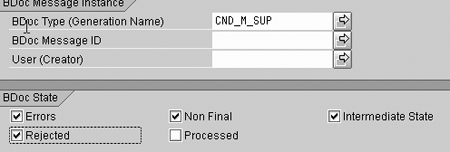
Figure 2
BDocs rejected in a CRM queue
In transaction SMW01, you find BDocs of the condition type CND_M_SUB that are stuck in a CRM queue. Click on the execute icon (Figure 3). Solve this issue by asking your support personnel why this error occurred and how to solve this problem. Give them the BDoc type and note that it is in error. They can check to see if the BDoc has a destination and if it’s locked because of some configuration being done.

Figure 3
BDoc message log
When the BDocs have a green status circle in the State column, indicating that the system processed the BDoc successfully, you can continue. You could recheck the BDoc using transaction code /OSMW01 again. However, this time the search option needs to include processed BDocs as well, so select the Processed check box in Figure 2 when you start transaction SMW01. You should see the generation running at the bottom of the screen when everything is working.
Conny Dahlgren
Conny Dahlgren is a senior consultant with SAP Australia in Melbourne. He has worked with mySAP CRM since 2000, and with SAP products, including SD and MM, for more than nine years. Within mySAP CRM, Conny has experience in most areas in different roles. Currently he is a CRM solution architect for a large CRM project focusing on service and marketing.
You may contact the author at c.dahlgren@sap.com.
If you have comments about this article or publication, or would like to submit an article idea, please contact the editor.