SAPepxerts/Financials
Data conversion is no longer a one-time activity. Gone are the days when it was required only during an initial SAP implementation project. Here are some day-to-day business scenarios when you may be called upon to convert data.
Data conversion is no longer a one-time activity. Gone are the days when it was required only during an initial SAP implementation project. Here are some day-to-day business scenarios when you may be called upon to convert data:
- Mass updating cost centers to better reflect a new organizational structure
- Uploading initial account balances for a newly merged company
- Uploading open invoices for customers or vendors
- Updating customer or vendor records for specific fields
Let’s take the last example, the common business requirement of updating a few fields of the customer master records. You could use Mass Maintenance to do mass updates, or as an alternative, you could use Computer Aided Test Tool (CATT). Both would work for some simple scenarios, but they may not be as useful for other situations. For example, Mass Maintenance cannot be used for transaction-based recordings, and CATT is more suitable for testing transactions.
For any complex data-massaging requirement, you probably call on your technical team to develop a customized ABAP program. The problem is that ABAP development is a time-consuming process. For complex programming, that is fine. However, when you want to perform a simple update or conversion, ABAP development is overkill, especially if this is a one-time requirement. I know of many sites with numerous ABAP programs that they are not using anymore.
As a functional analyst, you may have wished that you could quickly update customer master records from an Excel sheet, or that you could quickly convert a customer’s open invoices. If so, I suggest you consider LSMW (Legacy System Migration Workbench). You can download it free-of-charge from the SAP service marketplace (https://service.sap.com/LSMW).
Many people in the SAP community are not aware of LSMW. The reason is that it is not part of a standard system, although it is supported by SAP. I’ll describe its features, and then, with a short demo, I’ll show you how to use it.
Here are some of LSMW’s features:
- LSMW does not require any ABAP knowledge. For most of the typical conversion and migration tasks, you can use standard R/3 programs with built-in conversion routines.
- LSMW handles various requirements from simple mapping rules to complex data massaging rules. Since it is based on standard R/3 posting principles, data consistency is guaranteed. All typical checks are done before the data is posted.
- Although you can use LSMW for data migration from a legacy system, it also can be used for many data massaging tasks within R/3 during the production support phase.
- LSMW uses existing standard R/3 conversion interface programs. Standard programs are already available for many objects such as commonly used master data (G/L account master, customer master) or transaction data (financial documents, invoices). You can use either the batch input or the direct input method for data conversion. Another typical requirement is updating the records based on transaction recording. Using LSMW, you can record your own transaction, making it much easier for you to update only the relevant fields.
- If you are using the standard R/3 interface program, you are accustomed to creating a text file with multiple structures.1 With LSMW, this multi-layout file is created automatically from a structured data sheet.
- LSMW’s wizard-like feature is similar to step-by-step instructions.
Figure 1 shows how LSMW works. The legacy data is already available in a specific file format on a PC or application server. The Read program of LSMW reads the legacy system data. The Convert program converts this legacy data into an R/3-specific format. During conversion, you have the option of using various conversion rules to map data from one format to another. These conversion rules are reusable for other conversion tasks. Once the data is converted into an internal R/3 format, LSMW can use standard R/3 programs (batch input, direct input, or BAPIs) to upload the data to R/3.

Figure 1
Process for converting legacy data with LSMW
In brief, you do the following four tasks to migrate data from a source system to a target system:
Task 1: Define the targets and attributes, including business objects (e.g., material master, FI documents) and the import method (batch input, direct input, or IDocs).
Task 2: Define the source structures: how the source file is structured, the file layouts and attributes, and the relationship between the source structure and the target structure.
Task 3: Define the conversion rules: how the source fields are mapped to target fields and the re-usable conversion rules across multiple conversion tasks.
Task 4: Import data to R/3 system.
Now, I’ll illustrate these tasks with a brief example. For a step-by-step demo of this example, go to the download at the bottom of the article.
Demo: Using LSMW to Update Customer Master Records
Let’s say that as a part of restructuring in your company, some of your customers are reorganized under a separate grouping. You need to change the sales office, sales group, and customer group fields of these specific customer master records.
Without LSMW, you would have to manually change these fields from customer master records with transaction code XD02. You would have to change all the customer master records separately—enter transaction code XD02, enter the key information, click on sales view, and update the appropriate fields. This method is cumbersome and prone to errors. LSMW allows you to record transactions so that you can update specific fields for specific screens.
Note
The screenprints in this article are from IDES Release 4.6. They may differ slightly in other versions.
Calling LSMW
You call LSMW by executing transaction code LSMW. All conversions are grouped together under a Project/ Subproject/Object structure. Grouping together conversions within Project and Subproject makes it easier for you to maintain and retrieve your own conversion objects. For example, for demonstration purposes, I’m creating a Project called LSMW_DEMO and a Subproject called CUSTOMERS for all different customer updates—such as transaction recording (CUST_REC). (See Figure 2.)
The main screen of LSMW provides wizard-like step-by-step tasks, as shown in Figure 3. To complete your data conversion, you need to execute these steps in sequence. Note that these steps may look different depending on your Personal menu settings.

Figure 2
Migration Object with Project and Subproject
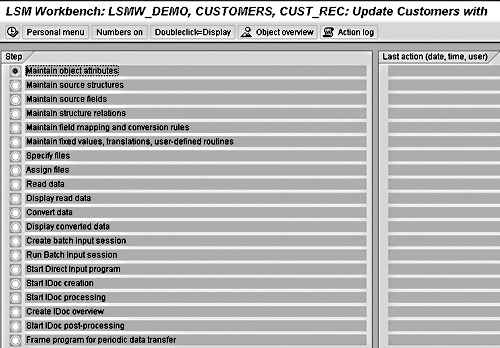
Figure 3
LSMW wizard — initial screen
Task 1: Maintain Object Attributes
The first task is to define the targets and attributes—what object you are going to update and how. LSMW offers various import techniques: batch or direct input for standard pre-defined objects, transaction recording for updates of specific fields of screens, BAPIs, and IDocs. (See Figure 4.)
In this demo example, you’ll be updating customer master records with the help of recording transaction XD02. Choose the button Batch Input Recording and click on the recording overview icon to record the R/3 transaction.
Enter the recording name as XD02_REC, the description as Customer Master Updates Recording, and the transaction code as XD02. Once you click on the overview icon, you see a small screen where you enter this information.
The system calls the transaction code XD02 and prompts you to complete the Change Customer transaction. Enter the key customer information (Customer account number 1000, Sales organization 1000, Distribution channel 01, and Division 00), make changes to these three fields (Sales office 1010, Sales group 110, and Customer group 01), and save the transaction. Once the transaction is complete, R/3 records the flow of screens and fields and saves the information, as shown in Figure 5.
Note that the fields are populated with default values that were set when you recorded the transaction.
The transaction-recording process stores field names in a technical format. If you press the F1 key on individual screen fields and then press the F9 key, the system displays technical names. You can then replace the technical names with descriptive names. Double-click on the field RF02D-KUNNR, enter the name as KUNNR and the description as Customer Account Number, and remove the default value. Double-click on all other fields with default values and make appropriate changes. Once you have made changes, the recording overview screen looks like what you see in Figure 6.
The objective of the first task was to define the target and its attributes. In this case, the transaction recording XD02_REC is the conversion task, and fields in XD02_REC become the target structure.
Save your changes. When you go back to the initial screen, you see that the initial screen steps have changed. Since you want to import data via the BDC method, the direct input and IDoc-related steps are hidden, as they are not relevant.

Figure 4
Define targets and maintain object attributes

Figure 5
Transaction recording overview

Figure 6
Transaction recording overview — with screen field attributes
Task 2: Define Source Structures
You need to designate what fields are passed from the source system so that appropriate field values are passed to the target structures. Accordingly, you define the source structures and what fields are within the source structure. Source data may be in a single structure or in multiple structures with a "header-detail" relationship. Each source structure consists of source fields.
The first step is to create a source structure, which I’ll call XD02S. Give a meaningful description, in this case Source structure for XD02S. Maintain source fields for the source structure by entering Type, Length, and Field Description, as shown in Figure 7.
Tip!
If you have a date field and the batch input session is unable to interpret date value, you can make the date field a characteristic field (Type C), and then enter date values in the input file according to individual user defaults.
Once the source structures are created and the source fields are maintained, relationships between the target structures and the source structures are created. In this demo example, since there is only one source and one target structure, the relationship is automatically defaulted by the system.

Figure 7
Source fields of source structure
Task 3: Define Conversion Rules
The next task is to define how a field from a source structure is mapped to a field in the target structure.
LSMW offers various predefined conversion rules, which you can re-use across different LSMW objects. One of the most common requirements is to derive target values based on source values. For example, say that in an R/3 system, a field can have only A, B, or C as a value, whereas the source system has 1, 2, or 3 values only. You create a translation rule so that target values are derived from the source field values, as shown in Figure 8.
Next, you maintain field mapping for each of the target fields. If your source file provides the field, simply map the source field to the target field by clicking the source field icon. The system uses the conversion rule Transfer (MOVE) to move the source value to the target field.
Map all the target fields to source fields (Figure 9). Note that for the RF02D-D0310 field, the default should be set to X. Use the Constant rule icon to choose the constant value of X for field RF02D-D0310.
You can also maintain re-usable translations and user-defined routines, which can be used across conversion tasks. For example, you could create a re-usable conversion routine to translate the material number, which can be used in many such LSMW conversion tasks. Once mapping is defined, specify the location and names of the files that contain the source data. Maintain attributes of the file—whether the input file is delimited or whether the input file has column headings. (See Figure 10.) Then, assign file names to source structures.
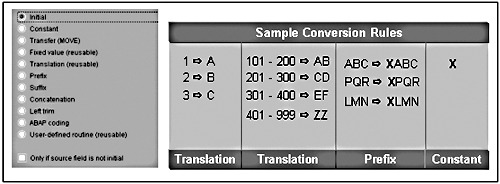
Figure 8
Various conversion rules available in LSMW and sample rules

Figure 9
Field mapping and conversion rules

Figure 10
Maintain file attributes
Task 4: Import Data
At this stage, the major activities are done and you are ready to update the customer master records, which in my example are in an Excel file. Prepare a tab-delimited Excel file on your C: drive, with these columns: Customer account number, Sales organization, Distribution channel, Division, Sales office, Sales group, and Customer group.
Go back to the initial LSMW screen shown in Figure 3 and follow the steps from Read data through Run Batch input session. Confirm that the customer master records are updated by viewing the customer master records (XD03).
Summary
As an alternative to this example, you could use the standard SAP object 0050 – Customer Master, which would use a predefined R/3 interface program (RFBIDE00 – Batch Input Interface for Customers) to update data. Some standard objects offer direct input updates, which are much faster than batch input updates. Refer to www.ficoexpertonline.com/downloads to review step-by-step instructions for that example.
1

Mitresh Kundalia
Mitresh Kundalia heads the SAP practice at Quality Systems & Software (www.QSandS.com), a consulting firm specializing in SAP S/4HANA, SAP General Ledger, and complex System Landscape Optimization (SLO)-type reorganizations. Mitresh is widely acknowledged as a leading SAP expert, with multiple publications and an SAP-PRESS book to his credit. He has published more than 50 peer-reviewed articles and white papers, and he has given presentations at various SAP conferences and events. Mitresh is the chief solutions architect of General Ledger Migration Optimizer (GLMO), a leading product to accelerate and jump-start the SAP S/4HANA and SAP General Ledger initiatives; SAP Data Reorganization Optimizer (SDRO), an SLO-type product for managing complex system landscape reorganizations; and Group Currency Activation and Conversion (GCAC), a product suite to manage introduction of parallel currencies and conversion of data in a live SAP system.
You may contact the author at Mitresh@QSandS.com.
If you have comments about this article or publication, or would like to submit an article idea, please contact the editor.