The CO-PA module has an "if...then" way to say when you want or don't want certain kinds of revenues and costs calculated and posted (i.e., SAP's condition technique). It is called "valuation with costing sheet."
Have you ever wished that the CO-PA module had an "if ... then" way to say when you want or don’t want certain kinds of revenues and costs calculated and posted (i.e., SAP’s condition technique)? Guess what? It does, but in CO-PA, it is called "valuation with costing sheet."
The condition technique has the flexibility to meet specific requirements from basic addition to more complex calculations. FI and CO-PA analysts can use the condition technique to supplement information in the CO-PA ledger with estimated, calculated, and additional values. This leads to more accurate profitability analysis, and thus, to a more accurate decisionmaking process. It is not as easy to achieve the same goal with any other accounting tool, as other tools are based on actual transactions.
This functionality is especially suited for recording accruals into your CO-PA ledger that you might not want recorded yet in your G/L, PCA ledger, or Special Purpose Ledger (FI-SL). They include:
- Commission payable to sales force
- Freight costs for shipments
- Cash discounts payable to customers for early payments
- Outgoing packaging based on number of parts sold
- Custom duty payable for cross- border shipments
- Reserves or administration overheads in insurance companies
A commonly misunderstood notion about condition technique is that it is used primarily in the Sales and Distribution (SD) module. The misleading term for condition technique in CO-PA, "valuation with costing sheet," adds to the confusion. As a result, it has remained underused in many R/3 installations. (Refer to Table 1 for commonly used terms within the SD and CO-PA modules.)
I will clarify those issues and demonstrate how to implement the condition technique in the CO-PA module. With a screenprint and table, I’ll also clarify how the condition type is assigned to the value field, a point of confusion if you don’t understand the underlying relationship.
| SD module |
CO-PA module |
|
|
| Commonly known as condition technique. |
Condition technique is called valuation with costing sheet. |
|
|
| Transaction code V/06 creates condition types. Technically stored in table T685. |
Transaction code KE47 creates condition types. Although technically stored in the same table, T685, tese are identified by a separate field application (KAPPL) as KE. |
|
|
| Transaction code KE4I assigns SD conditions to CO-PA value fields. |
Transaction code KE45 assigns CO-PA condition to CO-PA value fields. |
|
|
| Condition types assignments is one-way. SD conditions are assigned to CO-PA value fields. |
Condition type assigment can be bidirectional: You can assign
-CO-PA value fields to base conditions and
-Calculation conditions to CP-PA value fields. |
|
|
|
|
|
|
|
|
| Table 1 Comparison of commonly used terms within SD and CO-PA module |
Estimating a Sales Commission
Here’s a quick example of how to use the condition technique to determine the commission payable to sales employees based on revenues generated by an incoming sales order. (Normally this would be calculated when the order is invoiced.) You almost certainly would not want to record a forecasted revenue (like a sales order) or expense into your G/L, PCA ledger, or FI-SL. Your sales manager might want to view sales orders somewhere, however. That "somewhere" can be CO-PA. Look at Table 2. You calculate sales commissions based on a percentage of the profit margin and store them in CO-PA value fields as supplemental information.
These instructions assume a basic understanding of how the condition technique works and how the R/3 system finds condition records to calculate condition values. (See Figure 1.) What follows is a review of how to develop the condition technique in CO-PA to estimate a sales commission.
1. Configure a valuation strategy based on the costing sheet and assigned to the point of valuation with a record type.
2. In CO-PA, amounts are stored in value fields. However, the costing sheet works on condition types. Therefore, you need to have condition types within CO-PA, which in turn have values assigned from these value fields. Determine the sales commission based on the profit margin, which is derived from value fields VV010, VV020, and VV030. In simple terms:
sales commission = percentage of profit margin, where profit margin = (VV010 - VV020 - VV030)
To do this, create three condition types representing these three value fields; these are called "base condition types." Since the values of these conditions are assigned directly from value fields, you do not need access sequences. Create an additional condition type to determine the sales commission amount; this is called a "calculation condition type." Since the value of the commission depends upon various factors, you need an access sequence, which in turn has accesses and condition records.
3. Once the value of the sales commission is calculated in the costing sheet, store it in a separate value field by assigning a condition type to a separate value field (VV100). Note that the assignment is bidirectional—value fields are assigned to condition types, and condition types are assigned to value fields. That is unlike SD, where conditions are mapped to CO-PA value fields. You cannot assign CO-PA value fields to SD condition types.
I have explained this solution in a "top-down" manner. However, while configuring, you follow "bottom-up" steps, which are explained in detail in the following six steps. For example, you need to include condition types in a costing sheet, so first you must create condition types. You may need to create access sequence before condition types, as you might need to assign it in condition types.
| Step |
Ctype |
Description |
Fr |
To |
Stat |
Sub To |
AltCType |
Acc key |
COPA Value Field |
Value Field Desc |
| 10 |
PR00 |
Base price |
|
|
|
|
|
ERL |
VV010 |
Revenues |
| 20 |
PR01 |
Price adjustments |
|
|
|
|
|
ERL |
VV010 |
Revenues |
| 100 |
|
*Gross value |
|
|
|
1 |
|
|
|
|
| 110 |
K005 |
Customer/material discount |
|
|
|
|
|
ERS |
VV020 |
Discounts |
| 120 |
K007 |
Special price disc |
|
|
|
|
|
ERS |
VV020 |
Discounts |
| 200 |
|
*Total discount |
101 |
199 |
|
|
|
|
|
|
| 800 |
|
*Net value |
|
|
|
2 |
|
|
|
|
| 910 |
VPRS |
Internal costs |
|
|
X |
B |
|
|
VV030 |
Cost of Goods |
| 920 |
|
*Profit margin |
|
|
|
|
11 |
|
|
|
| Table 2 |
Relevant columns of a typical pricing procedure and assignment to value fields in CO-PA ledger, with asterisks added to make the distinction clearer |

Figure 1
The basics of condition technique. Typically, access sequences are assigned to condition types. The access sequence is a search strategy that defines how to search for specific records, and it consists of accesses and condition tables.
Configuration Steps
The configuration steps in CO-PA related to the valuation with costing sheet are shown in Figure 2. The screenprints in this article are from Release 4.5B.
The configuration steps in CO-PA related to condition types differ from those in SD pricing. For example, the Create Condition Types step is available in SD pricing also. In SD, the transaction code is V/06, and in CO-PA it is KE47.1 This is a possible source of confusion.

Figure 2
Configuration steps for valuation in CO-PA
Step 1. Define Condition Table (KE4A)
Create a condition table and specify a number between 501 and 999 (give only the number). Skip this step if you have already created the required condition tables. Choose the required fields by double-clicking fields from the Field catalog. The selected fields are listed under the Selected Fields column. Now generate the table. This prompts R/3 to create a transparent table that is activated. I created two condition tables, Table 991 with Sales org./Material and Sales org. fields, and Table 992 with only the Sales Org. field.
Step 2. Define Access Sequences (KE48)
Create access sequence ZCOM (Access Seq for Commission). Choose this access sequence and click on Accesses. Click on New Entries and enter two lines with the details on Sales Org./Material and Sales Org. shown in Figure 3.
Note the Exclusive indicator on the first line of Figure 3. If you set it, the system stops searching if it finds the record in the condition table. Otherwise, if the system finds one more set of records, it adds twice. It makes sense to arrange accesses from a more-specific to less-specific order.
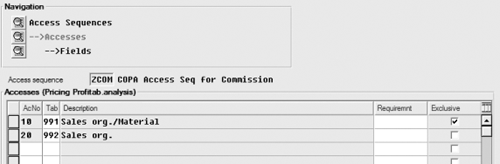
Figure 3
Accesses for Access Sequence ZCOM
Step 3. Create Condition Types (KE47)
In this example, you create four condition types for storing value fields from CO-PA. Although information is already available in CO-PA in terms of value fields VV010, VV020, and VV030, you assign these to condition types ZREV, ZDIS, and ZCOS so that costing sheet calculations take place.
Since values for ZREV, ZDIS, and ZCOS are already calculated, you don’t assign access sequences to them. The amount of discounts or costs is stored as positive2 in value fields. However, in costing sheet calculations, you subtract them by setting the Plus/minus indicator as X, which indicates minus sign only. See Figure 4.
Table 3 shows four condition types and the relevant control settings. Only the ZCOM condition has an access sequence. The remaining three, known as base conditions, do not, because their values are assigned directly by the value fields.

Figure 4
Access sequence for cost of goods, with Plus/minus box checked
| CType |
Name |
Access Sequence |
Condition Category |
Calculation Type |
Class |
Plus/Minus |
| ZREV |
Revenues |
|
K |
B |
B |
|
| ZDIS |
Discounts |
|
K |
B |
B |
X |
| ZCOS |
Cost of Goods |
|
K |
B |
B |
X |
| XCOM |
*Sales Commission |
ZCOM |
|
A |
B |
|
Condition category: K (base amont excluding tax)
Calcualtion type: B (fixed amount) A (percentage)
Calculation class: B (price) |
|
| Table 3 Condition types and control settings in CO-PA |
Step 4. Maintain Costing Sheets (KE46)
Create a costing sheet (Figure 5). Step 40 is a subtotal for steps 10 through 30. Although it looks like addition, Step 40 is actually ZREV minus ZDIS minus ZCOS, because you designated condition types ZDIS and ZCOS as "minus." ZCOM should be based on the subtotal; therefore, set From as 40.
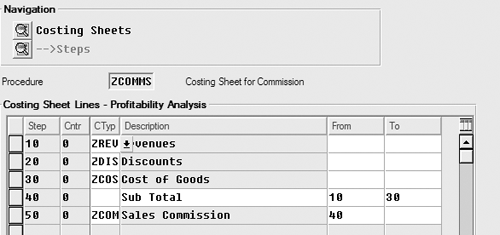
Figure 5
Costing sheet
Step 5. Assign Value Fields (KE45)
Note that the assignment of the condition type to the value field works both ways. This is one of the most commonly misunderstood relationships. Looking at the configuration screen (transaction code KE45), which is shown in Figure 6, you might think condition types are assigned to value fields. In reality, the assignment is bidirectional. To make this point clearer, I have depicted the bidirectional mapping in Figure 7. CO-PA value fields are assigned to base condition types (ZREV, ZDIS, ZCOS) in the costing sheet, and the calculation condition type (ZCOM) from the costing sheet is assigned back to the CO-PA value field.
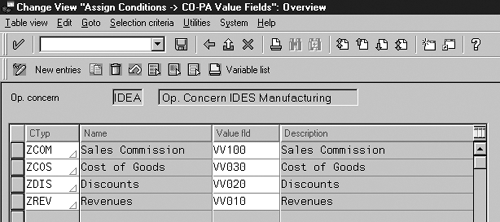
Figure 6
Assign conditions to CO-PA value fields
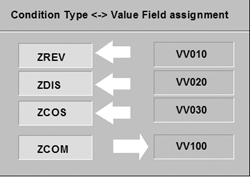
Figure 7
Bidirectional assignment of condition types
Step 6. Define and Assign Valuation Strategy (KE4U)
After the building blocks are configured, create a valuation strategy: Z01 – Invoice Valuation for Commission (Figure 8). Click on Details and set ZCOMMS as the costing sheet with application KE and Qty Field for the Operating concern. Assign Val. Strat. as Z01 for real-time for invoices. Set the PV (point of valuation) to 01, which indicates real-time valuation of actual data, with Rec. (record type) F (for billing data).
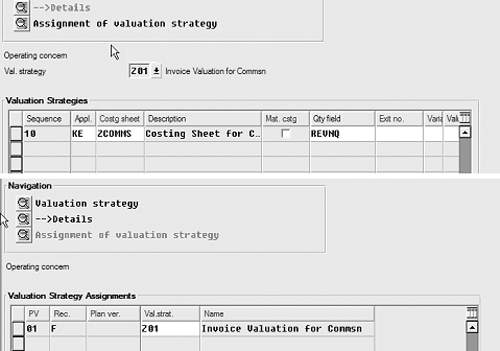
Figure 8
Creating a valuation strategy
Test Scenario
Once these configuration steps are completed, test how valuation with costing sheet calculates sales commission in CO-PA. Create a few Create Condition Records for condition ZCOM (menu path Accounting>Controlling> Profitability Analysis>Master Data> Conditions>Create) or transaction code KE41. See Figure 9.
Create one record each for Sales org./Material and Sales org.
| Access Table 901: |
|
| Sales org. |
Material |
Rate |
| 1000 |
PC-100 |
3.00 % |
| Access Table 902: |
|
| Sales org. |
|
Rate |
| 1000 |
|
2.00 % |
When you post an invoice to CO-PA, observe that the corresponding value field VV100 is populated. This value field is populated in the CO-PA ledger as additional information.
This exercise demonstrates how the condition technique works in CO-PA. By now, you are probably thinking of many more useful possibilities, such as calculating potential early payment discounts, calculating sales promotion discounts, or calculating estimated freight values.
Tip!
I’ll show you a way to test valuation and analyze details without actually creating an invoice document. Use transaction code KE21 (Create Line Item) to post a CO-PA document with record type F. Enter the sales organization as 1000 and the product as PC-100. Enter the appropriate values in other fields. Enter revenue, discount, and cost amounts on the Value fields screen.
Click on the valuation icon. The system automatically executes valuation and calculates the sales commission amount, which is stored in one of the value fields. The revenue, discount, and cost value fields are grayed out.
In addition, the Analyze Valuation function (Analyze>Analyze Valuation) gives you a detailed analysis of the valuation calculations, including details about costing sheet calculations. In the SD module, you are able to do condition analysis for pricing with the Analysis function. (See the figure above.)
This way, you are able to understand how the system calculates valuation. You can play around in your development box (or sandbox) posting different CO-PA line items (transaction code KE21) with varied sales organization and material numbers to see how the valuation results differ.

Figure 9
Create Condition Records for Key Combination
1
Mitresh Kundalia
Mitresh Kundalia heads the SAP practice at Quality Systems & Software (www.QSandS.com), a consulting firm specializing in SAP S/4HANA, SAP General Ledger, and complex System Landscape Optimization (SLO)-type reorganizations. Mitresh is widely acknowledged as a leading SAP expert, with multiple publications and an SAP-PRESS book to his credit. He has published more than 50 peer-reviewed articles and white papers, and he has given presentations at various SAP conferences and events. Mitresh is the chief solutions architect of General Ledger Migration Optimizer (GLMO), a leading product to accelerate and jump-start the SAP S/4HANA and SAP General Ledger initiatives; SAP Data Reorganization Optimizer (SDRO), an SLO-type product for managing complex system landscape reorganizations; and Group Currency Activation and Conversion (GCAC), a product suite to manage introduction of parallel currencies and conversion of data in a live SAP system.
You may contact the author at Mitresh@QSandS.com.
If you have comments about this article or publication, or would like to submit an article idea, please contact the editor.