As companies increasingly turn to international networks to manage production, sales, and distribution, they depend on R/3 MM's Stock Transport Order (STO) to support volume transactions across plants. However, STO has limited capability to deal with exceptions such as an expedited replenishment. The author describes a workaround that will allow STO to more easily handle exceptions.
Stock transport orders are a type of purchase order within the R/3 Material Management (MM) module. They are used primarily for stock replenishment in a company's different network sites through regular planning and procurement processes. However, you might have a business need that forces you to expedite the normal process for faster sourcing and shipment.
This presents a problem, because stock transport orders do not easily handle exceptions like an order expedite. To do so, the stock transport order would have to create deliveries according to material availability and then determine the transportation route and carrier. Unfortunately, MM and Inventory Management (IM) do not support changing the shipping information on a transport order after it has been entered into the system. The stock transport order can have only a default delivery priority and shipping point based on the default shipping condition and loading group.
The delivery priority ranks the urgency of the order. The shipping point represents the area of the company that processes shipment, or the organizational logistics unit that carries out the shipping process. The shipping condition states the strategy for getting the goods to a destination, and the loading group represents the equipment needed to load the goods. All are represented in R/3 by numerical codes, as shown in the Shipping Point Determination screen (
Figure 1), accessible via transaction code
OVL2. Consequently, this default shipping condition determines the route used to transport the stock.
Figure 2 shows the resulting route configuration table (transaction code
SPRO).
I will show you how to change the default shipping information via a user exit at the time of transport-order creation. This functionality allows you to change shipping-related data based
on a given business requirement, giving you the ability to:
- Handle exceptions for expedited replenishments
- Set up a priority transport order at the time of creation
- Manage shipment and deliveries separately
- Select the appropriate route when the transport orders are created to reduce transportation cost
- Better manage stock transport orders
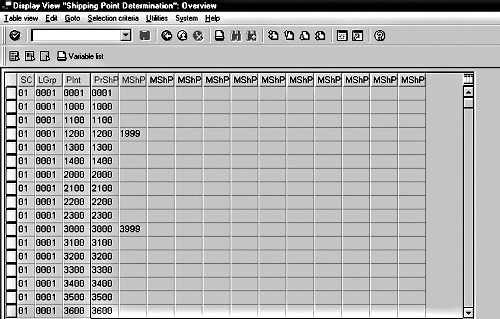
Figure 1
Shipping point determination configuration table (SC = shipping conditions LGrp = loading group, Plnt = plant, PrShP = proposed shipping point, MShP = manual shipping point)

Figure 2
Route determination configuration table (SC = shipping conditions, TGroup = transportation group)
Business Requirements and Current Restrictions
When the plants involved in a stock transfer belong to the same or different company codes,
1 any of the following conventional methods could be used to transfer the stock:
- Transfer the stock between plants in one or two steps
- Carry out a stock transport order without the delivery function
- Carry out a stock transport order with the delivery function via shipping
- Carry out the stock transport order with delivery and billing document/invoice
A requirement to expedite the sourcing and shipment of material can be associated with the standard stock transport order process. For example, you might want to manage the shipment or deliveries and transportation separately through a related shipping parameter such as the timing of the delivery note creation, shipment prioritization, and route and shipping point determinations. However, R/3 does not allow you to enter or modify this data once it has been created in the system. Initiating an order expedite at this point requires offline micro-management, where the material planning or sourcing department must inform the shipping department what needs to be done.
To review the standard process to create a stock transport order, you enter data in the fields shown in
Figure 3 (menu path
Logistics>Materials Management> Purchasing>Purchase Order>Create>Stock Transfer, or transaction code
ME27). Then, enter the material number, PO quantity, and plant in the Create Purchase Order: Item Overview screen. At this point, the listed items become grayed out and, therefore, unchangeable (
Figure 4). If you select the item and go to
Item>More Functions>Shipping Data, you see the Purchase order-Shipping Data screen (
Figure 5) that shows the data fields for
Shipping Point, Delivery Priority, Shipping Condition, Loading Group, Transportation Group, and
Route. See
Table 1 below for an explanation of these fields.
Figure 6 outlines the process and information flows.
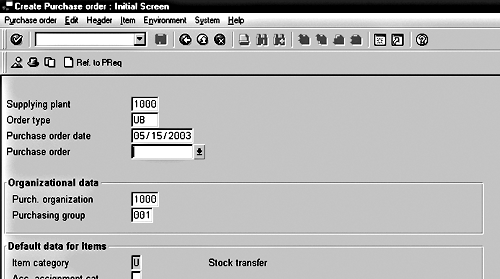
Figure 3
Enter data in these fields to begin creation of a stock transport order
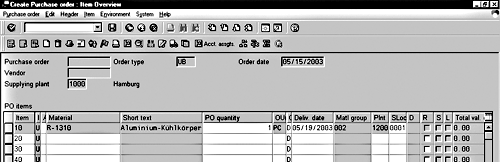
Figure 4
Once you've entered material number, PO quantity, and plant, the listed items become unchangeable

Figure 5
Stock transport order data fields
| Shipping Point |
The configuration table TVSTZ, accessed through transaction code OVL2. The key determining parameters are Shipping Condition, Loading Group, and Plant. |
The location from which the goods are shipped out |
The data in the Shipping point field of the Shipping section (Purchase order: Shipping Data, Item screen) is the proposed shipping point. The table contains other shipping points that you can alter or enter manually. |
| Delivery Priority |
Default from the customer master table KNVV |
Use as one of the selection
criteria while processing
deliveries |
Delivery Priority codes (to be used for master data and transactional data) are set up in configuration table TPRIO, which can be accessed through transaction code OVSD. |
| Shipping Conditions |
Default from the customer master table KNVV |
Shipping strategy for delivery of goods to the customer, which in turn drives the route |
Shipping Conditions codes (used for master data and copied to transactional data) are set up in
configuration table TVSB, which can be accessed through transaction code OVSF. |
| Loading Group |
Default from the material master table MARC |
To group materials that have the same loading requirements |
Loading Group codes (used for master data and copied to transactional data) are set up in configuration table TLGR, which can be accessed through transaction code OVSX. |
| Transportation Group |
Default from the material master table MARA |
A grouping of materials that share the same route and transportation requirement |
Transportation Group codes (used for master data and copied to trans-actional data) are set up in configuration table TTGR, which can be accessed through transaction code ME23. |
| Route |
The configuration table/views V_TROLZ, V_TROLZ01, and V_TROLZ02 can be accessed through transaction code SPRO and by following the menu path Logistics Execution> Shipping>Basic Shipping Function>Routes>Route Determination>Maintain route determination. The key determining parameters are Departure Country, Departure Zone, Destination Country, Transportation Zone, and at a sublevel, Shipping Conditions, Transportation Group, and Weight Group for actual route. |
Route by which shipment reaches the customer |
Receiving plant is mapped to Customer NoPlant (customer number of the plant in the configuration table T002W), which in turn signifies the Ship-To data. Customer number of the receiving plant is the default from table T001W. Transportation Zone is the default from the customer master table KNA1, based on the above Ship-To data. |
|
| Table 1 |
Stock transport order data fields |
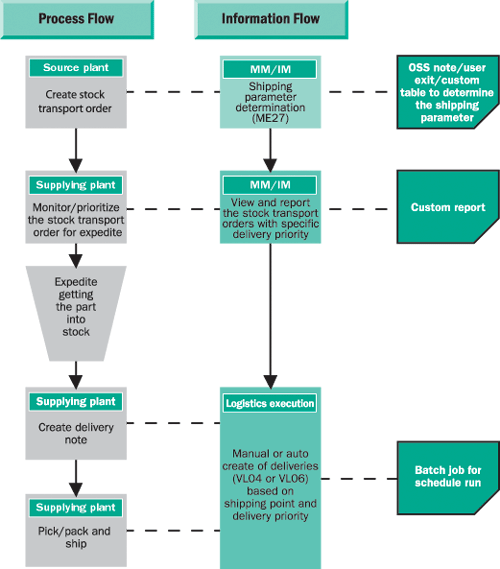
Figure 6
Stock transport order process and information flows for handling exceptions in MM
Proposed Solution
In general, the standard R/3 components of stock transfers executed with a stock transport order are:
- Purchasing for entering the order
- Shipping for making the delivery from the issuing plant
- IM for goods receipt in the receiving plant
Inventory availability can trigger the shipment for stock transport orders. The creation of a delivery note, which in turn triggers the follow-on shipment and transportation function, can be triggered by the stock available in the system. For expedited orders, you want to manage the delivery creation, shipment, and transportation for faster response.
By manipulating a standard user exit, you can control the creation of the delivery and influence the shipment and transportation functions through the shipping parameters shown in Figure 5. Specifically, you can manage or automate delivery creation through the
Shipping point parameter, and the follow-on shipping and transportation process can then be managed accordingly.
For example, you can schedule delivery-note creation based on the
Shipping point parameter, using a predefined frequency through transaction code
VL04 (menu path
Logistics>Logistics Execution> Shipping>Outbound Delivery>Worklist>Order>Purchase Order>Direct Processing or Background). This brings you to the Sales order/purchase orders worklist screen (
Figure 7). Here, you can enter selection parameters for purchase orders or stock transport orders. The associated routes can be determined based on the
Shipping point. The major delivery monitoring functions (picking, confirmation, loading, goods issue, and transportation planning) are driven by the value in the
Shipping point field, as shown in
Figure 8, the Delivery Monitor screen (transaction code
VL06).
Transport orders that need to be expedited must also be identified and separated from the regular process to facilitate the handling of these transactions separately. You do this through the
Delivery priority field in the Customers: Delivery Priorities screen (
Figure 9) to differentiate expedited from regular orders. Set
Delivery priority through transaction code
OVSD.
Before the stock transport order is initiated, the requestor or the initiator needs to know if it is an expedited order so that he or she can determine the shipping parameters during transport order creation. This ensures that the plant sourcing the material has the information needed. This parameter can in turn determine how the required fields in the relevant area (Shipping point and Delivery priority) are populated. This is done through the user exit, triggered by purchasing order data in the stock transport order creation.
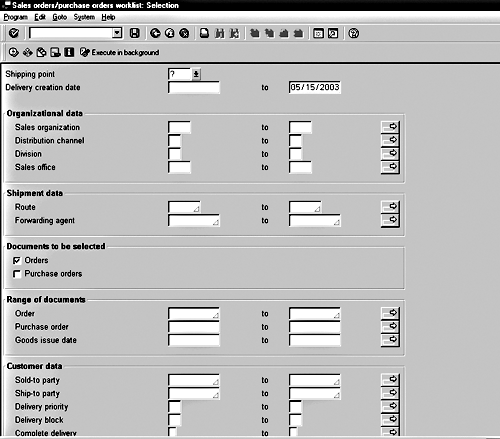
Figure 7
Sales order/purchase orders worklist screen
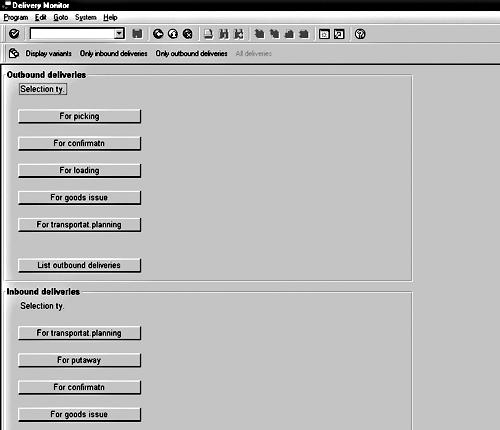
Figure 8
Delivery Monitor screen
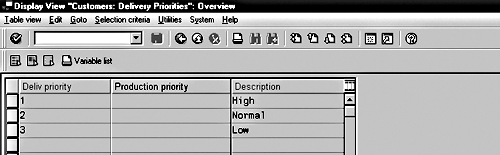
Figure 8
Set delivery priority through transaction code OVSD
Creating the User Exit
As SAP note 303453 suggests, you can influence the shipping-data determination via the user exit FORM routine ZZ_SHIPPING_DATA_DETERMINE. You might also have to apply SAP note 447250, which makes a correction in the standard transfer order creation program function module, SD_TRANSFERDATA_DETERMINE. This correction enables the standard SAP functionality to determine shipping information during the creation of the transport order.
Using these two SAP notes, you can build the logic for the user exit for the stock transport order creation program to determine shipping point information based on a custom Z-table. The default information determined by the transport order creation program can be over-written by the shipping information derived by this logic in the user exit.
Use transaction code
SE11 (menu path
Tools>ABAP Workbench) to create the Z-table. Click on the
Dictionary button, and then build the table with the following fields (the fields may vary based on your business requirements):
| EKGRP |
Purchasing group |
| RESWK |
Supplying plant |
| VSTEL |
Shipping point |
| LPRIO |
Delivery priority |
| VSBED |
Shipping condition |
The creation of a transport order for a supplying plant along with a purchasing group derives the appropriate shipping point, delivery priority, and shipping condition from the Z-table. The shipping condition, in turn, determines the relevant route based on the configuration explained above. The purchasing group is the input parameter for the stock transport order creation, as explained earlier (Figure 2), and thus can be used to determine the shipping data based on the mapping maintained in the custom table.
Table 2 shows how the data in the Z-table might look.
The shipping point defines the location from which the materials or goods leave or are shipped out. The delivery priority distinguishes this order as expedited rather than a regular stock transfer order. Finally, the shipping condition determines the routes.
The creation of the delivery can be either managed manually or automated. To automate it, you need to create a batch job to run transaction code
VL04 (program RV50BT1) based on the predefined frequency and parameter (
Shipping point). To create this batch job, follow the menu path
Logistics>Logistics Execution>Shipping>Outbound Delivery>Worklist>Order> Purchase Order>Background (or use transaction code
VL12). Click on
Create Variant, and then select a name in the pop-up window and click on the
Create button. This takes you to the Maintain Variant: Report RV50SBT1, Variant Name screen. Enter the required parameters —
Shipping point is mandatory — and click on
Continue. Enter a description and choose the selection variables, as needed, and click on
Save.
To schedule the batch job, follow menu path
System>Services>Jobs>Define Job (or use transaction code
SM36). Enter the job name, the job class based on priority, and the host name and spool recipient, if any (
Figure 10). Click on
Steps to enter the details for the user log-on. Click on the ABAP program icon. Select program RV50SBT1 and the variant that you created prior to this step. Select the appropriate language, and click on the save icon. Go back by clicking on the green arrow and save. Click on the start date icon in the top left. Select the appropriate option for the schedule run and click on the save icon. Save it again before using the back arrow, as all the information will not have been saved the first time. You can use transaction code
SM37 (menu path
System>Services>Jobs>JobOverview) to monitor the job.

Figure 10
Enter the data to schedule a batch job
| 3001 |
4000 |
6001 |
1 |
88 |
| 3002 |
4000 |
6002 |
2 |
89 |
| 3003 |
4000 |
6001 |
3 |
87 |
| 3004 |
4000 |
6002 |
2 |
85 |
| 7001 |
9000 |
9001 |
1 |
99 |
The purchase document category for stock transfers between plants with different company codes is NB. It is UB for transfers between plants with the same company code.
Rajen Iyer
Rajen Iyer is the cofounder and CTO at Krypt, Inc. Rajen has written several in-depth, best practice articles, white papers, patents, and best-selling books on SAP Logistics and SAP Global Trade Services, including
Effective SAP SD and
Implementing SAP BusinessObjects Global Trade Services. He is also an invited speaker at industry conferences.
You may contact the author at
Rajen@kryptinc.com.
If you have comments about this article or publication, or would like to submit an article idea, please contact the
editor.