Find out how to create a customized document splitting method with extended document splitting rules to meet business needs.
Key Concept
Document splitting is a new feature in the new General Ledger that enables you to create balanced financial statements for entities such as profit centers and segments. The predefined splitting method covers the majority of business scenarios but some cases still require you to go beyond the standard splitting functions. With document splitting activated, the system splits accounting line items according to splitting rules.
Document splitting in the new General Ledger (new G/L) allows you to create balanced financial statements at different levels, is document splitting. With this new functionality, the SAP system contains predelivered functionality that handles most business scenarios. In some cases though, you need to customize the process. I’ll show you such a scenario and then take you briefly through the basics of document splitting. I’ll also explain a four-step process to customize extended document splitting rules in your system.
First let’s consider an example that requires out-of-the-box splitting functions, such as an incoming miscellaneous payment that you book to two expense accounts with two profit center assignments. You have yet to identify a portion of the payment. Some companies use a balance sheet account to temporarily hold the portion of the cash that is not applied instead of using a cash account. The initial entry is shown in Table 1.
| Cr |
50 |
PC-2 |
Office supplies expense |
100 |
| Cr |
50 |
PC-1 |
Postage expense |
100 |
| Cr |
40 |
?? |
Balance sheet clearing (unapplied portion) |
100 |
| Dr |
40 |
?? |
Cash |
300 |
|
| Table 1 |
Incoming cash payment — the entry view |
In this example, the expense accounts serve as base item categories. To correctly split the balance sheet line item with the appropriate profit center assignment, the balance sheet clearing account needs a rule to derive a profit center from the expense line items. The new G/L view of this posting is shown in Table 2.
| Cr |
50 |
PC-1 |
Office supplies expense |
100 |
| Cr |
50 |
PC-2 |
Postage expense |
100 |
| Cr |
50 |
PC-1 |
Balance sheet clearing (unapplied portion) |
50 |
| Cr |
50 |
PC-2 |
Balance sheet clearing (unapplied portion) |
50 |
| Dr |
40 |
PC-1 |
Cash |
150 |
| Dr |
40 |
PC-2 |
Cash |
150 |
|
| Table 2 |
Incoming cash payment — the new G/L view |
However, in the standard splitting method 0000000012, no rule is set up for balance sheet accounts to derive a profit center from the expense item category. In the simulation of the new G/L view, you can see that the system has not properly populated the profit center (Figure 1). The posting fails if Profit Center is a mandatory field and results in an error message that states, in this example, Balancing field “Profit Center” in line item 003 not filled.

Figure 9
The system does not populate the Profit Center field
Document Splitting Basics
Before jumping to the customization of the extended splitting function, I will explain some important concepts for document splitting using the example above.
- Business transaction: The SAP system provides and assigns a general breakdown of actual business processes to a variety of item categories. Note that the system does not allow you to create customized business transactions. Here is a list of pre-defined business transactions:
- 0000 Unspecified posting
- 0100 Transfer posting from P&L to B/S account
- 0200 Customer invoice
- 0300 Vendor invoice
- 0400 Bank account statement
- 0500 Advance tax return (regular tax burden)
- 0600 Goods receipt for purchase order
- 1000 Payments
- 1010 Clearing transactions (account maintenance)
- 1020 Resetting cleared items
- Business transaction variant: This is a specific version of the predefined business transaction provided by SAP and the modeling of a real business pro- cess for document splitting. An example is variant 0001, which represents Standard for payments. You have to assign every document type that you use to a single combination of a business transaction and a variant.
- Item category: An item category is a map of the posted item and describes the items that appear within a document. You need to assign every new G/L account in your chart of accounts to an item category. You should also note that your SAP system does not allow you to create customized item categories. Here is a list of standard item categories:
- 01000 Balance sheet account
- 01001 Zero-balance posting (free balancing units)
- 01100 Company code clearing
- 01300 Cash discount clearing
- 02000 Customer
- 02100 Customer: special G/L transaction
- 03000 Vendor
- 03100 Vendor: special G/L transaction
- 04000 Cash account
- 05100 Taxes on sales/purchases
- 05200 Withholding tax
- 06000 Material
- 07000 Fixed assets
- 20000 Expense
- 30000 Revenue
- 40100 Cash discount (expense/ revenue/loss)
- 40200 Exchange rate difference
- 80000 Customer-specific item category
- Splitting rule: This defines which item categories you can split and what foundation (i.e., base item categories) you can use
- Splitting method: The splitting method is a collection of the business transactions’ splitting rules
Figure 2 shows how to derive the profit centers on the balance sheet clearing line from the expense lines. You assign document type ZS (for incoming miscellaneous payments) to business transaction 1000 (for payments) and business transaction variant 0001 (which is standard). You then assign balance sheet clearing account 120102 to item category 01000 and accounts 644010 and 624020 to item category 20000 (for expenses).

Figure 2
Splitting rule needed for incoming miscellaneous payments
To derive the profit center on a balance sheet clearing account from expense accounts, you must set up a rule to allow item category Balance Sheet Account to derive the profit center from item category Expense. However, the standard splitting method doesn’t provide such a rule. Next, I’ll explain the steps to customize the extended splitting that you need in this scenario.
Customize Extended Document Splitting
In the following activities, I will explain the settings necessary to build up the new splitting rule for an incoming miscellaneous payment. You can find the configuration for extended document splitting by following menu path IMG > Financial Accounting (New) > General Ledger Accounting (New) > Business Transactions > Document Splitting > Extended Document Splitting. You can execute the following four steps to customize the extended document splitting.
Step 1. Define business transaction variants. A business transaction defines exactly the item categories to which you can book. The SAP system does not allow you to define your own business transaction. With a business transaction variant, you can restrict the business transaction by excluding further item categories from those permitted. For each business transaction variant, you define the rule the way that you want to split the document. In my example, I create a new business transaction variant 0002 for business transaction 1000 (Figure 3).
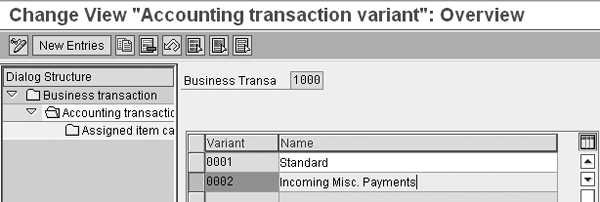
Figure 3
Define the business transaction variant
You can restrict item categories further with the new business transaction variant by activating or deactivating the following indicators.
- Forbidd.: The item category is not permitted if the indicator is checked
- Required: The item category is required if the indicator is checked. The system issues an error message if the item category does not exist in the document.
- Only once: You can only use the item category once if this indicator is checked. You can’t post a document of this business transaction if the item category exists more than once.
Step 2. Classify document types for document splitting. The system analyzes every business transaction that you enter during the document splitting process. In this process, the system determines which splitting rule it applies to the document. So that the system can determine the splitting rule, you must assign a business transaction variant to each document type. In my example, the system assigns document type ZS for an incoming miscellaneous payment to business transaction 1000 and the new business transaction variant 0002 for Incoming Misc. Payments (Figure 4). To classify document types for document splitting, follow menu path IMG > Financial Accounting (New) > General Ledger Accounting (New) > Business Transactions > Document Splitting > Classify Document Types for Document Splitting.

Figure 4
Assign the document type to the business transaction variant
Step 3. Define the document splitting method. Before you can define any new splitting rule, you have to define a new document splitting method. SAP recommends that you copy the delivered settings to the splitting method that you define and then make changes to those settings. In my example, the system copies splitting method Z000000012 from standard method 0000000012 (Figure 5). To define the document splitting method, follow menu path IMG > Financial Accounting (New) > General Ledger Accounting (New) > Business Transactions > Document Splitting > Extended Document Splitting > Define Document Splitting Method.

Figure 5
Define the document splitting method
Step 4. Define the document splitting rule. You need to define the splitting rule at the splitting method, business transaction, or business transaction variant level. If you want to enhance the standard rule without disabling the existing setting, you can copy from the standard rule. If you want to create a brand new rule for a specific posting scenario, I recommend you define its own item categories and base item categories without using the copy function, because you can specifically design the splitting rule for the scenario. In my example, I copy the splitting rule from standard variant 0001 to the new variant 0002 (Figure 6). To define the document splitting rule, follow menu path IMG > Financial Accounting (New) > General Ledger Accounting (New) > Business Transactions > Document Splitting > Extended Document Splitting > Define Document Splitting Rule.
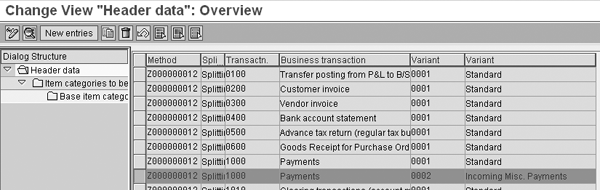
Figure 6
Define the splitting rule
Next, you need to define the item category that you’re splitting. In my example, you add item category 01000 (Balance Sheet Account) (Figure 7). You can reach the screen by navigating through the tree on the left side of the screen.
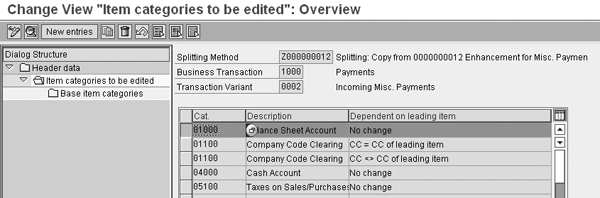
Figure 17
Add the item category that you are splitting
To enable item category 01000 (Balance Sheet Account), deriving the profit center from the item category Expense, add item category Expense as the base item category to category Balance Sheet Account (Figure 8). You can reach the screen by navigating through the tree on the left side of the screen.

Figure 8
Add the base item category
Now that you’ve set up the new splitting, repost the journal. The Profit Center field is now correctly populated on the balance sheet clearing lines (Figure 9).
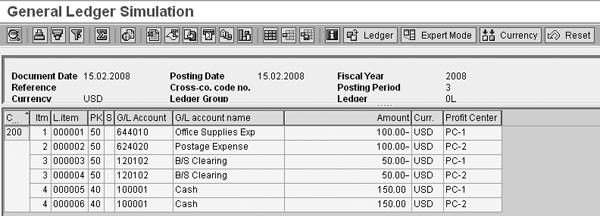
Figure 9
The Profit Center field is now correctly populated
Yu (Kathy) Zhao
Yu (Kathy) Zhao is a senior consultant at Deloitte Consulting LLP, USA. She has six years of experience in an SAP functional role and works primarily with FI/CO.
You may contact the author at kathy.yu.zhao@gmail.com.
If you have comments about this article or publication, or would like to submit an article idea, please contact the editor.