2 minute read

Meet the Authors
Key Takeaways
What you need to know
SAP MDG data masking with UI Data Protection Masking hides vendor bank accounts from users without an authorized role.
Attribute-based access control masks tax numbers only when the vendor is a natural person, keeping corporate tax data visible.
Licensing, components, SAP Notes, and system parameters need to be in place before MDG masking policies work as expected.
Vendor master data is one of the most sensitive data sets in any SAP landscape. Bank account numbers can enable payment fraud, and tax numbers can identify individuals. Many organizations use SAP Master Data Governance (MDG) to centralize vendor creation and change, which means many people see this data every day.
Restricting who can edit vendor data is well understood. Controlling who can see it is harder. This article shows how we used SAP’s UI Data Protection Masking to hide sensitive vendor fields in MDG, and how one design choice let us apply different rules to different types of vendors.
Why This Matters
The risk is measurable. IBM’s Cost of a Data Breach Report 2026, based on research with Ponemon Institute, puts the global average cost of a breach at $4.99 million, a 12% increase and a record high. On the fraud side, the Association for Financial Professionals’ 2026 Payments Fraud and Control Survey found that 76% of US organizations experienced attempted or actual payments fraud in 2025, and 74% were affected by business email compromise, where criminals impersonate vendors to redirect payments.
Explore related questions
Ask SAPi
Vendor bank details sit at the center of that threat. Every person who can see them without a business need adds to the exposure.
The Business Requirement
Our requirement had two parts:
- Bank account numbers must be masked for every vendor.
- Tax numbers must be masked only when the vendor is a natural person (an individual rather than a company).
In both cases, only users with a specific authorized role should see the real values. Everyone else sees masked characters.
The tax number rule made this interesting. Hiding the field for everyone would have been easy, but it would also have hidden tax numbers for corporate vendors, where the data is not personal and colleagues often need it. We needed masking that responds to the content of the record, not just the user.
Two Methods, One Solution
UI Data Protection Masking supports two authorization approaches:
- Role-based access control (RBAC) decides what you can see based on the roles assigned to you. It is simple and familiar to every SAP security team.
- Attribute-based access control (ABAC) decides based on attributes of the data itself, such as whether a business partner is flagged as a natural person.
Our requirement needed both. RBAC answers “is this user authorized to see sensitive data?” ABAC answers “is this particular vendor record one where the data is sensitive?” Together they gave us precise masking rather than a blunt instrument.
What to Have in Place First
Before configuring anything, confirm these prerequisites:
- A valid license. UI masking is a licensed capability.
- Required components installed: UIDP-100 and UIDPUI5-100.
- Relevant SAP Notes implemented: 3136107 and 2688045.
- Two system parameters enabled: abap/advanced_listmasking = 1 and dynp/usrmasking = ALL.
Skipping these is the most common reason masking doesn’t behave as expected, so verify them early with your Basis team.
How We Built It
The configuration follows a logical sequence:
- Switch on the framework. We maintained the global settings for UI data protection masking, then defined the package and namespace where masking policies would be created.
- Define what is sensitive. The solution uses “logical attributes,” business-friendly labels for the data you want to protect. We created one for the bank account and one for the tax number, then mapped each to the screen fields and database tables behind it. SAP’s UI trace tool records which Web Dynpro fields and tables appear on a screen, so you don’t have to hunt for them manually. We also created separate attributes for direct table viewing in SE16, so the data isn’t exposed through a back door.
- Add context. This step made the natural person rule possible. We added context attributes, one representing the business partner, and one acting as a flag that identifies whether the vendor is a natural person. A context attribute tells the system under what circumstances a sensitive field should be protected.
- Write the policies. We created four ABAC policies that combine the sensitive fields, the context, and the conditions for masking, with the logic defined in the ABAC Policy Cockpit. Finally, we built a PFCG role that grants access to unmasked values. Users with this role see real data, and everyone else sees masked data.
The Result
The behavior now matches the requirement:
- When the vendor is a natural person, both the bank account and the tax number are masked.
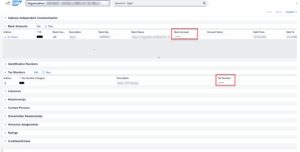
- When the vendor is not a natural person, the bank account is masked but the tax number stays visible.
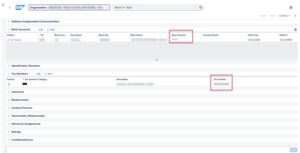
Authorized users with the UI Data masking role see full values in every case. The rules apply within the MDG user interface, so protection is enforced where people actually work.
Authorized users with the UI Data masking role see full values in every case. The rules apply within the MDG user interface, so protection is enforced where people actually work.
Lessons Learned
- Design the context first. The natural person flag is the piece everything else depends on. Agree on how it is determined before building policies.
- Use the trace tool. It saves time and reduces the risk of missing a field.
- Cover the side doors. Masking a Web Dynpro or Fiori app screen but not SE16 leaves a gap.
- Keep the unmasked role small. Masking is only as strong as the list of people who can bypass it.
Key Takeaways
- Combine RBAC and ABAC when rules depend on the data. Roles tell you who the user is, but attributes tell you what the record is. If masking should differ by vendor type, you need both.
- Confirm licensing and prerequisites before you design. UI masking requires a license, specific components, SAP Notes, and system parameters. Verifying these up front avoids rework.
- Mask by data sensitivity, not just by field. Masking a field for everyone is easy but often too restrictive. Context attributes protect personal data while keeping business data available to those who need it.
- Protect every access path. Cover direct table access such as SE16 alongside the MDG screens so masked data can’t be seen through another route.
More Resources
See All Related Content

Is Your Data Business-Ready?At the upcoming Mastering SAP Collaborate event in November 2026, Syniti emphasizes the critical importance of data quality and trust within Australian businesses as they transition to SAP S/4HANA, advocating for a comprehensive approach to data management that aligns with AI adoption.
5 minute read


Embracing the Big Three of Autonomous Enterprise: Governance, Orchestration, and Cost ControlAgentic AI can act across SAP business processes only when governance, orchestration, and cost control are in place. Charles Crouchman of Redwood Software explains how enterprises can move quickly without losing control.
3 minute read