See how to use Web Dynpro ABAP with your SAP E-Recruiting component without depending too heavily on technical skills. Configure the start page and different services for internal and external candidates, and adapt your configuration to other Web Dynpro ABAP applications offered in SAP enhancement package 4.
Key Concept
One of the advantages of using a Business Server Page or a Web Dynpro ABAP application is that it provides users with a Web front end. This front end allows you to launch SAP applications, such as SAP E-Recruiting, in a Web browser. This makes the process of carrying out business transactions easier and more intuitive. It replaces the need to log into SAP GUI and remember transaction codes to complete transactions.
As of SAP E-Recruiting 600 SP08, SAP has provided the option to develop user interfaces for candidate scenarios using Web Dynpro ABAP. Candidate scenarios include activities such as maintaining profiles and job searches, applying for jobs, or saving favorites. From an SAP E-Recruiting perspective, there are certain key advantages in using Web Dynpro ABAP. These include:
- It’s the latest UI technology that other areas of SAP E-Recruiting are adopting. For example, as of SAP enhancement package 4, Web Dynpro ABAP replaces the UI for recruiter’s desktop.
- Enhanced security because you can separate the front end and the back end and run them on separate systems. This allows you to keep the front end outside of the company firewall, but the back end can be safe behind the firewall.
- The ability to design and use different application forms or application wizards
- Functionality to highlight recent jobs or those that need to be filled as quickly as possible
- Candidates can forward an interesting job posting — found by using the search — to other people
- Allowing candidates to receive information regularly and automatically about employment opportunities that meet the search criteria that they previously defined
Technically, Web Dynpro ABAP makes it easier for functional consultants and application support personnel with limited programming language to easily adapt applications. These adaptations include:
- Changing the order in which the different steps appear for a candidate while maintaining a profile or applying for a job (referred to as the Candidate Profile and Application Wizard in SAP E-Recruiting
- Hiding or enabling certain fields, delivered as standard. You can also make certain fields mandatory.
- Removing standard SAP branding such as its logo
- Changing field labels and text accompanying certain steps
- Improving user experience, and making it more meaningful and specific to an organization’s recruitment process
Up until SAP enhancement package 3, only candidate scenarios (external and internal candidates) were available in Web Dynpro ABAP. With SAP enhancement package 4, Web Dynpro ABAP replaces Business Server Pages (BSPs) or all roles, including recruiters.
Candidate Start Page
Figure 1 shows what a start page looks like for a candidate using Web Dynpro ABAP. The start page is the landing page that provides users with access to different services and links. Access to links is structured in tiers as Level 1 and Level 2. You can customize the tabs that define the First Level or the entries that appear in the Second Level. You can also create your own Level 1 entries. Whether the overview screen is displayed as shown here is something you can control via configuration.

Figure 1
A standard start page for candidates
Note
If you are new to Web Dynpro ABAP or planning to work with it, then I strongly recommend you go through the
SAP tutorial. It provides insight into the structure and use of Web Dynpro ABAP.
You may be wondering why you need to create a new Web Dynpro ABAP application in addition to what SAP has already delivered. It’s necessary because standard delivery may not meet your complete business requirements. For example, most companies collect names from candidates for reference checks. As most people in the recruitment function agree, reference check forms are an integral step in the hiring process. The standard SAP system does not meet this requirement because the standard application form (application wizard) lacks a step for the candidates to provide references. Therefore, if you want to use the system to capture references, you need workarounds – a simple Web Dynpro ABAP page is a good solution. You can insert it in the application form so that a candidate can supply suitable references.
Configuration of Web Dynpro ABAP Components
As opposed to the configuration carried out in the IMG, you can carry out configuration of Web Dynpro ABAP components and applications using transaction SE80. This ability provides a lot of flexibility in tailoring the candidate screens based on user requirements. It also does away with the need for development work.
The standard package PAOC_RCF_UI_SELF_SERVICES delivers various Web Dynpro ABAP components that are used to define the candidate start page. You can select this package from transaction SE80. Figure 2 shows the components in this package including personal details, education, and work experience.

Figure 2
Access Web Dynpro components/application
Here is an example of a Web Dynpro ABAP component. The Personal Data screen (Figure 3) is based on the Web Dynpro component HRRCF_C_PERSONL_DATA_UI. Personal data is used to capture information such as name, address, and communication details of a candidate. This screen appears when candidates maintain their profile in the Candidate Profile tab or when they apply for a job posting in the application wizard. To get there, you need to access your internal or external portal. Internal candidates or employees within the organization can access the job posting on their internal portal whereas external candidates access job opportunities through the external Web site.

Figure 3
Candidate profile roadmap
The fields under Personal Data in Figure 3 are based on a layout defined within the Web Dynpro Component for Personal Data. You can see the layout of the screen by selecting the view VW_PERSONALDATA contained in this component. All the fields and texts contained in this screen are placed in a hierarchy under the ROOTUIELEMENTCONTAINER. To alter the screen, you can create a configuration for the Web Dynpro ABAP component.
To start configuration, select the Web Dynpro ABAP component and right-click it. Select the option Create/Change configuration, which opens up a browser window (Figure 4). The component name is automatically populated in the window. Think of a name for the configuration ID, such as ZHRRCF. (I recommend that you follow a uniform naming convention.) Click the Create button on the screen. A new pop-up screen opens where you can give a meaningful description and a package name before saving your configuration. Alternatively, you can also save your changes by selecting the button Local object button. Your changes will not be transported if you save it against a local object. As a best practice, you should save these changes under a custom package rather than the standard package (e.g., PAOC_RCF_UI_SELF_SERVICES). This prevents a future upgrade from overwriting the changes.
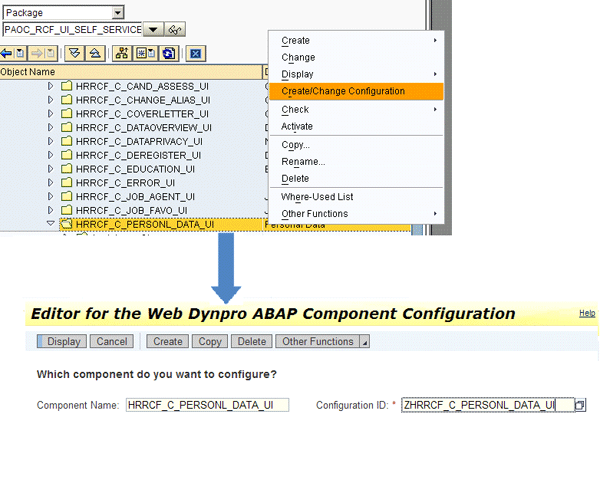
Figure 4
Create a new configuration
Once you have created a configuration ID, you then need to refresh the screen. The configuration appears under a new node called Component Configurations below the component. Double-click the newly created configuration ID to select the component for configuration. Then click the Start Configurator button in the Tool area of the object navigator to start the configuration. No particular authorization is needed. You can now carry out the configuration per your requirements. Likewise, you can create different configurations for all components where the standard does not meet your requirement.
Typical configuration activities include hiding certain fields, making them mandatory, or changing field labels. As shown in Figure 5, you can make a field invisible by selecting the radio button or you can amend the text in the text field. Using configurations you can create a different version of the personal data screen or any other component you want to use.

Figure 5
Configuration changes to Web Dynpro ABAP component
You can also add fields to your view; however, make sure you do it in an enhancement. To create an enhancement for a Web Dynpro ABAP component, select the component and go to the Web Dynpro ABAP Component menu option. Select the Enhance sub tab under it. A new pop-up window should appear where you can create your enhancement and give it a brief description. The system saves enhancements against a transport request that are not overwritten during upgrades. This means that any configuration done in SAP is saved as a customizing or a workbench request. The system then automatically creates an enhancement implementation for this component. Use this enhancement to make changes to your component.
Configuration of a Web Dynpro ABAP Application
You can create a configuration ID for a Web Dynpro ABAP application in the same manner as you create a configuration ID for a Web Dynpro ABAP component. Simply right-click and select the Change/Create configuration menu option. A browser window with the pre-populated application name should open. Name the configuration and click the Create function, then the Save button. Figure 6 illustrates the steps involved in application configuration.

Figure 6
Configuration changes to Web Dynpro ABAP component
The newly created configuration appears as a sub node under the Web Dynpro Application for which it has been created. Figure 7 shows how the newly created configuration Z_APPWIZ_EXT_VN, appears under the Web Dynpro Application - HRRCF_A_REG_APPLWIZARD_EXT.

Figure 7
Object Navigator displaying configuration IDs created for Web Dynpro Application
Example of Web Dynpro Application Configuration
Let’s say you have two different application forms for your candidates based on job type – one for apprentices and one for experienced professionals. You would like to record the work experience details differently for each category on these forms. First, you must create two variants (configuration IDs) of the Web Dynpro component that represent work experience. Then you have to call these variants in the configuration IDs of the application wizard to generate separate application forms. Therefore, you create configurations for the component and the applications required.
The Web Dynpro ABAP application HRRCF_A_REG_APPLWIZARD_EXT (Figure 7) is used to control the application wizard for external candidates. The application wizard simulates the activity of filling up an application form and takes candidates through different steps, such as Personal Details, Education, Work Experience, and Qualification, before they can submit their application for a job. Each of these steps has a related Web Dynpro ABAP component in the background. Z_APPWIZ_EXT_VN is a configuration ID created for the Web Dynpro ABAP Application HRRCF_A_REG_APPLWIZARD_EXT. Once you create a configuration ID, click the Start Configurator button in the Tool Area in order to start configuration.
The configuration opens in a new browser window, where you can assign the appropriate configuration for the various components. This is assuming that you have already created the appropriate Web Dynpro ABAP component configurations per your requirements. The saved component configurations are available in the F4 help. Figure 8 shows how different configuration IDs, representing variations of the standard components, are mapped, resulting in a customer-defined version of the application wizard.

Figure 8
Assigning Web Dynpro Component configurations to Web Dynpro Application
In the example in Figure 8, I have defined variants of the Roadmap, Cover Letter, Education Details, and Personal data to be called in the application wizard. Once you have saved the configuration, you have created a customer-defined application wizard.
Web Dynpro ABAP provides a lot of flexibility to create as many variants for the Web Dynpro components and applications as required. Just remember to activate the application/view/controller every time you make any changes.
Simple Customizations
Now that you have customized the Web Dynpro ABAP applications individually, you need to define them in a customer-specific roadmap pattern so that they appear in the sequence as required. In this section, I explain the necessary steps to complete the configuration for the candidate start pages and the roadmap pattern.
Changing the Roadmap
A roadmap is a set of steps or screens that candidates go through while maintaining their profile or applying for a job using the application wizard (Figure 3). There are five standard roadmaps provided by SAP:
- Candidate Profile (External Candidate)
- Candidate Profile (Employee)
- Application Wizard (Registered Candidate)
- Application Wizard (Unregistered Candidate)
- Application Wizard (Employee)
If you would like to change the roadmap you can do this in three steps. I’ll explain this using the example of customizing a roadmap for an application wizard:
Step 1. Create a unique configuration ID for the component HRRCF_C_ROADMAP_UI (transaction SE80).
Step 2. Assign this configuration ID to the component HRRCF_C_ROADMAP_UI in the configuration of your application wizard using transaction SE80 (Figure 7).
Step 3. Assign the same unique configuration ID while creating the roadmap pattern in IMG menu path E-Recruitment > Technical Settings > User Interfaces > Flexibilization > Backend > Create Roadmap Pattern. You successfully created a roadmap pattern for the application wizard that you can use based on business requirements. The Business Add-In (BAdI) HRRCF00_DETERMINE_APPL_CONFIG is available to call different application wizards in different job postings.
By following these steps you can customize the roadmap for any of the five entries available to you. You can also call custom Web Dynpro ABAP components in the roadmap pattern.
Create a Start Page
Figure 1 shows the start page and how it is composed of Level 1 and Level 2 elements. You can define your own Level 1 and Level 2 entries. Once you have done that, follow these four steps. In this case, I’ll use the example of customizing a start page for external candidates.
Step 1. Create a configuration ID for the Web Dynpro ABAP component HRRCF_C_STARTPAGE using transaction SE80.
Step 2. Create a configuration ID for the Web Dynpro ABAP application HRRCF_A_STARTPAGE_EXT_CAND, which is the application for the external candidates start page, again using transaction SE80. (There is a separate start page for internal candidates.)
Step 3. Assign the configuration ID created in step 1 to the configuration variant created in step 2.
Step 4. Follow IMG menu path SAP E-Recruiting > Technical Settings > User Interfaces > Settings for User Interfaces with Web Dynpro ABAP > Candidate > Flexibilization > Backend > Start Pages > Define Start Pages. Select a Start page ID. Assign the configuration ID created in step 1. Define Level 1 and Level 2 entries, as appropriate.
The component configuration ID is the common parameter that links the Web Dynpro ABAP component to the configuration variant of the Web Dynpro ABAP application and the configuration of the start page in the IMG. What I described above is a simple example of using Web Dynpro ABAP for candidate scenarios. You can also use configuration to modify the theme and color. In addition to the candidate pages, the recruiter’s front end is available in Web Dynpro ABAP with SAP enhancement package 4. This provides increased options for customizing the Web Dynpro ABAP applications that support these views.
Vinay Naithani
Vinay Naithani is currently working with HCL-Axon as a managing consultant. He has more than seven years of experience working in SAP ERP HCM in areas such as payroll, personnel administration, performance appraisal, enterprise compensation management-recruiting and employee interaction center. He has worked on implementations, global rollouts, and support assignments providing consultancy in SAP ERP HCM. He enjoys learning about new areas of technology and the thrill associated with learning something new every day.
You may contact the author at vinaynaithani@gmail.com.
If you have comments about this article or publication, or would like to submit an article idea, please contact the editor.



 Premium